
Recover deleted/lost data from PC/Mac, HDD, USB, SD card and more.

18 Best Free Data Recovery Software for HDD, USB, SD Cards

Posted by Alvin Cantero to Data Recovery Apr 08, 2026
You deleted the wrong folder. The disk drive stopped showing up. The SD card came back blank after a shoot. Whatever happened, the file is gone, and you need it back. The frustrating part isn't losing the file. It's opening Google, searching free data recovery software and landing on a list of tools that all look the same. All claim to be free, and most of them hit you with a paywall the moment you try to actually save anything.
We wrote this guide because that experience is genuinely terrible. Every data restore software here has been looked at honestly. Free limits are stated upfront. Trade-offs are explained plainly. And if a tool is really just a demo with a "free" label slapped on it, we say so.
Guide List
The Truth About "Free" Data Recovery Software How We Pick the Best Free Data Recovery Software The 3 Actually Free Data Recovery Tools Worth Using Top 15 Freemium Data Recovery Tools for Windows, Mac, Linux How to Recover Deleted Files Which Free Data Recovery Software Is Actually Right for YouThe Truth About "Free" Data Recovery Software
Why So Many "Free" Tools Aren't Really Free
You search for free file recovery software. You download it. You scan your drive. And then - a paywall.
That's the most common frustration people run into. The word "free" gets used loosely in this space. Here's what it usually means in practice:
- Scan-only free - you can see your lost files, but you can't touch them without paying.
- 500MB cap - fine for a few documents, useless for anything bigger.
- 1GB or 2GB cap - enough to demo the product, not enough to actually help you.
- Feature-limited free - basic file types only, no RAW photos, no partition recovery.
- Time-limited trial - you have 30 days, then it stops working.
Most HD recovery tools on the market use one of these models. It's not dishonest exactly - but it's not what most people mean when they search for free data recovery software.
Is There Any Truly Free Unlimited Data Recovery Software?
Yes. But with real trade-offs.
People in the r/datarecovery community ask this constantly. The honest consensus: truly unlimited free options exist, but they're either old, command-line only, or built for technical users.
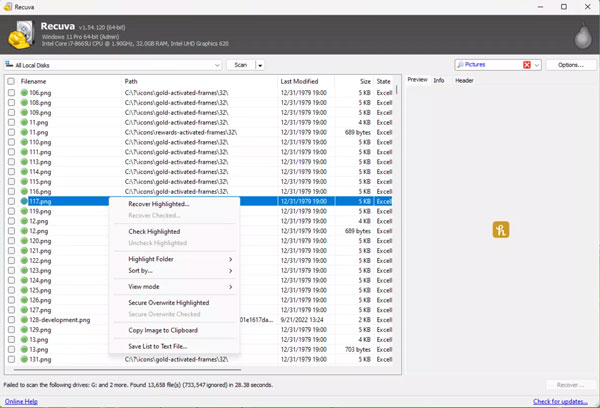
Recuva is the most recommended data recovery program. It's fully free with no recovery cap. The catch? It hasn't seen major updates in years. It still works for simple deleted file recovery on Windows. But don't count on it for complex cases like formatted drives or failing hardware.
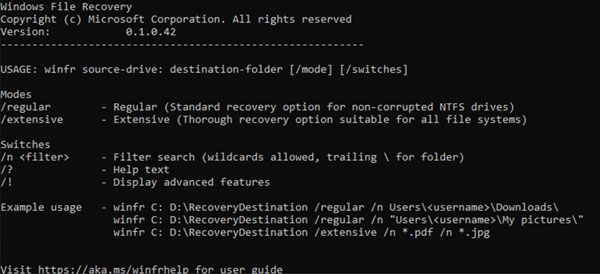
Windows File Recovery is Microsoft's own best free file recovery software for Windows. No limits, no cost. But there's no graphical interface. It's command-line only. If you're not comfortable typing commands, it's going to feel intimidating fast.
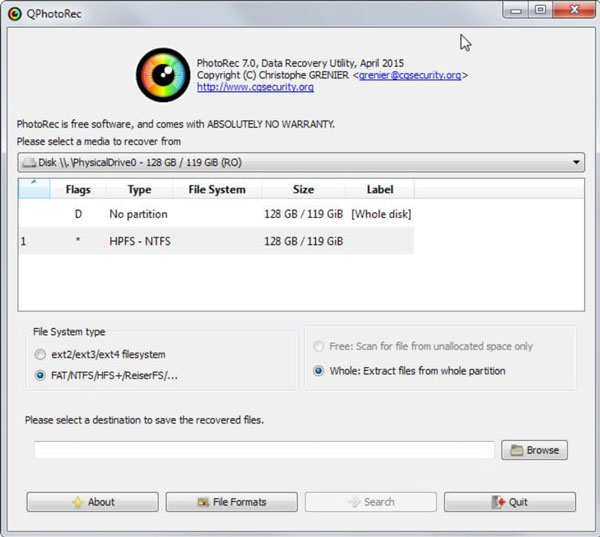
PhotoRec is an open-source and surprisingly powerful hard drive recovery tool. It can recover hundreds of file types from almost any storage device. The interface is barebones, and the name is misleading. It recovers way more than photos. But again, it's built for people who don't mind getting their hands dirty.
The key distinction to understand:
- "Free to scan" = you can see what's recoverable, but recovery costs money.
- "Free to recover unlimited" = Recuva, Windows File Recovery, PhotoRec.
- "Open-source" = free forever, community-maintained, no vendor lock-in.
If your lost files are under a couple of gigabytes and fairly recent deletions, the free drive recovery software above will likely do the job. If you're dealing with a formatted drive, corruption, or a large file recovery. That's where free data retrieval software usually hit their wall.
How We Pick the Best Free Data Recovery Software
Most "best of" lists just copy each other. We didn't do that.
Every disc recovery freeware in this list was tested against the same criteria. Here's exactly what we looked at and what disqualified a lot of popular names.
Free vs. Demo: We Drew a Hard Line
If a free file recovery tool lets you scan but locks recovery behind a paywall, it's a demo. Not free software. We flagged every data recovery freeware that does this upfront. Thus, you're not surprised three steps in. Only free data recovery software that recovers actual files without forcing a credit card.
Where a cap exists (500MB, 1GB, 2GB), we say so clearly. You deserve to know before you waste an hour scanning.
Does It Actually Work?
A free data rescue software that misses half your files isn't useful. We looked at real recovery rates across common scenarios, including accidental deletion, formatted drives, corrupted partitions, and emptied recycle bins. We also checked how each data recovery software handles file types (photos, documents, videos, and RAW formats).
Free data recovery programs that only handle basic file recovery in 2026 got ranked lower. Simple as that.
The #1 Rule Before You Do Anything Else
Stop using the drive immediately.
Every write operation (saving a file, installing the free data recovery software, even browsing the web) can overwrite the exact sectors your deleted files are sitting on. The moment you realize data is missing, stop. Don't install free data retrieval software on the same drive you're trying to recover from.
This one step makes the difference between a full recovery and permanent loss.
The 3 Actually Free Data Recovery Tools Worth Using
No trials. No paywalls. No "free to scan" tricks. These three good data recovery software will recover your files without asking for your credit card.
3.1 Recuva (Windows) – Best for Beginners
Developed by: Piriform (makers of CCleaner), now owned by Avast
Price: 100% free, no recovery size limit
Platform: Windows only
Quick verdict: An easy and free disk recovery tool for everyday users. Not perfect, but it gets the job done for simple cases - and it won't overwhelm you.
What it does well:
- Wizard mode walks you through everything step by step.
- The Deep Scan mode recovers files from formatted drives (TechRadar tested it at 76% recovery rate on a formatted drive).
- Shows file condition (Excellent / Poor) before you recover. So, you know what you're working with.
- Recommended by name across Reddit r/datarecovery, Mepis Forum, and Handy Recovery Community threads.
Where it falls short:
- Windows only. No Mac version exists.
- Owned by Avast - some users, especially in the EU, have privacy concerns worth knowing about.
- No major updates since 2024. Struggles with NVMe SSDs and modern file systems.
- Won't recover from RAW drives or APFS.
- Fails on severely corrupted or physically damaged drives.
Best for: Recently deleted files on an HDD or USB drive. Non-technical users who want a fast result.
One important note: Don't install Recuva on the same drive you're trying to recover from. Save it to a separate drive or USB stick.
3.2 PhotoRec + TestDisk (Windows / Mac / Linux) – Best Raw Power
Developed by: CGSecurity
Price: Open source, completely free, no limits
Platform: Windows, Mac, Linux
Latest version: v20.0.0 (2025)
Quick verdict: The PhotoRec and TestDisk programs can find files that other file data recovery software miss. But it takes more patience to use. Moreover, the recovered files usually come back without their original names.
Two tools, two jobs:
- TestDisk helps when a drive will not open. It can fix broken partitions and repair the boot sector, so the drive becomes usable again.
- PhotoRec looks for known file patterns on the disk. It can recover many types of files, not just photos.
What makes it worth the effort:
- Recovers files that paid tools sometimes miss, according to multiple forum users.
- Works on nearly every file system: NTFS, FAT, exFAT, HFS+, APFS, EXT4.
- Actively maintained and updated (unlike most free tools).
The honest trade-offs:
- TestDisk is command-line only. It looks intimidating, but the documentation is genuinely good.
- PhotoRec dumps everything into one folder with no original file names or folder structure. After a big recovery, you could be sorting through thousands of unnamed files.
- If the command line really puts you off, try qPhotoRec instead. It's the graphical version, recommended in the Handy Recovery Community thread.
A user in that same thread described trying PhotoRec first, getting the files back but completely unnamed, then using a paid hard drive file recovery software to sort and identify them. Worth knowing before you start.
Best for: Cross-platform users with large-scale recovery jobs, and anyone willing to spend 20 minutes reading the documentation for free data recovery.
3.3 Windows File Recovery (Windows 10/11) – Best for IT-Comfortable Users
Developed by: Microsoft
Price: Free (Microsoft Store download)
Platform: Windows 10 version 2004 or later only
Quick verdict: Legitimate, trustworthy, and genuinely free. But it's command-line only, and that's a dealbreaker for most people.
What you need to know:
- Two modes to recover from hard drives: Regular (for recently deleted files) and Extensive (deeper scan for older deletions and formatted drives).
- Works on NTFS and some FAT file systems.
- Won't help with Mac drives, Linux ext4, or anything outside Windows-native formats.
- No GUI whatsoever. Microsoft's own TechCommunity forum has threads full of users asking for one.
If the command line is a dealbreaker:
Try WinfrGUI. It is a free third-party wrapper that puts a proper graphical interface on top of Windows File Recovery. Same engine, much easier to use.
Best for: IT-comfortable Windows users, corporate environments, or anyone who specifically wants to avoid third-party software entirely.
Top 15 Freemium Data Recovery Tools for Windows, Mac, Linux
These programs for data recovery all have a free tier. Some are genuinely useful within their limits. Others are mostly demos with a small carrot attached. Here's an honest breakdown of all 15.
1. 4Easysoft Data Recovery (Windows / Mac)
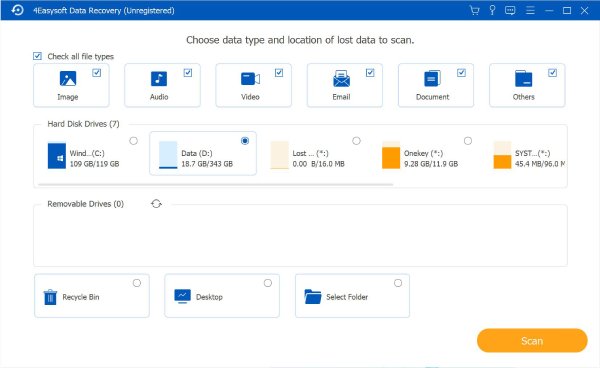
Free tier: Scan and preview first. The full data recovery requires a license code.
Platform: Windows, Mac
Verdict: Functional but niche. It handles a wide range of file types and device categories, including HDDs, SSDs, SD cards, USB drives, and digital cameras. The interface is clean enough for beginners.
4Easysoft Data Recovery offers a simple three-click recovery process on Windows and Mac. It's quick scan finds recent deletions fast. Meanwhile, the deep scan digs up older lost files.
The clean interface and file previews before recovery are helpful to beginners. Moreover, the file recovery software handles photos, videos, documents, and more from hard drives, SD cards, USBs, and cameras. 4Easysoft Data Recovery only reads your drive. It won't write to the original location. Thus, you can feel safe recovering deleted or erased data on your computer.
100% Secure
100% Secure
Best for: Quickly check whether deleted files are still recoverable with 0 cost.
Skip if: You need a free recovery tool that actually recovers files.
2. EaseUS Data Recovery Wizard Free (Windows / Mac)
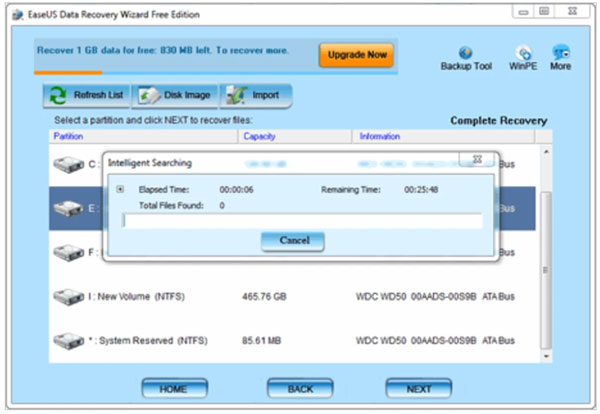
Free tier: 2GB total (500MB default + 1.5GB if you share on social media)
Platform: Windows, Mac
Verdict: The most beginner-friendly paid-tier data recovery software on the market. The 2GB cap is annoying, but within that limit it genuinely works.
EaseUS Data Recovery Wizard was shortlisted in the G2 data recovery software product leader list. The wizard-guided interface is clean. You can filter by file type, preview files, and even recover while the scan is still running. That's a genuinely useful feature most file recovery programs don't offer.
The social share requirement to unlock the extra 1.5GB feels manipulative. The free version also shows pop-up upsell prompts. Its free version recovers data in all kinds of data loss situations, including accidental deletion, formatting, and partition errors.
Best for: Someone who lost photos from an SD card or a handful of documents.
Skip if: You need more than 2GB. The upgrade cost is steep for one-time use.
3. Disk Drill Free (Windows / Mac)
Free tier: 500MB
Platform: Windows, Mac
Verdict: It's still worth keeping to scan for lost data. Though the 500MB file size limit on the free version can be a bit annoying.
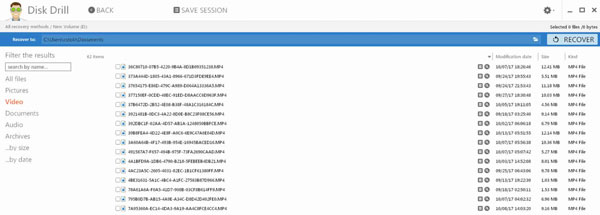
Disk Drill remains the front-runner as the most well-rounded disc recovery software in 2026. It covers photos, videos, audio, archives, and documents across NTFS, FAT32, exFAT, HFS+, APFS, and EXT4. Community feedback is consistent: Disk Drill tops the list of the best free data recovery software for PC thanks to its superior ability to locate and recover data from virtually any data loss scenario where DIY data recovery is feasible.
The Windows 500MB cap drew criticism across community forums. One forum user put it simply: the free version isn't really free unless you only need to recover a few files. Pricing for the PRO version comes as a one-time license fee rather than monthly or yearly cost. That's been noted positively by users who hate subscriptions.
Best for: Mac users (more generous there); anyone who wants a reliable scan before deciding whether to pay.
Skip if: You need to recover lost data on your computer of more than 500MB with no budget.
4. MiniTool Power Data Recovery Free (Windows)
Free tier: 1GB recovery limit
Platform: Windows only
Verdict: A solid middle option. The 1GB free limit sits between EaseUS Data Recovery Wizard’s 500MB default and its 2GB unlocked version. If you need something in that range, MiniTool Power Data Recovery is worth a try.
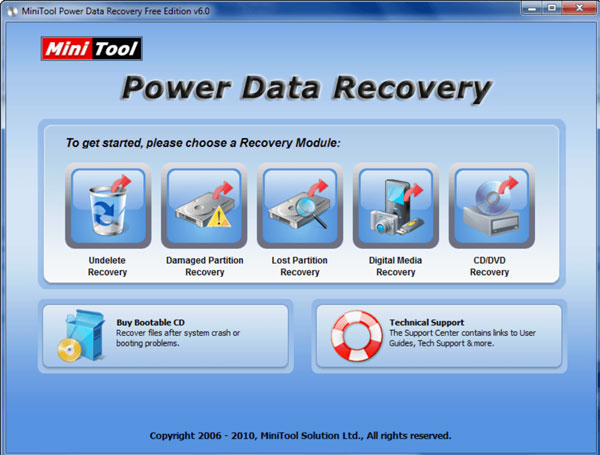
MiniTool Power Data Recovery supports over 2,000 file types including photos, videos, documents, audio, and archives. Storage device support covers hard drives, external disks, SSDs, USB drives, RAID configurations, CD/DVDs, and SD cards.
The NTFS and exFAT recovery performance is strong. Scan speed is fast on newer drives, with results organized into Path and Type tabs, which makes it easier to find what you're looking for.
One Capterra user recovered nearly 90% of data from a USB drive that Windows couldn't even identify. The preview section is helpful. You can view recovered items and select exactly what you want before saving.
Best for: Windows users who need slightly more room than EaseUS Data Recovery Wizard Data's default 500MB.
Skip if: You're on a Mac, or you need to recover more than 1GB.
5. DMDE Free Edition (Windows / Mac / Linux)
Free tier: Up to 4,000 files per operation, unlimited repetitions - no size cap
Platform: Windows, Mac, Linux
Verdict: One of the most underrated free data recovery tools available. The file count limit (not a size limit) is far more practical for most users than a GB cap.
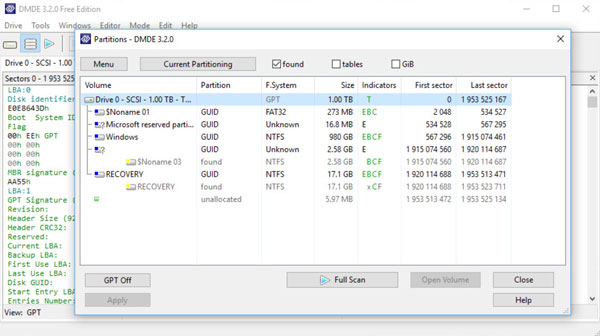
For free, you can recover up to 4,000 files from a chosen directory, with an unlimited number of repetitions. The free features also include partition search, disk editor, disk image creation, and RAID constructor (capabilities you'd pay for in most other tools).
The supported file systems include FAT12/16, FAT32, exFAT, NTFS, ReFS, Ext2/3/4, HFS+/HFSX, APFS, and btrfs. The file system support doesn't depend on the host OS. You can run it on Windows to recover Linux or Mac data.
The RAID constructor supports RAID 0, 1, 4, 5, and 6, JBOD, and custom striping. The partition manager searches, diagnoses, and restores lost partitions. The disk editor lets you view and edit disk structures, MBR, GPT, boot sectors, and file tables.
DMDE can also be trained to recognize unfamiliar file types by providing sample files. It lets you add custom file signatures for formats not included by default. Forensic mode is also available for professional uses.
Best for: Tech-savvy users who need powerful tools without a size cap; RAID scenarios; document recovery.
Skip if: You need a simple point-and-click interface to recover files.
6. Wondershare Recoverit Free (Windows / Mac)
Free tier: 100MB recovery limit
Platform: Windows, Mac
Verdict: Great product, terrible free tier. 100MB is barely enough to recover a few photos. It's essentially a trial.
Wondershare Recoverit hard drive recovery software gets a 4.5/5 rate on TechRadar and 8.0/10 on TrustRadius. The interface is clean, scanning is fast, and the preview feature works well. For recovering large video files specifically, Wondershare Recoverit performs well.
The 100MB cap means almost every real-world recovery scenario will hit the wall almost immediately. The free Recoverit Data Recovery software allows you to recover up to 100MB of data for free. Paid plans start at $59.99/month, which is among the pricier options in the category.
Best for: Verifying whether your files are recoverable before deciding to pay.
Skip if: You need to actually recover more than one or two small files for free.
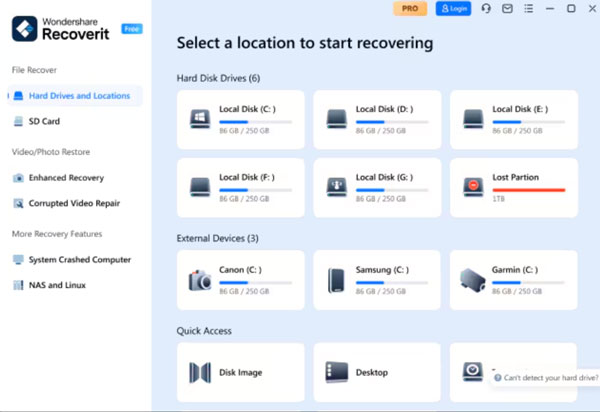
7. Stellar Data Recovery Free (Windows / Mac)
Free tier: 1GB recovery limit; preview capped at 100MB
Platform: Windows, Mac
Verdict: Well-known data recovery software, but the results can be hit or miss. The 1GB free limit is fair. The 100MB preview cap feels too tight. You don't get a clear look before deciding to recover.
Stellar Data Recovery supports exFAT, NTFS, and FAT-formatted drives, SSDs, external hard drives, SD cards, USB drives, flash drives, and memory cards. Both Windows and Mac are covered, though Mac users may face higher pricing on some editions.
Recovery scenarios include accidental deletion, formatted drives, corrupted or RAW partitions, BitLocker-encrypted drives, and non-bootable systems. The ability to recover from unbootable systems is one of the few things that genuinely sets Stellar Data Recovery apart from competitors at this price tier.
Its free version can recover up to 1GB of data, but, strangely, only up to 100MB of data can be previewed. Scanning speed is fast, and the interface is clean. Capterra users gave it a 3.3/5 rating, which is respectable but not outstanding. Slow deep scans and an occasionally lagging preview feature come up regularly in user feedback.
Where Stellar genuinely stands out is photo and video recovery. If that's your priority, it earns its spot. It achieves roughly 85-90% success rate for recently deleted files and 70-80% for formatted drives, depending on damage severity and file type.
Best for: Photo and video recovery within 1GB; users who want a well-known brand name.
Skip if: You need to preview large amounts of data before recovering.
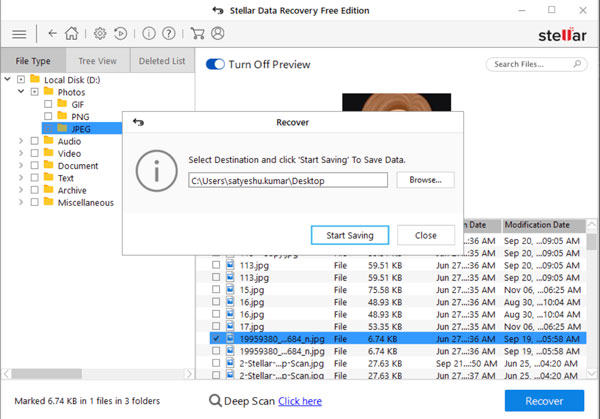
8. R-Studio Demo (Windows / Mac / Linux)
Free tier: Demo only (recover files under 1024KB); previews everything
Platform: Windows, Mac, Linux
Verdict: The most capable technician-grade tool with a free tier. But 1024KB per file is a very hard ceiling. You're mainly using this to verify recovery is possible.
R-Studio is one of the most capable data recovery applications for Windows, Mac, and Linux, supporting all commonly used file systems. It found all 200,000 test files in independent testing. It supports NTFS, ReFS, FAT, exFAT, Ext2/3/4, HFS+, APFS, XFS, and UFS. Network recovery over LAN is also supported - rare at this price point.
R-Studio data recovery software is mainly designed for technicians and reflects that in its interface. Community feedback praises its results but notes the learning curve. Licenses start at $49.99 for FAT-only recovery.
Best for: IT professionals; complex recovery scenarios; confirming recoverability before paying.
Skip if: You need a consumer-friendly interface or full file recovery for free.
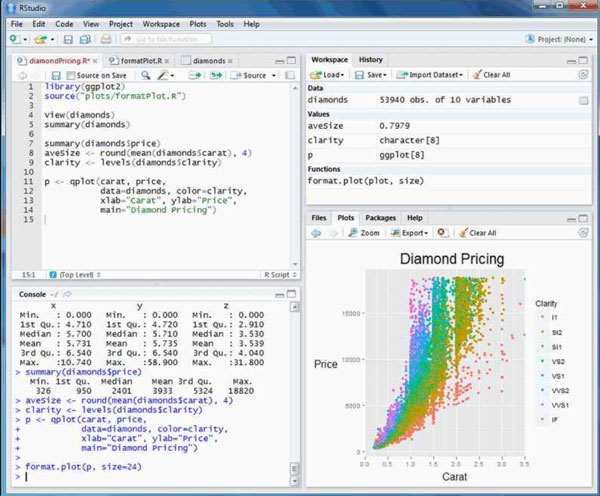
9. Ontrack EasyRecovery Free (Windows / Mac)
Free tier: 1GB recovery limit; each file must be under 25MB; requires name and email to download
Platform: Windows, Mac
Verdict: Backed by 30+ years of professional data recovery experience. The free tier conditions are annoying, especially the email requirement and the 25MB per-file cap.
Ontrack EasyRecovery has a high user rating of 4.7/5 out of 2,437 reviews on Trustpilot (82% of users giving 5 stars). That's a strong trust signal. The bootable recovery media feature is genuinely useful. It can access a drive even when Windows won't load.
Its free version allows you to recover up to 1GB of data without paying. The annual subscription model (no lifetime option) is a common complaint. It's on the expensive side compared to Disk Drill's one-time fee.
Best for: Users who want professional-grade reliability for small recoveries; email/Outlook recovery.
Skip if: Don't want to provide personal details just to download free file recovery software.
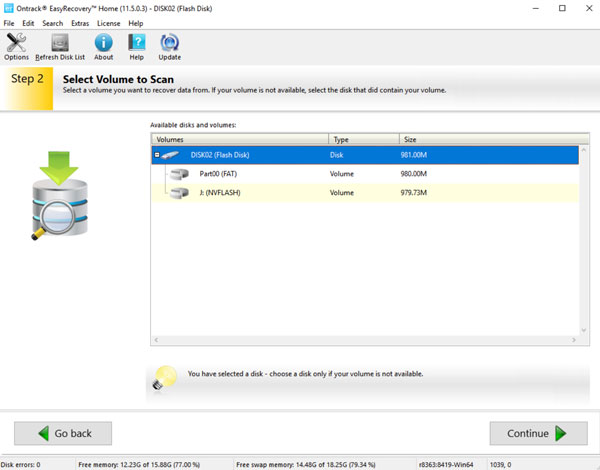
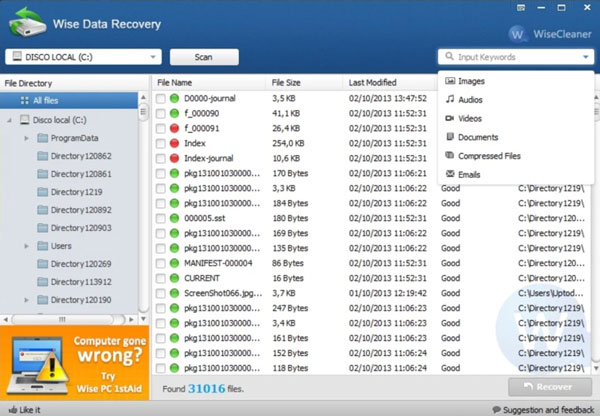
10. Wise Data Recovery Free (Windows / Mac)
Free tier: Up to 2GB on Windows; 1GB on Mac
Platform: Windows, Mac
Verdict: Lightweight, fast, and genuinely free within its limits. It won't win any performance contests. But for quick, simple deletions it does the job without fuss.
The file size is tiny at around 3MB. Installation takes seconds. And there are zero upsell prompts during the process, a refreshing contrast to most tools on this list.
What Wise Data Recovery does well: it handles accidental deletion from HDDs, USB drives, and SD cards across FAT and NTFS file systems on Windows. It scans fast and shows a clear file condition indicator, so you know what's recoverable before you start.
The free version allows you to recover files up to 2GB on Windows and 1GB on Mac, more generous than EaseUS's default 500MB.
There are some clear trade-offs. No deep scan for harder cases like formatted drives or damaged partitions. It also struggles with badly damaged drives. Compared to paid data recovery software, it usually finds fewer files and doesn't offer many advanced options.
Best for: Quick USB or SD card data recovery. Users who want free data recovery software with zero bloat and zero pressure.
Skip if: You're dealing with a formatted drive, partition corruption, or anything beyond a simple accidental deletion.
11. AnyRecover Free (Windows / Mac)
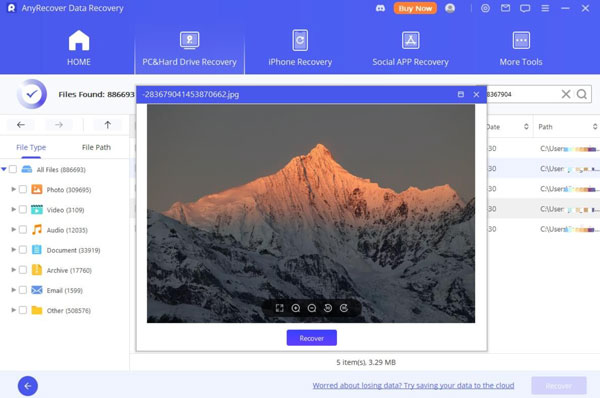
Free tier: Recovers up to 3 files only
Platform: Windows, Mac
Verdict: Almost no free tier at all. Three files. That's it. Call it what it is, a trial, not a free data restore tool.
AnyRecover offers a free edition to recover up to 3 files. The interface is clean and easy to navigate. The data recovery software handles emptied Recycle Bin recovery, lost partition recovery, and RAW partition recovery. It supports all major storage devices, HDDs, SSDs, USB drives, SD cards, and external hard drives.
Scan quality is decent. It detects deleted files across NTFS and FAT file systems, and shows file previews before recovery. For photo recovery specifically, it identifies a wide range of image formats.
But three files is not a free data recovery program. It's a demo with a very specific purpose: to show you your files exist and are recoverable, then ask you to pay.
The Pro version costs $50.99. At that price, more established names like MiniTool or Disk Drill offer better-tested recovery rates and stronger community track records.
Best for: Previewing whether your deleted files are still recoverable before committing to a paid tool.
Skip if: You need to actually recover more than three files for free.
12. R-Undelete Home (Windows)
Free tier: Fully free home version for FAT file system recovery; paid upgrade for NTFS
Platform: Windows only
Verdict: A useful, underrated option from the makers of R-Studio. If your data lives on a USB drive, SD card, or older external hard drive formatted in FAT, this is genuinely worth trying before anything else.
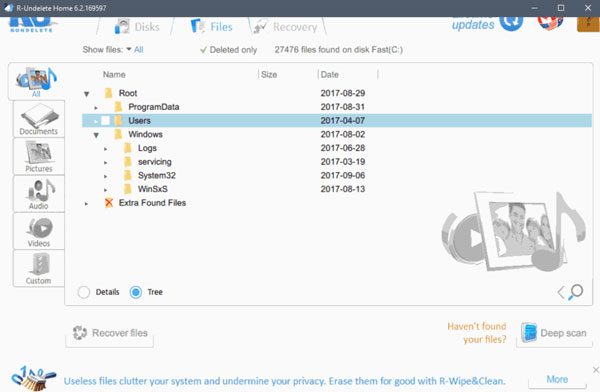
R-Undelete uses the same core recovery technology as R-Studio, one of the most technically capable data recovery applications available, but wraps it in a more beginner-friendly wizard interface. Three-click recovery process. Clear file condition display. No technical knowledge needed.
The disk imaging feature is a standout. Before you run any scan on a failing drive, you should image it first. R-Undelete supports this, which many free drive recovery software don't. You recover from the image rather than the original drive, safer, and smarter.
The hard limitation is that the free Home version does not support to recover data from NTFS drives. Since most modern Windows HDDs and SSDs are formatted NTFS, this rules it out for the majority of real-world Windows data recovery scenarios unless you're specifically recovering from removable media.
Lifetime updates are included on all license tiers, a good sign from a developer that takes long-term support seriously.
Best for: USB drive recovery, SD card recovery, and external hard drive data recovery on FAT or exFAT. Users who want R-Studio-level technology without a complex interface.
Skip if: You're trying to recover files from a modern Windows NTFS drive and don't want to pay for the upgrade.
13. Glary Undelete (Windows)
Free tier: Fully free, no recovery cap
Platform: Windows only
Verdict: A genuinely free, no-frills file recovery tool for Windows. No paywall. No size limit. No social share trick. It just works, within a narrow scope.
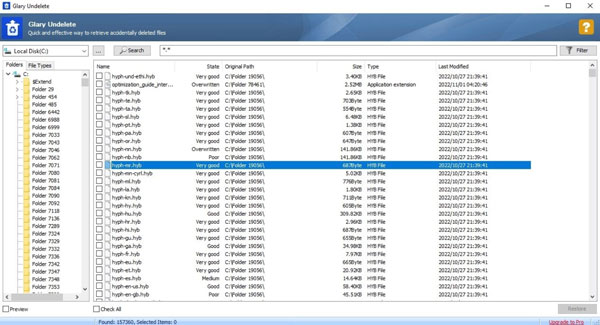
Glary Undelete handles accidental deletion from HDDs, USB drives, and memory cards. It supports both FAT and NTFS file systems. The interface is minimal and straightforward. Scanning is fast. File condition is shown before recovery, so you're not guessing.
There's no deep scan. That's the main constraint. Formatted drives, corrupted partitions, or complex data loss scenarios are beyond what this tool can do. It's built for one job, recovering recently deleted files on Windows, and it does that job without asking anything from you.
No major updates of Glary Undelete in recent years, which means support for modern file systems like exFAT or ReFS is limited. NVMe SSD recovery is not its strength. But for basic hard drive file recovery on Windows, it's a legitimate completely free option that most people haven't heard of.
Best for: Simple accidental deletion on Windows. Users who want free and unlimited file recovery software with zero commercial pressure.
Skip if: You need deep scan capability with cross-platform support. Or Windows data recovery from a formatted or corrupted drive.
14. Puran File Recovery (Windows)
Free tier: Fully free for personal use, no recovery cap
Platform: Windows only
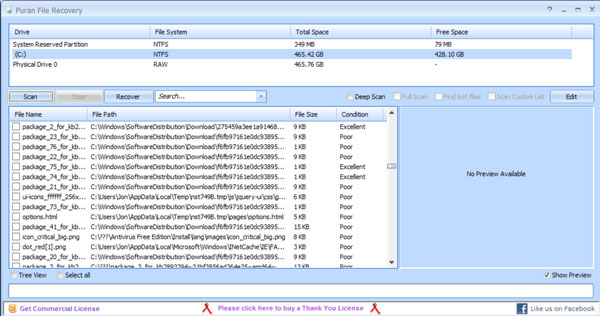
Verdict: One of the most overlooked genuinely free Windows data recovery software available. It's not flashy. But it offers both a quick scan and a full deep scan, which most free file recovery tools don't.
Puran File Recovery supports FAT and NTFS file systems. The "Whole Drive" scan mode is its version of deep scan, it goes sector by sector and finds files that a quick scan misses. That's a meaningful feature at zero cost.
Results are solid for recently deleted files. On formatted drives and older deletions, the deep scan recovers files that quick-only free data recovery programs completely miss. File system support is narrower than paid tools, no exFAT, no APFS, but for a standard Windows HDD recovery, it performs reliably.
The interface is dated. It looks like it was built in 2010, because it was. No major version updates in recent years. But it still runs cleanly on modern Windows and doesn't install bloatware.
If you're a Windows user with no budget and you need a real deep scan, not just a surface deletion scan, Puran File Recovery is worth keeping on a USB stick.
Best for: Windows users who want a genuine deep scan option without paying. Recovering older deleted files that quick-scan data recovery freeware miss.
Skip if: You're on Mac or Linux, need exFAT support, or want an actively maintained deleted data recovery software with modern file system coverage.
15. PC Inspector File Recovery (Windows)
Free tier: Fully free, no recovery cap
Platform: Windows only
Verdict: A veteran of the free file recovery space. It still works. But it hasn't been updated in years and it shows.
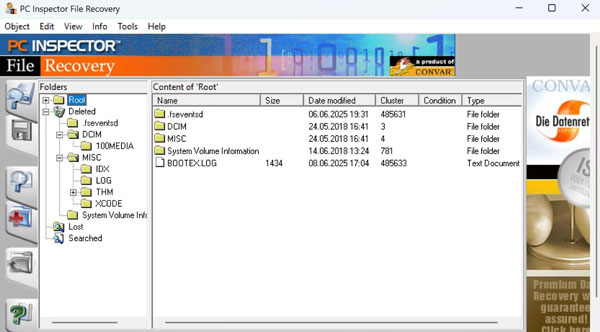
PC Inspector File Recovery supports FAT 12/16/32 and NTFS. Its standout capability, and the reason it still gets recommended in some circles, is that it can recover files even when the header entry has been destroyed. That goes one step further than basic undelete tools that simply restore files still listed in the file system index.
It also recovers files to a network drive, which is a useful option most free lost data retrieval software skip.
The interface looks like Windows XP era software, because it essentially is. There's no deep scan in the modern sense. No exFAT support. No SSD optimization. No modern file system coverage. Recovery results on anything beyond basic deletion scenarios are inconsistent at best.
This free data recovery software exists in a specific niche: older Windows systems, legacy FAT drives, and situations where you just need something with no cost and no nonsense. In 2026, there are better free options for most scenarios, but it deserves its spot in this list for the users who still need it.
Best for: Recovering files with destroyed header entries. Older Windows systems and legacy FAT drives. Users on a very tight budget with simple recovery needs.
Skip if: You need modern file system support, an updated interface, or recovery from SSDs or exFAT drives.
How to Recover Deleted Files
Most people find out the hard way. You delete something, empty the Recycle Bin, and realize two hours later you still needed that file.
Here's the thing: the file probably isn't gone. When you delete a file, Windows or Mac marks that space as available. The actual data stays on the drive until something new overwrites it. That's exactly the key where data recovery software works.
Stop using the drive the moment you notice the file is missing. Every new download, save, or install risks overwriting what you're trying to get back.
Then use 4Easysoft Data Recovery to get it back. It works on hard drives, SSDs, USB flash drives, SD cards, memory cards, external hard drives, and digital cameras on both Windows and Mac.
100% Secure
100% Secure
Here's how to do it:
Step 1Download and install 4Easysoft Data Recovery
Download it to a different drive (not the one you're recovering from). Install and open the program.
Step 2Select your file types and drive
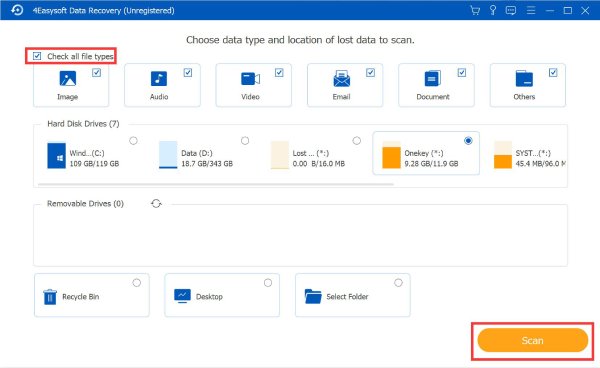
Choose what you're looking for, including photos, videos, documents, audio, emails, or everything. Tick the checkmark before those options. Then, pick the drive or device where the files were lost.
Step 3Run a scan
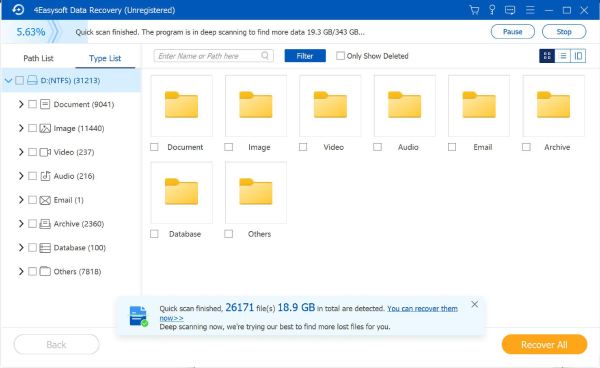
Click the "Start" button. Use Quick Scan first. It finds recently deleted files within minutes. If your files don't show up, switch to Deep Scan. It goes sector by sector and surfaces older or harder-to-find data, including files lost after a format or system crash.
Step 4Preview before you recover
Browse results by file type or folder path. Click any file to preview it. You see the actual content before recovering. No guessing, no empty folders.
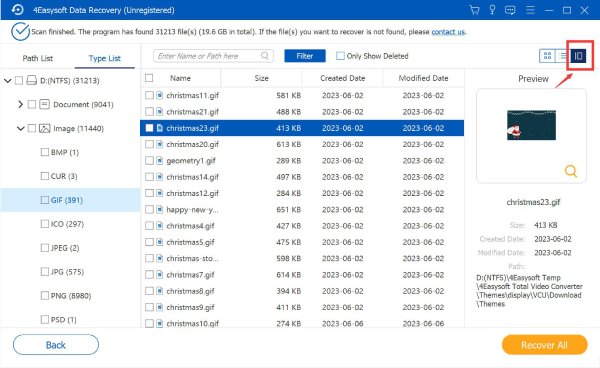
Step 5Recover to a safe location
Select the files you want. Click the "Recover" button. Save them to a different drive, not the original one.
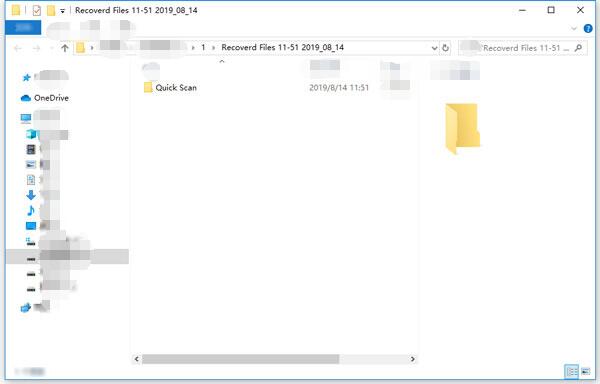
That's the full process. Five steps, no technical knowledge needed, and you know exactly what you're getting before anything is saved.
100% Secure
100% Secure
Which Free Data Recovery Software Is Actually Right for You
All the undelete file recovery software in this guide have been covered. Now the question is: which one fits your situation?
Here's a quick comparison, then a breakdown by use case.
| Free Data Recovery Software | Free Limit | Windows | Mac | Linux | Best Scenario |
| Recuva | Unlimited |  |  | | Simple deletion, HDD/USB |
| PhotoRec + TestDisk | Unlimited | | | | All platforms, no name preservation |
| Windows File Recovery | Unlimited | | | | IT users, NTFS only |
| 4Easysoft Data Recovery | Scan only | | | | Preview before paying |
| EaseUS Data Recovery Wizard Free | 2GB | | | | Beginners, small recoveries |
| Disk Drill Free | 500MB (Win) / Generous (Mac) | | | | Best UI, Mac users |
| MiniTool Power Data Recovery Free | 1GB | | | | Mid-size Windows recovery |
| DMDE Free Edition | 4,000 files | | | | RAID, power users |
| Wondershare Recoverit Free | 100MB | | | | Video recovery |
| Stellar Data Recovery Free | 1GB (preview 100MB) | | | | Photo/video recovery |
| R-Studio Demo | Files under 1024KB | | | | Technicians, verification |
| Ontrack EasyRecovery Free | 1GB (files under 25MB) | | | | Professional, email recovery |
| Wise Data Recovery Free | 2GB (Win), 1GB (Mac) | | | | Quick USB/SD recovery |
| AnyRecover Free | 3 files | | | | Preview only |
| R-Undelete Home | Unlimited (FAT only) | | | | USB/SD on FAT |
| Glary Undelete | Unlimited | | | | Simple Windows deletion |
| Puran File Recovery | Unlimited | | | | Deep scan, no budget |
| PC Inspector File Recovery | Unlimited | | | | Legacy FAT drives |
You Just Accidentally Deleted Something
Don't panic. You can start with 4Easysoft Data Recovery. Open this program, pick your drive, and scan. Before recovering anything, you get a full preview. You can see exactly which files are still there. Photos, documents, videos, emails are all sorted by category. Nothing gets written back to your original drive during the scan. Thus, nothing gets worse while you're looking.
100% Secure
100% Secure
If you're on Windows only and want zero limits from the start, Recuva is the other option. No cap, no paywall, ever. Run the wizard, pick your drive, done. It's been around for years. It's not fancy. But for a file you deleted this morning from an HDD or USB stick, it's hard to beat.
You Formatted the Wrong Drive
This is where most free tools hit their wall.
PhotoRec is the honest answer here. It reads the raw drive sector by sector and pulls files by their signature, not by the file system, which is already gone. It works on formatted NTFS, FAT, exFAT, APFS, and EXT4. Files come back without their original names, everything lands in one folder, but they come back. It is free, unlimited, no cap.
EaseUS Data Recovery Wizard handles formatted drives cleanly within the 2GB limit. It is filtered by file type, preview before recovering, and restore while the scan is still running. For anything bigger, DMDE steps in. 4,000 files per operation, repeatable, no size cap. It also reconstructs lost partitions, which most tools won't touch for free.
You Lost Photos from a Camera SD Card
Three data recovery software consistently handle this well.
4Easysoft Data Recovery allows users to preview RAW formats, JPEGs, PNGs, and video files from SD cards and camera storage before you recover anything. You know what you're getting before you click recover.
100% Secure
100% Secure
Wise Data Recovery is the lightweight pick. 3MB download, opens in seconds, 2GB free on Windows. For a card with a few hundred holiday photos, it often gets the job done without any fuss.
Stellar Data Recovery is the choice if you're dealing with RAW photo formats from a DSLR. It supports Canon CR2, Nikon NEF, Sony ARW, and similar formats. 1GB free, 85 to 90% success rate on recently deleted files.
You're on a Mac
Mac recovery is harder. APFS (Apple's file system since High Sierra) blocks most free Windows tools completely. Tools that actually support APFS: Disk Drill, PhotoRec, DMDE, EaseUS, Stellar, R-Studio. Disk Drill is the cleanest experience. Enable its data protection before anything goes wrong, and recovery on Mac is free with no cap. Best interface in the category by a wide margin.
PhotoRec is the fallback with no limits. Technical, unnamed output, but it works on APFS without asking for anything.
Everything else on the table (Recuva, R-Undelete, Glary, Puran, PC Inspector) won't open an APFS drive. Don't waste time on them if you're on a Mac.
You Need to Recover from a USB Drive or External Hard Drive
Almost every free data retrieval software on this list handles USB drives and external hard drive recovery. The differences come down to file system and how much data you need back.
FAT32 or exFAT drive? R-Undelete Home is the strongest free option. Same engine as R-Studio, simpler interface, completely free on FAT. Supports disk imaging too, which is important if the drive is starting to fail.
NTFS external drive on Windows? MiniTool Power Data Recovery gives you 1GB free and handles NTFS well. Strong scan results, clean file preview.
Just need something fast with no thinking? Wise Data Recovery. Download, install, scan. 2GB free limit on Windows. Zero upsell prompts during the process.
You're Dealing with a Failing or Damaged Drive
Stop using it immediately. Every read/write operation risks overwriting what's left. R-Studio Demo is the right starting point. It previews everything and recovers files under 1024KB for free. Use it to confirm whether your data is still there before spending money on a paid recovery service or professional lab.
DMDE handles partial partition recovery and disk imaging for free. If the drive is still partially readable, DMDE can mount the partition virtually and let you scan from inside it (without touching the original drive sectors).
If the hard drive is physically damaged (clicking, grinding, not spinning), no data recovery software fixes that. That needs a clean room recovery service.
You're a Power User or IT Professional
DMDE first. Free tier includes partition search, disk editor, disk image creation, RAID constructor (RAID 0, 1, 4, 5, 6, JBOD), and custom file signature training. 4,000 files per operation, unlimited repetitions. No other free tool comes close for this use case.
R-Studio Demo for verification and technician-grade file system analysis. Supports NTFS, ReFS, FAT, exFAT, Ext2/3/4, HFS+, APFS, XFS, and UFS. Network recovery over LAN included. The demo recovers files under 1024KB. It is enough to confirm recoverability before billing a client.
Windows File Recoveryfor corporate Windows environments where installing third-party software isn't an option. Command-line only, NTFS and FAT support, Microsoft-signed.
Conclusion
Data loss happens to everyone. A misclick, a format, a corrupted drive. And suddenly your files are gone.
The good news: most of the time, they're not actually gone. They're still sitting on your drive, waiting to be found. You just need the right tool fast enough.
We tested every option on this list. Free data recovery software with no limits. Freemium data recovery tools with caps. Open-source file recovery programs need to take patience. Each one has its place.
But if you want to start somewhere practical, something that works on Windows and Mac, shows you what's recoverable before you commit, and doesn't waste your time, 4Easysoft Data Recovery is where we'd point you first.
Download it free. Run a scan. See your deleted files before recovering a single one.
100% Secure
100% Secure
