
Unlock all your iPhone/iPod/iPad by wiping passcode and remove Apple ID completely.

4 Solutions for Forgotten Screen Time Passcode Issues

Posted by Aira Lesly Escoto to iOS Unlocker Mar 18, 2026
It can be quite a problem if you happen to forget the Screen Time passcode. Since it is designed to help manage app usage and device access, you can fail to use a specific app or get into your iPhone. When the passcode is lost, changing restrictions or accessing specific settings becomes difficult. This guide explains what to do if a Screen Time passcode is forgotten, outlining several workable solutions that can help regain control of the iPhone without unnecessary data loss.
Guide List
Part 1: The Safest Way to Fix the Forgotten Screen Time Passcode in No Time Part 2: How to Reset Screen Time Passcode Using Apple ID If You Forgot It Part 3: Check Shared Devices to Reset Screen Time Passcode Forgotten Part 4: iTunes - A Desktop Solution for Forgotten Screen Times Passcode Issue Part 5: [Bonus] Why There Is No Forgot Password Option for Screen TimePart 1: The Safest Way to Fix the Forgotten Screen Time Passcode in No Time
When built-in solutions are unavailable or unsuccessful, you may need to search for professional software to deal with the forgotten Screen Time passcode. 4Easysoft iPhone Unlocker is designed to remove or reset the Screen Time passcode safely, with minimal impact on existing data. This option is well-suited for users who need a fast and reliable fix.

Save your iOS device from being completely unlocked by Screen Time.
Bypass Screen Time restrictions without any data loss when you forget the passcode.
Fully support all models and versions of iPhone, iPad, and iPod.
High success rate in restoring your iOS devices to a new one without a password.
100% Secure
100% Secure
Step 1Launch 4Easysoft iPhone Unlocker and connect your Apple device to the computer. Once connected, click the "Screen Time" button.
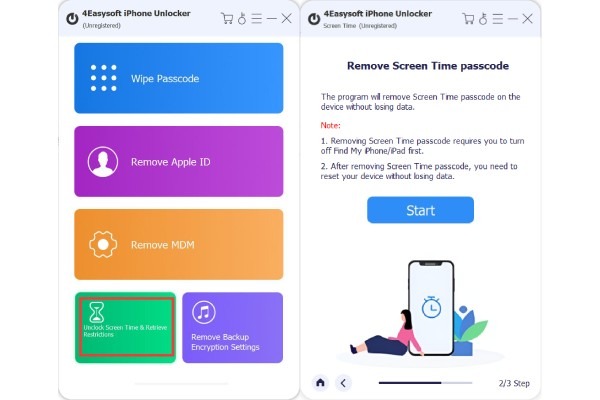
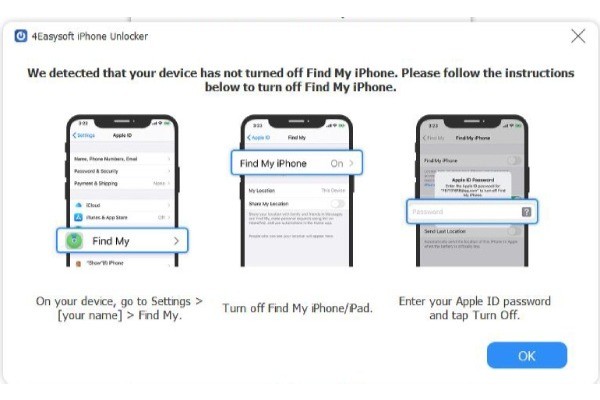
Step 2Follow the instructions provided to turn off the "Find My" feature temporarily on your device, making sure the process can proceed.
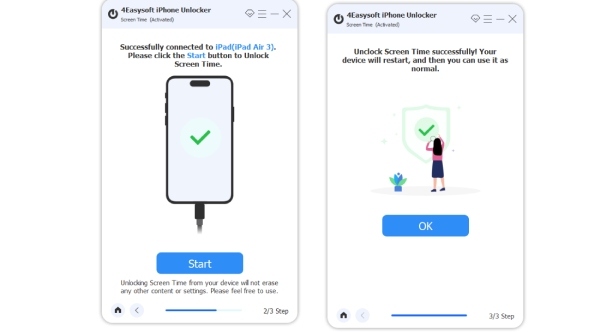
Step 3Click the "Start" button, and the process of removing the Screen Time passcode that you forgot will start automatically.
100% Secure
100% Secure
Part 2: How to Reset Screen Time Passcode Using Apple ID If You Forgot It
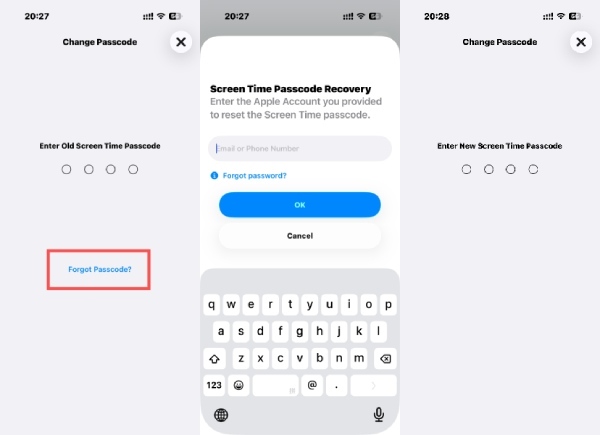
Forgetting the Screen Time passcode does not mean that you cannot access the content you want within the limited time. In simple terms, by resetting your password, you can regain control over Screen Times. If you are not familiar with how this built-in method works, you can follow the following steps:
Step 1Open "Settings" and scroll down to locate "Screen Time". Tap the button to access a new page.
Step 2Tap the "Change Screen Time Passcode" button, and a pop-up window will appear.
Step 3Between the options, tap the "Change Screen Time Passcode" button.
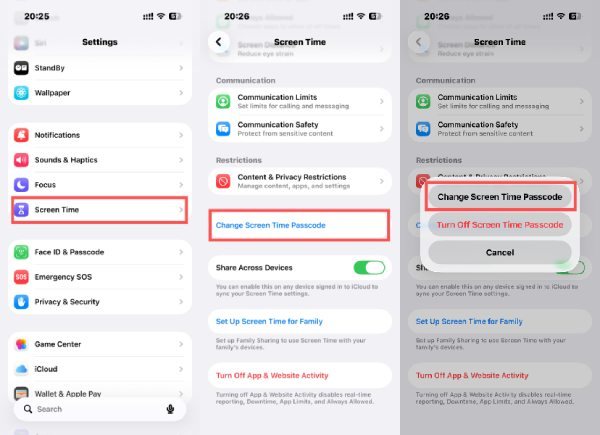
Step 4In the "Change Passcode" page, you will be asked to enter your Screen Time passcode. Tap the "Forgot Passcode?" button.
Step 5Enter and log in to the Apple Account that you set before so you can reset the Screen Time passcode you forgot.
Step 6After the verification, you can enter and reset the Screen Time passcode on your iPhone.
Part 3: Check Shared Devices to Reset Screen Time Passcode Forgotten
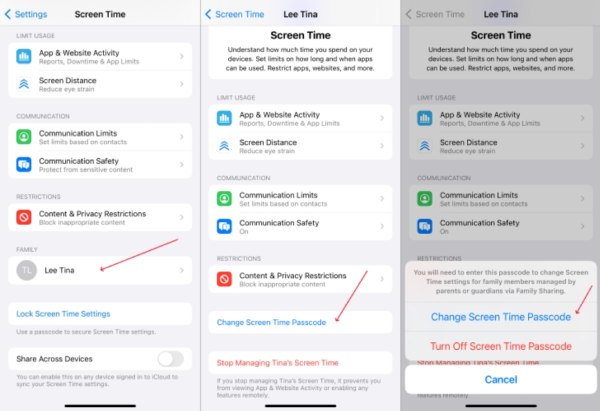
On family-shared devices, Screen Time settings may be managed by an organizer account. In such cases, checking other linked devices can help reset or change the Screen Time passcode remotely. This method is beneficial for parental control setups, where the passcode was created on another iPhone or iPad. It means that you can turn off Screen Time without a passcode on your own iPhone.
Step 1Open "Settings" and scroll down to tap the "Screen Time" button.
Step 2Under the "Family" tab, tap the family member to manage the Screen Time settings for the linked device.
Step 3Scroll down and tap the "Change Screen Time Passcode" button. Follow the instructions to reset the Screen Time passcode if forgotten.
Part 4: iTunes - A Desktop Solution for Forgotten Screen Times Passcode Issue
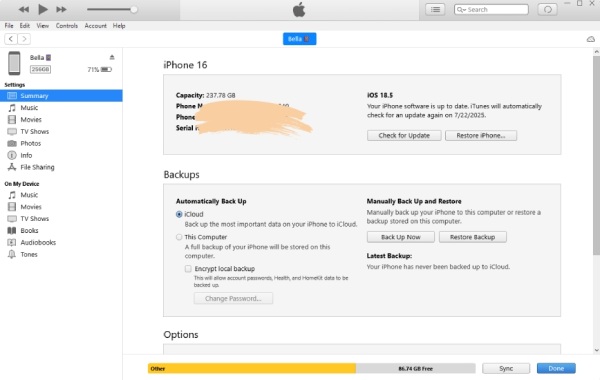
iTunes can be used as a desktop-based approach to address Screen Time passcode problems through backup and restore processes. This solution does not rely on the Screen Time passcode itself but requires a computer and careful handling. While effective in certain situations, it may result in data changes if not performed correctly.
Tips: This action can wipe all data and files on your iPhone, as it removes parent controls on your iPhone to work out. Please create a backup before you restore your iPhone using iTunes.
Step 1Launch iTunes and connect your iPhone to the computer via a USB cable. Click to select your device.
Step 2Click the "Summary" button and then click the "Back up" button to create a backup of your device.
Step 3Click the "Restore iPhone" button so that you can reset your iPhone completely to remove the Screen Time passcode that you have forgotten.
Part 5: [Bonus] Why There Is No Forgot Password Option for Screen Time
When you forget the passcode for Screen Time, you might find that sometimes you cannot locate the "Forgot Password" option. This situation prevents you from modifying Screen Time by changing the password or through similar methods, even if you might actually have forgotten it. There are many reasons for this situation, which can be summarized as follows:
1. Parental Control Feature
Screen Time was initially introduced to help parents manage and restrict device usage for children. To prevent minors from bypassing restrictions easily, Apple limits direct reset options within the locked interface. If a simple "Forgot Password" option were available on the device itself, you could think about whether there are any other devices that have made relevant settings to prevent you from accessing your iPhone or a specific app.
2. Wrong Apple ID
It should be noted that Screen Time operates based on the Apple ID. Therefore, if your Apple ID is different from the account set for Screen Time, you will not be able to perform any other operations on the lock for this particular Screen Time session.
3. Outdated iOS Version
In some older versions of iOS, Screen Time may sometimes exhibit various display abnormalities. Even though these issues have been fixed in the new version, they will persist if your iPhone has not been updated in time. For instance, if you forget the password for Screen Time but are unable to reset it by using "Forgot Passcode".
4. Software Bugs/Glitches
Sometimes, you may not be able to restore the Screen Time passcode that you have forgotten by using "Forgot Password", possibly due to some temporary and minor glitches. In this situation, you just need to restart or re-access the system to see this option simply.
Conclusion
Now you surely know what to do if you forgot your Screen Time passcode after reading the post. It does not mean the iPhone is permanently locked. Several workable solutions are available. With 4Easysoft iPhone Unlocker, Screen Time restrictions can be managed again safely and efficiently.
100% Secure
100% Secure
