
Recover deleted/lost data from PC/Mac, HDD, USB, SD card and more.

4 Workable Ways to Recover Windows Recycle Bin [After Empty]

Posted by Alvin Cantero to Data Recovery Mar 27, 2026
Removing files from a Recycle Bin is still a great way to save more space on your Windows hard drive, not until you want to recover them but you left Recycle Bin empty. If you are searching for a way to restore all the files from your Recycle Bin, you landed on the right page! This post features 3 ways to recover Recycle Bin Windows 10 and 11. Discover which of them applies to your needs. Explore them now!
Guide List
Part 1. Can Files be Restored Directly From the Windows Recycle Bin? Part 2: Easy Way to Recover Files from Recycle Bin through Restore Part 3: Recover Recently Deleted Files from Recycle Bin with History Backup Part 4: How to Recover Recycle Bin on Windows 11/10 [After Empty] Part 5. Recover Deleted Files using Windows File Recovery Part 6: FAQs about How to Recover Recycle Bin Files on WindowsPart 1. Can Files be Restored Directly From the Windows Recycle Bin?
Yes, but successful recovery is only possible in the following situations. In other cases, professional tools are generally required. And you should know, do not write any new data to the hard drive, because the location of the deleted files may be overwritten, making recovery impossible.
1. Normal deletion (Delete key / right-click "Delete")
When you press the Delete key or right-click "Delete", the file is moved to the Recycle Bin. The file path changes, but the data remains on the disk. It can be restored to its original location at any time.
2. The file has not exceeded the Recycle Bin capacity limit
Windows allocates a certain amount of space to the Recycle Bin. If there is sufficient space in the "Recycle Bin" when a file is deleted, the file remains in the Recycle Bin. In this case, recovery is still possible.
3. The Recycle Bin has not been emptied
If "Empty Recycle Bin" has not been executed or the system has not automatically cleaned it out, the file still exists and can be recovered.
4. Deleted from the same user account
The Recycle Bin is isolated at the user level; if a file is deleted from the current account, it can be recovered by that account.
Part 2: Easy Way to Recover Files from Recycle Bin through Restore
Now that you know how to recover Recycle Bin Windows 10 and 11 using the professional 4Easysoft Data Recovery tool, here is another way to recover files from a Recycle Bin. As part of the Windows 10 or 11 Recycle Bin’s algorithm, deleted files can still recover using its built-in option. However, this method is applicable on your end if files on Recycle Bin are not empty, are still in their recycling period, and are recycled without having been bypassed by Recycle Bin. In case you think this method will work on your end after passing all things to consider, follow these few steps on how to recover Recycle Bin Windows 10 or 11 below:
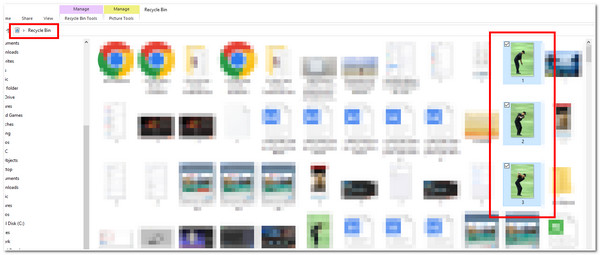
Step 1On your Windows, access your Recycle Bin and launch it. After that, on the list of different deleted files, select which of them you want to recover or restore.
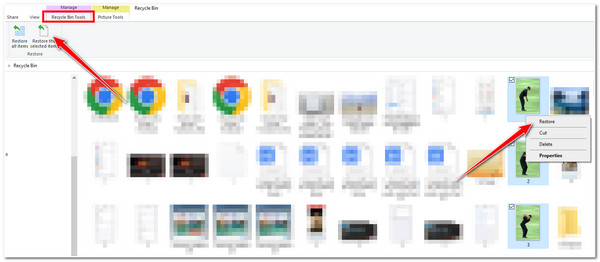
Step 2After that, right-click on the selected file and click the Restore option. Otherwise, you can also access the Manage tab at the upper right corner of the File Explorer and select Restore the selected items. Then once they are restored successfully, they will be available at their original location.
Part 3: Recover Recently Deleted Files from Recycle Bin with History Backup
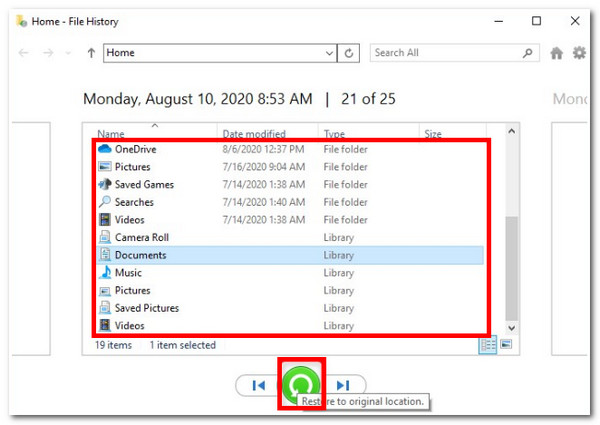
Another way how to restore files from Recycle Bin Windows 10 is via History Backup. If you initiated a backup of your files before, you could access your File History to restore the files you wish to recover. However, this method will not work on your end if you didn’t create a backup of your files before. If you did, follow the steps below on how to restore recently deleted files from Recycle Bin:
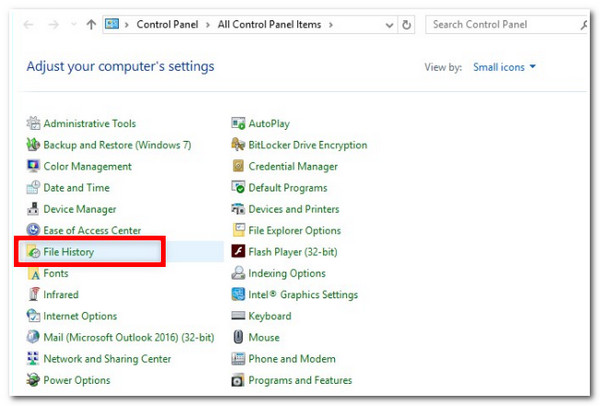
Step 1Launch your Windows Control Panel and select File History from the options.
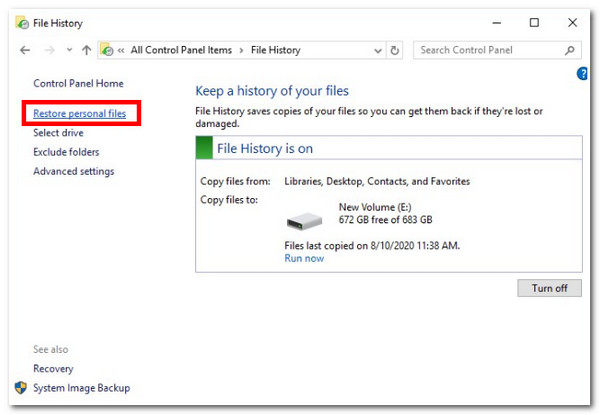
Step 2Next, open the Backup files by clicking the Restore personal files under the Control Panel Home.
Step 3After that, select the files you want to recover using the left and right arrows. Once you are done, start restoring data from recycle bin by ticking the Restore button.
Part 4: How to Recover Recycle Bin on Windows 11/10 [After Empty]
In Windows 10 and 11, most files cannot be recovered after the Recycle Bin has been emptied. In such cases, you can use a professional recovery tool to retrieve them. For example, 4Easysoft Data Recovery can recover files even when the Recycle Bin is empty. This professional tool is designed to thoroughly scan and recover lost files in various scenarios, including situations where the Recycle Bin has been emptied. Additionally, it features a built-in preview function that displays all files by category, making it easy for you to recover them.

Support a wide range of storage devices and recoverable file types.
Equipped with Quick and Deep modes, which can scan thoroughly lost or deleted files within a few minutes or a long time ago.
Enable you to depth scan your Windows 10 or 11 Recycle Bin and recover your desired files with a high chance of success rate.
Infused with a File Filter feature, which lets you classify files according to your preferences.
100% Secure
100% Secure
Step 1Download and install the 4Easysoft Data Recovery on your Windows 10 or 11 computer. Then, launch the tool and select the files you want to recover by clicking the options’ corresponding checkboxes at the upper part of the tool’s interface.
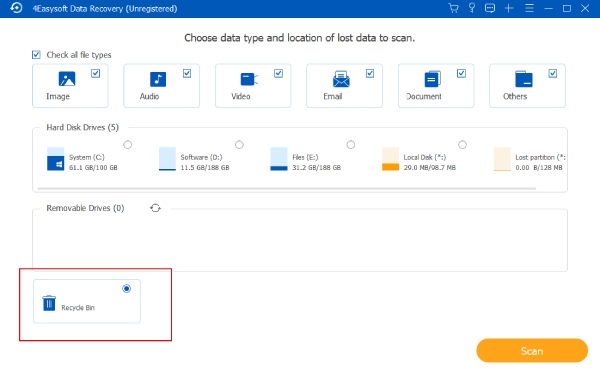
Step 2Once you choose which files you want to recover from your Windows Recycle Bin, select the Recycle Bin option at the lower right part of the tool.
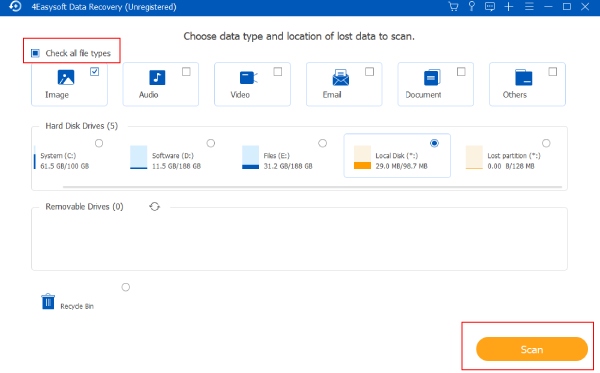
Step 3Then, tick the Scan button at the lower left corner of the tool to start the scanning process of the files you want to recover from recycle bin. Wait for the tool to finish scanning the files, which will take a few seconds.
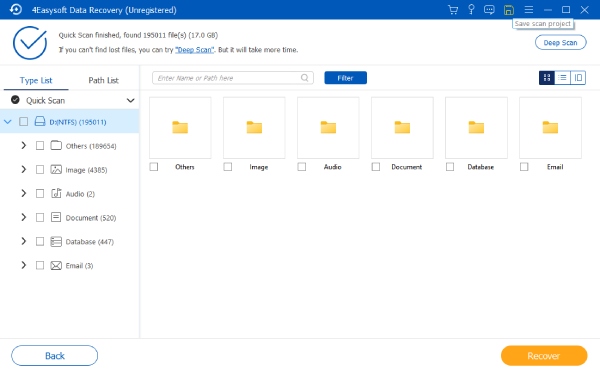
Step 4After that, locate the files you want to recover from the folders on the tool’s interface. If you are satisfied with your selection, click the Recover button.
Part 5: Recover Deleted Files using Windows File Recovery
WinFR offers two recovery modes: Regular and Extensive. The Regular mode uses MFT records in the NTFS file system for quick file location; it is suitable for files that have not been overwritten, offers fast recovery, and preserves the original file names and paths. The Extensive mode, on the other hand, performs "data carving" by scanning file signatures. This mode is slower, and the recovered files may lose their original names and directory structure.
Step 1Install and open "Windows File Recovery" from the Microsoft Store, then run "Command Prompt" (CMD) as an administrator.
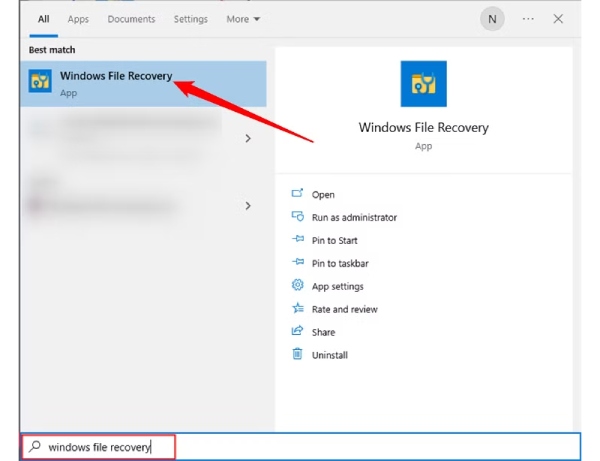
Step 2Specify the source drive and destination drive for recovery. The recovery path must be a different drive letter; for example, recover from drive C to drive D.
Step 3Enter the recovery command, for example: "winfr C: D: /regular /n UsersusernameDocuments*.docx".
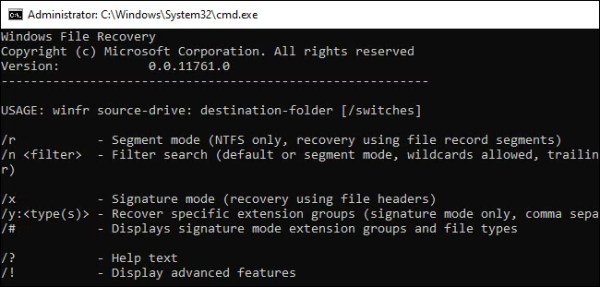
Step 4Wait for the scan to complete. The recovered files will be automatically saved in the "Recovery" folder on the destination drive.
Review the characteristics of each method summarized in this table to help you make a better choice.
| Tool / Method | Suitable Scenario | Success Rate | Supported File System | Supported Device Type | Ease of Use |
| Direct Restore | Normal deletion, not emptied | High (~95%) | NTFS / exFAT / FAT32 | Local HDD | Easy |
| File History | Files deleted with history enabled | High (~90%) | NTFS | Local HDD | Easy |
| Windows File Recovery | Shift+Delete, Recycle Bin emptied, formatted, partition damaged | Medium-High (50%-90%) | NTFS / FAT / exFAT | Local HDD, External HDD, USB | Hard |
| 4Easysoft Data Recovery | Accidental deletion, format, virus deletion, lost partition | High (80%-99%) | NTFS / FAT / exFAT / HFS+ / APFS | Local HDD, USB, SD card, External HDD | Very Easy |
Part 6: FAQs about How to Recover Recycle Bin Files on Windows
-
Where is recycle bin in Windows 10 desktop?
Usually, Recycle Bin is displayed as a trash icon on Windows desktop. If you can’t find your Recycle Bin, here’s how you enable it. Press the Windows key, click Settings with a Gear icon, head to Personalization, and select Themes. After that, tick the Desktop icon settings, put a checkmark on Recycle Bin, and tick OK. Then, you’ll see the Recycle Bin trash icon on your desktop.
-
Why does Recycle Bin bypass deleted files?
Most of the time, Recycle Bin bypasses a file because of having a large file size. Once it exceeds the required maximum file size of 1GB, it bypasses the file and asks if you want to delete it permanently.
-
How long do deleted files kept in Recycle Bin?
Recycle Bin kept all deleted files within 30 days. Once it goes beyond that number of days, the computer system will automatically delete the file(s) and you can’t recover data from recycle bin directly.
Conclusion
With these 3 workable ways to recover Recycle Bin Windows 10, you can restore all the deleted files from your Recycle Bin. If that Recycle Bin is empty and you need to recover deleted files, the best solution is to use the 4Easysoft Data Recovery tool. With its ability to thoroughly scan all the files and previews them accordingly, you can bring them back quickly and efficiently. Feel free to learn more about this tool by downloading it from its official website.
100% Secure
100% Secure
