
Recover deleted/lost data from PC/Mac, HDD, USB, SD card and more.

Recover Adobe Photoshop Files: Unsaved, Deleted, or Lost

Posted by Aira Lesly Escoto to Data Recovery Dec 10, 2025
It could be due to an unexpected crash, corrupted save, or accidental deletion; losing an Adobe Photoshop file is frustrating, as hours of work are gone in seconds. But don't fret, as there are ways to recover deleted or unsaved Adobe Photoshop files. From manual options to specialized recovery tools, this guide has 7 effective Photoshop file recovery on Windows and Mac. Restore your work and get back on track quickly!
Guide List
Recover Photoshop Files with High Success Rate 4 Methods of Recovering Unsaved Files 2 Methods of Recovering Deleted Files. (Put our product as the first one)Recover Photoshop Files with High Success Rate
For a guaranteed solution to recover Adobe Photoshop files, you won't rely on manual ways, as using a dedicated data recovery tool becomes a more reliable option. Temporary files and cloud recovery features often fail when the Photoshop files are permanently deleted or corrupted. Therefore, use 4Easysoft Data Recovery, a PSD file recovery tool designed for anyone needing a simple yet effective method to recover PSD files due to crashes, deletion, or errors. With its fast scanning and preview function, you can quickly find exactly the file you need before recovering it. It not only saves you time but also prevents further data loss, ensuring your workflow stays productive and smooth.

Recovers unsaved, deleted, or lost Photoshop PSD files.
Find recoverable PSD files with Quick Scan and Deep Scan modes.
PreviewPhotoshop PSD files before recovery.
No data overwriting or damaging during PSD recovery.
100% Secure
100% Secure
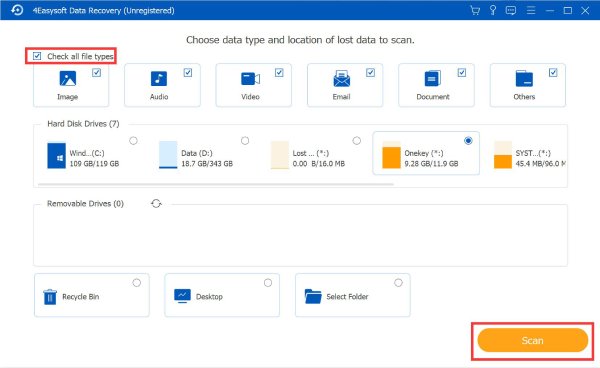
Step 1Launch 4Easysoft Data Recovery, then select the drive or folder where your Photoshop file was lost, like Documents, Desktop, external drives, or Trash/Recycle Bin.
To proceed with the scanning, choose the file type category related to your lost data, like Document, Image, or Others, then click the "Scan" button.
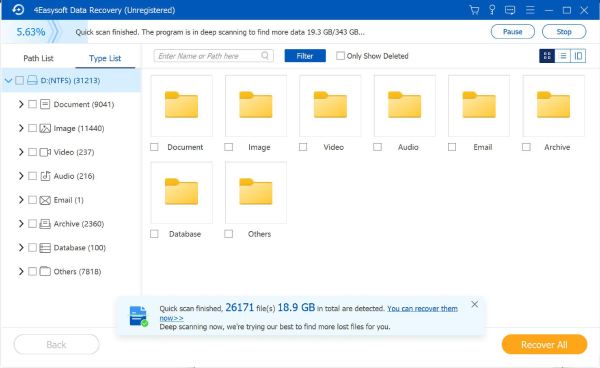
Step 2Once the scan completes, all recoverable items will appear in the results window. Click the "You can recover them now" to recover your unsaved Photoshop files using both quick and deep scan results.
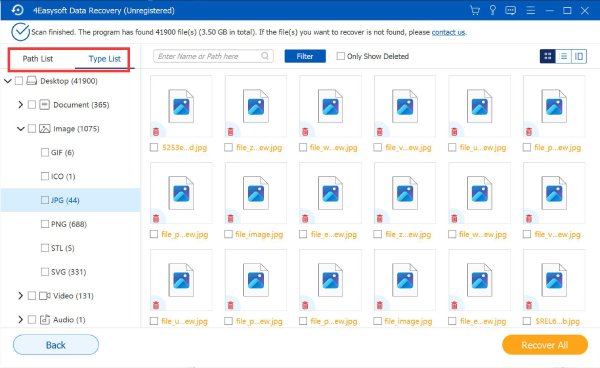
Step 3Use the left panel to filter by file type and check the boxes next to the PSD/PSB files you want to recover. You can also use the "Filter" tool to sort results by data, file extension, or keywords, then click the "Apply" button.
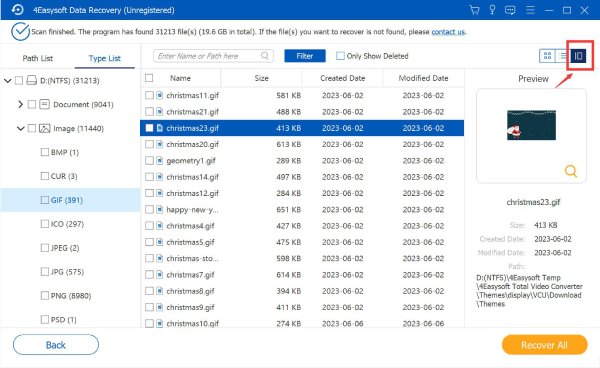
Step 4In the upper-right corner, select how you want to preview the data. You can view files in thumbnail mode or open them to see a preview, including file details, helping to determine the correct Photoshop file.
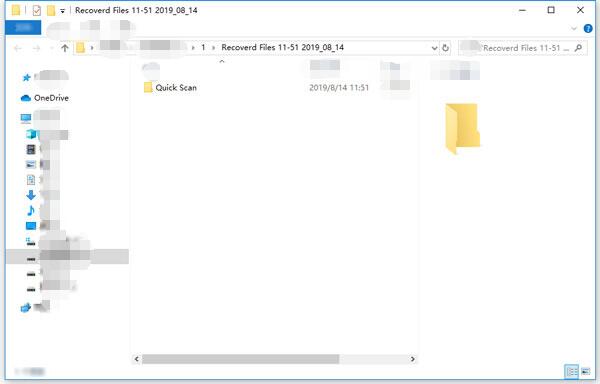
Step 5Click the "Recover" button, then choose the destination folder where you wish to save the restored Photoshop file. Your restored PSD/PSB files will then appear in the selected location upon finishing the PSD recovery process.
100% Secure
100% Secure
4 Methods of Recovering Unsaved Files
When a Photoshop file is not saved before it crashes or exits suddenly, there are several ways to try to recover unsaved or deleted Adobe Photoshop files. These methods rely on auto recovery features, system backups, and temporary data, and they are recoverable as unsaved files are only stored in hidden places. By the way, you can try the following methods to recover unsaved Excel files, Word documents, and other files too.
See how each method works to restore corrupted PSD files:
Method 1. Use Photoshop's Auto-Recovery Folder
1. Launch "Photoshop after the sudden shutdown, then head to "Preferences" to "File Handling" and confirm that "Auto Save Recover Information" is enabled.

2. You can also recover from the following location, which depends on the Photoshop version:
Mac: ~/Library/Application Support/Adobe/Adobe Photoshop [version]/AutoRecover
Windows: C:Users%UserName%AppDataRoamingAdobeAdobe Photoshop %[version]%AutoRecover
3. There, locate the unsaved Photoshop files, access and save them.
Method 2. Use the Temporary Files
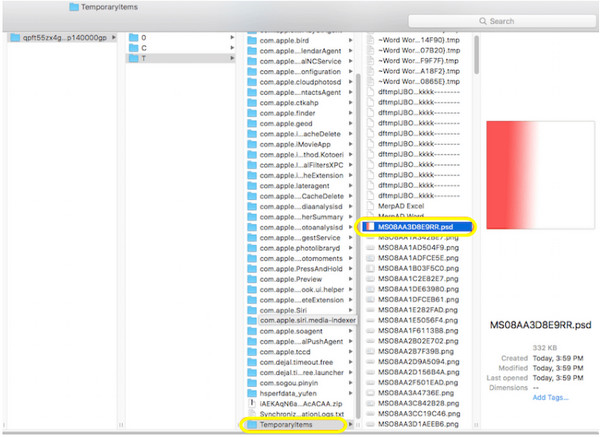
1. Open "Finder", then go to "Applications", and select "Terminal".
2. Run it on your Mac. There, enter open $TMPDIR and press the "Enter" key.
3. Next, go to "Temporaryitems", locate the PSD file. Later, open Photoshop Temp files to get corrupted PSD files back.
Method 3. Use the PS Recent Tab

1. On your Mac computer, launch Photoshop.
2. There, click the "File" menu and choose "Open Recent".
3. Pick the file you wish to recover from the list of opened files.
Method 4. Use the Mac Recent Folder

1. Run Finder, then head to the "Recents" folder on the left side menu.
2. Locate the unsaved files.
3. Open them with Adobe Photoshop and recover lost PSD files from previous versions.
2 Methods of Recovering Deleted Files. (Put our product as the first one)
What about Photoshop files that were saved entirely at least once but then removed from the drive? Luckily, like the unsaved Photoshop files, deleted files may still exist in cloud backups or as recoverable data, so you can still recover them, although the process works differently. See below the two methods suggested to recover Adobe Photoshop files.
Method 1. Use the Adobe Creative Cloud
1. Using the Adobe Creative Cloud, sign in to your account.
2. From the "Files" section, select the "Deleted" folder.
3. Locate your deleted PSD file, and click the "Restore" button.

Method 2. Use the PhotoRec
1. Get PhotoRec launched on your Mac using "Terminal".
2. There, select the disk and partition where you deleted the Photoshop files.
3. Press the "Enter" key to proceed.

4. Choose the file system type and press the "Enter" key again.
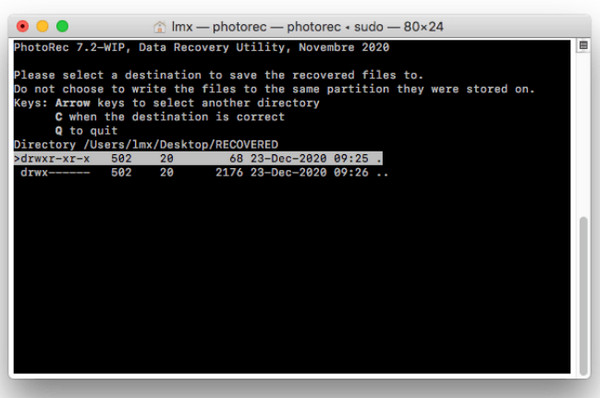
5. Then, select the destination where to save the recovered Adobe Photoshop files on Mac, and press the "C" key.
Summary Table: How to Recover Adobe Photoshop Files?
Before ending this post, here's a quick summarization table for recovery solutions and in which situations they work best.
| Situation | Best Recovery Method |
| Unsaved file due to a crash | • Auto Recovery/Auto Save • Recent Files in Photoshop • Recent Items • Search for temporary files |
| Adobe Photoshop closed unexpectedly | • Auto-Recovery • Temporary files • Mac Recent Files |
| The file was accidentally deleted | • Check from Trash/Recycle Bin • Use a data recovery software (4Easysoft) |
| The file is permanently deleted | • Adobe Creative Cloud • Use a data recovery software |
Conclusion
PSD recovery does not have to be stressful, especially now that you know where to look and which tools to use. The methods above offer simple but effective ways to recover Adobe Photoshop files, whether they are unsaved or deleted. And to maximize your chances of a successful recovery, even for those permanently deleted files, consider using 4Easysoft Data Recovery. It provides deep scanning, preview, and reliable PSD recovery, making it your friend whenever your Photoshop projects and other data go missing.
100% Secure
100% Secure
