
Remove screen passcode, Apple ID, MDM and Screen Time from iPhone safely.

Locked Out? Here's How to Erase iPhone without Password

Posted by Alvin Cantero to iOS Unlocker Feb 27, 2026
You just entered your passcode wrong too many times, so your iPhone is suddenly "Unavailable". How can you unlock and sell this iPhone, then? Luckily, Apple offers ways to erase iPhone without password! Today's guide will lay out the three reliable ways to factory reset iPhone without a password, alongside preparations before you hit the erase button. So, without wasting your time, here are the following ways to get it done.
Guide List
The Preparation Before Erasing Your iPhone A Thorough Method to Erase iPhone without Password How to Erase iPhone with iTunes Erasing the iPhone without Apple ID Password via iCloudThe Preparation Before Erasing Your iPhone
Before you initiate any erasure without password, you know that doing so will permanently delete all your photos, messages, and settings. So, to avoid losing all data on your device, you should make sure you have a recent backup stored in iCloud or on your computer. See below the steps for how to backup iPhone data before erasing your iOS device.
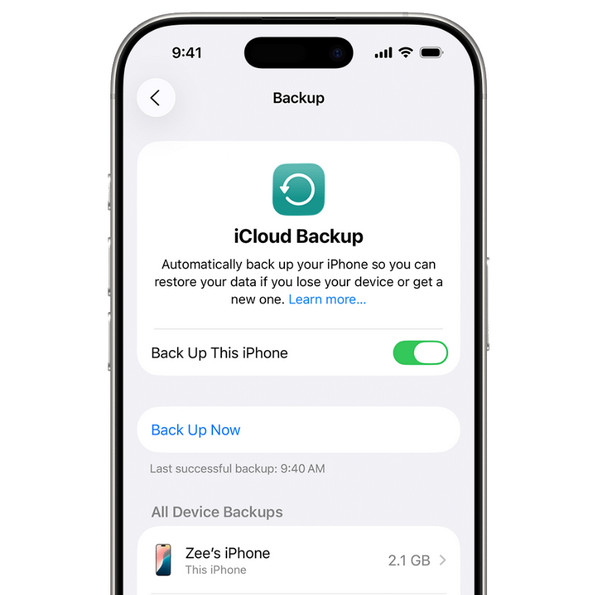
Backing Up iPhone to iCloud:
- 1.Make sure the iPhone is connected to a stable Wi-Fi network.
- 2.Then, open "Settings", tap "Apple ID" at the top, select "iCloud", scroll down, and choose "iCloud Backup".
- 3.Toggle ON the "Back Up This iPhone" switch.
- 4.Then, tap on "Back Up Now" to begin the process right away. Wait for iPhone backup completes.
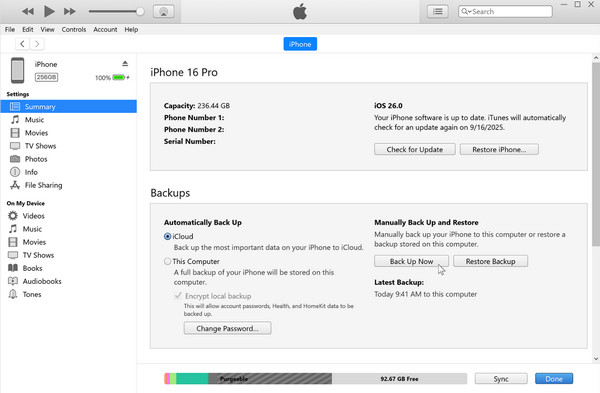
Backing Up iPhone to iTunes/Finder:
- 1.Pair your iPhone to your computer using a USB cable. If prompted, allow permission on your iOS device.
- 2.Launch iTunes/Finder, then look for the device icon, and go to the "Backups" section under "General" (Summary).
- 3.Click the "Back Up Now" button, and wait for it to complete.
A Thorough Method to Erase iPhone without Password
When Apple's official methods feel complex for you, use a powerful and streamlined alternative to factory reset a locked iPhone without Apple ID passcode, such as 4Easysoft iPhone Unlocker. This professional software is designed to bypass all types of screen locks, including digit passcodes, Touch ID, and Face ID. But beyond just clearing passcodes, it can remove Apple IDs as well and bypass Screen Time restrictions without your credentials. With its friendly interface, you can complete the overall process even if you aren't a tech expert. By using this unlocker tool, you can enjoy a high success rate and a thorough wipe that fixes system glitches along with the screen lock.
Erase a locked iPhone without password, e.g., 4/6-digit passcodes, Face ID, or Touch ID.
Works seamlessly across all iOS devices, including the recent iPhone 17 and iOS 26 and 27 beta.
Rapid unlocking process with a high success rate is supported.
Instantly clears disabled or frozen screens from incorrect passcode attempts.
100% Secure
100% Secure
Step 1Launch 4Easysoft iPhone Unlocker on your computer. Ensure your computer has the latest version of iTunes, then connect your iPhone via a USB, and choose "Wipe Passcode" from the main dashboard.
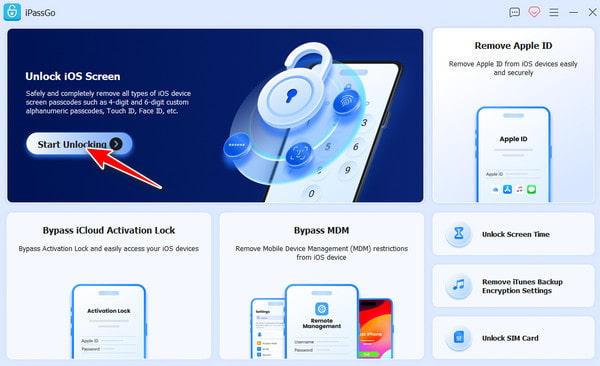
Step 2Once the program recognizes your device, click the "Start" button. Check all the displayed details, then click the "Start" button again to download the firmware package needed for the reset.
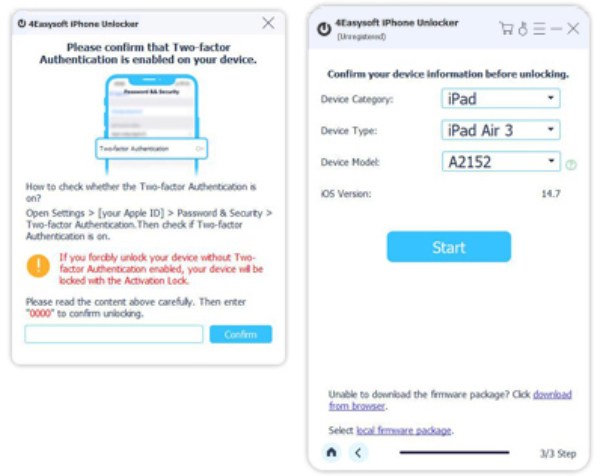
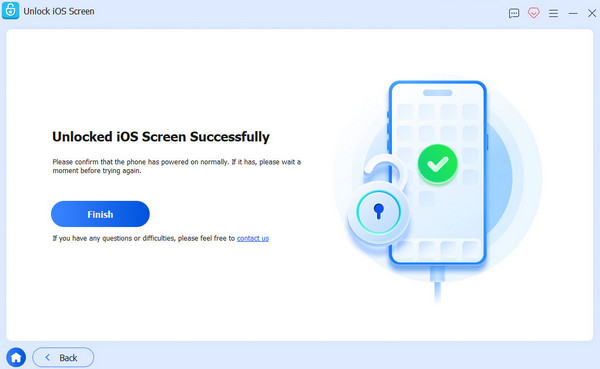
Step 3After the download has been made, type "0000" into the field to authorize the factory reset. Click the "Unlock" button to let the program wipe away the passcode and restore your iPhone.
100% Secure
100% Secure
How to Erase iPhone with iTunes
For those looking for a more traditional approach, you can factory reset iPhone without password using iTunes. This approach involves putting the iOS device into Recovery Mode, which forces the device to link with your computer even while it is unavailable. Once finished, the phone will be as clean as the day you first used it, letting you restore the data from a previous backup you made. Use iTunes as your free iPhone eraser now!
Follow the steps below for how to wipe iPhone without password using iTunes:
Step 1Connect your iPhone to your computer, then launch the latest version of iTunes.
Step 2Next, perform a forced restart (press/release Volume Up, then Volume Down, then hold down the Side button) until your device is in Recovery Mode.
Step 3From the prompt that appears in iTunes, select "Restore".
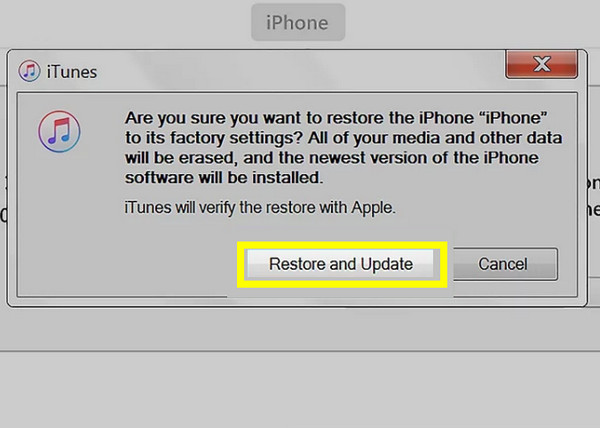
Step 4Confirm by clicking the "Restore and Update" button, and iTunes will start wiping the device.
Erasing the iPhone without Apple ID Password via iCloud
Maybe you don't have a computer available, but you can still reset a passcode-locked iPhone remotely using Apple's iCloud. If you have Find My activated, the iCloud website offers a convenient approach to erase your device. It works as the perfect solution for anyone who is on the go, as you can get it done from any browser. While it will ask for your Apple ID credentials, it removes the screen passcode entirely.
Here's how to erase locked iPhone without password via iCloud:
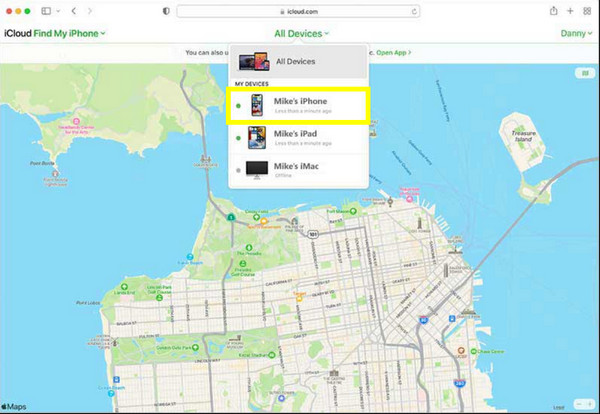
Step 1Visit iCloud.com Find My on any browser, and sign in with your Apple ID used with the locked iPhone.
Step 2Once in there, click on "All Devices" at the top and choose your locked iPhone.
Step 3Select the "Erase iPhone" button. Complete the prompts to verify that you want to wipe all content and settings.
Conclusion
You've seen here today to erase iPhone without Apple ID password in three reliable methods! Remember, while erasing iPhone removes passcode, it wipes your personal data, so ensure to prioritize regular backups first before doing so. And while iCloud and iTunes are Apple's official methods to regain access, 4Easysoft iPhone Unlocker is worth trying to bypass any iPhone lock screen. Using this tool, you can have a fast and effective way to unlock the iPhone and restore it to factory settings with just a few clicks. Have the most reliable and user-friendly experience to get back to your digital life.
100% Secure
100% Secure
