
Back up and restore iOS data like eBooks, photos, messages, and more selectively and safely.

Top 7 Desktop and Online eBook Converters (with a Bonus Tip)

Posted by Paula Pailaga to PDF Tools Mar 05, 2026
Found a digital edition of a classic, but it is in a format that cannot be recognized? To navigate this, you need an eBook converter that not only changes files but also can preserve formatting, metadata, and fit into your workflow. To help you out, today's post breaks down the seven most reliable eBook PDF converters, highlighting pros and cons and simple steps to get your books moving. Also, you will see a bonus tip on backing up your entire eBook. Start now!
Guide List
1. Adobe Acrobat Pro - High Fidelity eBook Converter 2. Calibre - Open-Source Library Manager and eBook Converter 3. Epubor Ultimate - One-Click eBook Converter 4. Hamster Free eBook Converter - Multi-Device eBook Converter 5. Zamzar - Simple Browser eBook Converter 6. Convertio - Advanced Cloud Integrated eBook Converter 7. CloudConvert - Secure Data Processing for eBook Conversions Bonus Tip: Use a Professional Tool to Back Up All Your eBooks1. Adobe Acrobat Pro - High Fidelity eBook Converter
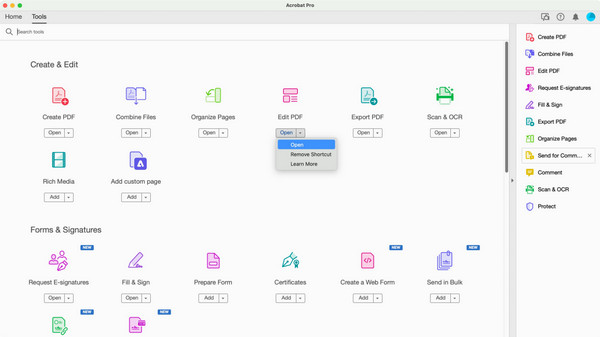
Remains the industry standard for creators who want layout preservation. Here's Adobe Acrobat Pro. This comprehensive eBook format converter lets you convert complex files into readable PDFs that maintain every image, font, and margin exactly. It also has a high-end compression engine that shrinks large, image-heavy books into manageable files.
- Pros
- Advanced encryption options to do eBook conversions; perfect layout preservation.
- Cons
- Steeper learning curve for beginners; needs a monthly subscription.
- 1.Start Adobe Acrobat and go to the "Tools" tab.
- 2.Select "Create PDF" and select your eBook file from your computer.
- 3.Once it opens, head to "File" then select "Export To" to select a different format, and simply save it as "PDF".
2. Calibre - Open-Source Library Manager and eBook Converter
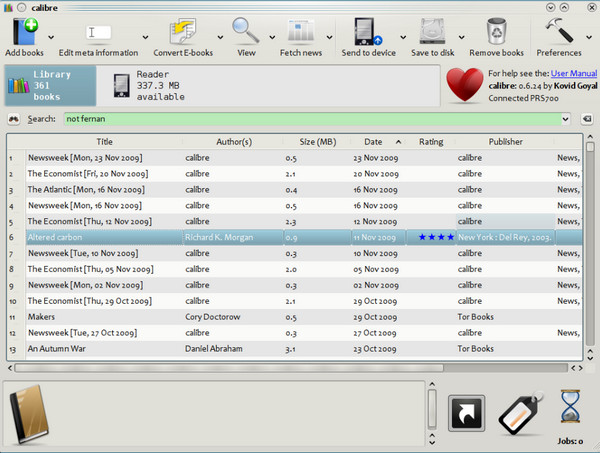
Switching to a more community-driven powerhouse, Calibre eBook converter is the most versatile tool available today. It has a conversion engine that is highly customizable, letting you adjust font sizes, audio detection chapters, and smart punctuation.
- Pros
- Supports almost every e-book format; works completely free.
- Cons
- Its interface is cluttered; conversion of complex PDFs can be difficult.
- 1.Click "Add books" to upload your eBook into the library.
- 2.Highlight it and click "Convert books" in the upper menu.
- 3.After that, choose your desired "Output format" from the dropdown menu.
- 4.You can adjust "Look & Feel" settings too, and click "OK" to start the conversion.
3. Epubor Ultimate - One-Click eBook Converter
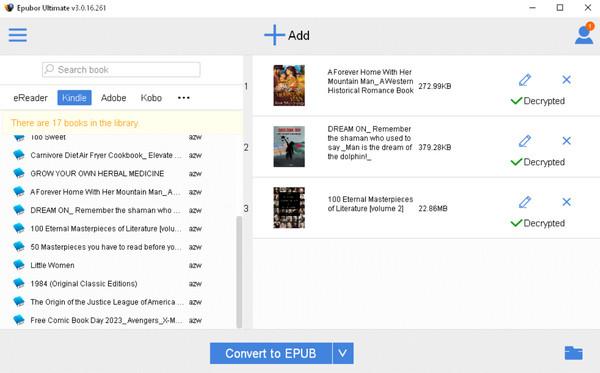
If you find yourself usually having issues with restricted files, EpuBor Ultimate has a streamlined solution that offers both rapid processing and powerful decryption. This eBook file converter is designed primarily to handle books from famous stores like Kindle, Kobo, and Nook.
- Pros
- Offers extremely fast conversion, built-in DRM removal, and built-in library search.
- Cons
- The trial version converts only 20% of the book; it has no editing features.
- 1.Open Epubor Ultimate and wait for it to load your downloaded eBooks.
- 2.Drag the books you want into the right-hand workspace.
- 3.Next, select your target format, then click "Convert" to decrypt your files simultaneously.
4. Hamster Free eBook Converter - Multi-Device eBook Converter
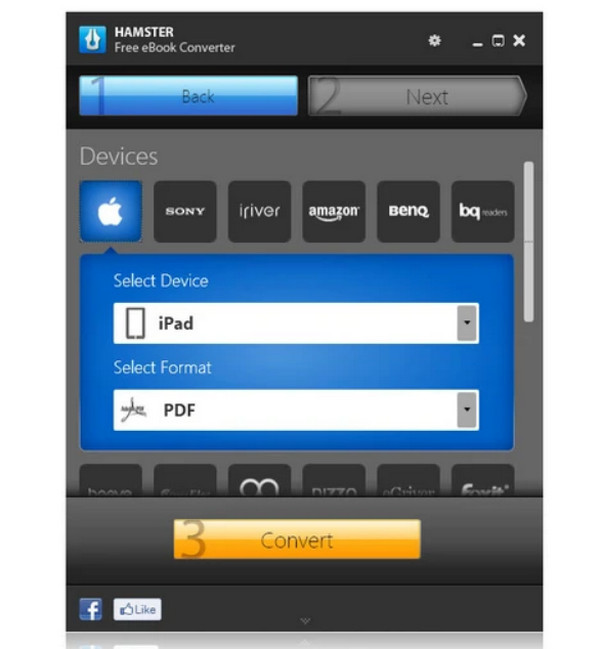
Moving to a more user-friendly eBook converter to PDF, Hamster Free eBook Converter focuses on device compatibility, letting you select your e-reader brand to ensure the output is perfectly tailored to it. It also covers a wide range of formats like PDF, EPUB (see steps to convert PDF to EPUB), and LIT.
- Pros
- Offers batch conversion for an entire folder of books; lightweight converter.
- Cons
- Has not been updated frequently; limited advanced settings.
- 1.On the main screen, click "Add Files," then select the eBooks you want to transform.
- 2.Click "Next" to proceed to the format selection.
- 3.Upon choosing your format, click "Convert" and select a destination folder.
5. Zamzar - Simple Browser eBook Converter
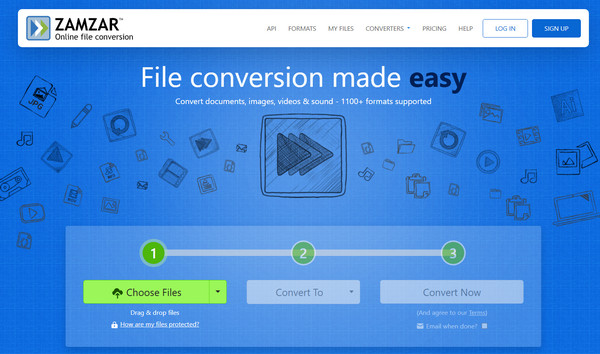
For anyone who does not wish to install anything, Zamzar is a reliable online eBook converter solution that supports more than a thousand formats. It will not drain your CPU or battery, so it is perfect when you want to convert files on the go.
- Pros
- Email notifications are supported; over 1,100 formats, including CBC, CHM, and RB, are covered.
- Cons
- Needs an internet connection; has a 50MB limit for free users.
- 1.Search for Zamzar. There, click "Choose Files" to import your eBook.
- 2.Pick your desired format from the dropdown menu, and click "Convert Now".
- 3.Later, click "Download" to save the file.
6. Convertio - Advanced Cloud Integrated eBook Converter
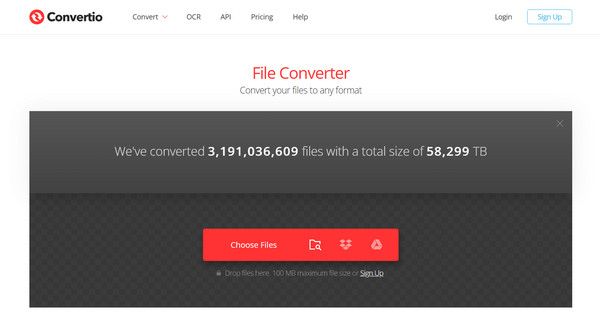
Similarly, Convertio offers you a powerful online eBook conversion experience. This platform lets you upload files directly from cloud storage and save the converted eBooks back to it. Besides helping you convert an eBook to PDF or other formats, it ensures your data will be deleted from their servers within 24 hours.
- Pros
- Excellent cloud storage integration; offers high-quality OCR for scanned books.
- Cons
- Needs an account for larger files; the free tier has daily conversion limits.
- 1.Upload your chosen eBook from your computer or storage device to the main Convertio website.
- 2.Select your output format, then click "Convert" and wait for it to finish.
- 3.You can then save it directly to your cloud storage account.
7. CloudConvert - Secure Data Processing for eBook Conversions
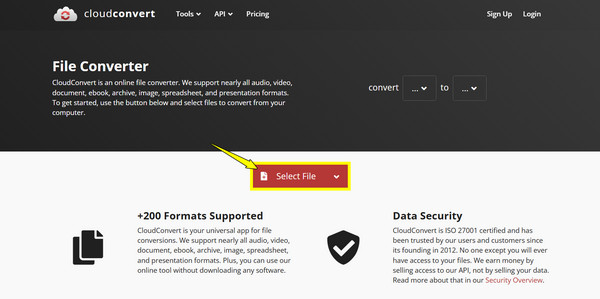
Completing the list of online eBook converters, CloudCovert offers high-quality outputs and exceptional accuracy for all your transformations. This tool lets you adjust specific parameters, which is very unlikely in online tools. Here, you can have a stable conversion environment that rivals many apps.
- Pros
- Provides top-tier data security; highly customizable settings.
- Cons
- Subscription needed for unlimited conversions.
- 1.On the CloudConvert page, click "Select File," then choose your eBook from your files.
- 2.Afterward, select the output format from the list.
- 3.You can adjust advanced settings as needed.
- 4.Click "Convert" and save the results once they are done.
Bonus Tip: Use a Professional Tool to Back Up All Your eBooks
Once you have converted your eBook library into perfect formats, the next step is to ensure you never lose them due to hardware issues or a lost device. So, here's a desktop companion for all eBook lovers: the 4Easysoft iOS Data Backup and Restore. This professional utility lets you back up all eBooks, notes, and documents from your iOS devices to your computer with a single click. Unlike other cloud backups, the program offers an encrypted backup option to protect your privacy and guarantees that no data is ever affected or lost. By using the tool, you can enjoy your converted eBooks with the peace of mind that your collections are securely archived.
Quickly saves your iOS data, such as eBooks, to your PC or Mac.
Supports all modern iPhone and iPad models, including the latest iOS versions.
Optimized for fast data transfers, even with large collections of image-heavy books.
New eBook backups will be together with old ones; no data will be affected.
100% Secure
100% Secure
Conclusion
The perfect reading experience is no longer about the device you hold but about the freedom to move your library across any devices you choose. Thanks to eBook file converters today, such as Calibre, Zamzar, Convertio, and others, you can enjoy your digital collection wherever you are. Once you organize your eBooks, ensure those files never disappear using 4Easysoft iOS Data Backup and Restore. This software lets you copy all your eBooks and other files to your computer with a single click. With its support for the latest iOS versions and high-speed processing, the tool is the ultimate choice for keeping your digital life secure.
100% Secure
100% Secure
