
Remove screen passcode, Apple ID, MDM and Screen Time from iPhone safely.

How to Find My Apple ID on iPhone, iPad, Mac, and More

Posted by Alvin Cantero to iOS Unlocker Aug 07, 2026
Not being able to find your Apple ID is more common than people think, especially if you've had the same iPhone for years and never had a reason to check. Some people forget the email entirely. Others have three or four addresses and can't remember which one they linked. Whatever brought you here, the fix isn't as complicated as it feels right now. See the steps below to find out what your Apple ID is easily.
Guide List
How to Find Apple ID on iPhone How to Find Apple ID on Mac How to Find Apple ID Without Your Device What to Do If Apple ID Is Unknown and the iPhone Is LockedHow to Find Apple ID on iPhone and iPad
If you can unlock your iPhone, this is the fastest way to find your existing Apple ID. There is no need for browser, support calls, or guessing games with old emails.
Step 1Open the Settings app.
Step 2Tap your name at the very top of the iPhone screen. (It's the banner with your profile photo or initials, right above Airplane Mode.)
Step 3Now you can see your Apple ID email address (or Apple Account email address for iOS 18 and later) shows up right under your name.
How to Find Apple ID on Mac
If there is no iPhone around you, you can know your Apple ID name on a Mac computer too. The steps are similar. Moreover, you can see the existing Apple ID from iCloud settings and iTunes/App Store purchases, too.
Step 1Click the Apple menu in the top left corner of your Mac screen.
Step 2Click the "System Settings" or "System Preferences" option from the drop-down list.
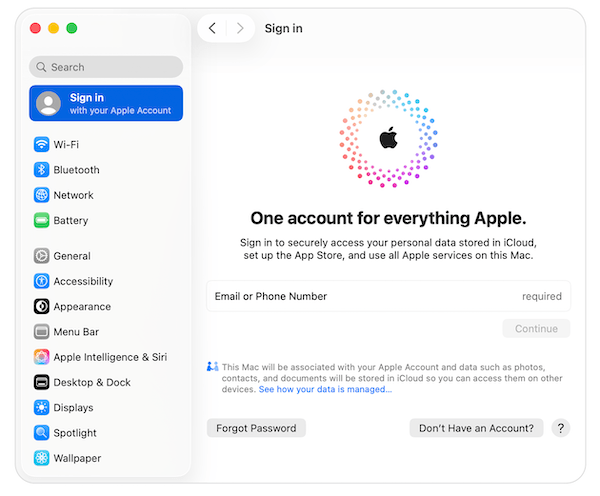
Step 3The Apple account shows in the left corner. Just the name. There is no word saying Apple Account or Apple ID.
Step 4Later, you can check your Apple ID email, account information, and connected devices through this Apple account.
How to Find Apple ID Without Your Device
Even though your device is lost, broken, or just not with you right now, you can track down your Apple ID. Just use Apple's account recovery options.
1. Apple account lookup page
Open the iforgot.apple.com on your browser. It's okay if you open this website on any laptop or computer. You'll be asked to enter some basic information, such as your name, email, phone number, or other information that might be linked to your Apple Account. Apple will help confirm or locate it from there.
2. Trusted email addresses
If your Apple ID has a recovery email, try using it first. Apple may send a verification code or account recovery steps to that address.
3. Trusted phone numbers
It is the same idea, but through text or a phone call. If you have a number on file, Apple can send a verification code there instead.
What to Do If Apple ID Is Unknown and the iPhone Is Locked
When the Apple Account credentials are a total unknown, and the recovery process isn't accessible, this is the kind of situation 4Easysoft MobieTool is built for. You can get rid of a locked iPhone (due to a forgotten passcode, Activation Lock, or the Find My lock after a reset) with easy steps.
Remove the screen passcode, Touch ID, and Face ID lock.
Walk the device through recovery mode to carry out the removal process.
Bypass Activation Lock screen without Apple account email and password.
Support a range of iOS versions, including iOS 27/26.
100% Secure
100% Secure
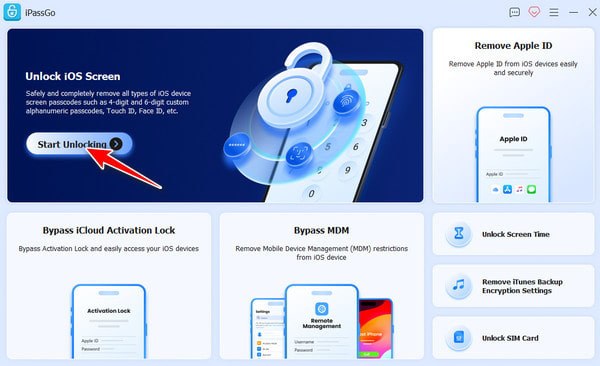
Step 1Open 4Easysoft MobieTool. Choose the unlocking mode that matches your needs. For example, you can click the "Start Unlocking" button to get into a locked iPhone without a passcode.
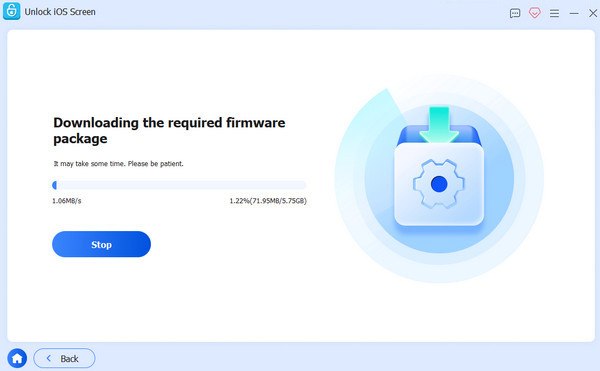
Step 2Plug your iPhone into the computer using a lightning USB cable. Click the "Start Now" button to continue the process. Check the detected iPhone information. If everything is correct, click the "Start Now" button to download the firmware.
Step 3Later, click the "Start Removing" button. Follow the on-screen instructions. Click the "Confirm Again" button to remove the passcode successfully.
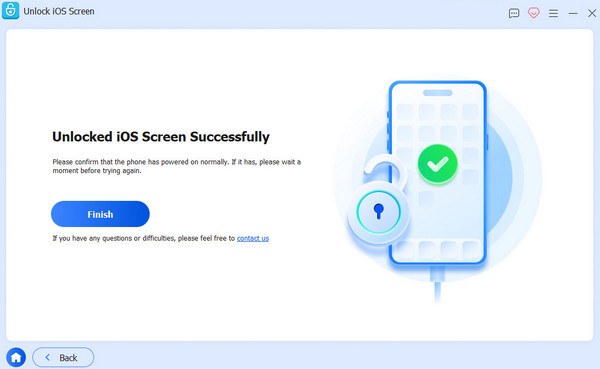
You can use the program to remove iPhone Activation Lock, remove Apple ID, bypass MDM, and remove more types of passwords.
Conclusion
At the end of the day, "finding your Apple ID" is not always the real problem. Sometimes you just need to check your Apple Account settings on a signed-in device. Other times, the password is what you've forgotten, and Apple's recovery options can help. But if the real issue is a forgotten screen passcode or a disabled iPhone, that's a device access problem, not an account lookup problem, and it needs a different fix. 4Easysoft MobieTool is worth downloading and trying. It is built specifically to get locked iDevices usable again.
100% Secure
100% Secure
