
Remove screen passcode, Apple ID, MDM and Screen Time from iPhone safely.

Everything You Need to Know About What My Apple ID is

Posted by Alvin Cantero to iOS Unlocker May 28, 2026
Many new Apple users may wonder what an Apple ID is. As a key part of the Apple ecosystem, the Apple ID plays a crucial role in using Apple devices. No matter which device you are using - iPhone, iPad, Mac, or any other - it is crucial to understand Apple ID basics. It involves knowing how it works, what it controls, and how to recover or manage it when necessary. This guide explains what an Apple ID is, what it is used for, and how to find or reset related information when access becomes an issue.
Guide List
What is My Apple ID: A Brief Introduction What is an Apple ID Used for on Apple Devices How Do You Find out What Your Apple ID is How to Check Your Apple ID That is Not Logged in How to See What your Apple ID Password is [Bonus] How to Unlock iPhone with Apple ID Security IssueWhat is My Apple ID: A Brief Introduction
What is an Apple ID? An Apple ID is the account used to access all Apple services. It is usually tied to an email address and serves as the primary identifier across devices such as iPhone, iPad, and Mac. Once signed in, the Apple ID enables seamless access to services such as the App Store, iCloud, Apple Music, and more. Without it, most core features of an Apple device remain inaccessible.
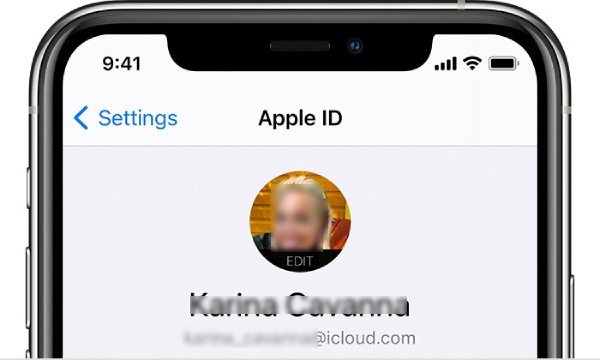
In addition to the basic identity recognition function, the Apple ID also integrates personal settings, preferences, purchase records, backups, and device tracking functions under one account. No matter how many devices you have, as long as you log in with the same Apple ID account, you can access the same content. This also brings great convenience for data transfer between different iOS devices.
What is an Apple ID Used for on Apple Devices
To answer what an Apple ID is used for, the simplest answer is that it is the key to your entry into the Apple ecosystem. If you don't log in with your Apple ID across different Apple devices, even if you have multiple devices, they won't be able to work together and contribute to your workflow. Only when the same Apple ID is logged in on all these devices can they work together via the cloud.
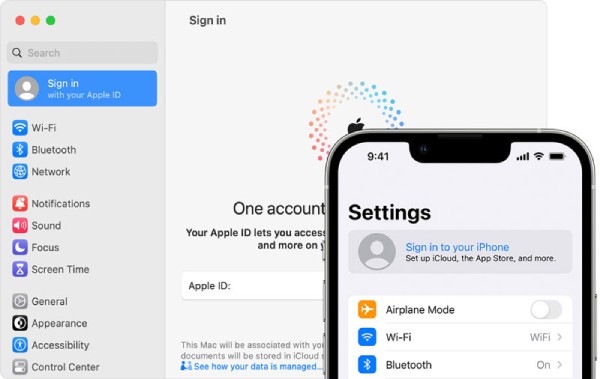
Beyond convenience, the Apple ID plays a significant role in security and device management. Features such as Find My iPhone, Activation Lock, and iCloud backups are all tied to this account, and you can use them only when your Apple ID is activated. These functions help protect personal data and prevent unauthorized access. As a result, maintaining control over your Apple ID is essential not only for usability but also for safeguarding sensitive information.
How Do You Find out What Your Apple ID is
Now you know what an Apple ID is. If you find that your Apple ID isn't immediately recognizable, there are still several reliable ways to locate it on your device or through Apple services. Apple provides multiple entry points where your account information is displayed, allowing you to recover your Apple ID even if you've forgotten it. The following methods guide you through different approaches to quickly and accurately identify your Apple ID.
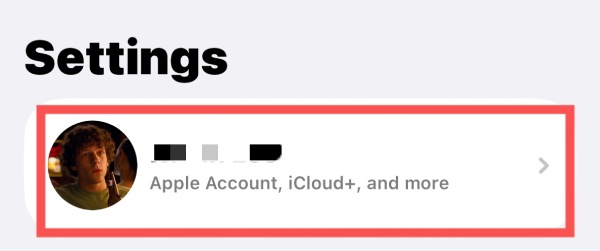
Step 1Launch Settings on your iPhone and tap the "Apple ID" button at the top of the page.
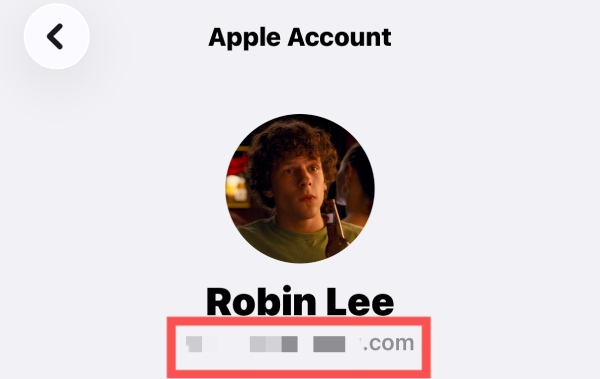
Step 2Under the "Apple Account" tab, your Apple ID will appear next to your avatar.
How to Check Your Apple ID That is Not Logged in
If you have replaced your iPhone and haven't performed any data transfer, there is no information about your Apple ID on the new iPhone. At this point, for users who have forgotten their Apple ID or don't know their Apple ID password, there is no longer a way to log in or synchronize data. But don't worry, there is an effective solution for this section.
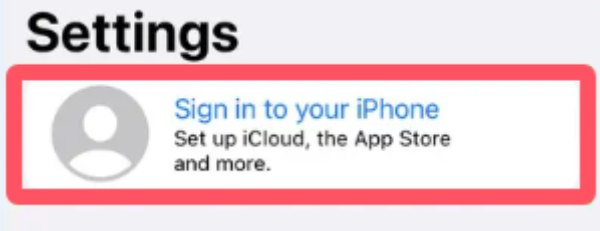
Step 1Launch Settings and tap the "Sign in to your iPhone" button at the top of your screen.
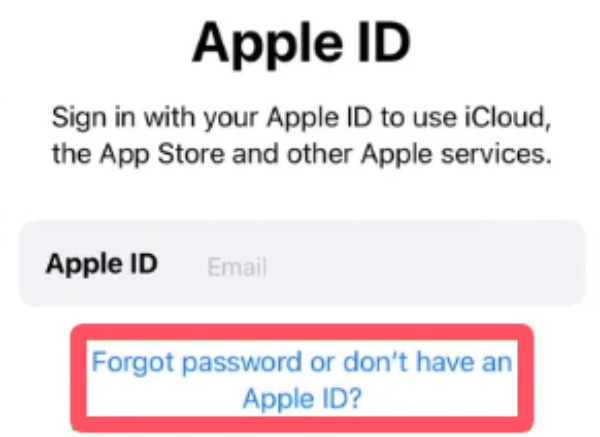
Step 2If you forget your Apple ID, tap the "Forgot password or don't have an Apple ID" button to proceed.
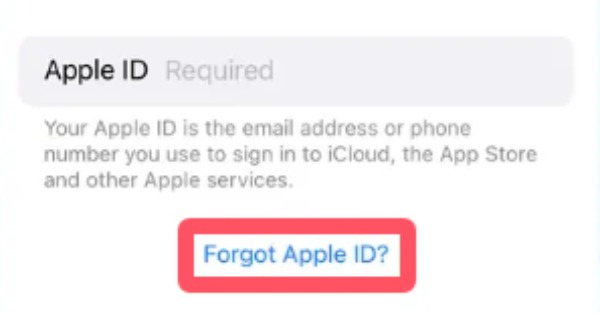
Step 3When you are asked to enter your Apple ID, tap the "Forgot Apple ID" to find it.
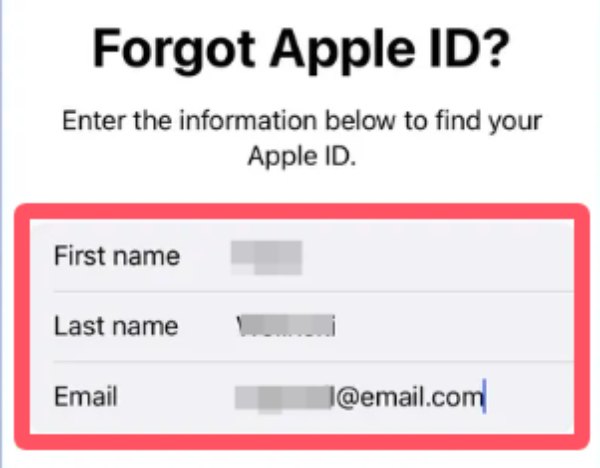
Step 4Follow the instructions to fill in the required information, from your name to your email. Then, tap the "Next" button.
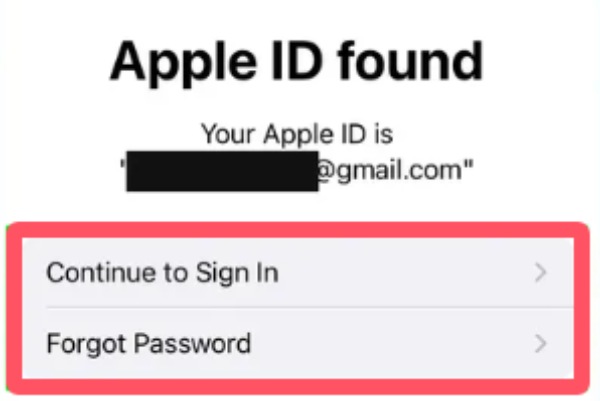
Step 5If the information you provide is associated with an Apple ID, it will be displayed.
How to See What your Apple ID Password is
Unlike standard credentials, Apple does not allow users to view their Apple ID password directly for security reasons. Instead, the system is designed to protect sensitive information by requiring verification before any changes can be made. However, in many cases, when you forget the password for your Apple ID, you will find that your access to many applications and features is restricted. In this situation, instead of deleting your Apple ID, you can regain your Apple ID by setting up the account again. If you don't know how to do it, you can follow the detailed steps provided below to learn how to see your Apple ID password quickly.
Step 1Launch Settings and tap the "Apple ID" button. Under the "Apple Account" tab, tap the "Sign-in & Security" button.
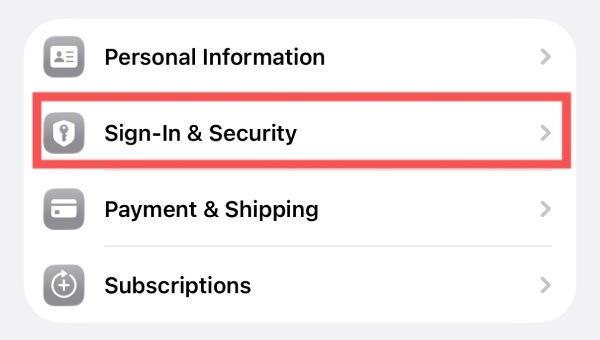
Step 2In the new page, tap the "Change Password" button under the "Security" tab to proceed.
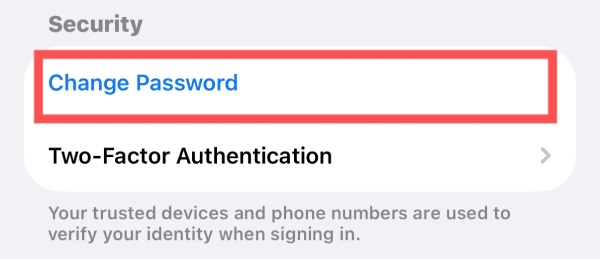
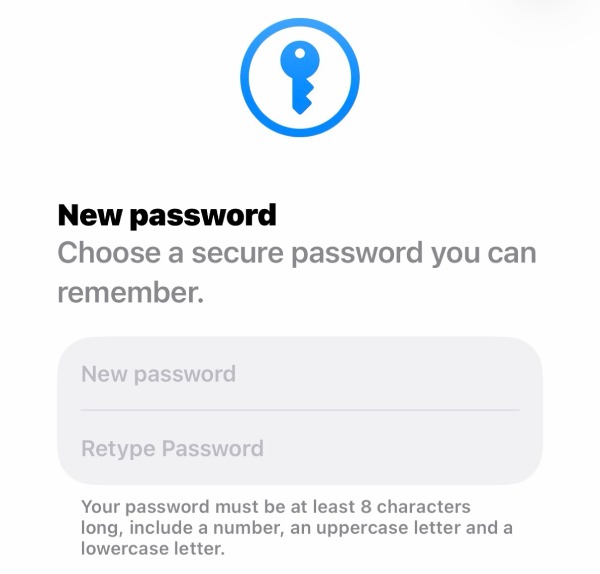
Step 3Now, you can recover your Apple ID password and make sure you see what your Apple ID password is.
[Bonus] How to Unlock iPhone with Apple ID Security Issue
Now you know how to see what your Apple ID password is, even if you forget it. However, there is still a possibility that you may fail the security verification, which would prevent you from accessing your iPhone normally. At this point, you might need to seek the assistance of professional tools. 4Easysoft iPhone Unlocker is designed to help you remove Apple ID restrictions and regain access to your devices without complicated procedures.
Get into your iPhone locked due to Apple ID safely.
Bypass Apple ID even if you forget the passcode.
Your iPhone will stay safe during the whole process.
Decrypt iTunes Backup if you forgot the password.
100% Secure
100% Secure
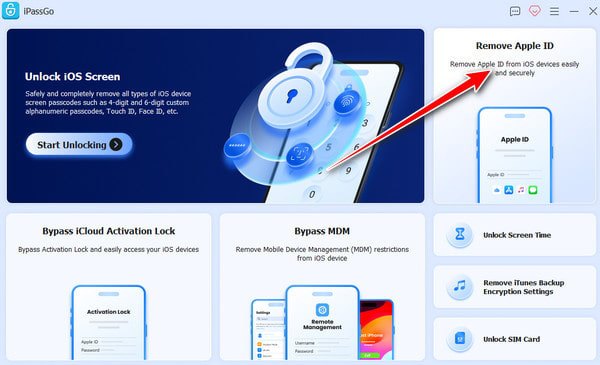
Step 1Launch 4Easysoft iPhone Unlocker. Use a USB cable to connect your iPhone. Then, click the "Remove Apple ID" button to proceed.
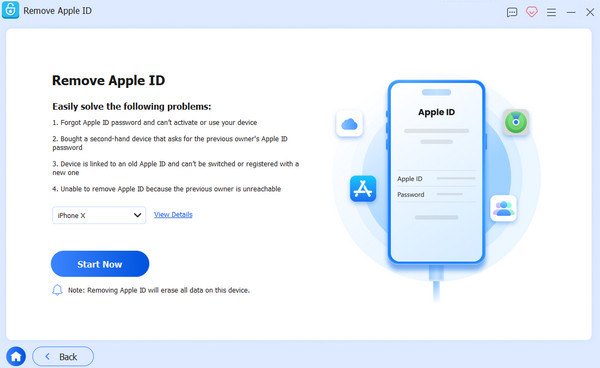
Step 2Click the "View Details" button to check the info. To continue the process, click the "Start Now" button to download the firmware for unlocking your Apple ID.
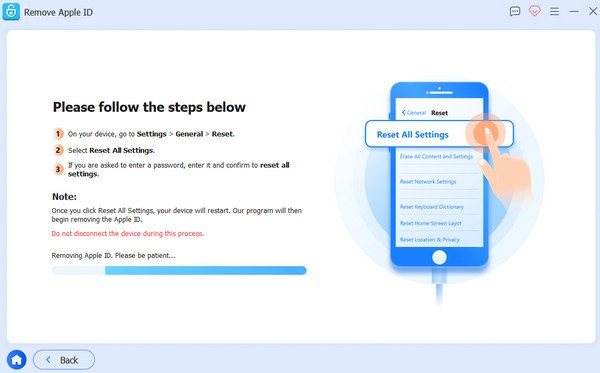
Step 3Now, no matter what your Apple ID password is, your iPhone will be unlocked. If it fails, click the "Retry" button and then the "Confirm Again" button to settle the issue.
Conclusion
In conclusion, Apple ID is used for constructing a solid Apple ecosystem. It not only benefits your workflow but also can protect your privacy and security in many cases. However, when you forget your Apple ID password, it can also become inconvenient. But don't worry. With the help of 4Easysoft iPhone Unlocker, you can ensure continued access to your device and data without unnecessary complications.
100% Secure
100% Secure
