
Remove screen passcode, Apple ID, MDM and Screen Time from iPhone safely.

3 Practical Ways to Unlock iPhone with Emergency Call Screen

Posted by Alvin Cantero to iOS Unlocker Apr 27, 2026
Some users are searching for ways to unlock their iPhone using the Emergency Call screen, which has been associated with certain system loopholes in the past. While not all iOS versions support this method, there are still several practical ways to regain access to your device. In this guide, you will learn different methods to unlock an iPhone with the Emergency Call screen, including effective tools and alternative solutions.
Guide List
Part 1: iOS 6.1 Only - Unlock iPhone with Emergency Call Screen Part 2: The Most Effective Method to Unlock iPhone with Emergency Call Screen Part 3: How to Unlock iPhone with Emergency Call Screen via Erasing ProcessPart 1: iOS 6.1 Only - Unlock iPhone with Emergency Call Screen
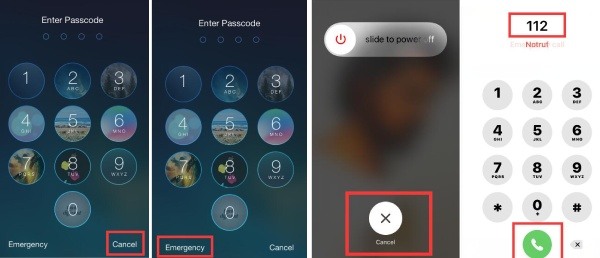
In earlier versions of iOS, particularly iOS 6.1, there was a well-known loophole that allowed users to bypass the lock screen through the Emergency Call interface. Although Apple later patched this method, it once provided a temporary workaround for unlocking an iPhone without entering the passcode. This section explains how this method worked and under what conditions it could be used. You can follow the detailed steps below to and make sure your iPhone can be unlocked without a password.
Step 1When you're asked to enter a password for unlocking the screen, tap the "Cancel" button. Then, tap the "Emergency" button.
Step 2In the new page, long-press the "Power" button of your iPhone. When you see the "slide to power off" button, tap the "Cancel" button.
Step 3Dial "112" or "119" on the keyboard. Tap the "Call" button and immediately tap the "Cancel" button. Then, long-press the "Power" button to turn off the iPhone.
Step 4Now, restart your iPhone and be ready to enter the password. Long-press the "Power" button.
Step 5Tap the "Emergency Call" button immediately before the "slide to power off" button appears. Your iPhone will be unlocked with the Emergency Call screen.
Part 2: The Most Effective Method to Unlock iPhone with Emergency Call Screen
If the Emergency Call workaround does not work on your device, using a professional unlocking tool can be a more reliable solution. Tools like 4Easysoft iPhone Unlocker are designed to remove different types of iPhone locks safely and efficiently. During the process, you can not only access your iPhone quickly but also keep your iPhone working as normal without any loss. In this section, you will learn how this software can help unlock your iPhone with the Emergency Call screen even if you forget the passcode.

Unlock all passwords on your iPhone immediately.
Wipe your data to put your iPhone in a fresh state.
Remove screen time restrictions with easy clicks.
Unlock your iPhone at a fast speed with no mistakes.
100% Secure
100% Secure
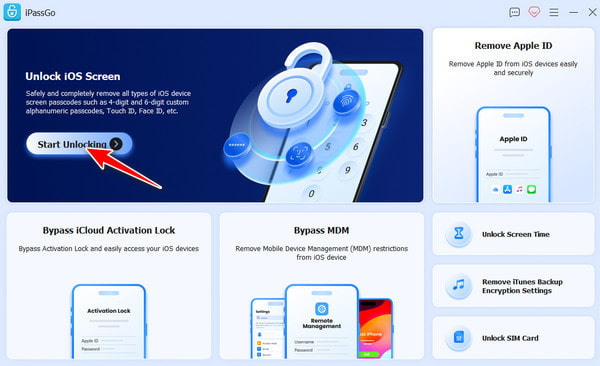
Step 1Launch 4Easysoft iPhone Unlocker and connect your iPhone to the computer using a USB cable. Click the "Unlock iOS Screen" button.
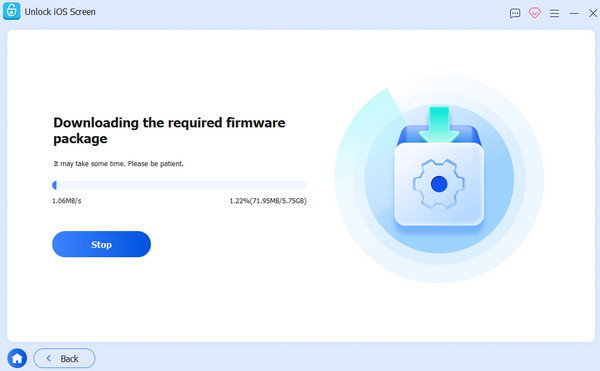
Step 2In the new window, click to select and download the desired iOS version. Wait a while for the tool to finish downloading the firmware package.
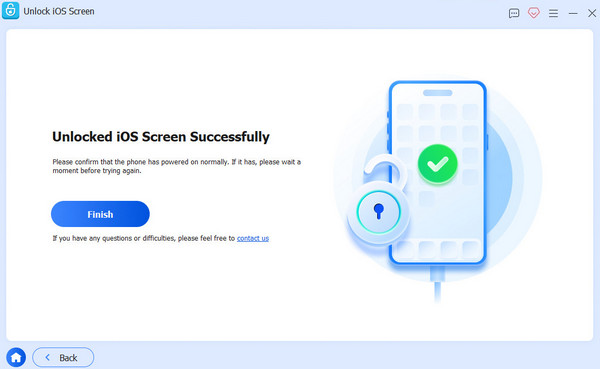
Step 3Now, enter "0000" and click the "Unlock" button to unlock your iPhone in the Emergency Call screen without any limits.
Part 3: How to Unlock iPhone with Emergency Call Screen via Erasing Process
Another possible solution is to erase the iPhone and reset the device through official recovery methods. Although this process removes the lock screen passcode, it will also erase the data stored on the device. You may need to create a backup, like transferring precious photos to your Mac/PC , before you attempt to unlock your iPhone with the Emergency Call Screen with this method. This section explains how the erasing process works and how it can help you regain access to your iPhone.
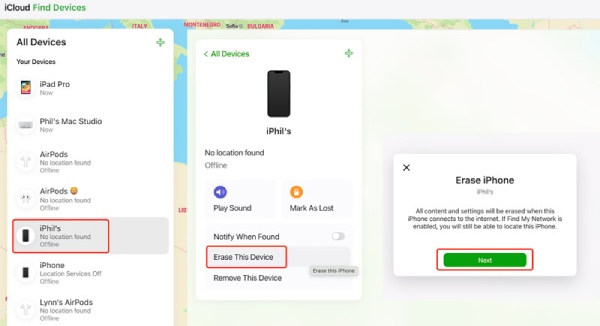
Step 1Navigate to the iCloud.com/find page on your computer and sign in to your Apple account as same as on the iPhone.
Step 2Here, you can see all the associated Apple devices. Click to select the target iPhone. Then, click the "Erase This Device" button and confirm your action.
Step 3This process will factory reset your iPhone. All your data will be erased, and you will have no trouble unlocking your iPhone before entering the Emergency Call screen.
Conclusion
Now you've learned how to unlock an iPhone using the Emergency Call screen. While this method is only possible on certain older iOS versions, you can try more effective approaches. Among all the methods, 4Easysoft iPhone Unlocker helps you regain access to your iPhone safely and efficiently.
100% Secure
100% Secure
