
Remove screen passcode, Apple ID, MDM and Screen Time from iPhone safely.

4 Proven Practical Ways to Unlock Apple ID Account Safely

Posted by Alvin Cantero to iOS Unlocker May 19, 2026
Many users are searching for an effective way to unlock an Apple ID, especially since it affects access to essential services like iCloud, the App Store, and device synchronization. Whether the issue is caused by security measures or account-related errors, knowing how to unlock your Apple ID efficiently is crucial. In this guide, you will explore the common reasons behind a locked Apple ID and learn several practical methods to regain access safely.
Guide List
Why is Apple ID Account Locked on Your iPhone iForgot: An Official Solution to Unlocking Apple ID for Free The Powerful Apple ID Unlocker for Any Possible Reason How to Unlock Apple ID on iPhone Settings with Passcode How to Use Another Apple Device to Unlock Apple IDWhy is Apple ID Account Locked on Your iPhone
Understanding why your Apple ID gets locked can help you choose the most effective solution and avoid the issue in the future. Below are some common reasons:
- Too Many Incorrect Password Attempts: When your Apple account is locked on your iPhone, the most common reason is that you might have entered the wrong password too many times. The iPhone will temporarily lock your device to protect its security in case of potential damage.
- Suspicious or Unusual Activity Detected: If Apple detects unusual login behavior, such as signing in from a new location or device, your account may be locked as a precaution. In such cases, all you need to do is to search for the help of a custom service.
- Outdated Security Information: If you fail to update your device for a long time, some security measures or security certificates may expire. When the iPhone detects this situation, it will temporarily lock your Apple ID to ensure that it is not vulnerable to potential security attacks.
- Violation of Apple's Terms or Security Policies: In some cases, Apple may lock an account due to policy violations, such as suspicious transactions or misuse of services. While less common, this type of restriction usually requires additional verification steps or contacting support to resolve.
iForgot: An Official Solution to Unlocking Apple ID for Free
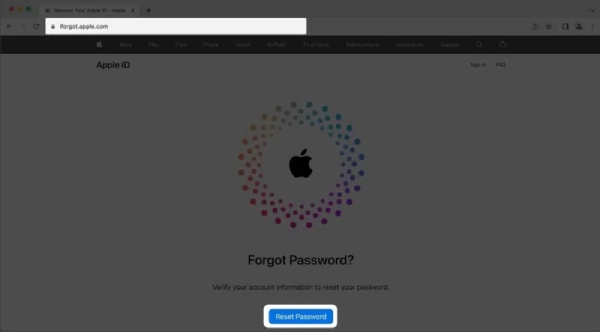
Apple provides an official recovery service through the iForgot website, which allows users to reset their Apple ID password and unlock their account, even if they delete their Apple ID by accident. By verifying your identity through email, phone number, or security questions, you can regain access safely using a browser-based solution.
Step 1On your browser, navigate to the official website of iForgot. Click the "Reset Password" to proceed.
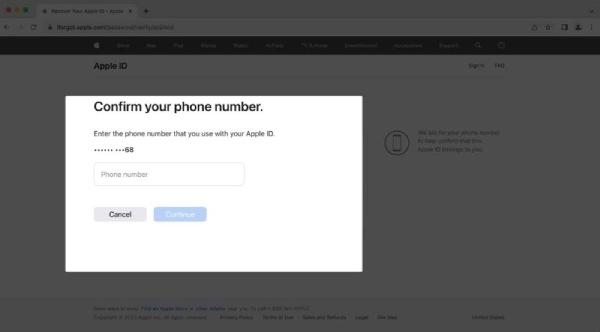
Step 2Enter your email or phone number that links to your Apple ID and click the "Continue" button.
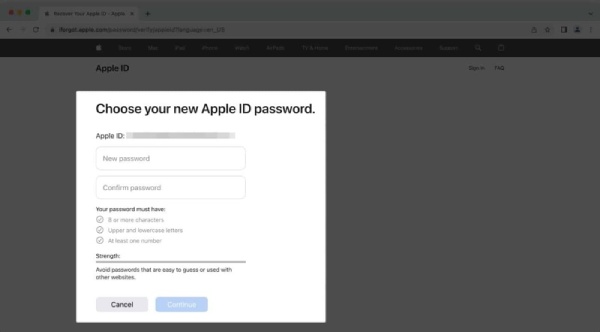
Step 3Once you receive the verification message on your account, enter the code, and you can reset the password to unlock your Apple ID.
The Powerful Apple ID Unlocker for Any Possible Reason
If you are in search of a quick and effective solution, 4Easysoft iPhone Unlocker can help you easily unlock your Apple ID. This software is specifically designed to handle various locking situations. It enables you to remove the restrictions on your Apple account and regain access to your device. Its interface is straightforward, which is suitable for users who need a fast and practical solution.
Get into your iPhone locked due to Apple ID safely.
Bypass Apple ID even if you forget the passcode.
Your iPhone will stay safe during the whole process.
Decrypt iTunes Backup if you forgot the password.
100% Secure
100% Secure
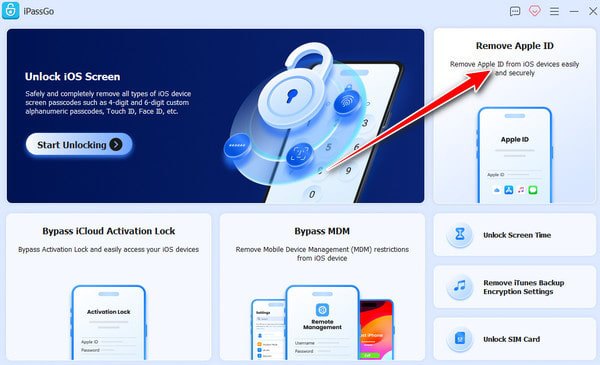
Step 1Launch 4Easysoft iPhone Unlocker and connect your iPhone to the computer. In the main interface, click the "Remove Apple ID" button.
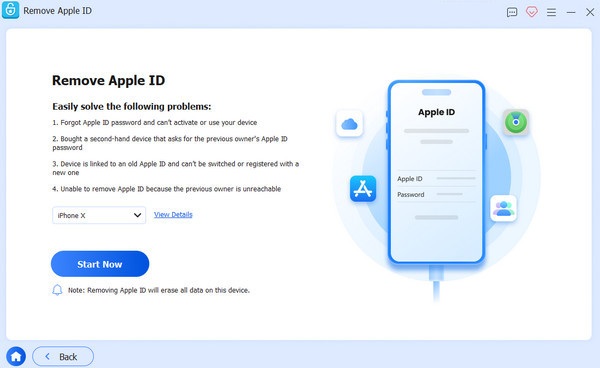
Step 2Check your iPhone information by clicking the "View Details" button. If everything is proper, click the "Start Now" button to download the firmware to proceed.
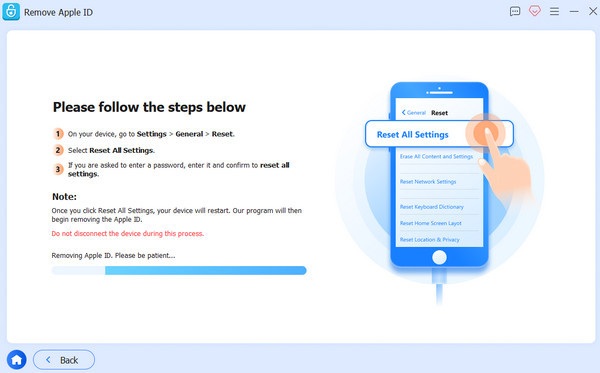
Step 3Your Apple ID will be unlocked if Find My iPhone is disabled. If not, click the "Retry" button and then the "Confirm Again" button to bypass it.
How to Unlock Apple ID on iPhone Settings with Passcode
If you still remember your passcode but don't know how to change it, then this process is actually very simple. You can directly change your Apple ID in Settings to unlock it on your iPhone. All you need to do is follow the following simple steps:
Step 1Open Settings on your iPhone and tap the "Apple ID" button at the top of the page.
Step 2In the new page, tap the "Sign-In & Security" button and then the "Change Password" button to proceed.
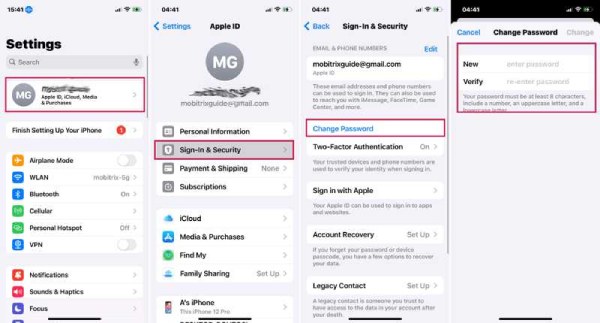
Step 3Reset the password and unlock your Apple ID. Whenever your iPhone is locked due to Apple ID, you can enter the password to activate Apple ID to access.
How to Use Another Apple Device to Unlock Apple ID
If you have access to another Apple device already signed in with your Apple ID, you can use it to unlock your account more easily. This method allows you to reset your password and verify your identity through trusted devices, providing a secure and convenient recovery process.
Step 1Launch Apple Support on your iPhone and tap the "Reset Password" button under the "Support Tools" tab.
Step 2On the bottom of the screen, tap the "Help Someone Else" button to proceed.
Step 3Enter the Apple ID and tap the "Next" button. Now, you can use another Apple device to unlock your Apple ID.
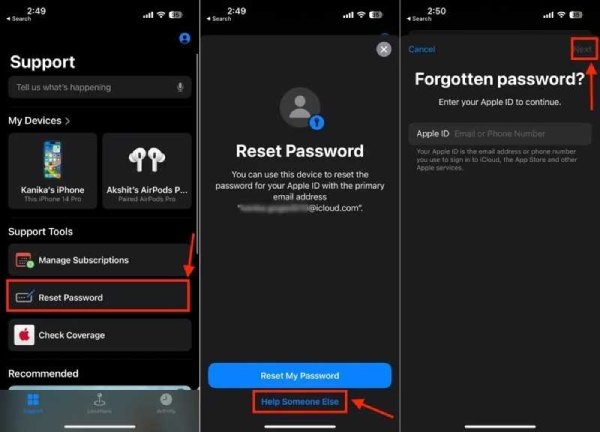
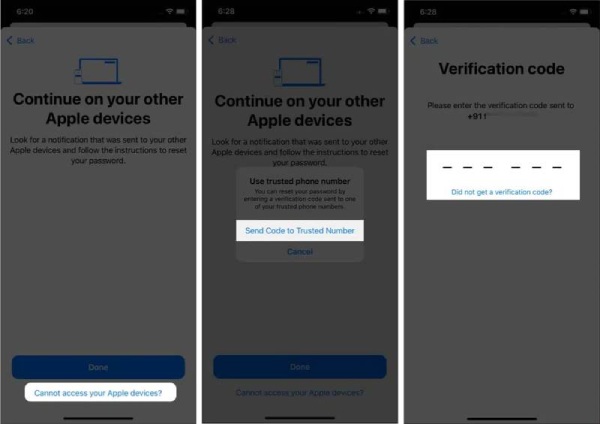
Step 4If you don't get any notification on other Apple devices, tap the "Cannot access your Apple devices?" button.
Step 5Tap the "Send Code to Trusted Number" button to get a verification code sent to your number.
Step 6Enter the verification code, and you are allowed to recover your Apple ID password and unlock your Apple ID.
Conclusion
Now you know how to unlock Apple ID with different methods, whether you remember the passcode or not, this task won't be a trouble for you anymore. For issues that cannot be solved quickly, 4Easysoft iPhone Unlocker can help you regain access and secure your account with confidence.
100% Secure
100% Secure
