
Record, edit, and share video from all sources.

The Best Screen Recorder for Mac in 2026: 10 Tools Tested

Posted by Ethan Brooke to Review Jun 09, 2026
You hit Record in QuickTime. You play it back. The app audio is completely gone. That's the most common Mac screen recording problem, and Apple built it that way on purpose. macOS blocks apps from capturing internal audio by default. So, you try OBS. Now you're staring at a settings panel with 40 options and no idea where to start.
This guide fixes all of that. I spent two weeks testing 10 screen recorders on macOS Sequoia with Apple Silicon. I looked at recording quality, system audio support, battery impact, and whether it actually feels like a Mac app.
Guide List
What Are You Trying to Do with Mac Screen Recorder Why "Screen Recorder for Mac" Is a Different Question Than Windows Quick Comparison: At a Glance In-Depth Reviews: 10 Screen Recorders for Mac Free vs Paid: How Much Should You Spend? How to Record System Audio on Mac: The #1 Problem Solved How to Choose the Best Screen Recorder for Mac FAQ Final RecommendationsWhat Are You Trying to Do with Mac Screen Recorder
- Record a Zoom call with audio - OBS or 4Easysoft Screen Recorder
- Make a YouTube tutorial - Screen Studio
- Send a quick video to a teammate – Loom
- Record gameplay on Mac - 4Easysoft Screen Recorder (120fps) or OBS
- Free option with no watermark - OBS Studio or Command+Shift+5
- Record your iPhone screen on Mac - iPhone Mirroring (macOS Sequoia+)
Why "Screen Recorder for Mac" Is a Different Question Than Windows
Recording your screen on Mac is harder than it should be. Here's why.
- System audio doesn't just work. macOS blocks apps from capturing internal audio by default. You need either a virtual audio driver (like BlackHole) or a paid tool that handles it internally. QuickTime and the built-in Screenshot toolbar can't do it at all.
- Not all apps are built for Apple Silicon. An older app running under Rosetta 2 will drain your battery fast. In 2026, any tool that isn't native M-series is a hard pass.
- Some apps go blank on you. macOS restricts screen recording access unless you grant it manually. If your recording shows a black screen, that's usually why. You can go to System Settings → Privacy & Security → Screen Recording and enable it.
- Mac users care how things look. An ugly app with a 2012-era UI won't get used, no matter how powerful it is. That matters too.
How to screen record on Mac using built-in tools
If you just want to get started right now:
- 1.Press Command + Shift + 5 to open the Screenshot Toolbar.
- 2.Choose Record Entire Screen or Record Selected Portion.
- 3.Click Record (or Options to choose save location, timer, and microphone).
- 4.Click the Stop button in the menu bar (or press Command + Control + Esc) when done.
- 5.A floating thumbnail appears - click it to trim the start and end.
Built-in recording only captures microphone audio. For system audio (e.g., recording a Zoom call or video playback), you'll need one of the third-party tools below.
macOS permissions you need to know about
Before using any screen recorder on Mac, go to System Settings > Privacy & Security > Screen Recording and ensure the app has permission. Without this, any third-party screen recorder will show a blank or black window. Microphone permission is separate - you'll find it under Privacy & Security > Microphone.
Tips
Some apps (Netflix, Apple TV+, DRM-protected content) cannot be recorded on Mac due to HDCP restrictions. This is a hardware-level limitation, not a software issue. So, you cannot record or screenshot on some apps due to security policy.
Quick Comparison: At a Glance
Here's how the top screen recorders for Mac stack up across the features that matter most.
| Tool | Price | System Audio | Built-in Editor | Apple Silicon | Best For |
| 4Easysoft Mac Screen Recorder | $15.95 one-month | ✅ Built-in | ✅ 5 modes + mouse effects | ✅ Native (M1-M5) | All-in-one: video, audio, webcam, window |
| macOS Screenshot Toolbar | Free | ❌ Mic only | ❌ | ✅ Native | Quick emergency recordings |
| QuickTime Player | Free | ❌ Mic only | ❌ (basic trim) | ✅ Native | iOS device screen recording (wired) |
| OBS Studio | Free | ✅ Native on Ventura+ | ❌ | ✅ Native (v30+) | Power users, live streaming |
| CleanShot X | $29 one-time | ✅ Built-in | ✅ Basic | ✅ Native | Screenshots + recording |
| Screen Studio | $89 one-time | ✅ Built-in | ✅ Auto-zoom effects | ✅ Native | Polished demos & tutorials |
| ScreenFlow | $199 one-time | ✅ Built-in | ✅ Multi-track editor | ✅ Native | Professional video production |
| Camtasia | from $179/year (renews at $39/year) | ✅ Built-in | ✅ Professional | ✅ Native | Course creators & training |
| Loom | Free (5min limit) | ✅ Built-in | ❌ | ✅ Browser | Async team communication |
| Cap | Free | ⚠️ Limited | ✅ Basic trim | ✅ Native | Open-source lightweight alt |
Which Mac screen recorder should you choose by workflow?
| Workflow | Recommended Tool | Why |
| Need multiple recording modes in one app | 4Easysoft Mac Screen Recorder | 5 modes: video, audio, webcam, window, screenshot – all Mac-native. |
| Record iPhone screen on Mac (Sequoia+) | Any recorder on this list | Use macOS Sequoia’s iPhone Mirroring – your iPhone appears as a Mac window, recordable by any tool, no cable needed. |
| Quick capture, no editing needed | Command+Shift+5 or QuickTime | Zero setup, already installed. |
| Need internal audio + mic | Screen Studio, CleanShot X, or OBS (Ventura+) | Handles audio routing natively on modern macOS. |
| Creating polished demos/tutorials | Screen Studio | Auto-zoom and cursor effects save hours of editing. |
| Recording + professional editing | ScreenFlow or Camtasia | Full multi-track editing in one app. |
| Async team updates | Loom | Record, share link, done. |
| Screenshots + occasional recording | CleanShot X | Best Mac screenshot tool with bonus recording. |
In-Depth Reviews: 10 Screen Recorders for Mac
1. 4Easysoft Mac Screen Recorder - The Most Versatile All-in-One Solution for Mac
$15.95/month Windows & Mac
4Easysoft Mac Screen Recorder is purpose-built for macOS, packing 5 dedicated recording modes - video, window, audio, webcam, and screenshot - into one clean app, with up to 8K output and 120fps gameplay recording.
Most screen recorders make you pick one thing: record your screen, OR record audio, OR record your webcam. 4Easysoft Mac Screen Recorder does all five in one app, including screen video, window-only, audio-only, webcam, and screenshots.
It's built natively for Apple Silicon (M1 through M5) and runs on macOS 10.13 through macOS 26. The price is $55.95 one-time or $15.95/month.
100% Secure
100% Secure
- Pros
- Up to 8K resolution video recording and 120fps for smooth gameplay capture.
- System audio + microphone simultaneously - no plugins or virtual audio drivers needed on Mac.
- Window Recorder lets you include or exclude specific app windows, so nothing interrupts your recording.
- Mouse cursor effects with customizable color highlights and click indicators.
- Schedule recording to start and stop automatically.
- Add text or image watermarks.
- Custom hotkeys for all recording actions.
- Built-in trim and preview
- Cons
- No auto-zoom function.
- No live streaming support.
- No phone screen mirroring (unlike the Windows version).
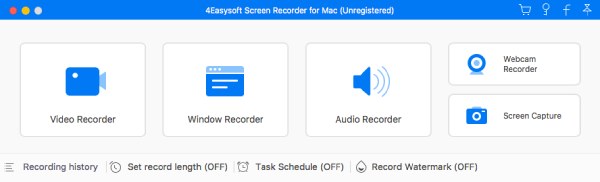
Personal opinion: If you've been cobbling together QuickTime for video, Voice Memos for audio, and a third tool for webcam recordings, 4Easysoft Mac Screen Recorder consolidates all of that into one app. The 8K ceiling and 120fps gameplay mode are genuinely impressive specs, and the Window Recorder's ability to exclude specific app windows is a feature most competing tools don't offer.
Verdict: Best choice for Mac users who want a single app covering every recording scenario -video, audio, webcam, window isolation, and screenshots. The price is strong value given the feature breadth.
2. macOS Built-in Screenshot Toolbar (Command+Shift+5) - The Zero-Cost Option
Free Built-in
Already installed on every Mac, this is the fastest way to record your screen - but don't expect any bells and whistles.
Press Command + Shift + 5 on any Mac running macOS Mojave or later (that's 2018 onwards). A floating toolbar appears at the bottom of your screen giving you options to record the full screen, a selected portion, or capture a still screenshot.
- Pros
- No download, no installation, no sign-up.
- Recording quality is solid for everyday use - on supported Macs and newer macOS versions you can choose SDR (H.264) or HDR (HEVC) output.
- The floating thumbnail lets you do basic trimming after you stop.
- Cons
- You can ONLY record microphone audio.
- System audio is not captured. No annotations, no cursor effects, no editing beyond trimming.
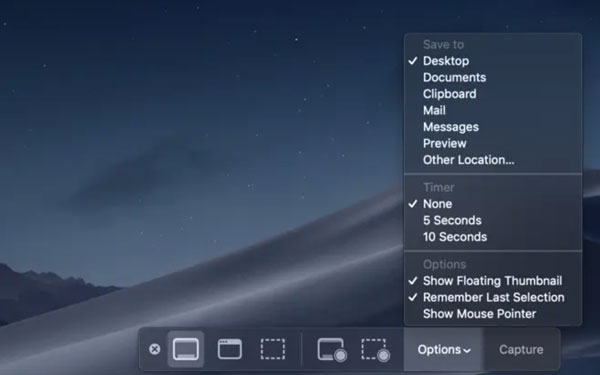
Verdict: Perfect for one-off recordings where you don't need system audio. Keep it as your emergency backup.
3. QuickTime Player - The Old Reliable
Free Built-in
QuickTime has been the go-to free screen recorder for Mac, but its limitations are really starting to show.
Go to File > New Screen Recording in QuickTime Player, and you'll get essentially the same recording UI as the Screenshot Toolbar. QuickTime adds the ability to record a connected iPhone or iPad screen (wired connection via USB - not wireless), and supports more output formats.
- Pros
- Free, native, simple.
- Recording a connected iOS device screen is genuinely useful for app developers and reviewers.
- Cons
- Same system audio limitation - mic only, no internal audio.
- No editing beyond trimming.
- No format selection (you get .mov).
- The UI hasn't been updated in years.
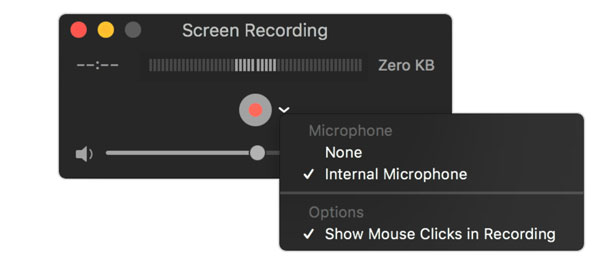
I used to default to QuickTime for everything. Not anymore. The system audio limitation alone rules it out for most real use cases. You can't record app sounds, music, or browser audio without installing a virtual audio driver like BlackHole first. That's extra setup most people don't want.
In 2026, there are just better free options to record screen with internal audio using QuickTime Player after installing a virtual driver.
Verdict: Useful for wired iOS screen recording. On macOS Sequoia+, iPhone Mirroring has largely replaced the need for wired recording. For everything else, there are better free options.
on macOS Sequoia and later, you can also use iPhone Mirroring to display your iPhone screen as a native Mac window, then record it with any screen recorder on this list - no cable needed.
4. OBS Studio - The Free Powerhouse (With a Learning Curve)
Free Open Source
OBS Studio is the most capable free screen recorder for Mac, but it comes with a steep learning curve and no built-in editor.
OBS Studio version 32, released in April 2026, brought full native Apple Silicon support. On macOS Ventura (13+) and later, OBS can capture desktop and app audio natively through its macOS Screen Capture Source - no additional plugins required for system audio on modern macOS versions.
- Pros
- Completely free, no watermarks, no time limits.
- Supports system audio + microphone simultaneously (natively on modern macOS).
- Live streaming to Twitch, YouTube, Bilibili.
- Massive plugin ecosystem.
- Cons
- Steep learning curve.
- The interface is not Mac-native.
- No built-in video editor.
- Higher baseline resource usage than native macOS recording tools.
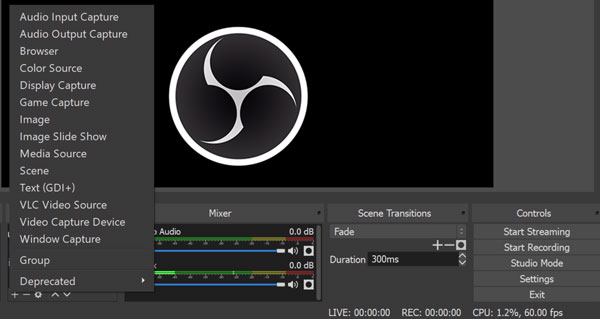
Personal opinion: OBS is the most powerful free Mac screen recorder on this list. It's also the most time-consuming to set up. For 80% of Mac users, it's overkill.You wouldn't use a DSLR to take a selfie.
But if you need free system audio recording on macOS Ventura or later, OBS handles it natively now. No plugins. No BlackHole. That's a real upgrade from a year ago.
Use OBS if you're live streaming, or if you want zero cost and don't mind a one-time setup. Skip it if you just need to record a quick tutorial.
Verdict: Best free option if you're willing to invest time in setup and learning. Not for casual users.
5. CleanShot X - The Screenshot King That Also Records Video
$29 One-time
CleanShot X is arguably the best screenshot tool for Mac, and its screen recording capabilities are solid enough to make it a strong contender.
CleanShot X started as a screenshot replacement but has grown into a full screen capture suite. At $29 one-time (or included with Setapp), it's one of the best value propositions in Mac software.
- Pros
- Beautiful macOS-native interface.
- One-click screen recording with system audio support (no extra setup needed).
- Built-in annotation tools.
- Cloud sharing with instant links.
- Scrolling window capture.
- Cons
- The video editor is basic - trim only, no multi-track editing.
- No auto-zoom or cursor tracking. Limited output options.
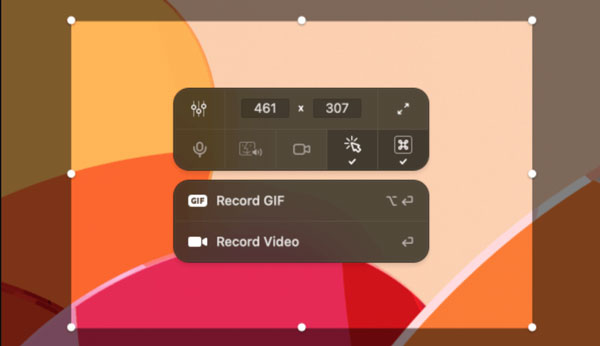
Verdict: If you already need a great Mac screenshot tool, CleanShot X's recording feature is a bonus. For dedicated video recording, look elsewhere.
6. Screen Studio - The New Kid Making Polished Tutorials Easy
$29 Subscription
Screen Studio is the most impressive Mac-native screen recorder to appear in years. It makes your recordings look professionally edited with zero effort.
Screen Studio ($29 subscription) is purpose-built for creating product demos, tutorials, and walkthroughs on Mac.
- Pros
- Automatic mouse smoothing and cursor effects.
- Smart auto-zoom that follows your clicks.
- Background removal for webcam overlay. 4K recording at 60fps.
- Native audio recording (system + mic, no plugins).
- Cons
- No multi-track editing timeline.
- Mac only.
- The automatic effects can occasionally misinterpret which part of the screen to focus on.
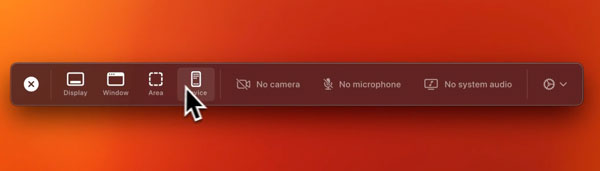
Personal opinion: Screen Studio is the one I'd recommend to anyone making product demos or tutorials. The auto-zoom follows your clicks automatically.That alone saves 20-30 minutes of editing per video.
One honest caveat: the auto-zoom occasionally focuses on the wrong area. It happens maybe once per video. Easy to fix in the timeline editor, but worth knowing upfront.
Verdict: Best choice for creating polished product demos and tutorials. Expensive but worth it if you record regularly.
7. ScreenFlow - The Professional's Choice for Video Production
$199 One-time
ScreenFlow is the most complete screen recording + video editing package for Mac, ideal for professional content creators.
ScreenFlow ($199 one-time) has been the gold standard for professional Mac screen recording for over a decade.
- Pros
- Professional multi-track video editing with transitions, animations, callouts, and effects.
- Built-in stock media library.
- System audio + microphone + additional audio tracks simultaneously.
- Keyframable video actions.
- Cons
- $199 is the highest price on this list.
- The interface is powerful but cluttered.
- Many features overlap with Final Cut Pro or DaVinci Resolve.
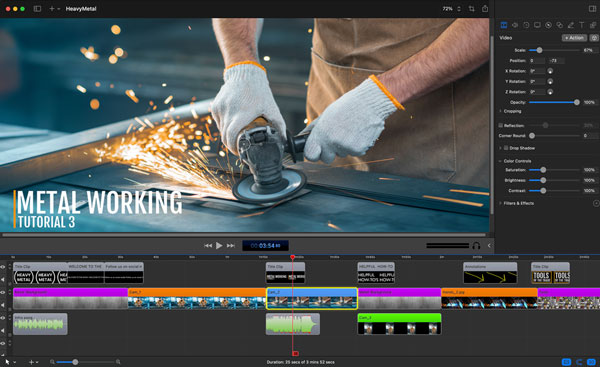
Verdict: Best for users who want recording + editing in one app with professional-level features. Overkill for simple recordings.
8. Camtasia - The Training Industry Standard
Camtasia | from $179/year (renews at $39/year)
Camtasia is the screen recorder of choice for corporate training and e-learning, and its 2026 version brings AI-powered features.
Camtasia starts at $179/year for individuals (renews at $39/year). Team and enterprise plans go higher. It's aimed squarely at corporate trainers and e-learning creators.
- Pros
- Professional video editor with annotations, transitions, callouts, and quizzes.
- AI-powered features: auto-caption generation (90%+ accuracy), AI text-to-speech, smart background removal.
- Pre-built templates.
- Output presets for YouTube, Vimeo, LMS.
- Cons
- Heavy installation (~1.5GB).
- No live streaming.
- Overkill for occasional use.
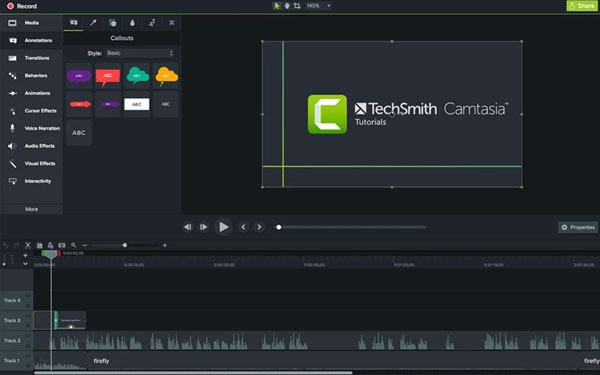
Verdict: Best for corporate trainers, educators, and e-learning content creators. Skip it if you only record occasionally.
9. Loom - Async Communication Made Simple
Free (5min limit) Browser-based
Loom isn't a screen recorder in the traditional sense - it's an async video messaging tool that happens to include screen recording.
Loom has become the default choice for quick recordings in remote teams.
- Pros
- No desktop app needed - Chrome extension or browser-based recording.
- Record, share a link, done.
- Automatic transcription and captions.
- Viewer analytics.
- Cons
- Free plan caps at 5 minutes.
- Downloaded videos carry Loom branding.
- No editing beyond trimming.
- Not suitable for published content.
Personal opinion: Loom is not a screen recorder in the traditional sense. It's a messaging tool that happens to record your screen. I use it for async team updates and nothing else. The 5-minute cap on the free plan is tight but usually enough for a quick walkthrough. If you find yourself hitting that limit often, that's your sign to upgrade, or switch to Cap.
Verdict: Essential for remote team async communication. Not a screen recorder for creating published content.
10. Cap - The Open-Source Loom Alternative That's Grown Up Fast
Free Open Source
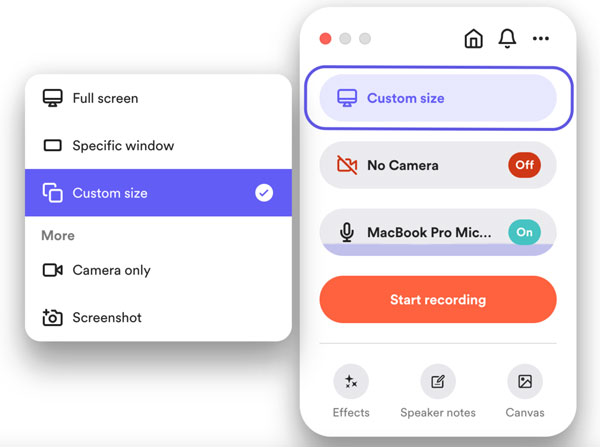
Cap is the most interesting free screen recorder on Mac to watch in 2026. A year ago it was a promising side project. Now it has Studio Mode, 4K 60fps recording, auto-zoom, AI transcription, and cloud sharing. All free to start.
It's basically a free version of Screen Studio with a Loom-style sharing workflow built in.
Cap (18,000+ GitHub stars) positions itself as the open-source alternative to Loom. The free tier gives you unlimited local recordings and shareable links up to 5 minutes. The Desktop License ($29/year or $58 one-time) unlocks unlimited recordings and commercial use. Cap Pro ($8.20/month billed annually) adds unlimited cloud storage, AI transcription, auto-generated chapters, and team spaces.
- Pros
- Completely free and open source.
- Cloud sharing with instant shareable links (free up to 5 min).
- Studio Mode with 4K 60fps recording, timeline editor, smart auto-zoom, and custom backgrounds.
- Separate system audio + microphone controls with noise reduction.
- Cross-platform: Mac and Windows.
- Privacy-first: supports custom S3 bucket storage so your data never touches Cap's servers.
- Cons
- Free tier caps shareable links at 5 minutes (unlimited local recording is still free).
- Cloud features and AI tools require Cap Pro ($8.20+/month).
- Still maturing compared to ScreenFlow or Camtasia - fewer transitions and annotation types.
- No live streaming support.
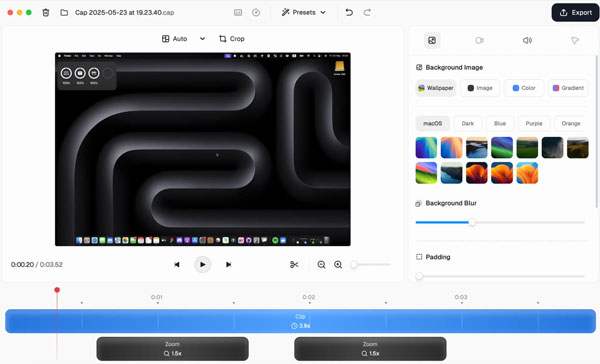
Personal opinion: Cap has made a remarkable leap. A year ago, it was a tool worth watching; today it's a tool worth using. For teams wanting a Loom alternative that keeps data on their own servers, or for creators who want a free Screen Studio-like workflow, Cap punches well above its price.
Verdict: No longer just a "promising up-and-comer". Cap is a legitimate free-to-start option for both async team communication and solo content creation. The free tier is genuinely useful; Pro is worth it if you need AI features or unlimited cloud sharing.
Free vs Paid: How Much Should You Spend?
| Use Case | Free Option | When to Pay |
| Multiple recording modes needed | OBS (separate tools) ✅ | 4Easysoft Mac Screen Recorder ($15.95 one-month) consolidates everything in one Mac app |
| Quick emergency recording | Command+Shift+5 ✅ | Never |
| Tutorials/demos (occasional) | OBS on macOS Ventura+ ✅ | >2 videos/week → Screen Studio ($29/month) |
| Product demos (frequent) | OBS ✅ | Screen Studio saves editing time |
| Training/education | OBS + free editor ✅ | Camtasia or ScreenFlow → $39/year or $199/one-time |
| Async team communication | Loom free (5min) ✅ | Need longer → Loom $18/month |
| Screenshots + video | CleanShot X ($29) is already great value | Best value paid option |
Honest advice: 80% of Mac users don't need to pay for a screen recorder. The built-in tools plus OBS on Ventura or later cover most situations for free.
Pay when the time you're spending on setup and editing is worth more than the software cost. That tipping point is usually around 2-3 videos a week.
How to Record System Audio on Mac: The #1 Problem Solved
You recorded your screen. You played it back. App audio is completely gone.
This is the most common Mac recording complaint, and it's not a bug. Apple intentionally prevents apps from capturing system audio without explicit permission or extra setup.
Here's how to fix it with different tools.
Option 1. OBS Studio (free, macOS Ventura+). Since version 30, OBS captures desktop audio natively through its Screen Capture Source. No plugins, no virtual drivers. Best free fix for modern Macs.
Option 2. BlackHole (free, any macOS). A virtual audio loopback driver that routes system audio into any recording app. Needs a one-time setup in Audio MIDI Setup. Works well but may need reconfiguring after macOS updates.
Option 3. Paid tool with built-in audio routing. 4Easysoft Screen Recorder, Screen Studio, CleanShot X, Camtasia, and ScreenFlow all handle system audio internally. No extra setup. This is the biggest practical reason to pay for a tool.
Option 4. iPhone Mirroring (macOS Sequoia+, free). If you need to record your iPhone screen on Mac, use iPhone Mirroring. Your phone appears as a native Mac window. Any recorder on this list can capture it. No cable needed.
Option 5. The lazy workaround. Play audio through speakers. Record with your Mac's internal mic. Quality suffers. Zero setup.
How to Choose the Best Screen Recorder for Mac
Don't pick a Mac recording tool by features. Pick it by what you actually need. Answer these four questions and you'll have your answer:
1. How often do you record?
Once a month → Command+Shift+5 or QuickTime.
A few times a week → OBS (free) or CleanShot X ($29).
Every day → Screen Studio ($89) or ScreenFlow ($199).
2. Do you need system audio?
No → Any free macOS screen recorder works.
Yes, on macOS Ventura+ → OBS handles it natively.
Yes, on older macOS → Get a paid Mac screen recorder with built-in audio routing.
3. Do you need video editing after?
No editing → Free tools are fine.
Basic trimming → Any Mac screen recorder on this list.
Annotations, callouts, multi-track → ScreenFlow or Camtasia.
4. Do you need more than one recording mode?
Just screen recording → Any tool works.
Screen + audio + webcam + window isolation → 4Easysoft Screen Recorder covers all four in one app.
iPhone screen on Mac → Use iPhone Mirroring on Sequoia+ and record the window with any Mac screen recording software.
FAQ
-
Can I screen record on Mac for free?
Yes. macOS includes a built-in screen recorder via Command+Shift+5. QuickTime Player also offers screen recording for free. For system audio on modern macOS, OBS Studio can capture it natively without extra plugins.
-
What's the best screen recorder for Mac with internal audio?
On modern macOS (Ventura+), OBS Studio (free) can capture system audio using its native Screen Capture Source. For a more polished experience with no setup hassle, Screen Studio ($89) or CleanShot X ($29) handle system audio internally.
-
Why can't QuickTime record internal audio on Mac?
macOS's audio architecture restricts apps from capturing system audio without a virtual audio driver or deeper system integration. This is a deliberate privacy decision by Apple.
-
What is the best free screen recorder for Mac without watermark?
OBS Studio - no watermarks, no time limits. The built-in macOS Screenshot Toolbar is also completely free and watermark-free.
-
Does OBS Studio work on Apple Silicon M1/M2/M3/M4?
Yes. OBS v30+ includes native Apple Silicon support. Earlier versions run under Rosetta 2 with higher CPU usage. Always download the latest version from the official website.
-
What screen recorder do YouTubers use on Mac?
Professional Mac YouTubers typically use ScreenFlow or Camtasia for their editing capabilities. For quick tutorials, Screen Studio is increasingly popular. Mac-based live streamers use OBS Studio.
Final Recommendations
Best all-in-one paid option: 4Easysoft Mac Screen Recorder ($55.95 one-time / $15.95/month). Best if you need video, audio, webcam, and window recording in one place, without installing four separate apps.
Best free option: Command+Shift+5 for quick captures. OBS Studio if you need system audio or live streaming. Both are free, no watermarks.
Best for tutorials and demos: Screen Studio ($89 one-time). Auto-zoom follows your clicks. Saves real editing time. Worth every cent if you record more than once a week.
Best if you also need screenshots: CleanShot X ($29 one-time). Best screenshot tool for Mac, with solid screen recording as a bonus.
Best for professional editing: ScreenFlow ($199 one-time). Record and edit in the same app. Multi-track timeline, animations, callouts.
Best for training teams: Camtasia (from $179/year). AI captions, quiz embeds, LMS output. Built for corporate e-learning.
Best for async team updates: Loom (free tier available). Record, share a link, done. Not for published content.
Best free tool to watch: Cap (free and open source). Getting better fast. Strong pick if you want Loom-style sharing for free.
Don't overthink this. Start with the built-in tools. If they're not enough, identify exactly what's missing - system audio, editing, auto-zoom - and buy the cheapest tool that fills that specific gap. Most people spend more time comparing screen recorders than actually using them.
Conclusion
After testing all 10 best Mac screen recording software, the honest conclusion is this: most people are overthinking it.
Start with Command+Shift+5. If that's not enough, try OBS. It's free and has improved a lot. If you're recording regularly and want something that just works, Screen Studio or CleanShot X are the two I'd actually pay for.
If you want everything in one app (video, audio, webcam, window isolation, and scheduled recording), 4Easysoft Mac Screen Recorder covers your need. Click the Free Download button and see if it fits how you work.
100% Secure
100% Secure
