

10 Best Screen Recorders for Every Need [Game, Work, More]

Posted by Ethan Brooke to Review Jun 03, 2026
You just want to record your screen. Simple, right? But then the screen recorder software lags. The video comes out choppy. Or worse - there's a giant watermark on everything. Users across Reddit constantly ask the same questions. Will it record audio too? Will it slow down my computer? Is there a free screen recorder without a watermark? Finding the best screen recorder feels harder than it should be. But it doesn't have to be. This guide breaks it all down for you. We tested the top options. We checked what real users say. By the end, you'll know exactly which video recording software fits your needs.
Guide List
The Real Pain Points Users Hit While Choosing a Screen Recorder How We Test Screen Recorders 10 Best Screen Recorders for Windows and Mac Choose Your Best Screen Recorder by Use CaseThe Real Pain Points Users Hit While Choosing a Screen Recorder
Finding a good screen recorder sounds easy. It's not.
Here's what real users (on Reddit, Capterra, and Quora) keep running into:
- It has to actually be free. Most "free" screen recording programs hide watermarks or time limits. Bandicam, Camtasia, and others push you to pay fast.
- It can't slow your computer down. CPU-based recording kills game FPS. Good video recorders use GPU encoding (NVENC or AMD VCE). But rarely turn it on by default.
- Audio needs to stay in sync. Microphone and system audio recorded at different sample rates = desync. It's common. It's annoying. Few screen capture software fix it automatically.
- Simple setup matters. OBS is powerful but overwhelming. Most beginners need a tutorial just to start recording.
- Webcam and screen should save separately. Editors need two tracks. OBS merges them into one file. That limits your edit options.
- Multi-monitor support should just work. Wrong screen gets captured more often than you'd think.
- No surprise subscription fees. Camtasia dropped its lifetime license in 2025. Always check the pricing model before you commit.
How We Test Screen Recorders
We don't just read their product pages. Every Windows and Mac screen recorder on this list are tested across real use cases.
Test environments:
- Windows 11 (primary) and macOS Sequoia
- Both mid-range and high-end hardware
What we tested each tool on:
| Use Case | What We Looked For |
| Gaming (1080p/60fps) | FPS drop, frame consistency |
| Tutorial recording | Screen + webcam + mic quality |
| Quick clip sharing | Speed, ease, output size |
| Long-form recording (1+ hour) | Stability, file size, no crashes |
What we measured:
- CPU and GPU load during recording.
- Video and audio quality at matched settings.
- Audio sync - especially microphone + system audio together.
- How long does it take to start a first recording from the installation.
- Whether there are watermarks, time limits, and export locks on free tiers.
A note on "Mac supported" claims:
We actually tested on Mac. Many screen recorders list macOS support but deliver a worse experience. We flag that clearly.
On free tiers:
If a free version has a watermark, time cap, export restriction or other limits, we say so upfront. No surprises.
Every score and recommendation in this article comes from this process, not from vendor claims.
10 Best Screen Recorders for Windows and Mac
1. OBS Studio (Best Free Overall)
OS: Windows, Mac, Linux
Price: Free (forever)
Watermark: None
Time limit: None
Webcam + screen separate files: No - merged into one output
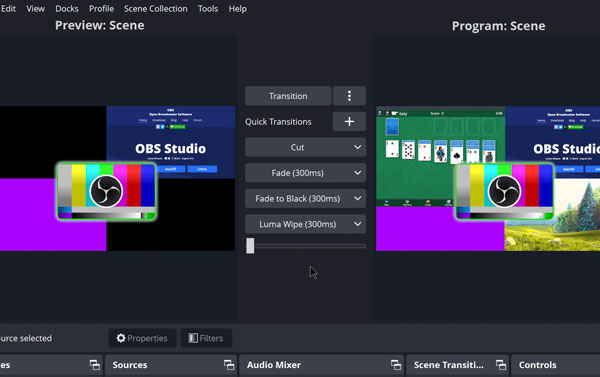
Best for: Streamers. Gamers. Power users. Anyone who wants full control with zero cost can use OBS as the best screen recorder freeware. Not ideal if you're a beginner.
OBS is the gold standard for free recording. It captures gameplay, tutorials, and live streams without adding watermarks or cutting you off. Output quality is excellent. File sizes stay manageable.
But OBS has a learning curve. First-time setup takes effort. Audio routing, scene setup, and encoder settings aren't obvious. Most beginners need 30–60 minutes just to get comfortable.
Once configured, though? It's hard to beat.
Performance:
- CPU load: moderate (switch to NVENC/AMD VCE to reduce it)
- GPU encoding: supported - but not enabled by default
- Audio sync: stable when sample rates are set correctly
- Long-form recording (1+ hour): reliable, no crashes in testing
Why users love it:
- OBS is 100% free. You don't need to pay anything for OBS recording.
- Works on all major platforms.
- Highly customizable for advanced setups.
- Huge community and tutorial library.
Common complaints:
- Overwhelming for beginners.
- Webcam can't be saved as a separate track.
- Wrong monitor captured if setup is skipped.
- Audio desync happens when settings aren't configured right.
Bottom line: OBS is the most powerful free option available. Just don't expect it to be plug-and-play.
2. 4Easysoft Screen Recorder (Best for Simplicity + Stable Recording)
OS: Windows, Mac
Price: Paid (free trial available)
Watermark: None on paid version
Time limit: Limited on free trial
Webcam + screen separate files: Yes - saves separately
Best for: Beginners and everyday users. People who need tutorials, meetings, and gameplay in one clean tool. Great if OBS feels too complex.
4Easysoft Screen Recorder gets you recording fast. You don't need tutorials to get started. It handles screen, webcam, and mic all at once - without the setup headache.
Output quality is strong. It supports up to 4K and 60fps. Audio sync stays consistent across both mic and system sound. Long recordings stay stable with no crashes reported in testing. It also lets you save webcam and screen as separate files - something OBS can't do natively.
100% Secure
100% Secure
Performance:
- CPU load: low to moderate, well optimised
- GPU encoding: supported
- Audio sync: stable out of the box
- Long-form recording (1+ hour): reliable, no crashes in testing
- Multi-monitor setup: clear monitor selection on setup
Why users love it:
- Gets 6 recording modes to capture not only computer screen, but also phone videos.
- Trim, merge, convert, compress, and edit metadata of your recording file.
- Supports 4K recording without heavy CPU usage.
- Works on both Windows and Mac with consistent quality.
Common complaints:
- Free trial has a time limit before purchase is required.
- Some advanced settings take time to discover.
- Fewer community resources compared to OBS.
Bottom line: 4Easysoft is the easiest way to get clean, stable recordings without touching a single complex setting. It's best screen recorder that beginners wish they found first.
3. Bandicam (Best for Low-Lag Game Recording)
OS: Windows only
Price: Free (with limits) / $49.95 lifetime license / $33.26 per year
Watermark: Yes - on free version, prominently placed
Time limit: 10 minutes per session on free version
Webcam + screen separate files: No - merged output
Best for: Windows gamers who want lightweight, low-lag recording can choose Bandicam. It is the best screen recorder for game recording on mid-range or older PCs.
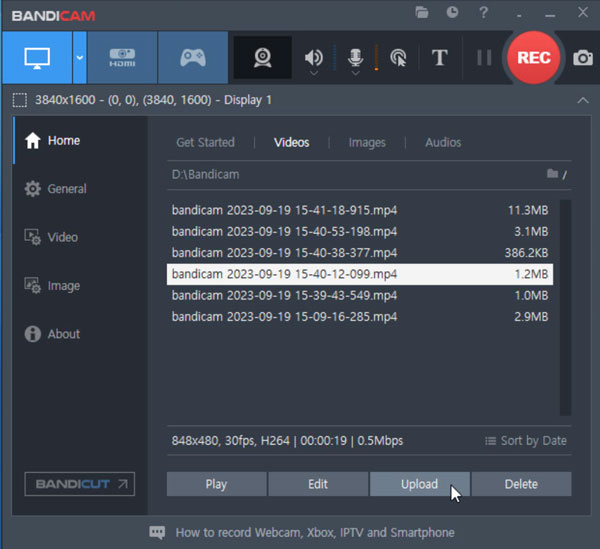
Bandicam's three-mode layout (Screen, Game, and Device) removes decision fatigue. You pick your mode and hit record. No complex scene setup. No routing audio manually. It just works.
The Windows screen recording software runs smoothly, allows customizable recording settings, and produces clear videos without heavily impacting system performance. For gamers, that matters. It supports up to 4K and 480fps - impressive numbers for such a lightweight tool.
Performance:
- CPU load: very low - one of the lightest options tested
- GPU encoding: supported via DirectX, OpenGL, and Vulkan
- Audio sync: consistent and reliable
- Long-form recording (1+ hour): stable on paid version
- FPS drop during gameplay: minimal compared to most tools
Why users love it:
- Very light on system resources.
- Easy to set up - even for beginners.
- Supports extremely high frame rates for smooth gameplay capture.
- Adds real-time drawing and annotations during video recording.
Common complaints:
- You can record up to 10 minutes with a watermark attached in the output video in the free version.
- There is no Bandicam for Mac version.
- No built-in video editing tools.
- In 2026, macOS being the dominant platform in creative and education industries makes Bandicam's Windows exclusivity a meaningful limitation.
Bottom line: Bandicam is the go-to for Windows gamers on any hardware level. Just know the free version has real limits - and Mac users need to look elsewhere.
4. Camtasia (Best for Tutorials)
OS: Windows, Mac
Price: From $39 per year. Free trial available.
Watermark: None on paid version.
Time limit: Trial version is limited.
Webcam + screen separate files: Yes.
Best for: Educators. Course creators. Corporate trainers. Anyone who needs polished, professional tutorial videos. Not for casual or quick recordings.
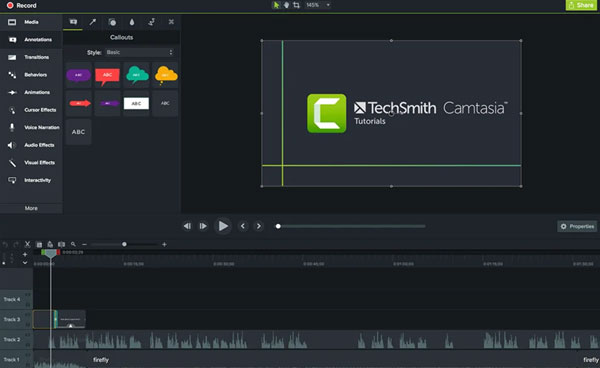
Camtasia is a complete video creation suite made for educators and course creators. You record your screen. Then you edit it right inside the same screen recording software. No switching between apps. No export and re-import.
Camtasia's AI-powered noise removal is useful to create crystal clear audio. It supports interactive quizzes, SCORM export for LMS platforms, and AI-assisted editing tools. That's a rare combination in one product for tutorial creators.
Performance:
- CPU load: moderate to high on large projects
- GPU encoding: supported
- Audio sync: excellent, with AI noise removal
- Long-form recording (1+ hour): stable, but large project files can slow editing
- Multi-monitor: supported with clear setup
Why users love it:
- Record and edit in one place. No extra software needed.
- AI tools clean up audio and speed up editing.
- Camtasia is built for tutorials with annotations, zoom, callouts all included.
- Add intelligent cursor effects, highlights, magnifies, and spotlights to your mouse movement. So you can keep audidences engaged.
Common complaints:
- Requires purchasing a new version for updates - older licenses don't include upgrades.
- Performance can lag with larger projects.
- Camtasia subscription pricing frustrates long-time users who preferred one-time purchase.
- Overkill if you just need a simple screen capture.
Bottom line: Camtasia is the top choice for anyone creating training or tutorial content. The price is high. But for serious creators, it pays for itself fast.
5. Xbox Game Bar (Best Built-In Windows Option)
OS: Windows 10, Windows 11 only
Price: Free. Already installed.
Watermark: None.
Time limit: None for regular use.
Webcam + screen separate files: No.
Best for: Windows users who need a quick clip. No downloads. No setup. Just press a shortcut and then you can record games on Windows 11/10.
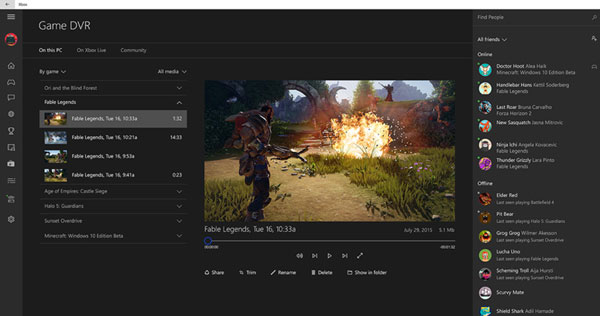
Press Windows + G on your keyboard right now. That overlay that appears is the Xbox Game Bar, and it has a screen recorder built right into it. Press Windows + Alt + R to start and stop recording with one shortcut. It saves directly to your Videos folder. Clean MP4. No watermark.
It's not fancy. But it works. For quick recordings, such as a bug report, a how-to clip, a gameplay moment, Windows Xbox Game Bar is nothing beats the speed of a built-in tool.
Performance:
- CPU load: very low
- GPU encoding: yes, uses DirectX
- Audio sync: reliable for short clips
- Long-form recording (1+ hour): functional but not ideal
- Multi-monitor: records active window only, not full desktop
Why users love it:
- Zero setup. Already on your PC.
- No watermarks. No time limits. No cost.
- Fast hotkeys to start and stop recording. Saves MP4 to the VideosCaptures folder for easy access.
- Great for grabbing quick gameplay highlights.
Common complaints:
- Cannot record the desktop or File Explorer with Xbox Game Bar.
- Caps out at 1080p. No 4K support.
- No webcam overlay option. You cannot record yourself playing games.
- Background recording only works in DirectX 10 and above games. OpenGL titles and browser games are excluded.
- No editing tools at all.
Bottom line: Xbox Game Bar is perfect for quick, no-fuss clips on Windows. The moment you need more control - quality, webcam, or editing - you'll need a different Windows screen recorder.
6. QuickTime Player (Best Built-In Mac Recorder)
OS: Mac only
Price: Free. Already installed.
Watermark: None.
Time limit: None.
Webcam + screen separate files: No.
Best for: Mac users who need a quick, no-fuss recording. Great for simple screen captures and iPhone screen mirroring. Not for professional use.
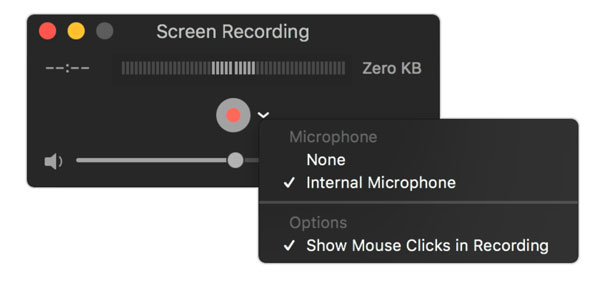
QuickTime is already on your Mac. Open it. Click File. Click New Screen Recording. Done. It's reliable, fast, and efficient. There is no need to install any third-party Mac screen recorders.
For simple recordings, it works well. But the moment you need anything more, you'll hit walls fast.
The system audio limitation alone makes it impractical for most real-world use cases. If you want to screen record on Mac with internal audio, you need to install BlackHole (a virtual audio driver) and manually configure audio routing before every session. That's too much work for most users.
Performance:
- CPU load: very low
- Audio sync: microphone only - no internal audio without extra setup
- Long-form recording (1+ hour): can slow down. Large file sizes reported.
- Output format: MOV only - no MP4 export natively
- Multi-monitor: records selected screen only
Why users love it:
- Zero setup. Free. Already there on every Mac computer.
- Record audio directly from Mac's built-in microphone, external USB microphones, or connected iOS devices.
- Good for short classroom lectures and presentation recordings.
- Uses low CPU usage compared to many third-party recorders, such as OBS.
Common complaints:
- Cannot capture Mac system audio or internal audio without virtual audio drivers.
- Exports as MOV only. A separate MOV to MP4 converter is needed for online sharing.
- No annotations, no arrows, no text labels. No way to highlight anything during recording.
- No editing beyond basic trimming.
Bottom line: QuickTime is fine for a quick, personal clip. For anything professional, such as tutorials, demos, or content with audio, you need a better free screen recorder for Mac.
7. NVIDIA ShadowPlay (Best for Gamers with NVIDIA Cards)
OS: Windows only
Price: Free. Included with GeForce Experience.
Watermark: None.
Time limit: None.
Webcam + screen separate files: No.
Best for: NVIDIA GPU owners who want zero-impact gameplay recording. If you already have an NVIDIA card, this tool is already available to you.
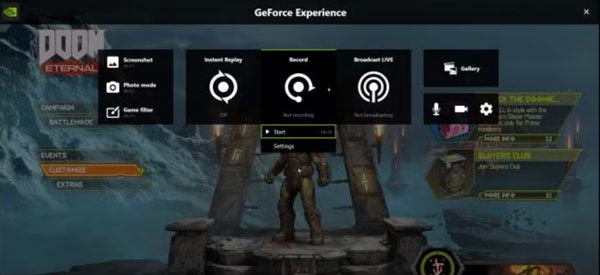
Anyone with an NVIDIA card likely already has the software running on their machine. No extra download. No setup from scratch. Just open GeForce Experience and start recording.
The standout feature is Instant Replay. It records the last minutes or hours of your gameplay automatically - useful for capturing highlights without manually hitting record. You played an incredible moment without recording? Press Alt + F10. It's saved.
Because NVIDIA ShadowPlay is hardware accelerated, it can be left running at all times without interfering with overall gaming performance. Users can record at 60fps in 4K HDR or 30fps in 8K HDR.
Performance:
- CPU load: minimal - GPU handles all encoding via NVENC
- GPU encoding: yes, NVENC only
- Audio sync: reliable and consistent
- Long-form recording (1+ hour): stable with no performance drop
- FPS impact during gaming: near zero in testing
Why users love it:
- Already installed for NVIDIA users. Zero extra cost.
- Instant Replay saves highlights retroactively.
- Near-zero performance hit during gameplay.
- Supports 4K HDR and high frame rates out of the box.
Common complaints:
- Only works with NVIDIA graphics cards. AMD and Intel GPUs are not supported.
- Not the best choice for recording browsers, desktop activities, or regular apps.
- You need to install GeForce Experience, which some users find unnecessary or heavy.
- Some users have mentioned random recording issues or clips not saving properly.
- No editing tools included.
Bottom line: For NVIDIA gamers, ShadowPlay is the easiest and most performance-friendly game screen recording software for Windows available. Just don't expect it to work outside of games.
8. Loom
OS: Windows, Mac, Browser (Chrome extension)
Price: Free (limited) / $15 per user per month (Business) / $20 per user per month (Business + AI)
Watermark: Loom branding on free tier.
Time limit: Free plan limits 25 videos per person at 5 minutes each, 720p.
Webcam + screen separate files: No - merged output.
Best for: Remote teams. Professionals replacing meetings with quick video messages. Anyone who needs to record, share, and get a link can record with Loom instantly.
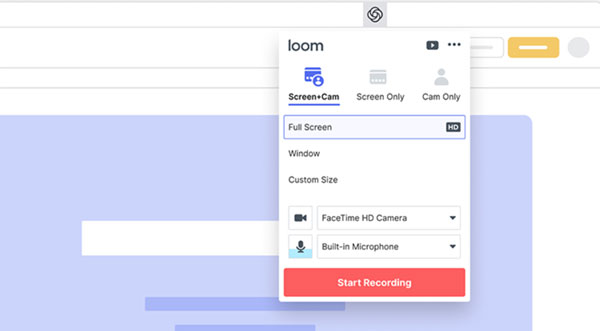
Loom changed how teams communicate. Instead of saving to the local drive, you can get a shareable link after recording in seconds. There is no need to upload or cloud drive manually. Just share your recording link. Recipients can watch on their own time.
Since Atlassian acquired Loom in late 2023, the Loom screen recorder has deepened integrations with Jira, Confluence, and Slack while adding AI-powered features like auto-generated summaries and meeting recaps. For teams already in the Atlassian ecosystem, it fits naturally.
Performance:
- CPU load: low to moderate
- Audio sync: generally reliable. Some delays reported on longer recordings.
- Long-form recording (1+ hour): functional but occasional processing delays reported for recordings over 20 minutes.
- Multi-monitor: supported with screen selection
- Sharing speed: instant shareable link after recording.
Why users love it:
- Webcam + screen recording feels simple even for non-technical users.
- Add AI summaries, chapters, and transcript editing for teems to skim recordings faster.
- Great for async communication between remote teams and clients.
- Shareable link is generated instantly after recording.
Common complaints:
- Billing changes after the Atlassian acquisition caught many teams off guard. Some users reported invoices jumping significantly without clear warning.
- Performance issues including lag, audio sync problems, and failed uploads have been widely reported since migration to Atlassian infrastructure.
- The video recording quality can look soft or blurry compared to tools like OBS or Screen Studio.
- Some users report audio missing or recordings failing while saving with Loom.
Bottom line: Loom is still the fastest screen recorder for async video messaging. But check the billing terms carefully before committing - especially for teams.
9. ScreenPal (formerly Screencast-O-Matic)
OS: Windows, Mac, Linux, browser (Chrome extension)
Price: Free / Deluxe $4 per month / Max $10 per month / Team Business $8 per user per month
Watermark: On free version.
Time limit: 15 minutes per recording on free version.
Webcam + screen separate files: No.
Best for: Teachers. Students. Course creators on a budget. Teams who need simple recording plus basic editing in one affordable tool.
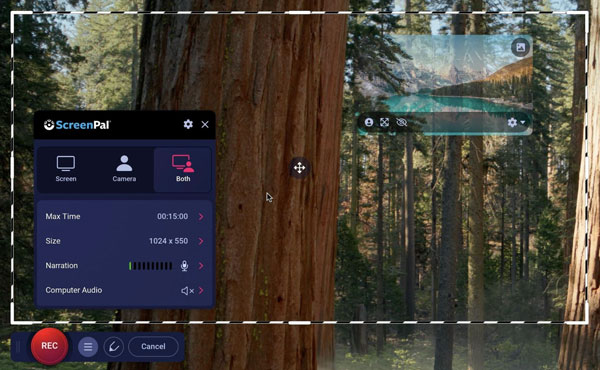
ScreenPal is a screen recording, video editing, and hosting tool. You record your screen, webcam, or both, edit the footage, add captions and interactive elements, then host and share it - all without leaving the platform.
It's one of the most complete and best screen recorder at this price point. ScreenPal positions itself as the affordable, accessible tool for quick captures and lightweight editing, with extremely competitive low-cost plans for individual creators and education. The $4 per month Deluxe plan removes the watermark and unlocks full recording length. That's hard to beat.
Performance:
- CPU load: low to moderate
- Audio sync: reliable for standard recordings
- Long-form recording (1+ hour): supported on paid plans
- Multi-monitor: supported with screen selection
- Output formats: MP4 and direct cloud hosting available
Why users love it:
- Long-time users praise it as a progressive company that keeps adding features with creators in mind.
- You can record, edit, and share videos without jumping between different apps.
- AI captions, quizzes, and interactive video on higher plans.
- Pricing is pretty friendly for teachers, students, and small teams that can’t spend too much.
Common complaints:
- Some users report videos not saving after the transition to the new app format - a frustrating experience after long recordings.
- Free plan watermark and 15-minute cap limit real use.
- Learning curve can be steep for novice users.
- Editing timeline feels dense and hard to navigate.
Bottom line: ScreenPal is the best value screen recorder for educators and budget-conscious creators. At $4 per month, it punches well above its price.
10. Apple Screen Recording (built-in macOS/iOS)
OS: macOS (Cmd + Shift + 5) and iOS/iPadOS (Control Center)
Price: Free. Built into every Apple device.
Watermark: None.
Time limit: None.
Webcam + screen separate files: No.
Best for: Apple users who need a fast, no-install recording. Great for quick personal clips on iPhone, iPad, and Mac. Not for professional content.
Every iPhone, iPad, and Mac already has this. No download. No account. Just press record.
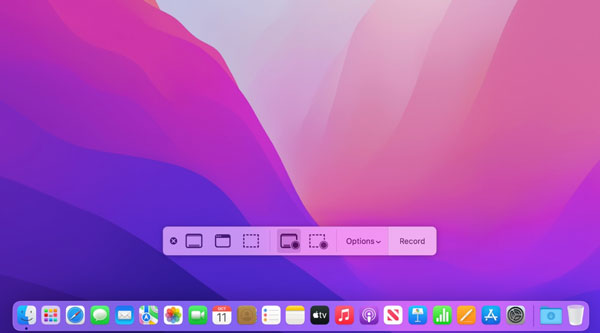
On Mac, press Cmd + Shift + 5. Choose your area. Hit record. On iPhone or iPad, add Screen Recording to Control Center. Tap it. Done.
iOS screen recording offers seamless system-level integration without requiring additional installations. For casual users, it genuinely is that simple.
But the audio situation on Mac is a known frustration. Apple deliberately blocks apps from tapping into another app's audio stream without a virtual audio driver. You cannot record system audio from apps, videos, games, or calls using the built-in tools.
On iOS, the story is slightly better - internal audio records in many apps. But some apps block audio recording due to privacy or copyright concerns. Streaming services like Apple Music, Spotify, and Netflix will go silent or stop playing when screen recording starts.
Performance:
- CPU load: minimal on all devices
- Audio: microphone only on Mac. Internal audio supported on iOS for most apps.
- Long-form recording: stable but large file sizes on Mac
- Output formats: MOV on Mac. MP4 on iOS.
- Multi-monitor on Mac: single screen selection only
Why users love it:
- Already on every Apple device. Zero setup.
- No watermark. No time limit. No cost.
- iPhone recording works great for app demos and tutorials.
- iOS 26 and 27 beta upgrades recordings to full native resolution - a long-awaited fix after years of being capped at 1920 pixels.
Common complaints:
- Mac built-in tools only capture microphone audio. They cannot record system sounds like app audio, video calls, or music.
- No editing tools beyond basic trimming on Mac.
- macOS Sequoia previously required frequent permission re-approvals for screen recording - a widely reported frustration that Apple has since addressed.
- No annotations, callouts, or zoom features on either platform.
Bottom line: For a quick personal clip on any Apple device, this is the fastest free screen recorder available. The moment you need system audio on Mac or any editing at all, look elsewhere.
Choose Your Best Screen Recorder by Use Case
Not every tool fits every need. Here's the fastest way to find yours.
| Screen Recorder | Time to first recording | File size (30 min, 1080p) | Performance hit | Who it actually works for |
| 4Easysoft Screen Recorder | Under 2 min | ~1.2 GB (MP4) | Low | Anyone who wants clean recordings fast. Beginners to intermediates. |
| OBS Studio | 30–60+ min setup | ~1–2 GB (MKV/MP4) | Medium (CPU default) | Streamers, advanced users willing to invest setup time. |
| Bandicam | Under 3 min | ~2–5 GB at 120fps | Very low | Windows gamers who want plug-and-play recording. |
| Camtasia | 5–10 min setup | Large – temp files fill storage | Heavy on large projects | Course creators, corporate trainers making polished content. |
| Xbox Game Bar | Instant (Win+G) | ~800 MB–1.2 GB | Very low | Windows users who need a clip in under 10 seconds. |
| QuickTime Player | Instant (Cmd+Shift+5) | ~2.5 GB (MOV, uncompressed) | Very low | Mac users needing a fast silent capture or iPhone mirror. |
| ShareX | 10–20 min config | ~900 MB–1.5 GB | Low | Windows developers, IT teams, power users. |
| NVIDIA ShadowPlay | Instant (Alt+F9) | ~1–1.5 GB | Near zero | NVIDIA gamers who want zero-impact recording and Instant Replay. |
| Loom | Under 2 min | Cloud-stored, no local file | Low | Remote teams sharing async video updates. |
| ScreenPal | Under 3 min | ~1 GB (MP4) | Low | Budget educators, students, small teams. |
| Apple Screen Recording | Instant | ~2–3 GB (MOV on Mac) | Very low | iPhone/iPad quick personal clips. Mac mic-only narration. |
Tutorials and online courses
You can go with Camtasia if budget isn't a concern. It has editing, zoom, callouts, and quizzes all in one. For a more affordable option that still covers the basics well, 4Easysoft Screen Recorder is the better value pick.
Gaming and streaming
NVIDIA ShadowPlay is the best for NVIDIA GPU owners - zero performance impact, Instant Replay built in. Bandicam works great on any Windows PC. OBS is the most powerful free option once you get past the setup. Or you can use the built-in Game Recorder in 4Easysoft Screen Recorder.
Business and async team communication
Loom wins here. Record, share a link, done. No file exports needed. Just watch the billing terms carefully.
Developer, bug reporting, and quick clips
ShareX on Windows is unbeatable - free, no watermark, scrolling capture, and over 70 upload destinations. Xbox Game Bar works for the fastest one-off clip.
Mac users who need something simple
Apple's built-in screen recording (Cmd + Shift + 5) handles quick captures. For anything with system audio or editing, 4Easysoft Screen Recorder for Mac is the cleaner solution.
Best overall for most users
4Easysoft Screen Recorder. It works on Windows and Mac. Setup is fast. Audio sync is stable. Webcam saves separately. No watermark on paid version. It solves most of the common pain points without the complexity of OBS or the price of Camtasia.
You've probably tried two or three tools already. OBS felt like too much. The free recorder added a watermark. Camtasia hit you with a subscription you didn't expect. That's not bad luck. That's the screen recorder market in 2026.
Conclusion
Most screen recording programs are built for one type of user. Gamers. Streamers. Enterprise teams. If you don't fit that box, you end up compromising somewhere - quality, price, or simplicity.
4Easysoft Screen Recorder is built for everyone else. Windows or Mac. Tutorial or gameplay. Quick clip or long session. It handles all of it without asking you to become a tech expert first.
If you're tired of screen video recording software that almost work, this is the one worth trying. Download 4Easysoft Screen Recorder today and see the difference a well-built video recorder makes.
100% Secure
100% Secure
