
Record, edit, and share video from all sources.

Android Screen Recorders: 6 Best Options for Your Requirements

Posted by Ethan Brooke to Record Video Aug 27, 2026
If you are also looking for Android screen recorders, then you've come to the right place. Although you will find many options in your search, not all will help you complete the screen recording task smoothly. At the same time, you often need to record the screen for various reasons, leading to different usage scenarios. Therefore, the best option varies depending on the specific situation. This post offers you 6 excellent screen recorders for Android.
Guide List
An All-in-One Android Screen Recorder for Productivity Best Android Screen Recorders for Various Scenarios FAQs About Android Screen Recorders| Android Screen Recorder | Best For | Max Quality | Key Limitation |
| 4Easysoft Screen Recorder | All-around recording & productivity | Up to 4K | Requires a computer connection |
| Mobizen Screen Recorder | Gameplay | Original quality & frame rate | Can consume considerable storage |
| DU Recorder | Live streaming | Up to HD | Stable Internet required for streaming |
| Riv Screen Recorder | Collaboration & sharing | Adjustable frame rate | Sharing depends on Internet |
| AZ Screen Recorder | High-quality recording | 1080p, 60 FPS | No built-in cloud storage |
| ADV Screen Recorder | Recording & real-time editing | Up to 1080p | Frame rate cannot reach 60 FPS |
An All-in-One Android Screen Recorder for Productivity
Although the best screen recorder for Android may vary depending on the specific scenario, there is a tool that can adapt to all situations and enable you to record your screen content smoothly without any quality loss. Since it doesn't run directly on your device, 4Easysoft Screen Recorder doesn't consume much of your phone's memory, allowing you to record screen activity smoothly at original quality. Therefore, it is the best tool for recording screen activity on your Android devices, enhancing your productivity.
Record your Android screen on your computer for up to 4K.
Record both internal and external audio altogether or selectively.
Flexible output settings, letting you get the desired resolution.
Offer real-time editing, annotation, and highlighting.
100% Secure
100% Secure
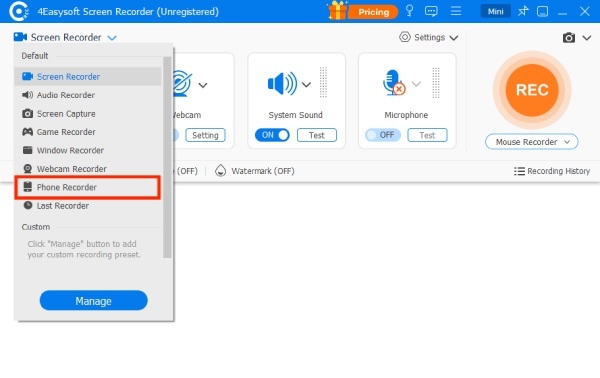
Step 1Launch 4Easysoft Screen Recorder and click the "Phone Recorder" button after connecting your Android device to the computer using a USB cable.
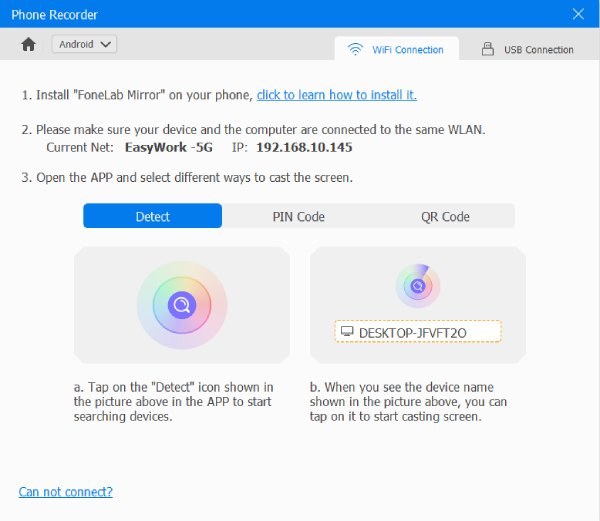
Step 2Follow the instructions and cast your Android screen to the computer using detection, PIN code, or QR code. The Android screen recorder is now ready.
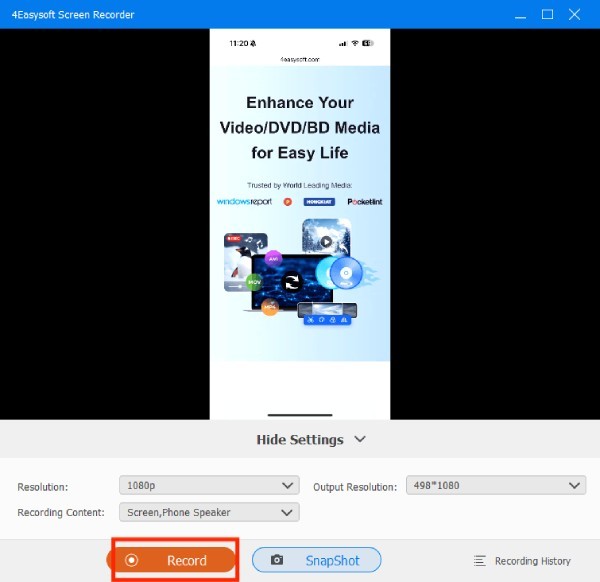
Step 3After enabling screen recording on your Android, tap the "Record" button to start recording.
Best Android Screen Recorders for Various Scenarios
For different scenarios, you usually need different apps that can record the screen on Android. Each app has unique advantages and disadvantages that determine its strengths and suitability for different scenarios. This section presents you with multiple options suitable for various scenarios. You can choose the appropriate tool based on your preference for recording screen activity on your Android device.
Test Condition: To ensure the test's objectivity, all Android screen recorders were installed on the Samsung Galaxy S10. We selected over twenty of the most popular tools to test the recording quality. To determine which scenarios they are suitable for, we conducted screen recordings in various situations, including browsing the web, watching videos, participating in online meetings, and playing games. After evaluating performance during recording and the resulting recordings, we have compiled and recommended the following reliable tools for you.
1. Mobizen Screen Recorder – Android Screen Recorder for Gameplay
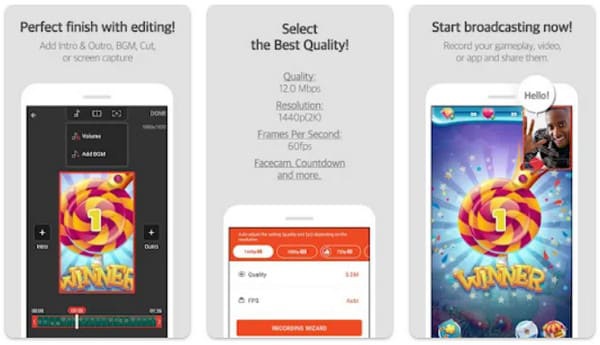
If you also enjoy playing various games on your mobile phone, then you must want to record and save the wonderful moments of your gameplay. In such cases, Mobizen Screen Recorder is one of the best options. This tool enables you to record the gameplay in its original quality and frame rate. During operation, it will not consume excessive memory, ensuring your recording remains smooth and free of frequent lag.
- Pros
- Offer basic editing for cutting, trimming, and similar tasks.
- Support Facecam and external audio recording.
- A game recorder for any game.
- Cons
- Watermark in videos unless upgraded.
- Occasionally faced performance issues.
- It can take a considerable storage space.
2. DU Recorder – Android Screen Recorder for Streaming
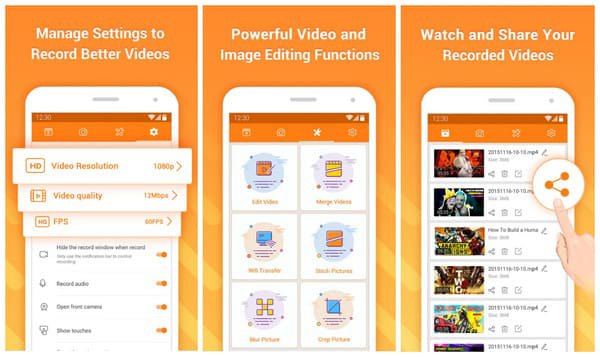
Due to the popularity and success of current streaming media platforms, many content creators are no longer limited to live broadcasts on computers. Many interesting screen activities on mobile phones are also excellent materials. The DU Recorder offers you this convenience. You can stream your activities directly to YouTube or Facebook while recording the screen using this Android screen recorder. With its facecam support, you can also incorporate your own face into the streaming.
- Pros
- Support streaming to YouTube and Facebook.
- No time limit or watermarks in the free version.
- HD recording with the Facecam on your device.
- Cons
- This app may collect privacy data.
- Streaming needs a solid internet connection.
- There might be some lag during the live broadcast.
3. Riv Screen Recorder – Android Screen Recorder for Collaboration
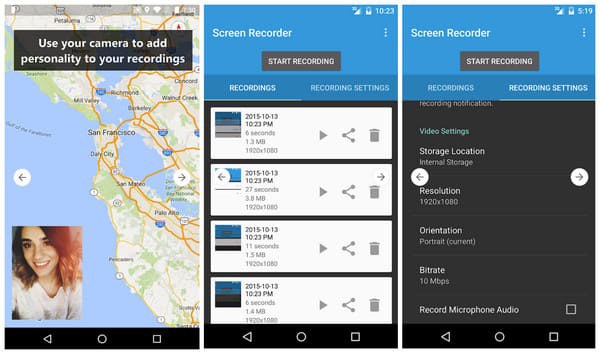
For users with job requirements, especially those involving teamwork, Riv Screen Recorder is the best screen recorder for Android. Although its recording capabilities are relatively limited, its collaboration features make it the top choice for many users. You can quickly record activities or screen content and share them with friends and colleagues who need to share or collaborate, to enjoy a smooth workflow.
- Pros
- Provide options for different frame rates.
- Easy sharing options are offered.
- Simple interface and light in resources.
- Cons
- Not as feature-rich as other tools.
- It does not support internal audio recording.
- The process of sharing relies on a reliable Internet connection.
4. AZ Screen Recorder – Android Screen Recorder for Quality
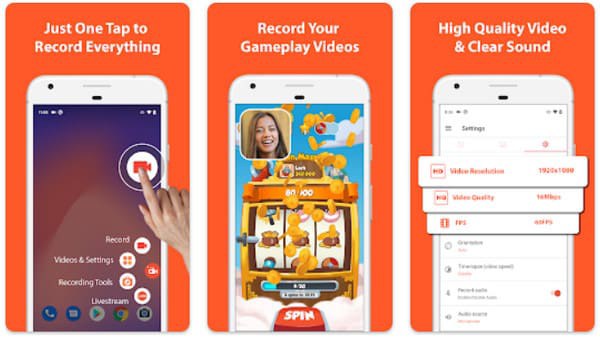
AZ Screen Recorder is also a highly trusted free screen recorder for Android. Unlike many other free applications, this tool provides high-quality screen recordings (1080p, 60 fps) without adding watermarks to the exported recordings. However, because it is free software, its features are limited and may not meet your post-production needs.
- Pros
- Have no time limit for recordings.
- Only light on system resources.
- Completely covers 1080p resolution and 60fps.
- Cons
- There's no built-in cloud storage.
- Limited options for editing the recordings.
- The interface can be outdated.
5. ADV Screen Recorder – Android Screen Recorder for Editing
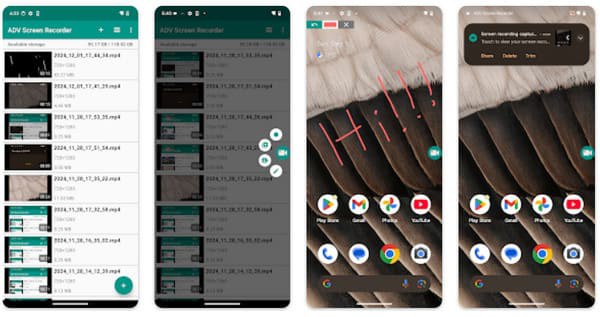
For users who want to edit quickly during recording, the ADV screen recorder is a reliable Android screen recorder. Whether you notice something that needs attention during recording or want to emphasize a specific part after the recording is complete, you can use its rich editing features to highlight that content quickly.
- Pros
- Draw on the screen to highlight the content.
- Both front and rear camera recording.
- Metadata attached and displayed to the recordings.
- Cons
- Ads in the free version are displayed during the process.
- The frame rate cannot reach 60fps.
- The editing process may experience some lag.
FAQs About Android Screen Recorders
-
Can any Android screen recorders record system internal audio on my Android device?
It depends. Most of the tools support recording both screen activity and internal system audio simultaneously. However, if you have a similar requirement, you can first determine whether the chosen tool supports this feature.
-
Why does my screen recording stop unexpectedly halfway?
This may happen due to insufficient storage space, high system resource usage, overheating, or app limitations. To record longer videos with more stable performance, you can try a professional screen recorder like 4Easysoft Screen Recorder.
-
Does Android screen recording have a fixed time limit?
It depends. Although most Android screen recorders offer free or trial versions to record your screen activity, some may require you to purchase a license to unlock unlimited recording.
Conclusion
This post recommends 6 apps that record the screen on Android. They are respectively applicable to different scenarios. You can choose the tool that suits your needs. However, constantly replacing tools due to power outages is always inconvenient. You can use a one-stop solution for all scenarios to record screen activity on your Android device with 4Easysoft Screen Recorder.
100% Secure
100% Secure
