
Record, edit, and share video from all sources.

6 Game Recorders for Your PC - Choose the Best One!

Posted by Ethan Brooke to Record Gameplay Jul 17, 2026
Capturing gaming highlights should not feel like an obstacle that tanks your in-game frame rates. Thanks to the hundreds of game recorders flooding the internet, you can capture that once-in-a-lifetime play in your favorite game. But how do you choose the best one? To help you navigate, this post gathered the best 6 gameplay recorders for PC, along with a roadmap on exactly how to pick the perfect one for your setup.
Guide List
How to Choose the Best Game Recorder Best Game Recorder for Low-end and High-end Computers Top 5 Free Game Recorders How to Record Games on PC FAQsHow to Choose the Best Game Recorder
Choosing the right gameplay capture software can make a huge difference between a high-definition playback and a laggy show that tanks your in-game frame rate. Since not all recording tools are equal, you should know exactly what to look for to find your ideal game recording software:
- 1.Performance Impact. The highest priority of a gamer is how much hardware juice the recorder eats. Look for software that utilizes hardware acceleration, like NVIDIA, to offload video encoding from your CPU to your graphics card.
- 2.Compatibility. Some top-tier recorders are exclusive to Windows, while others support macOS. Also, ensure the software supports your gaming setup.
- 3.Output Quality and Customization. Your video should look sharp and clean, so look for a tool with complete control over your final file output.
- 4.Audio Control and Multi-Track Recording. If you plan to add commentary or a track, choose a recorder that supports multi-track recording and can enhance audio easily.
- 5.Essential Additional Features. A great software comes down to the quality features it offers, such as background recording, built-in editing tools, and no watermarks.
How Do We Test and Review Game Recorders?
To make sure today's recommendations are reliable, every game screen recorder went through a real-world testing process. From high-end gaming rigs to mid-tier laptops, fast-paced games are checked to measure the exact FPS drop when recording at 1080p/60FPS.
Also, using system monitoring tools, the exact percentage of system usage the software consumes during recordings was tracked. And used the software from a beginner's perspective.
Best Game Recorder for Low-end and High-end Computers
Whether you're rocking a budget laptop or using a high-end gaming rig, capturing smooth, lag-free footage needs a flexible and intelligent software like 4Easysoft Screen Recorder, fitting perfectly for all setups. It has a dedicated Game Recorder mode that isolates your gameplay window from epic battles, Stream, or other online platforms. It also lets you capture webcam overlay and multi-source audio for live commentary.
Advanced hardware acceleration technology prevents game lag.
Built-in customizable hotkeys for starting, pausing, and stopping instantly.
Full customizable output settings, capturing every detail of your game.
A built-in preview and editor lets you trim dead air before saving.
100% Secure
100% Secure
Top 5 Free Game Recorders
Looking for a top-tier game capture software does not mean you have to break the bank. The truth is, some of the most powerful tools are completely free, and many of these are already built into your operating system.
Take a look at the top five free game recorders and how to use them:
Top 1. OBS Studio
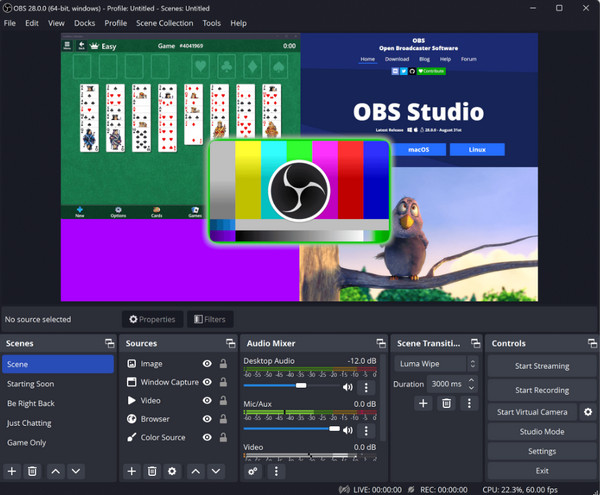
The gold standard for open-source game capture and live streaming, OBS Studio offers unlimited lengths, multi-track audio, and advanced customization. Since it features extensive hardware acceleration options, it can be optimized to run efficiently on a wide selection of systems.
- 1.Once launched, go to "Sources" click the "Add" button, and choose "Game Capture". You can pick any full-screen app or a specific window.
- 2.Then, go to the "Audio Mixer" panel to ensure your audio and mic levels are adjusted correctly.
- 3.Click "Start Recording".
Top 2. NVIDIA ShadowPlay
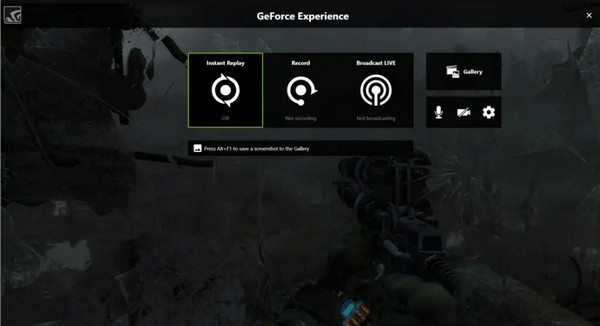
If your PC uses an NVIDIA GeForce graphics card, use ShadowPlay as your gaming recorder. It captures directly using the GPU's dedicated encoder, leading to zero performance impact on your game's frame rates.
- 1.While in-game, press "Alt + Z" to open the NVIDIA share overlay.
- 2.Click the "Record" button and select "Start" to instantly capture your screen.
- 3.Later, press "Alt + F9" to stop recording, and the software will save the high-quality MP4 video to your Videos folder.
Top 3. AMD Radeon ReLive
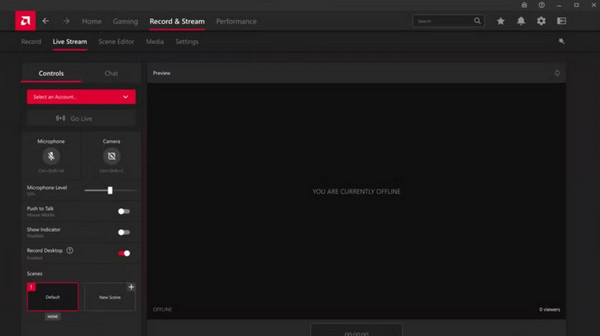
Next is Radeon ReLive, which is built directly into AMD Software Adrenalin Edition drivers. Here, you can record, stream, and capture instant replays with minimal system overhead, making it an excellent game recorder for PC for keeping maximum gaming performance.
- 1.Start AMD Software dashboard, then head to the "Record & Stream" tab, and make sure the recording features are enabled.
- 2.Launch your game and press "Alt + Z" to start recording.
- 3.After a while, press "Ctrl + Shift + R" keys to conclude the capture, and your video will be saved in your media library.
Top 4. Xbox Game Bar
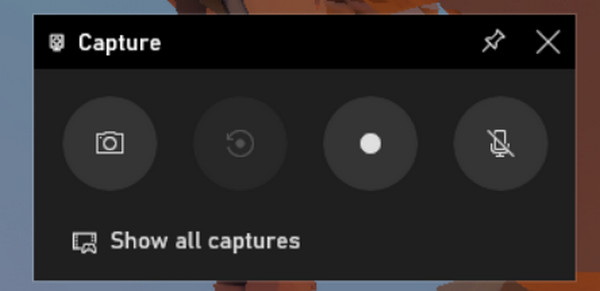
Built straight into Windows 10 and Windows 11, Game Bar needs no installation. This game recorder is lightweight, which allows you to clip gameplay moments, monitor system performance, and take screenshots on the fly.
- 1.Press "Windows + G" keys to access Game Bar widgets directly.
- 2.Then, click the "Record" button on the Capture widget.
- 3.Once done, click the "Stop" button and your completed video will be waiting for you in the "Videos" to "Captures" directory.
Top 5. macOS Screen Capture Utility
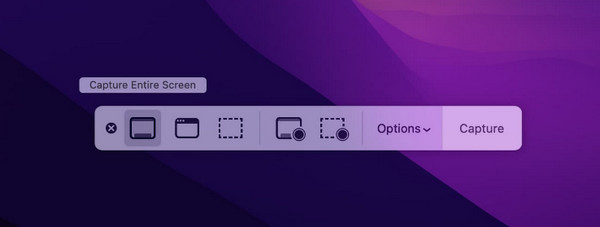
For Mac users playing games, Apple has a robust, built-in system utility to help. You can access it via a simple keyboard shortcut. It offers crisp, native resolution recording with options to record the full display or a cropped region.
- 1.Activate the toolbar by pressing "Shift + Command + 5" keys, then select either the "Record Entire Screen" button or the "Record Selected Portion".
- 2.Then, click "Options" to confirm your microphone and location folder. Click the "Record" button if ready.
- 3.Later, click the "Stop" button in the menu bar.
How to Record Games on PC
Moving from the list of game recorders, here's how to set up and fine-tune your recording decision on PC using 4Easysoft Screen Recorder:
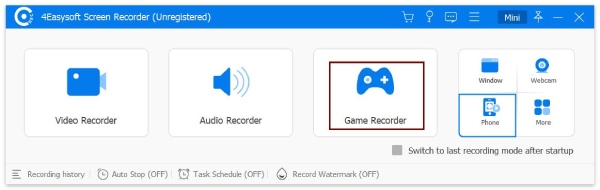
Step 1Open 4Easysoft Screen Recorder on your desktop. From the main dashboard, select the "Game Recorder" option to ensure the software focuses its resources on your game window.
Step 2Click the "Select the game" dropdown menu and select your active game window. At this stage, you can turn on "Webcam" or "Microphone" switches to add a facecam or voice.
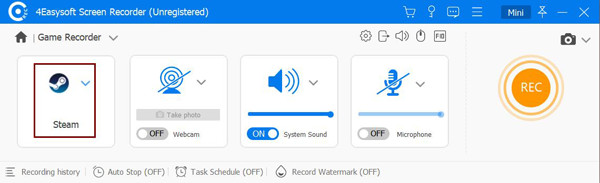
Step 3Click the "Settings" button to adjust your recording settings. Set your resolution, frame rate, quality, format, and more.
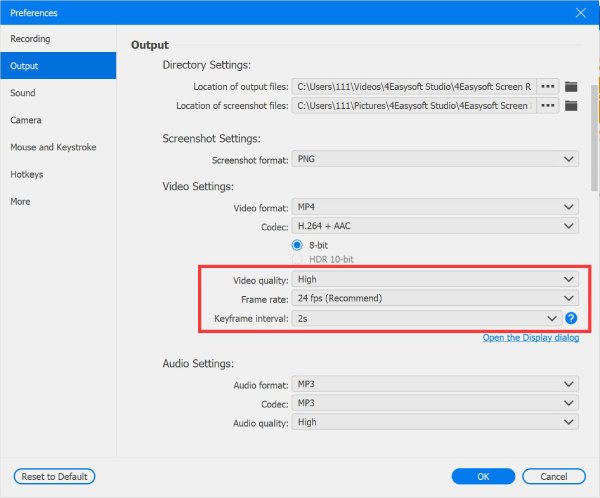
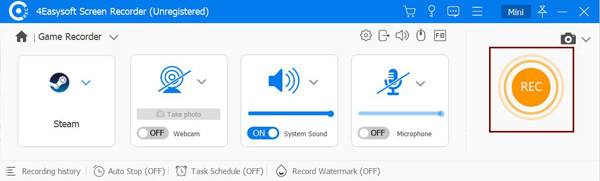
Step 4Click the "OK" button to save your preferences, then click the "REC" button to trigger the countdown.
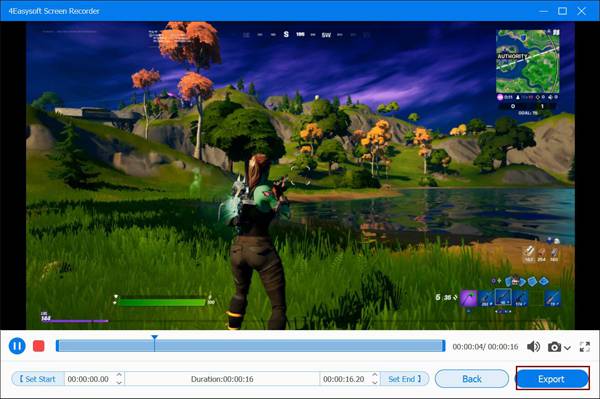
Step 5When you're finished playing, click the "Stop" button. The preview window will open automatically where you can review your footage and trim any unwanted parts. Once okay, click the "Save" button.
FAQs
-
Will recording gameplay cause my game to lag?
It depends on the software settings and your computer's hardware. You must select a game recorder that supports hardware acceleration to hand off heavy video processing to your graphics card.
-
Why does my video look blurry during fast action scenes?
It may be because of low bitrate settings. When you're still in a game, the video compressor does not need to work very hard, but once you act quickly, the amount of visual data spikes.
-
Is OBS Studio truly free to record gameplay?
Yes, OBS Studio is an open-source project, which means it works for free to use for both personal and commercial projects. The only downside of it is that it has a bit of a learning curve compared to other game recorders.
Conclusion
At the end of the day, deciding the ideal gameplay recorder rests on your system and personal goals. If you love deep customization and multi-source recording layouts, or a quick highlight capture, tools are waiting for you here! Out of all so many options, you might still want a simple, reliable solution that works flawlessly on both low-end and high-end PCs. The 4Easysoft Screen Recorder is worth checking out! This tool's Game Recorder captures your game window without any lag or loss in quality. You have total content control, making it the best for creating high-quality gameplay recordings.
100% Secure
100% Secure
