
Record, edit, and share video from all sources.

OBS Review: Features, Pros, Cons, and Best Alternative

Posted by Ethan Brooke to Record Video Aug 14, 2026
OBS Studio is one of the most popular free screen recorders. It gives you plenty of control over recording quality, audio, and video sources. But is OBS Screen Recorder easy to use? Not always. Some users report OBS laggy recordings, audio delays, or crashes during longer sessions. Others spend time changing bitrate, encoder, and FPS settings before getting smooth results. If you're unsure whether OBS is the best screen recorder, please continue reading for more details.
Guide List
OBS Screen Recorder Key Features OBS Screen Recorder Pros and Cons Best OBS Alternative: 4Easysoft Screen RecorderOBS Screen Recorder Key Features
See popular features that many people mention while recording with OBS.
Screen Recording
You can capture a full display, a specific window, an individual application, and even game footage. You can also add several sources to the same scene. For example, a tutorial can show your screen, webcam, and microphone simultaneously. Briefly speaking, the main advantage of OBS screen recording is control. You can decide exactly what appears in the recording. However, setting up multiple sources can take some time if you are new to OBS.
Gameplay Recording
It is widely used for its fine-grained control over OBS recording settings. You can adjust the resolution, frame rate, encoder, bitrate, and audio sources. OBS also supports hardware encoding with compatible GPUs. Options such as NVIDIA NVENC, AMD AMF, and Intel Quick Sync can move some encoding work away from the CPU. However, beginners may not know which encoder or bitrate to choose.
Webcam and Microphone Recording
OBS can also record your webcam and audio, along with your screen. You can add a webcam, microphone, system audio, and multiple audio sources to a scene. This works for recording tutorial videos, reaction videos, gaming commentary, and more. Moreover, you can adjust volume levels for different audio sources while recording.
Scenes and Sources
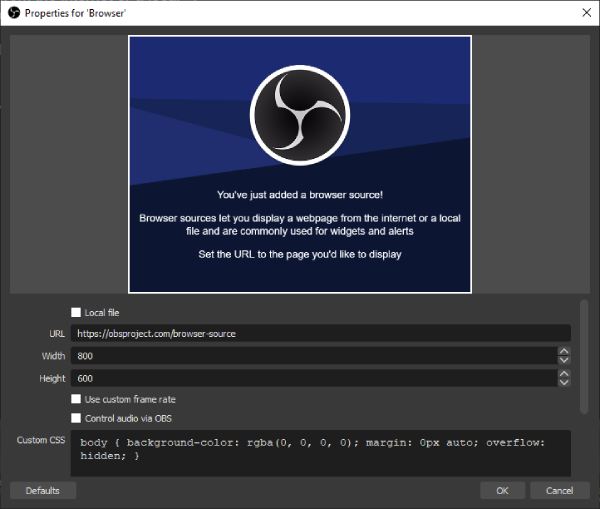
Scenes are among the best features of OBS Screen Recorder. Instead of rebuilding your recording setup every time, you can create different scenes for custom OBS recording modes. In other words, you can make your own gameplay recorder, webcam recorder, live stream recorder, and more. This flexibility is a big advantage for experienced users. But it is quite complicated for new users.
Other Useful Features
OBS also includes several features that can make recording more convenient:
- Multi-track audio: Record system sound and microphone audio on separate tracks for easier editing later.
- Replay Buffer: Save the last few seconds or minutes of gameplay after something happens instead of recording everything continuously.
- Virtual Camera: Send your OBS output to apps such as Zoom or Microsoft Teams as a virtual webcam.
- Filters: Apply noise suppression, noise gates, compressors, color correction, and other filters.
- Plugins: Add extra functions through OBS plugins, including advanced scene switching and additional effects.
- No built-in video editor: OBS focuses on recording and streaming. If you need to cut clips, add annotations, or make detailed edits, you will need another video editor.
OBS Screen Recorder Pros and Cons
OBS gets a lot of praise from users because it gives them a lot without charging anything. But beginners and recent users have also reported OBS recording lag, audio delays, and other issues during and after recording. See what you can and cannot get from OBS.
OBS Pros:
- Free and open source. OBS is released under the GPLv2 license. It has no watermark or built-in recording restrictions.
- No watermark. You won't be charged to remove the OBS watermark from recording videos.
- No recording time limit. You can make long recordings without any subscriptions or paid plans.
- Excellent gameplay recording. Gamers can control resolution, FPS, encoder, bitrate, and audio settings to achieve flexible and smooth recording.
- Strong streaming feature. OBS is also built around live streaming, which makes it useful for users to record and stream from the same setup.
- Large community and tutorial ecosystem. There are many guides and community discussions available to troubleshoot OBS recording issues. YouTube tutorials also walk beginners through scenes, recording settings, audio, and streaming step by step.
OBS Cons:
- The initial OBS setup takes time. Even a basic setup may require you to add a source, choose an audio source, check recording settings, and do more.
- Audio configuration is complicated. There are many complaints about audio delays, distortion, and synchronization problems in OBS audio recording. OBS also warns users that adding the same audio device in multiple places can create an echo.
- Advanced customization may be unnecessary. If you want to record a browser window or make a quick tutorial, the OBS's scenes, filters, plugins, and detailed settings may feel like extra work.
- Many recording problems. The OBS choppy recordings and encoding lag (especially with demanding settings) are reported in many places.
Best OBS Alternative: 4Easysoft Screen Recorder
If you want to control and don't mind a steep learning curve, you can use OBS to record your screen. But for people who need to click the Record button and start capturing their screen, its extra settings can feel like more trouble. 4Easysoft Screen Recorder offers a more straightforward workflow. You can choose what you want to record and start without spending as much time setting up scenes and sources. It is a better fit for tutorials, online classes, software demonstrations, meetings, and other everyday recordings. You can also make basic edits before exporting.
Record computer and phone screen without complicated setup.
Record screen along with webcam, system audio, and microphone.
Get hardware acceleration for gameplay recording. (60/120 FPS)
Schedule recording tasks, add mouse effects, and do more.
100% Secure
100% Secure
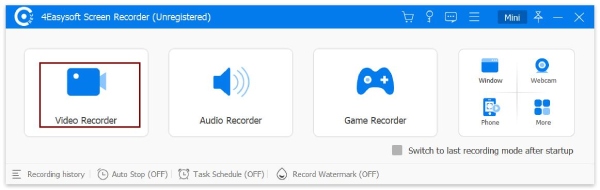
Step 1Open 4Easysoft Screen Recorder. Choose your recording mode. Or you can start with the default Screen Recorder.
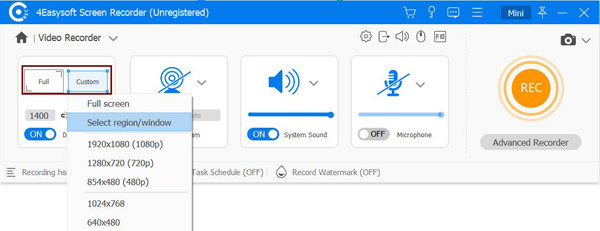
Step 2Set the screen capture area. Turn on the toggle button before "Webcam", "System Sound" and "Microphone" buttons.
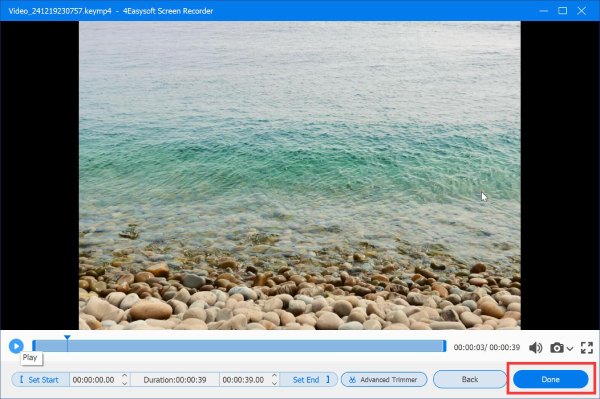
Step 3Click the "REC" button to start recording. After recording, you can get the recording file, or use the built-in video trimmer, compressor, converter, and more within the program.
Conclusion
OBS is the better choice for advanced streaming, complex scenes, and detailed source management. As for 4Easysoft Screen Recorder, it makes more sense if you want to record something quickly and get a usable video without a lengthy setup. You can capture tutorials, software demonstrations, online classes, meetings, lectures, and everyday screen recordings in just a few steps. Moreover, you can get advanced editing tools after recording. 4Easysoft Screen Recorder can be a simpler alternative to OBS.
100% Secure
100% Secure
