
Record, edit, and share video from all sources.

How to Enable Screenshot Functionality on iPhone/Android

Posted by Ethan Brooke to Screenshot Apr 14, 2026
You may encounter the frustrating "Can’t Take Screenshot Due to Security Policy" message when trying to take a screenshot. This restriction is often imposed by apps, organizations, or device settings to protect sensitive content. Fortunately, there are ways to bypass or fix this issue. This guide will explore why this happens, provide possible fixes, and introduce a 100% effective way to capture screenshots even when security policies restrict them.
Guide List
Why Can’t You Take Screenshots Due to Security Policy? Possible Fixes for Screenshot Failure Due to Security Policy A High-Success-Rate and Unrestricted Way to Take Screenshots FAQs About Can't Taking Screenshots Due to Security Policies IssueWhy Can’t You Take Screenshots Due to Security Policy?
If you encounter the "Can’t Take Screenshot Due to Security Policy" message, several factors could be restricting your ability to capture images. Here are the most common reasons:
1. App Restrictions
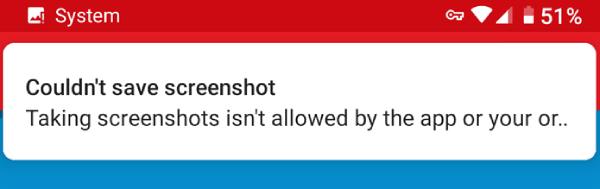
Certain apps, such as banking apps, streaming services, social media platforms, block screenshots to protect user privacy and sensitive content. These restrictions are usually enforced by developers to prevent data leaks, unauthorized sharing, or piracy. If you try to take a screenshot in apps like Snapchat or Netflix, you may receive a security warning or capture a black screen.
2. Device or System Policies
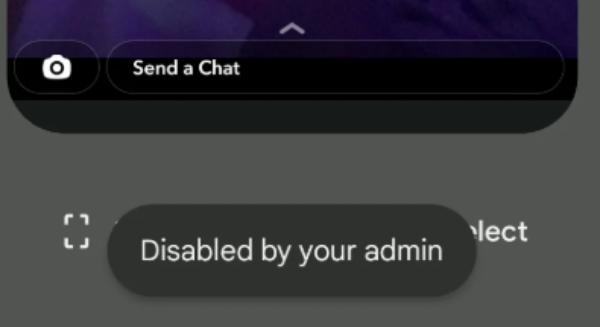
Some Android and iOS devices have security policies enabled by administrators. If your phone is issued by a workplace or educational institution, the IT department may restrict screenshots for security reasons. These policies are often set through Mobile Device Management (MDM) software, preventing users from taking screenshots in certain apps or across the entire system.
3. Incognito Mode Restrictions
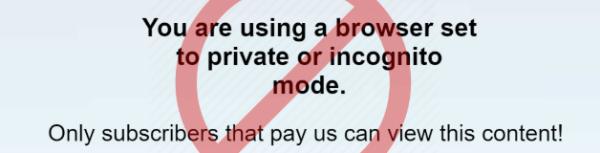
When browsing in Incognito or Private mode in browsers like Chrome, Firefox, or Edge, taking screenshots is often disabled. This is to protect user privacy and prevent data from being stored or shared unintentionally. If you need to capture a webpage in Incognito mode, you may have to switch to a standard browsing session or use alternative methods.
4. DRM Protection
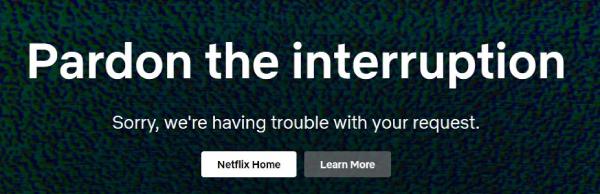
DRM (Digital Rights Management) is commonly used by apps and websites that deliver copyrighted content, such as Netflix, Disney+, and Amazon Prime Video. This technology prevents users from taking screenshots on entire webpage or recording content to stop unauthorized distribution. When you attempt to capture a DRM-protected screen, you may see an error message, a blank screen, or a distorted image instead of the intended content.
Possible Fixes for Screenshot Failure Due to Security Policy
However, if you are unable to take a screenshot due to security restrictions, you can still try other methods to capture screenshots of protected content. While these methods may be cumbersome or have limited effectiveness, they can still work in certain situations, so it’s worth trying them one by one. Please note that screenshot restrictions are typically in place for privacy, copyright, or security reasons, and circumventing them may violate platform terms of service or applicable laws. Before proceeding, please ensure you have the legal right to do so and avoid sharing sensitive or protected information. Alternatively, you can go directly to the next section to learn a highly successful rate method.
Fix 1 – Enable Incognito Mode
Some browsers and apps restrict screenshots only when certain privacy features are active. If you're unable to take a screenshot due to Incognito mode restrictions, check if there’s an option to allow screenshots in the browser’s settings. Some Chromium-based browsers let users bypass this restriction manually.
System Support: Browsers for iPhone and Android
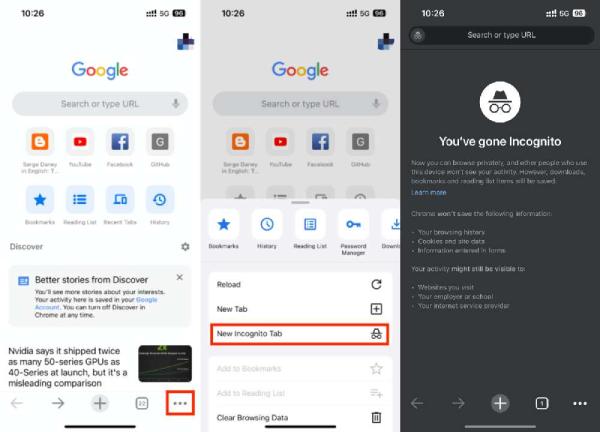
Step 1Open Chrome on your iPhone or Android, tap the "More" button.
Step 2Under the "More" tab, find and tap the "New Incognito Mode" button.
Step 3Now, you can try to take a screenshot that you couldn’t do due to security policy before.
Successful Rate: 20% – 40%
Fix 2 – Remove Device Admin
If your phone is managed by an organization, it may have security policies that block screenshots. You can check if an app has admin privileges by going to your device’s settings under "Device Admin Apps." Removing these permissions may restore screenshot functionality but be cautious as this might affect other security features, like blocked messages on iPhone or Android.
System Support: Android only
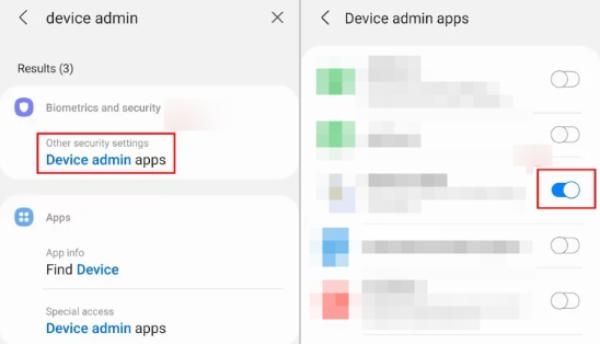
Step 1Open Settings on your phone and find the "Device admin apps".
Step 2Now, you can see a list of apps that are activated with Device Admin.
Step 3Tap to toggle the buttons near the apps that you want to remove device admin.
Successful Rate: 60% – 85%
Fix 3- Use Google Assistant
Google Assistant offers an alternative way to capture restricted screens. By activating Google Assistant and saying, "Take a screenshot," it may be able to bypass certain app-level restrictions, like easily screen recording on Chromebook. However, keep in mind that this method may not work on all apps or devices, especially those with strict security measures.
System Support: Both iPhone and Android offer only limited support
Step 1Activate the Google Assistant that is installed on your phone.
Step 2Say "Hey Google, take a screenshot", and the screenshot will be taken automatically.
Successful Rate: 30% – 60%
Fix 4 – With Android Virtual Devices
Android Virtual Devices (AVDs) run a full Android system on a mobile device, with apps operating in the user space of that independent system. Since developers or testing environments typically have higher privileges, they can bypass app-level screenshot restrictions and capture screen pixel data before or outside the scope of security flags. As a result, AVDs have virtually no restrictions on screenshots and screen recording compared to physical devices.
System Support: By computer only
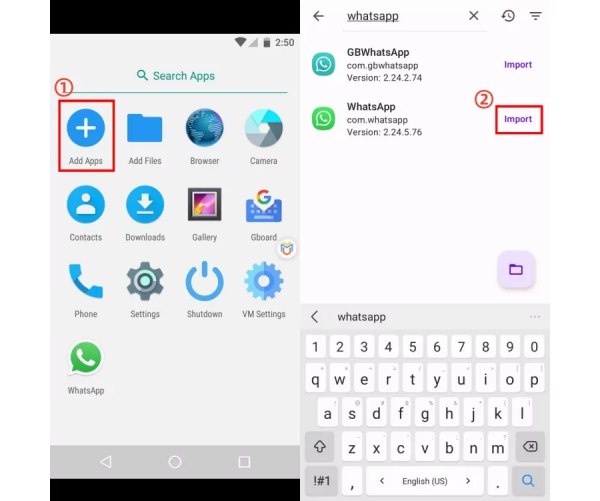
Step 1Install an Android emulator on your device. Once it's running, follow the prompts to select your desired Android version, then click "Start Virtual Machine."
Step 2Search for the restricted app in the emulator's app store. Then take a screenshot of the restricted interface to save it.
Successful Rate: 85% – 100%
A High-Success-Rate and Unrestricted Way to Take Screenshots
If the previous solution still faces screen recording restrictions that prevent you from taking screenshots, or if you need a method for taking high-quality screenshots anytime without limitations, 4Easysoft Screen Recorder is the best solution. Unlike built-in screenshot tools that may be blocked by system policies, this powerful screenshot software allows you to take screenshots on iPhone and Android without restrictions.
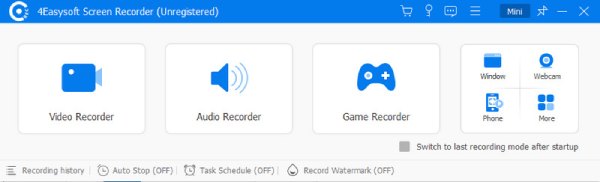
With 4Easysoft Screen Recorder, you can capture any part of the screen, including protected content of apps and websites that usually block screenshots, which is especially useful for users who often encounter screenshot security policy restrictions. If you need a 100% effective way to take screenshots without hassle, 4Easysoft Screen Recorder is your best choice.

Completely bypass security policy to take screenshots.
Capture all the content in original screen quality.
Fully compatible with both iPhone and Android devices.
Support custom editing before saving screenshots.
100% Secure
100% Secure
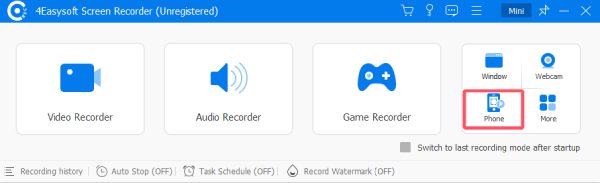
Step 1Launch 4Easysoft Screen Recorder and click the "Phone" button to choose the model of your device.
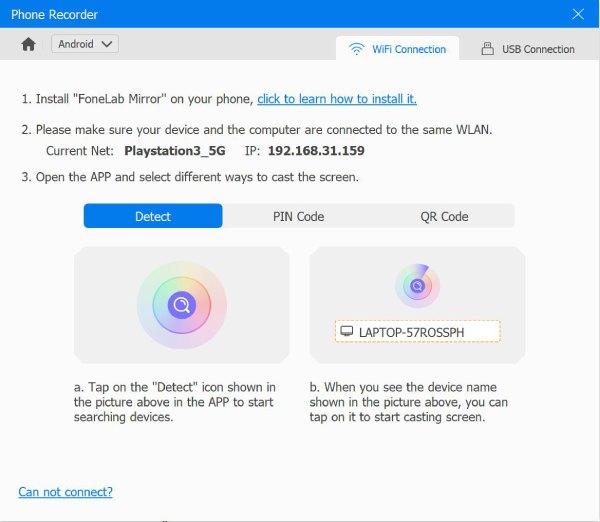
Step 2Follow the instructions to connect your device to the computer to capture screenshots without security policy.
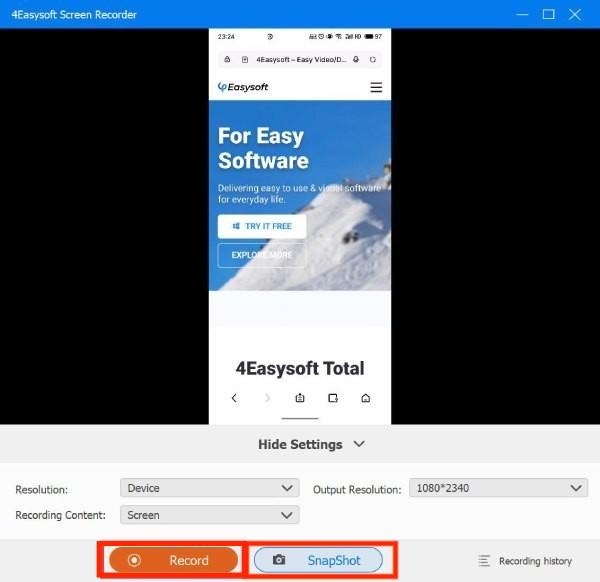
Step 3Click the "Record" or "Snapshot" button to capture the screen activities on your device, bypassing the security policy.
FAQs About Can't Taking Screenshots Due to Security Policies Issue
-
Why does Chrome Incognito say I can't take screenshots?
In Google Chrome Incognito mode, some pages trigger system-level restrictions. On certain devices, this uses a "secure flag" that prevents screenshots or screen recording to protect sensitive data. You generally can't bypass this directly in Incognito. Workarounds include switching to normal browsing mode, using another device.
-
How to screenshot Netflix/Disney+ on Android without a black screen?
Apps like Netflix and Disney+ block screenshots using DRM and Android's secure flag, which causes black screens. There's no direct way to bypass this on Android, but you can try using a desktop browser instead, disabling hardware acceleration in a browser, or capturing via another device or screen mirroring. Keep in mind these protections are intentional, and bypassing them may violate platform rules.
Conclusion
Encountering can't take screenshots due to security policies can be frustrating , but there are multiple ways to bypass these limitations. However, if you need a 100% guaranteed solution, 4Easysoft Screen Recorder provides an effortless way to capture high-resolution screenshots without any restrictions. Whether for work, tutorials, or personal use, having a reliable tool ensures you never miss important content.
100% Secure
100% Secure
