
Transfer data between iPhone and computer, or between two iPhones easily.

Upgrading iPhone? Transfer Data from One iPhone to Another!

Posted by Alvin Cantero to iOS Transfer Sep 23, 2026
Between your huge library, those messages, and custom app layouts, the thought of transferring data from one iPhone to another can feel exhausting. The good news? There's a way to move your digital life from the old one! Whether you want a mirror image or a quick way to copy files, there's a perfect method for you here. Cut to the chase and scroll down to the four easiest ways to transfer data between iPhones. Enjoy your new iPhone upgrade in no time!
Guide List
What You're Actually Trying to Move - Intent Mapping Transfer Data to a New iPhone with Quick Start Transfer Anything from Old iPhone to New iPhone with 4Easysoft iPhone Transfer Transfer Data from iPhone to iPhone with iCloud Backup and Restore Transfer Data Between Two iPhones with Computer Backup via Finder or iTunes FAQsWhat You're Actually Trying to Move - Intent Mapping
Some users want every single piece of data unpacked exactly where it used to be when transferring everything from one iPhone to another. Others look at a new device as a fresh start, wanting only the necessary ones.
Therefore, before helping with the transfer, here's a quick breakdown table of common scenarios and the perfect path forward for each:
| User Intent | Best Path |
| Full device clone for the new phone | Quick Start or encrypted computer backup |
| New iPhone already set up, or want to add data | 4Easysoft iPhone Transfer or selective iCloud sync |
| Giving an old iPhone to a family member | Set up as new after full transfer to the new phone |
| Recovering lost data after a failed transfer | 4Easysoft iPhone Transfer |
| Privacy-first, no cloud | Quick Start or encrypted Finder/iTunes backup |
| The old iPhone is broken, but it powers on | Computer backup o 4Easysoft iPhone Transfer |
Transfer Data to a New iPhone with Quick Start
Quick Start is a great place to go when you just unbox a shiny new iPhone and want it to look exactly like your old one. This new iPhone transfer method uses a direct, encrypted device-to-device local Wi-Fi connection to mirror everything from your layouts to your system preferences.
What can it transfer: Photos, videos, text messages, contacts, local files, device settings, home screen layouts, and app data.
Best for: Users who want an effortless clone right during the setup of a new iPhone.
Step 1Turn on both Wi-Fi and Bluetooth on your old iPhone, then place your new iPhone right next to it. Power on your new iPhone, a prompt will pop up on your old device, please tap "Continue".
Step 2Once the animation appears on your new screen, hold your camera over this animation to pair securely.
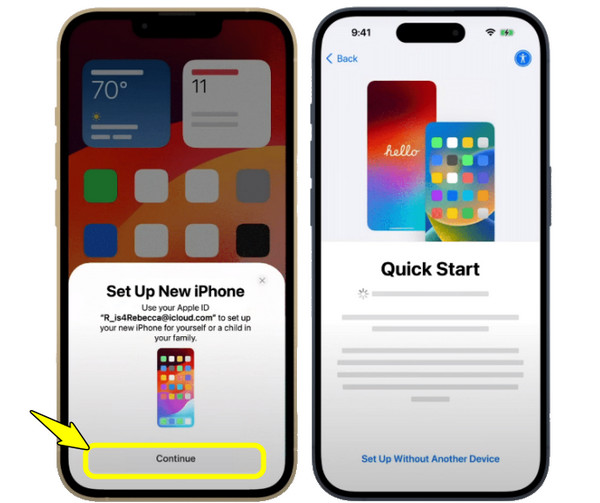
Step 3Next, enter your old iPhone's passcode on your new device, set it up, and then choose "Transfer from iPhone" to allow the direct copy to start.
Transfer Anything from Old iPhone to New iPhone with 4Easysoft iPhone Transfer
When talking about moving data from one iPhone to another, the official Apple methods can sometimes feel limited, as they need you to factory reset just to bring over missed data. Perfect for an already-set-up iPhone or simply managing files, 4Easysoft iPhone Transfer works as the best alternative to iTunes. With this software, you can freely switch iPhone data to new iPhone, as well as Android and your computer, over a secure USB connection with no storage limits or network slowdowns. Plus, it includes built-in tools such as a duplicate finder for freeing up space and a HEIC converter for making sure your pictures can be opened anywhere.
Transfer anything directly between any iPhone model and a computer.
Selectively preview and manage individual iPhone files rather than a total backup.
Backs up and restores data with a single click, without affecting existing files.
Super-fast speed with no buffering or delay, even for large files.
100% Secure
100% Secure
What can it transfer: Photos, videos, music, audiobooks, and more audio files, contact cards, and text messages.
Best for: Users who want to skip the time-consuming restoration process and have already set up a new iPhone to bring back missed data.
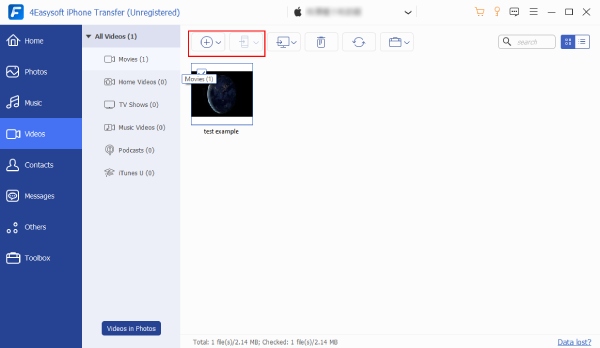
Step 1Upon starting 4Easysoft iPhone Transfer on your computer, hook up both your old and new iPhones using standard USB cables. Unlock both screens, and tap "Trust" when a prompt shows up.
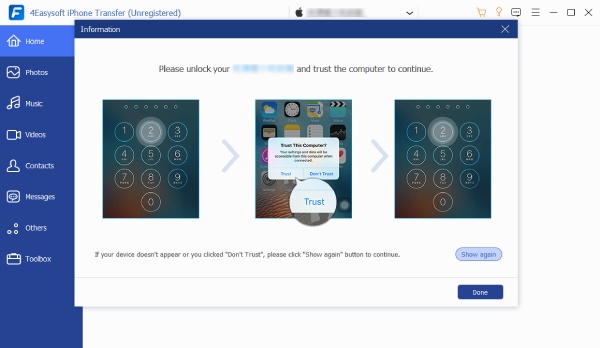
Step 2From the source iPhone (set it from the dropdown menu above), browse through the categories in the left sidebar, such as Photos, Music, Videos, and more. Check the boxes for the specific files you want to transfer.
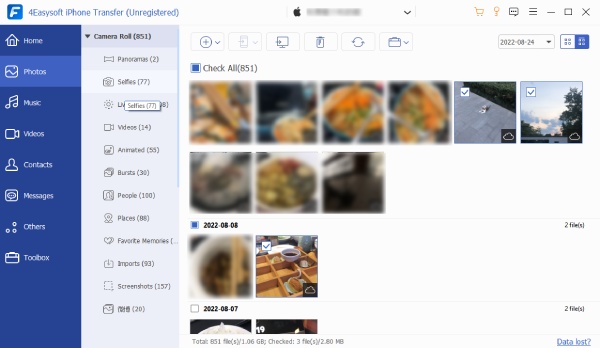
Step 3Later, click the "Export to Device" button at the top and select your new iPhone to begin the transfer. Wait until it gets finished.
Transfer Data from iPhone to iPhone with iCloud Backup and Restore
If you don't want to deal with computers to transfer data from one iPhone to another, try iCloud backup. This transfer method depends completely on the cloud, saving a snapshot of your digital life to your Apple account, letting you restore it onto your new iPhone over any stable Wi-Fi network.
What can it transfer: Settings and app data, Home Screen layouts, iMessages, photos, videos, and purchase history. For unsupported files, you can try to transfer all data from old iPhone to new iPhone without iCloud.
Best for: Getting a new iPhone set up without having the old iPhone with you.
Step 1Inside "Settings", tap on your Apple ID, select "iCloud", then tap on "iCloud Backup". There, tap "Back Up Now", and stay connected to Wi-Fi until it finishes.
Step 2Switch on your new iPhone and start the setup screens until you reach the "Apps & Data" screen. Tap "Restore from iCloud Backup" and log in with the same Apple ID credentials.
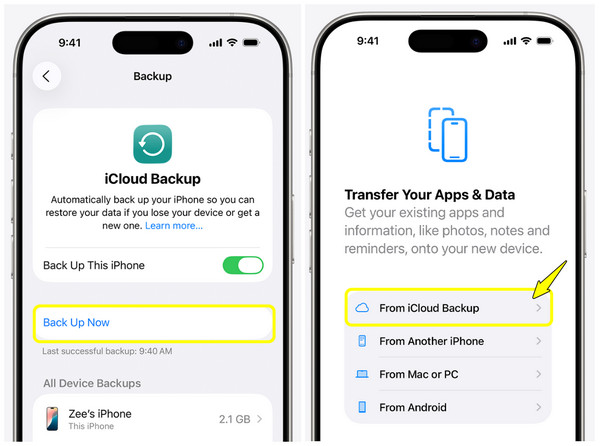
Step 3Make sure to settle on the timestamped backup from the list, keep your Wi-Fi connected, and wait until the transfer populates your new iPhone.
Transfer Data Between Two iPhones with Computer Backup via Finder or iTunes
For anyone who handles huge libraries of high-resolution videos, use the traditional local backup on a computer via Finder or iTunes. Creating this backup uses physical cables to transfer data from one iPhone to another quickly, while an encrypted backup ensures your sensitive data, like passwords, will be carried over safely. (See methods to fix iPhone not showing up iTunes for data transfer.)
What can it transfer: Media files, call histories, keychain passwords, local configurations, and Health data.
Best for: Users who want an effortless clone right during the setup of a new iPhone.
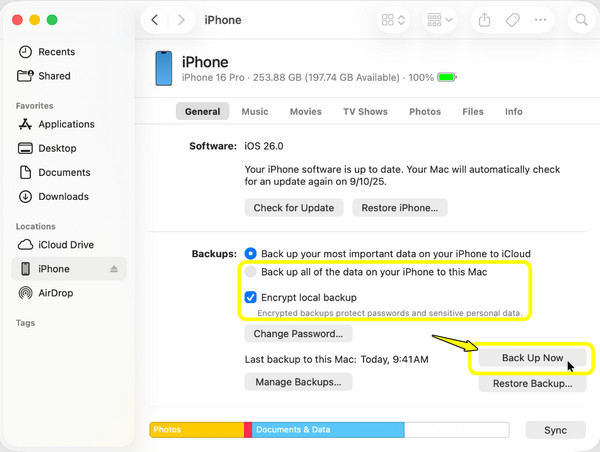
Step 1Connect your old iPhone to your computer via a reliable cable. Open "Finder/iTunes" on your computer, and there select your device icon at the top.
Step 2From that section, select "Back up all of the data on your iPhone to this Mac/computer". Check the "Encrypt local backup" box, set a password, and click the "Back Up Now" button.
Step 3Once done, unplug the old device, then connect your new iPhone. Complete the setup screen until you reach the "Apps & Data". Select "Restore from Mac or PC".
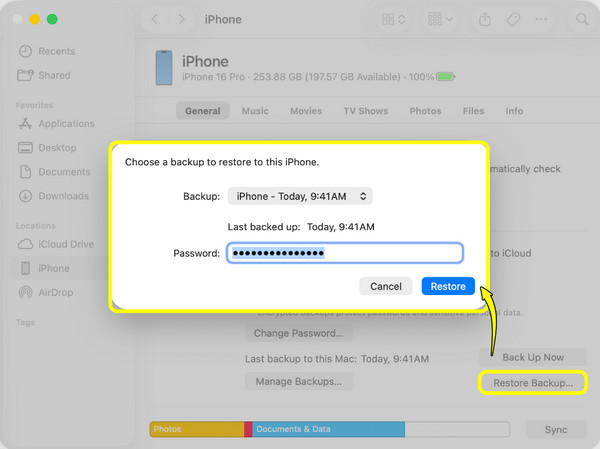
Step 4Then, in "Finder/iTunes", click "Restore Backup" from the "General/Summary" tab. Enter the encryption password you've set to start the data migration between iPhones.
FAQs
-
How can I speed things up when transferring data from one iPhone to another?
Ensure both iPhones are connected to power so they don't go into battery saving mode or drop the wireless connection. Also, transferring your files via a physical cable to your computer is faster and won't slow down because your Wi-Fi is unstable.
-
Will my passwords and Health data move over to the new iPhone?
Yes, but only if you choose Quick Start or the iCloud restore method. With these solutions, Apple will securely move over your passwords, keychain data, and Health data automatically.
-
What happens to the data on my old iPhone after the switch?
Nothing, the old data will stay exactly where it is. When you copy your files over to the new iPhone, it won't delete or move them off the old one. You can manually wipe them once everything is transferred.
Conclusion
Among all the transfer routes discussed today, from cloud restore to secure computer cable, you can learn how to transfer data to a new iPhone easily, as long as the method fits your specific needs. But if you have already hit the home screen and there are still files behind, you can avoid the factory resets and Apple restrictions. Skip the headache and download 4Easysoft iPhone Transfer today to easily drag, drop, and manage your perfect iPhone transfer on your own rules.
100% Secure
100% Secure
