
Transfer everything from iPhone to iPhone without iCloud selectively.

Already Set Up? Transfer Everything to iPhone without iCloud

Posted by Alvin Cantero to iOS Transfer Jul 31, 2026
Unboxing a new iPhone is one of the best feelings out there, but at the same time, it leaves you with a battle to migrate everything. And for years, iCloud has been the default fix, but with slow speeds and unstable connections, it is not always ideal. How to transfer everything from iPhone to iPhone without iCloud? Whether you're at the "Hello" screen or have completed the setup, explore further below to see the four methods to transfer all data from iPhone to iPhone without iCloud.
Guide List
4Easysoft iPhone Transfer (For New iPhone Already Set Up, or Selective Transfer) Quick Start (No iCloud, No Computer) Computer Backup via Finder or iTunes (Most Complete, No iCloud) AirDrop (Selective, No Computer, No iCloud) Which Non-iCloud iPhone Transfer Method Works for You FAQs4Easysoft iPhone Transfer (For New iPhone Already Set Up, or Selective Transfer)
Best For: Users who have already set up their iPhones and want a custom fast transfer solution.
When you upgrade to a new iPhone, native iOS tools expect you to transfer everything before you use the new one. But what if it is already set up? How can you transfer old iPhone data to a new iPhone without iCloud? Bypass all restrictive screens with 4Easysoft iPhone Transfer. This software grants you total control over your device's storage, allowing you to selectively move photos, videos, contacts, and more without overwriting your current settings. It works very fast, too, solving the problem without ever doing a factory reset.
Move files seamlessly between iOS, Android, and computers via USB.
Selectively move photos, videos, music, etc., without a full system restore.
Automatically scans, finds, and merges duplicate contacts/photos to free up space.
Preview specific files to ensure you just move what you need.
100% Secure
100% Secure
Step 1Fire up 4Easysoft iPhone Transfer on your computer and plug in both iPhones. To ensure your data flows in the right direction, make sure to set which one is the source and target device. Tap "Trust" in the prompt that shows on your iPhone screen.
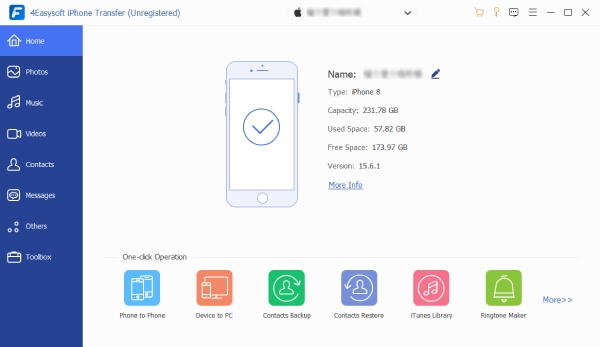
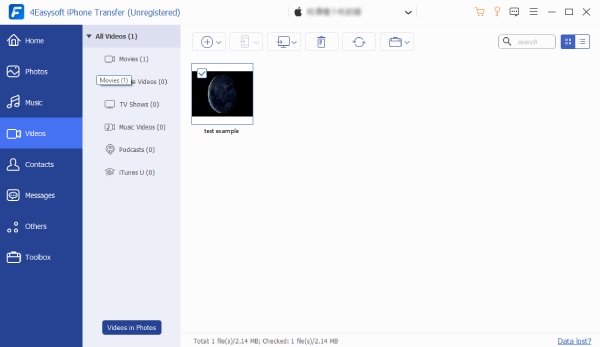
Step 2Once your phone gets recognized, you will see your data on the screen. Navigate to the left sidebar, and browse through categories like Photos, Videos, Music, etc. Select which one is to transfer. The image below shows contacts.
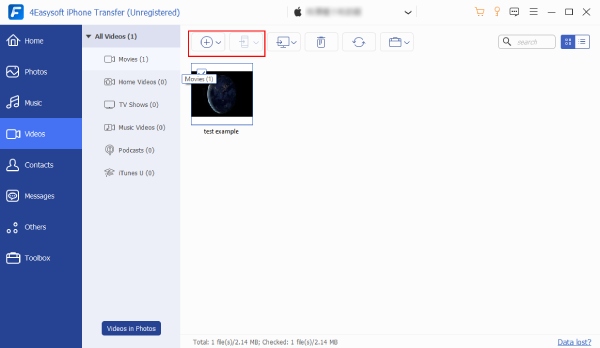
Step 3Go ahead and check the boxes next to all the files you want to transfer. Once ready, click the "Export to Device" at the top and choose your new iPhone and wait until the program safely transfers everything.
Quick Start (No iCloud, No Computer)
Best For: Users who want a wireless transfer and who have fast local Wi-Fi, who don't want to use a computer.
If you have both devices physically with you and are looking for a seamless, wireless transfer of everything from iPhone to iPhone without iCloud, Quick Start is your best bet. This method uses a direct device-to-device Wi-Fi and Bluetooth connection to copy your old phone onto your new one, completely bypassing the cloud.
Step 1Start your new iPhone and place it near your old device. From your old iPhone, a prompt will show up asking to use your Apple ID for your new device. Tap "Continue".
Step 2Then, hold your old iPhone over the new one to start scanning, just like what it shows on the screen. Enter your old device's passcode on the new iPhone when prompted.
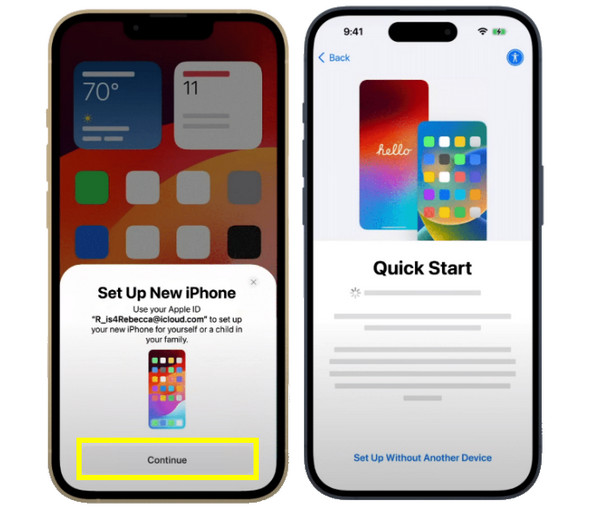
Step 3Complete the on-screen instructions to set up Face ID or Touch ID. Next, choose "Transfer from iPhone" and keep the two devices close, plugged into power, until the transfer completes.
What Quick Starts transfers that iCloud backup doesn't?
Quick Start transfers specific local caches, device parking, such as Apple Watch connection, and sign-in tokens, letting you stay logged into more apps on your new phone.
Computer Backup via Finder or iTunes (Most Complete, No iCloud)
Best For: Users with huge libraries who want a physical backup saved on their computer.
For anyone who handles hundreds of gigabytes of data, using a Finder or iTunes is the standard to transfer data between iPhones without iCloud. By encrypting this backup, you can ensure that every single piece of data is securely carried over.
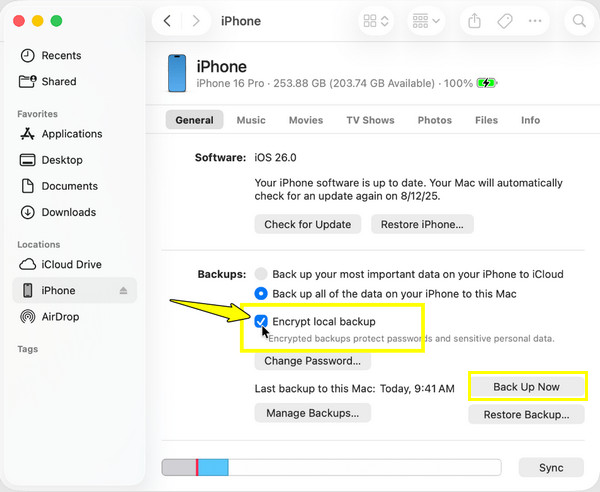
Step 1Once your old iPhone is connected to your computer, launch Finder (iTunes on Windows), and select your device icon.
Step 2From the "General" (Summary) tab, check the "Encrypt local backup" box, then create a password. Click the "Back Up Now" button and wait for it to finish before unplugging your old phone.
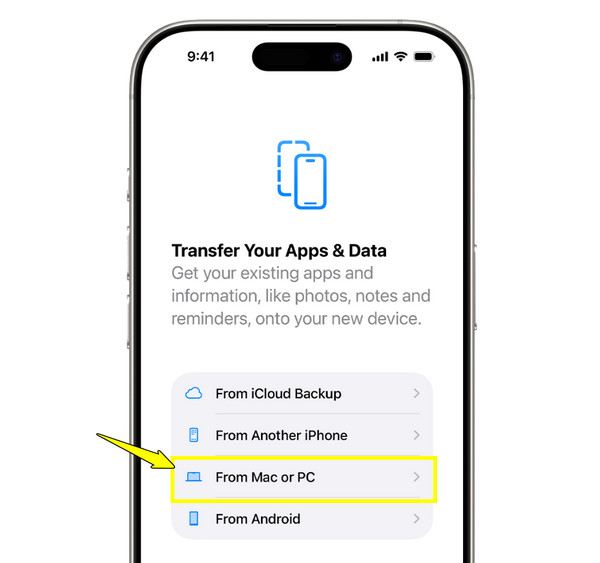
Step 3Next, start your new iPhone and finish the setup screens. Select "Restore from Mac or PC" in the Apps & Data screen.
Step 4Connect it to your computer, and click the "Restore Backup" button from Finder/iTunes. Pick the most recent backup and enter the encryption password.
What Computer Backup transfers that iCloud backup doesn't?
A computer backup transfers your saved passwords, Wi-Fi passwords, Health and Activity data, and call history. The iCloud backup does not include many of these keychain files for security reasons.
AirDrop (Selective, No Computer, No iCloud)
Best For: Users who want to move specific data on their new phone manually.
Already set up your new iPhone but forgot a few photos on your old phone? Use AirDrop to transfer data to new iPhone without iCloud! It utilizes Bluetooth and Wi-Fi to move files through the air right away.
Step 1On both iPhones, swipe down from the top right or top of the screen to access "Control Center". Press and hold the connection block and turn "AirDrop" ON, then select "Everyone for 10 Minutes".
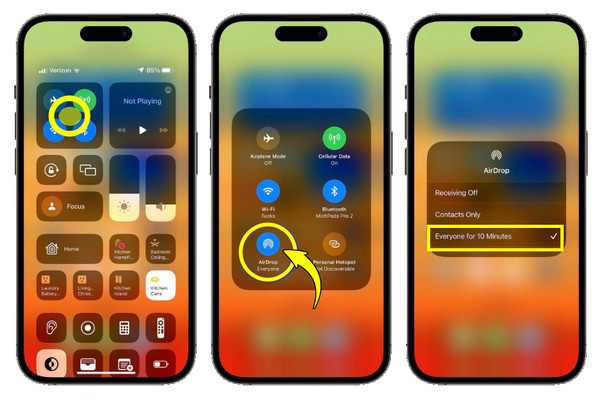
Step 2On your old phone, go to the specific items you want to transfer from Photos, Files, Contacts, etc. Tap the "Share" button and choose "AirDrop", and tap the name of your new iPhone.
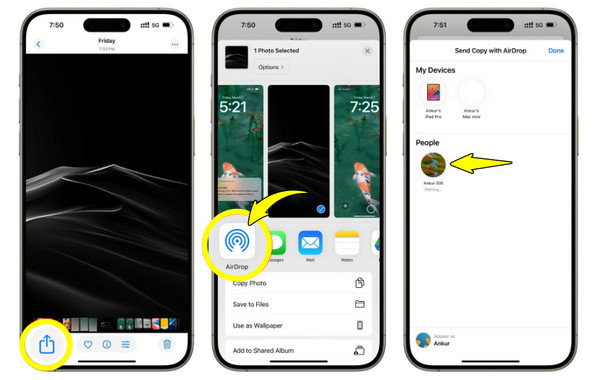
Step 3Now, on your new device, tap "Accept" to receive and successfully save the transferred files.
What AirDrop transfers that iCloud backup doesn't?
AirDrop shares uncompressed, raw files directly into the storage of the new Apple devices without affecting any other data. You can move specific items like a contact card or a single video file.
Which Non-iCloud iPhone Transfer Method Works for You
Choosing the right method to the iPhone-to-iPhone transfer without iCloud depends on your situation and how much data you want to move. To help you decide quickly, here's a comparison table of how each method works:
| Transfer Method | Connection | Transfer Speed | Transfer Type | Requirement |
| 4Easysoft iPhone Transfer | USB or Local Wi-Fi | Ultra-Fast | Selective | Works anytime and no reset needed |
| Quick Start | Wi-Fi/Bluetooth | Fast | Full Clone | Requires initial setup |
| Finder/iTunes | USB to Mac/PC | Fast | Full Restore | Requires initial setup |
| AirDrop | Bluetooth/Wi-Fi | Fast | Selective | Works anytime and no reset needed |
FAQs
-
Can I use my new iPhone during data transfer?
If you're using Quick Start or a full backup, both devices will be locked out until the process wraps up. But if you only use AirDrop sharing, you can keep using your new phone during the process.
-
How long does a complete iPhone-to-iPhone transfer take?
It depends on how much data you have. Moving large files over a USB connection or computer backup might take 25 minutes or more, whereas a wireless transfer over unstable Wi-Fi can push past an hour.
-
Why didn't some of my music or movies transfer over?
If you have files that weren't purchased from iTunes, Apple often skips them because of copyright restrictions. To get those files without a hassle, use a third-party mover software.
Conclusion
Moving everything from an iPhone to a new iPhone has tons of methods to choose from. You can have the total wireless cloning of QuickStart, the complete computer backup, or the quick AirDrop sharing. But if your new phone is already up, don't forget the 4Easysoft iPhone Transfer. This ultimate tool gives you the freedom to plug in, preview, and selectively transfer all data between iPhones without iCloud. No restriction of iOS setups and complex settings, and just making your next upgrade feel like a breeze.
100% Secure
100% Secure
