
Transfer anything from/to iPhone, iPad, and iPod.

Too Large? Here's How to Send Large Videos/Audios From iPhone

Posted by Alvin Cantero to iOS Transfer Jul 24, 2026
All those concert videos and long-form memos on your iPhone are simply too large, so once you hit send, you're just facing the loading wheel. Since Apple's ecosystem loves high-res media, default messaging apps just can't handle sending large videos and audios from iPhone. But don't fret; you just need the right workaround! Start looking at the following parts, featuring the 5 ways to send long videos/audios from iPhone alongside fixes for common issues while sending.
Guide List
Send Long Videos between iPhone and Android with 4Easysoft iPhone Transfer Transfer Large Videos and Audios from iPhone to Another iPhone with AirDrop Share Big Video Files with iCloud Link Sharing Send Oversized Videos with Mail Drop Transfer Very Large Videos with Cloud Storage Fix Common Problems While Sending Large Videos FAQsSend Long Videos between iPhone and Android with 4Easysoft iPhone Transfer
Sending massive files within the same ecosystem is one thing, but sharing large videos or audio from iPhone to Android may cause some trouble. To save the day, here comes 4Easysoft iPhone Transfer! This robust software offers a high-speed bridge that lets you move heavy multimedia files between an iPhone and an Android using your computer. It ensures your iPhone videos, photos, contacts, messages, and other data are securely transferred at maximum speed without a single drop in original quality.
Best for: Quickly move huge videos and audios from iPhone to Android or vice versa without quality loss or size limits.
Move videos, contacts, photos, and more between iOS and Android.
Export 4K video clips and audio tracks without quality drops.
Preview files to ensure you've selected the clips you actually want.
Manage your videos, music, photos, and more from your desktop.
100% Secure
100% Secure
Step 1Open 4Easysoft iPhone Transfer on your computer and plug in both your iPhone and the target Android phone. Use the dropdown menu to select your "iPhone" as the source device.
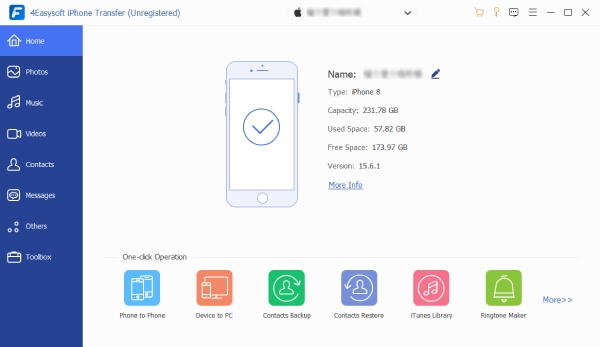
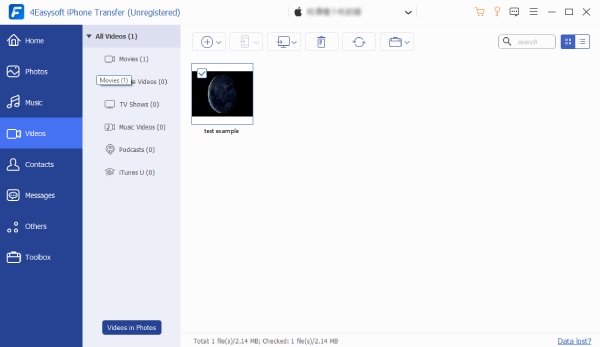
Step 2Once detected, your data can be seen on your computer screen. Navigate through the sidebar and click on "Videos" to view the files from your iPhone. Browse through the lists, preview each if needed, and check the boxes next to the chosen clip.
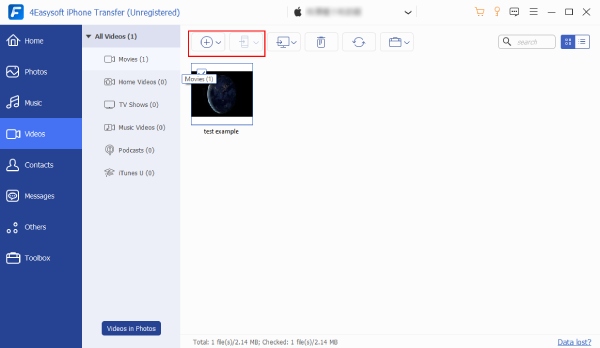
Step 3After a while, click the "Export to Device" button at the top menu to send large videos from iPhone to Android successfully. Watch the transfer complete in full resolution.
Transfer Large Videos and Audios from iPhone to Another iPhone with AirDrop
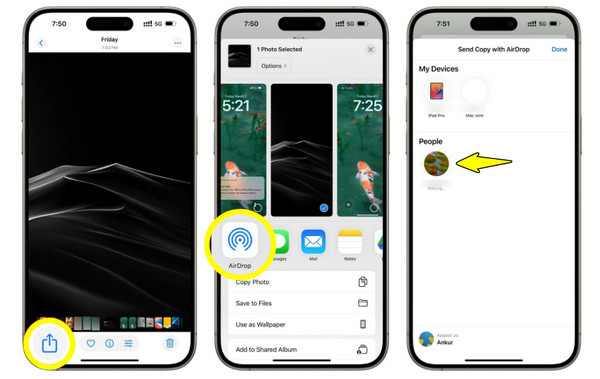
If you're trying to send large videos/audios from iPhone to someone who's sitting near you, AirDrop provides the best solution. It uses Bluetooth and Wi-Fi to beam massive videos or lengthy audio files from one Apple device to another in just seconds.
Best for: Quick lossless sharing between Apple devices that are close to each other.
Step 1Swipe down from the upper right of both iPhones to access the "Control Center".
Step 2Long-press the wireless block, and tap "AirDrop" and set it to "Everyone for 10 Minutes".
Step 3Now, go to the Photos or Files app and find the video/audio clip you want to share, then tap the "Share" button.
Step 4Select "AriDrop" from the share method, and choose the other iPhone's name.
Step 5Tap "Accept" on the recipient's iPhone.
Share Big Video Files with iCloud Link Sharing
To keep everything strictly within the Apple ecosystem, iCloud offers a brilliant way to learn how to send big video files. Instead of troubling yourself with a multi-gigabyte file through messaging platforms, your iPhone uploads the media to iCloud and creates a temporary web link.
Best for: Sharing uncompressed videos via messaging apps without eating up your recipient's storage space.
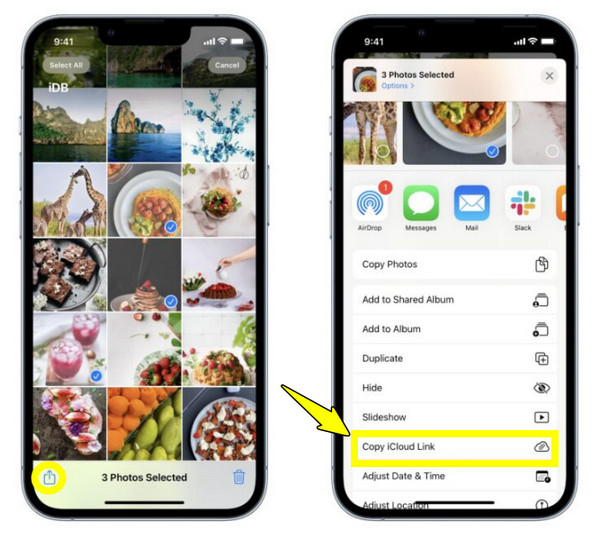
Step 1Locate the big video you want to send from the Photos app.
Step 2Tap the "Share" button, scroll down, and tap on "Copy iCloud Link".
Step 3Once your iPhone has prepared the link, simply paste it into iMessage, WhatsApp, or other messaging platforms to send it away. The link will be available for 30 days.
Send Oversized Videos with Mail Drop
Need to send large video files formally? Thanks to Apple's native Mail app, you can send long videos from iPhone, and it will automatically recognize the size and offer to host it on iCloud instead.
Best for: Sending oversize videos professionally via email to any email address.
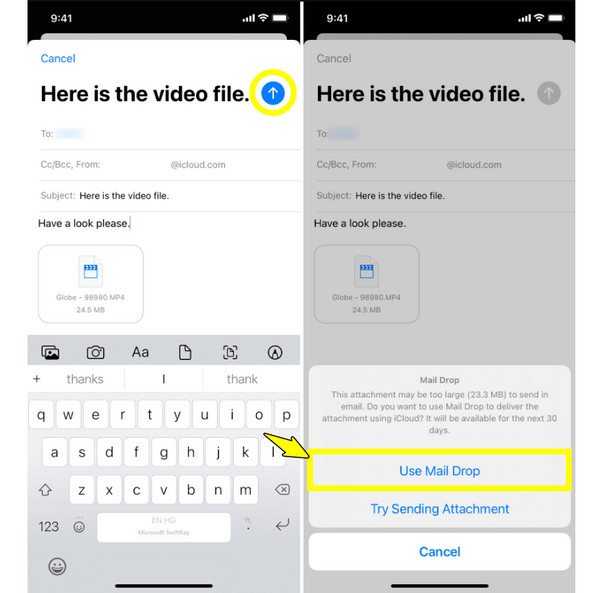
Step 1Launch the Mail app on your iPhone, start a new draft, and tap inside the message body.
Step 2Tap the "Arrow" above your keyboard, then select the "Photos" icon for the large videos.
Step 3Next, tap the "Send" button. A pop-up will then appear saying that the file is too large.
Step 4Tap "Use Mail Drop" and your iPhone will upload the file securely to iCloud. The recipient will have 30 days to download it.
Transfer Very Large Videos with Cloud Storage
Next is perfect for a more permanent home for your very large videos: Google Drive. Here, you can send large videos from iPhone to someone who uses a Windows PC or Android phone. Simply upload your media freely to the app, and your files will stay safe and sound in the cloud, making it ideal for backups and collaborations.
Best for: Flawless cross-platform sharing and keeping access to your large video files.
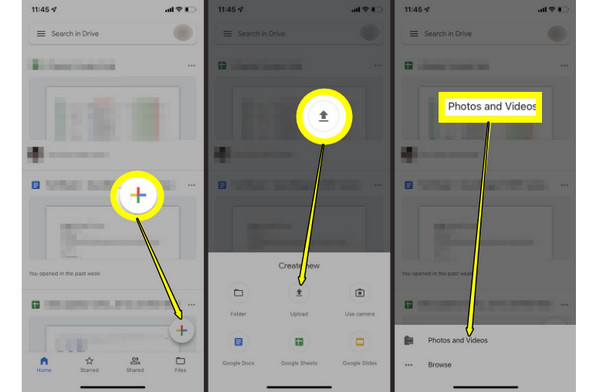
Step 1Launch Google Drive on your iPhone. Tap the "Add" button, select "Upload", and tap on "Photos and Videos" to choose your media (or Browse for audio files).
Step 2Once finished uploading, see the file on your secondary device. Sign in using the same Google account you used on your iPhone.
Step 3Check the "Recent" tab or "My Drive" to find the uploaded file.
Step 4Click on the "three dots" icon, or right-click on the file name, and select "Download".
Fix Common Problems While Sending Large Videos
After all those best tools to send large videos/audios from iPhone in your hands, you may still encounter sudden errors while doing so. Check out the most common issues you'll face with easy fixes before concluding this post.
- File Too Large to Send. Avoid using cellular or standard email attachments for your heavy videos and audio files. Instead, try the iCloud Link Sharing or Mail Drop feature to share big video files via a downloadable link.
- Video Becomes Blurry. Either send the file as raw using a cloud link or a desktop manager to keep the original file uncompressed.
- Upload Takes Forever. Disconnect from any data and connect to a powerful Wi-Fi network. Also, try closing any background apps or downloads on your iPhone.
- AirDrop Fails. Double-check that Bluetooth and Wi-Fi are toggled on for both Apple devices and are set to Everyone. Bring them close to each other and try the transfer again.
FAQs
-
Why does my iPhone compress videos when I send them via text message?
This is because standard cellular networks and iMessage have strict data limits. To make sure your message will go through, your iPhone shrinks and compresses it, which leaves it blurry on the other end.
-
Does sending large videos from iPhone via iCloud Link eat up my storage space?
Nope! When you use iCLoud Link or the Mail Drop, those files will be hosted temporarily on the server for 30 days and won't be counted against your personal storage space.
-
Is there a free way to send a 10 GB video from my iPhone?
Yes! You can use Google Drive to send a massive 10 GB video or connect your phone to your computer to get the job done for free without any compression.
Conclusion
A file too large warning should not stand for so long on your iPhone. Thanks to the magic of AirDrop, Google Drive, Mail Drop, and iCloud Link Sharing, you have all the right methods to send long videos and audios from iPhone. Speaking of the right method, do yourself a favor and download 4Easysoft iPhone Transfer to skip the cloud entirely and enjoy moving huge libraries across iOS and Android. Seamless, zero compression, and everything at lightning speed.
100% Secure
100% Secure
