

- Video
 For Windows
- Total Video Converter
- Screen Recorder
 Free Online Solutions
- Free Video Converter
- Free Screen Recorder
- Blu-ray/DVD
- For Windows
- DVD Ripper
- Blu-ray Player
- DVD Creator
- Blu-ray Creator
- Data & System
For WindowsFree Online SolutionsFor Windows iOS System Recovery
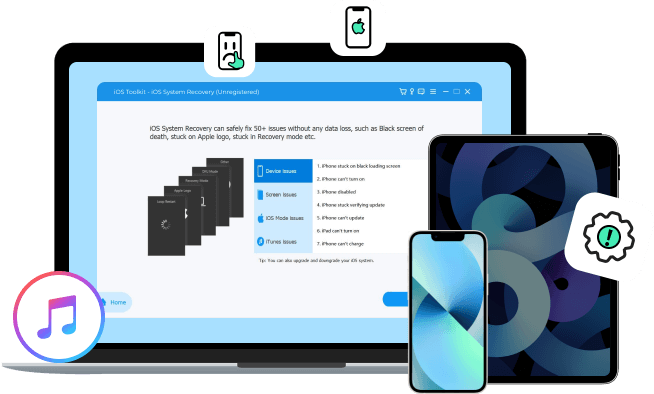
When your iPhone or iPad gets stuck on the Apple logo, keeps restarting, won't turn on, freezes during an update, or experiences many other problems, you can use 4Easysoft iOS System Recovery for Mac instead of going to the nearby repair shop or Apple support. Your iOS device is not broken. Even though you are not tech-savvy, you can fix a frozen or unresponsive iPhone with easy clicks here.
Device Issue
Loop Restart
iPhone Disabled
Won't Turn on
Charge Issue
Verifying Update
Battery Drain
Activation
No Service
Screen Issue
Apple Logo
Frozen Screen
White Screen
Red Screen
Black Screen
Blue Screen
Boot Loop
Not Working
iOS Mode Issue
Recovery Mode
DFU Mode
Mute Mode
Headphones
Restore Mode
Shuffle Mode
Safe Mode
Zoom Mode
iTunes Issue
Sync iOS Devices
Can't Connect
Back up Data
Update iOS
Restore iOS
Connection Error
Please scroll to view all scenarios
Not all iOS system problems are the same. That's why you get Standard Mode and Advanced Mode. The Standard Mode focuses on safety first. You can fix common system issues without data loss, such as frozen screen, boot loop, app crashes, system glitches, and more quickly. If your iPhone is severely damaged at the system level (including DFU mode, recovery mode, or fails to boot), you can use the Advanced Mode to rebuild the system and restore the iPhone to the normal state. You can choose from safe repairs and a higher success rate in two modes.
Standard Repair
Designed for everyday iOS problems that don't require extreme measures. If your iPhone is malfunctioning but still recognized by a computer, you can put it into Standard Repair mode to fix iOS errors quickly. All your photos, videos, images, settings, apps, and more data will be safe. So, you can make your iPhone work again while keeping everything important intact.
Advanced Repair
If your iPhone is already locked, frozen, inaccessible, or not working, you can use the Advanced Repair mode. It can reinstall and replace damaged firmware and system components entirely. No iTunes or Finder required. This makes it ideal to fix severe jailbreak failures, corrupted iOS installations, and other unknown errors. Although data removal is needed, you can get a high success rate (up to 98.7%) to restore an unusable iPhone.

Enter/Exit Recovery Mode
Don't know how to put the iPhone into Recovery Mode correctly? If you are tired of complicated button combinations, you can get easy steps here. Whether you need Recovery Mode for iPhone troubleshooting, system repair, iOS restore, or more, you can enter it instantly.
Exit DFU Mode
Getting stuck in Recovery Mode is a common problem, especially when your iPhone screen stays black or unresponsive. Instead of risking system damage, you can exit Recovery Mode for free with 4Easysoft iOS System Recovery for Mac. No iTunes errors. It is your safe exit option.
Upgrade to iOS 26 (including iOS 27 beta)
If your iPhone fails during OTA updates or shows "Unable to Verify Update", you can install iOS 26 (including iOS 27 beta) smoothly without iTunes or wiping data. Our program can check system compatibility, download the correct firmware, and upgrade to a newer iOS version cleanly.
Downgrade from iOS 26 (including iOS 27 beta)
Not satisfied with iOS 26 (including iOS 27 beta)? If you want to get rid of battery drain, app crashes, or performance issues after major iOS updates, you can roll back to a stable iOS version without jailbreaking. A safe downgrade can be completed in a few clicks.
Factory Reset iPhone without Passcode, iTunes or Finder
Fix All iPhone and iTunes Errors Risk-Free
Supported iPhone
All iPod touch models, including iPod touch 7/6/5/4/3/2/1.
Supported iPad
All models of iPad Pro, iPad Air, iPad mini, and iPad, including the old iPad models released in 2010.
Supported iPad
All models of iPad Pro, iPad Air, iPad mini, and iPad, including the old iPad models released in 2010.
Tricia Morrissette
My iPhone was stuck on the Apple logo and wouldn't move past it. Then I use 4Easysoft iOS System Recovery for Mac to fix the issue in one go, and all my photos were still there afterward.

Angela Barber
After iTunes failed multiple times, I tried 4Easysoft iOS System Recovery for Mac, and it actually worked. The system repair was fast and didn't wipe my data, which was my biggest concern.
James Dunn
I hesitated to install third-party recovery tools, but this one felt safe and well designed. 4Easysoft iOS System Recovery for Mac repairs my frozen iPhone within 5 minutes.
Ross Boyer
I need to downgrade from a beta version that broke my iPhone. This one solves the problem instantly.
 iOS Data Backup and Restore
 Quickly backup and restore a batch of data on iOS devices with 100% security.

4Easysoft iOS System Recovery for Mac
Easy iOS system repair for all Mac users.

 For Mac

