
Reliable video converter, editor, and compressor for daily tasks.

How to Easily Crop a Video in CapCut for Beginners

Posted by Paula Pailaga to Edit Video/Audio Jun 20, 2025
Cropping a video might seem like a basic editing task, but these days CapCut quickly becomes a favorite among content creators for its user-friendly interface and reliable editing features—even when it comes to cropping. In this guide, you'll learn everything you need to know about cropping videos in CapCut, along with some useful tips and a great alternative in case you need more advanced functions. Read now to know more about the details!
Guide List
The Basic Information About CapCut Why Choose CapCut for Video Cropping Tips Before Cropping a Video in CapCut How to Crop a Video in CapCut Easily The Best Alternative to CapCut for Video CroppingThe Basic Information About CapCut
CapCut is a free, all-in-one video editing app developed by ByteDance, the company behind TikTok. Available on mobile devices and desktop, it offers a wide range of editing features including trimming, adding filters, effects, text, and transitions. CapCut is especially popular among social media content creators for its simplicity, intuitive interface, and built-in templates that streamline the editing process.

Whether you're a beginner or a casual editor, CapCut provides powerful tools to produce polished and engaging videos without the need for professional software. Its cropping tool, in particular, allows users to quickly adjust frame size and focus, making it ideal for platform-specific formats. You can crop a video on iPhone, Android, Windows, Mac, and so on.
Why Choose CapCut for Video Cropping
CapCut stands out as a video cropping tool not only because of its ease of use but also due to its advanced AI-driven features. Here are four key advantages of using CapCut for cropping videos:
1. Auto Reframe

CapCut’s Auto Reframe intelligently adjusts the cropping area based on subject movement. It ensures your main subject stays centered, which is especially useful for resizing videos for different social media platforms like TikTok, Instagram, or YouTube Shorts.
2. Reduce Noise
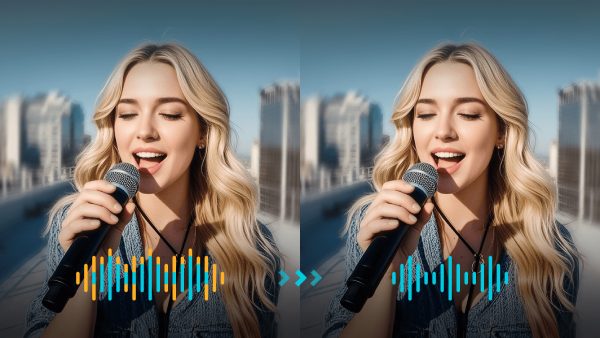
While cropping might emphasize certain areas of a video, CapCut helps maintain quality with its noise reduction feature. It automatically enhances low-light or grainy footage, so the cropped section remains clear and professional-looking.
3. Camera Tracking

This feature allows CapCut to simulate camera movement even after cropping. It tracks objects or people in the video, ensuring dynamic motion is preserved, making your edits feel more fluid and cinematic.
4. Image Upscaler
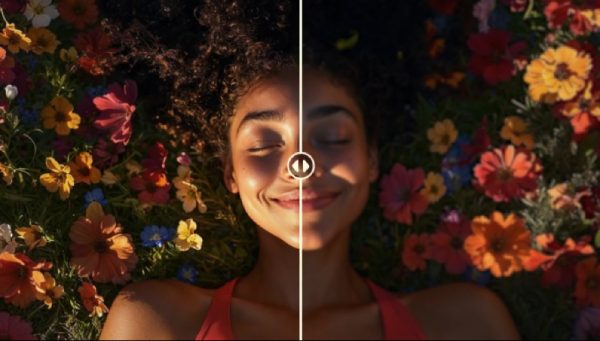
Cropping can sometimes lead to loss of resolution. CapCut’s Image Upscaler combats this by enhancing video clarity and sharpness, especially when enlarging cropped sections, resulting in visually appealing final output.
Tips Before Cropping a Video in CapCut
Before cropping your video in CapCut, there are a few important things to keep in mind to ensure a smooth editing process and the best final result:
1. Check for Watermarks or Overlays: If your video includes logos, subtitles, or watermarks near the edges, cropping might remove or reposition them awkwardly. Additionally, in some cases, automatic watermarks (from other tools) may reappear after cropping.
2. Maintain Aspect Ratio: Cropping can distort your video if you don’t maintain a proper aspect ratio. Always double-check the output resolution to ensure it fits your platform’s requirements (like 16:9 for YouTube or 9:16 for TikTok).
3. Preview Before Exporting: After cropping, preview your video thoroughly. Sometimes, unintended edges or motion shifts can appear, especially if you’re using auto-cropping or motion tracking features.
4. Consider the Subject Position: Make sure the key subject or action remains centered and visible in the cropped frame. Use CapCut’s Auto Reframe or Camera Tracking to keep important elements in focus throughout the video.
How to Crop a Video in CapCut Easily
Cropping a video in CapCut is a straightforward process, even for beginners. Whether you're adjusting the frame to fit social media dimensions or removing unwanted elements, CapCut provides intuitive tools to help you achieve a polished result. In the steps below, you'll learn how to crop your videos easily using CapCut's built-in features.
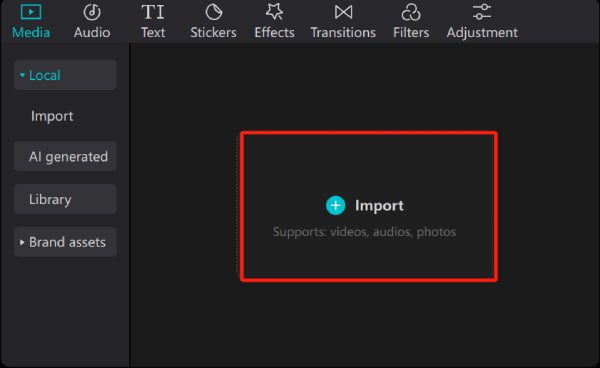
Step 1Launch CapCut on your computer and click the "Import" button under the "Media" tab to import the video for cropping in CapCut.
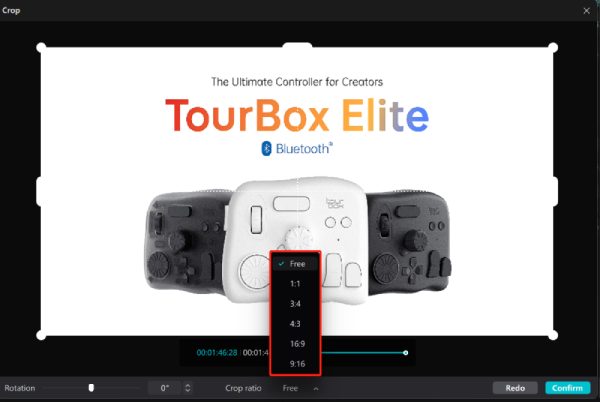
Step 2After importing the video, click the "Crop" button to further crop your video in CapCut.
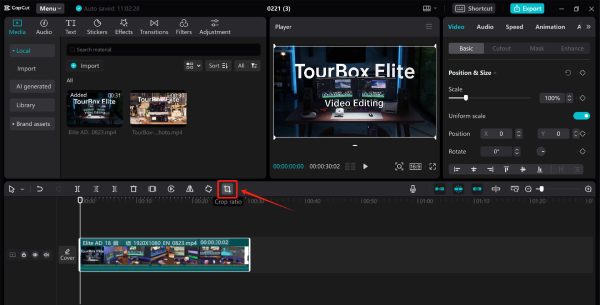
Step 3Finally, click the "Crop ratio" button to crop your video. Finaly, click the "Confirm" button to save the changes.
The Best Alternative to CapCut for Video Cropping
If you're looking for a more versatile and professional alternative to CapCut for cropping videos, 4Easysoft Total Video Converter is a fantastic choice. This all-in-one video editing tool not only supports cropping with pixel-level precision but also offers a wide range of additional features, such as trimming, rotating, merging, adding effects, and converting between 600+ formats.
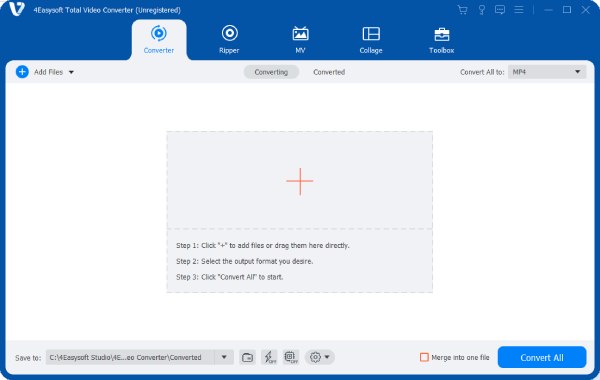
Whether you’re preparing content for YouTube, Instagram, or presentations, it ensures high-quality output without watermark limitations. For users who require more than basic cropping—such as batch processing, format optimization, or video enhancement—this tool proves to be a powerful and efficient solution. You can follow the steps below to crop videos quickly using 4Easysoft Total Video Converter, cropping videos for Instagram, YouTube, and so on.

Provide preset parameters to crop your videos.
Support custom area to crop your video files.
Preview to see if your videos are cropped correctly.
Output in preset formats supported by any devices.
100% Secure
100% Secure
Step 1Launch 4Easysoft Total Video Converter and click the "Add Files" button to import videos for cropping.
Step 2Click the "Edit" button. On the pop-up window, click the "Crop" button under the "Rotate & Crop" tab to crop the video.
Step 3Finally, click the "Convert All" button to save the cropped video on your device.
Conclusion
Cropping videos doesn’t have to be complicated. With CapCut, you can complete the task in no time. Considering the price and other factors, however, if you want to find an alternative for its built-in smart features, 4Easysoft Total Video Converter is a highly-recommended choice. You can download it now to crop videos easily and quickly.
100% Secure
100% Secure
