

- Video
 For Windows
- Total Video Converter
- Screen Recorder
 Free Online Solutions
- Free Video Converter
- Free Screen Recorder
- Blu-ray/DVD
- For Windows
- DVD Ripper
- Blu-ray Player
- DVD Creator
- Blu-ray Creator
- Data & System
For WindowsFree Online SolutionsFor WindowsRecord screen videos, speakers, microphone, and webcam footage in high-quality free of charge, anytime, anywhere.
 133 Reviews
4Easysoft Free Screen Recorder enables online recording of screen videos, webcam footage, speaker audio, and microphone voice. You can select desired preset modes and recording areas—such as full screen or manually selected regions. Enable or disable various options to capture games, TV shows, or even music files on all kinds of devices according to your needs.

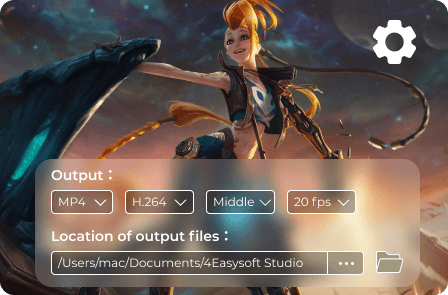
Need to get high quality video or use the hotkeys for video recording? Click the Settings button to enable the countdown before recording, hide float bar when recording, or more. Adjust the hotkeys for starting, pausing, resuming, stopping, showing float panel, and others. Moreover, select the desired output formats and destination.
It offers multiple annotation styles, such as shapes, callouts, text, and even direct drawing on recordings. These elements feature customizable colors, font sizes, and templates. No software download is required—you can edit your screen recordings or audio files directly within the web interface. Locate your automatically saved recordings within the program to share them with others or manage files directly.

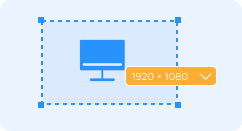
Step 1: Customize the Recording Area
Search this tool on the website. Click the Record Screen Videos button to launch the online screen recorder with 4 different recording options.

Step 2: Record All Onscreen Activities
Select the recording area, camera, speaker, or microphone. Then, select the recording region and adjust the settings before clicking the REC button.

Step 3: Export the Recorded Videos
Add texts, callouts, and more other annotations during the recording. Click the Stop button to get the recording within the screen recorder.
When you need to explore more features of 4Easysoft Screen Recorder, here is the detailed comparison between Free Screen Recorder and 4Easysoft Screen Recorder.
| Free Screen Recorder Record Now | 4Easysoft Screen Recorder Download Desktop | |
|---|---|---|
| Record Video/Audio |  | |
| Output Settings | | |
| Take Snapshot |  | |
| Edit Recordings | | |
| Set Duration | | |
| Hardware Acceleration | | |
| Recording Quality | High, Middle, Low, Lowest | Lossless, High, Middle, Low, Lowest |
| Output Format | WMV and MP4 (WMP9, H.264) | MP4, MOV, WMV, AVI, F4V, TS, MP3, M4A, AAC, WMA, PNG, JPG/JPEG, BMP, GIF, TIFF |
 Record Now Record Now | Download Desktop |

Ada
It is a good choice to record some videos with the free screen recorder. I use the program to capture the high quality screen videos for troubleshooting.

Kate
Just record a video training online without the size limitation. It is my savior to get the desired video without downloading an extra program or purchasing a service.

Jack
I came across the free screen recorder to get some music videos. Excellent in quality!!! Now I use it frequently to capture movies and TV shows for my iPhone.

 For Mac
