
Record, edit, and share video from all sources.

5 Free Screen Recorder No Watermark [What Actually Works]

Posted by Ethan Brooke to Record Video Sep 04, 2026
Nothing looks less professional than a big logo stamped across your screen recording. That's the whole reason people search for "free screen recorder no watermark" in the first place. If a clean, watermark-free video is your main goal, check the free plan details before you commit. Or you can continue reading to get your best no-watermark screen recorder here.
Guide List
What Makes a Good Free Screen Recorder 5 Best Free Screen Recorders without Watermark Quick Decision for Choosing the Best Free Screen RecorderWhat Makes a Good Free Screen Recorder
Don't just pick the first tool that says "free" and call it a day. A lot of these screen recorders are free in name only, and the fine print is where the real limits hide. Take a minute to actually check if it fits what you need.
- Watermark on exported videos: Some free screen recorders add a watermark unless you upgrade.
- Recording time limit: Free plans may stop recording after 3, 5, or 10 minutes.
- Maximum resolution: You might also be stuck with 720p, even though the software can record in 4K on a paid plan.
- Editing tools: Trimming, cropping, adding text, or cutting out mistakes without needing a separate app.
5 Best Free Screen Recorders without Watermark
Before choosing one, check more than whether it says "no watermark". Look at recording limits, system audio, microphone support, webcam capture, and available recording areas. Also consider your operating system and whether you need editing tools. A good free no-watermark screen recorder that fits your recording habits will save more trouble than one with the longest feature list.
1. 4Easysoft Screen Recorder
Platform: Windows, Mac
Free limit: 3 minutes per recording
Watermark: None
4Easysoft Screen Recorder gives you more control than the basic recording tools on Windows and macOS. It can record the full screen, certain selected area, webcam, system sound, or microphone. The free screen recording software also supports gameplay recording and lets you add notes while recording. Another useful point is that the free version doesn't put a watermark on exported videos. That makes it a practical choice for tutorials, demos, and short recordings.
100% Secure
100% Secure
- Pros
- Clean free output. There is no logo or banner on exported clips, even without registering.
- Screenshot capture included. Same tool handles stills and video.
- Cons
- 3-minute cap on the free version. Need to upgrade to bypass the recording time limit.
- Built-in editing tools. Get video trimming, noise cancellation, and voice enhancement in the full version.
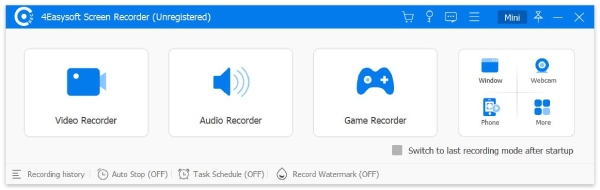
Best for: Short tutorials, presentations, webcam recording, phone recording and users who want a dedicated recorder without a watermark.
2. OBS Studio
Platform: Windows, Mac, Linux
Free limit: None
Watermark: None
OBS works well if you're okay with spending some time on the setup. You can put game capture, window capture, your desktop, webcam, microphone, and other sources into the same scene. The downside is that there are quite a few settings to deal with. You may need to pick an encoder, change the recording format, set up your audio, build scenes, and fix capture problems. That's great for gameplay and more advanced tutorials, but probably overkill for a quick five-minute demo.
- Pros
- No maximum time limits anywhere. No daily limit and no signup getting in the way.
- Deep control. Get scene switching, multiple audio tracks, custom encoder settings, and several capture sources at once.
- Cons
- Setup takes real time. Need to spend time on configuring scenes, sources, and audio correctly before your first recording.
- No built-in editor. You export the raw file and edit it elsewhere with other video editors.
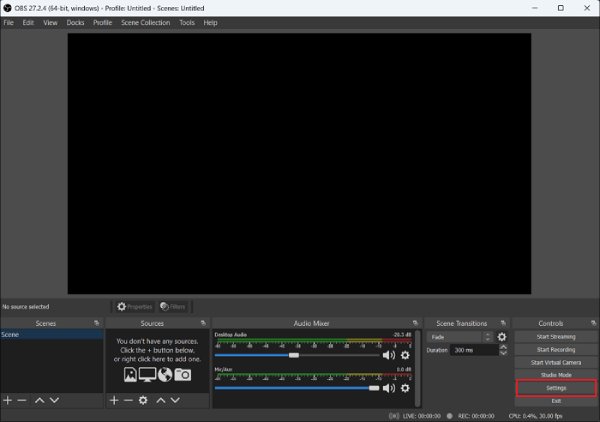
Best for: Game recording and streaming. A good choice if you are okay with changing a lot of settings.
3. Xbox Game Bar
Platform: Windows 10, Windows 11 (pre-installed)
Free limit: Several hours per clip
Watermark: None
If you only need to record an app or game, Xbox Game Bar can be your free screen recorder without watermark on Windows. You can press Win + Alt + R to start or stop a recording, while Win + Alt + G can save the previous 30 seconds of gameplay when the feature is enabled. Xbox Game Bar works well for quick clips, but it doesn't offer the same controls as a full screen recorder. You get fewer options for choosing capture areas, sources, scenes, and editing.
- Pros
- Long recording window. It is far beyond what most freemium desktop screen recording software allows for free.
- Clean MP4 output. There is no watermark or overlay text in outputs.
- Cons
- Game Mode may grey out. You can't record your full desktop or several windows together.
- Incompatible games. Some games or applications may not support recording through Xbox Game Bar.
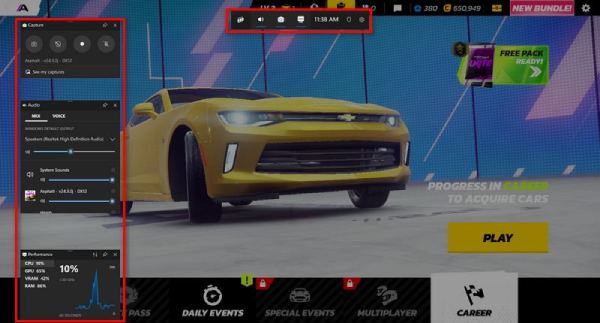
Best for: Fast gameplay clips or a one-off recording of a single app when installing something else isn't worth it.
4. QuickTime Player
Platform: Mac (pre-installed)
Free limit: None
Watermark: None
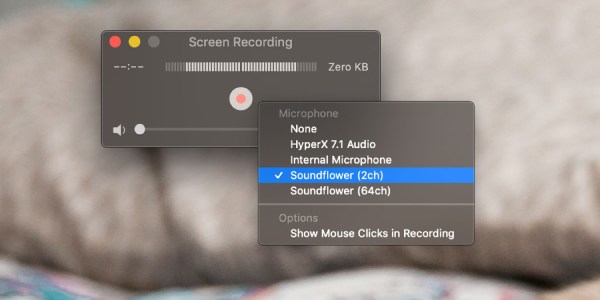
QuickTime Player is a convenient choice for basic screen recording. You can record the entire screen or select part of it on macOS. It does not add a watermark to the QuickTime recording. The biggest limitation is audio. QuickTime Player can record microphone input, but recording Mac system audio is not available as a straightforward built-in option. What's more, the file size can also become an issue during long recordings.
- Pros
- No time limit. You can screen record on a Mac as long as needed.
- No learning curve. Just drag the region, and then hit record to start the process.
- Cons
- No system audio by default. You need to install BlackHole or another virtual audio driver to capture internal audio on a Mac.
- Only basic editing. QuickTime lets you trim videos, but that's about it. There are no annotations, scene switching, or scheduled recordings.
Best for: Quick Mac recordings (such as bug reports, short demos), where you don't want anything more than the basics.
5. ShareX
Platform: Windows only
Free limit: None
Watermark: None
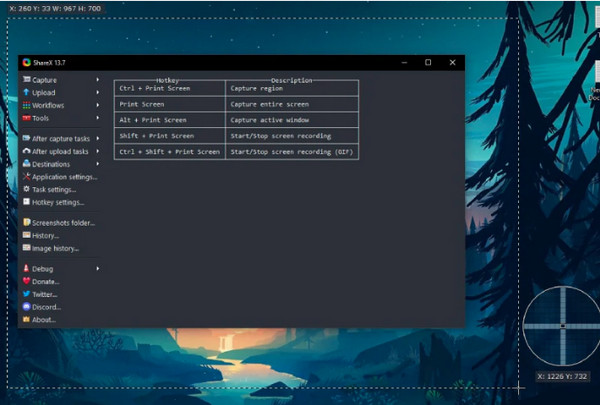
ShareX is a free, open-source Windows capture utility that goes well beyond screenshots. It can capture selected areas or windows and includes screen recording tools and a large collection of image and file utilities. ShareX can handle workflows around screenshots, image editing, uploading, and file sharing. It can be your free Windows screen recorder without watermark too. However, many users report problems with audio capture, particularly on certain Windows setups.
- Pros
- Hotkey-based capture. Set up shortcuts and start recording without clicking through menus.
- Automation built in. Save, upload, annotate, or run other actions automatically after each capture.
- Cons
- Video features are the weaker half. ShareX screenshot tools are far more developed than its recording tools.
- The interface looks dated. Just a sidebar full of menus with little onboarding.
Best for: Windows users (especially developers and support teams) can get scriptable capture, more than a polished recording app.
Quick Decision for Choosing the Best Free Screen Recorder
There is no single winner for every recording task. OBS Studio is the strongest choice if you want unlimited recording without a watermark. 4Easysoft Screen Recorder is better if you want more dedicated recording features and do not mind the 3-minute free limit. For quick captures, Windows and Mac users can stick with their built-in screen recording tools.
| Screen Recorder | No Watermark | Free Recording Limit | System Audio Recording | Platform | Best For |
| 4Easysoft Screen Recorder | Yes | 3 minutes | Yes | Win/Mac | Tutorials, presentations, short videos. |
| OBS Studio | Yes | No limit | Yes | Win/Mac/Linux | Gameplay, streaming, long recordings. |
| Xbox Game Bar | Yes | No fixed short limit | Yes | Win | Windows gameplay and quick captures. |
| QuickTime Player | Yes | No fixed short limit | Limited | Mac | Basic Mac screen recording. |
| ShareX | Yes | No limit | Yes | Win | Windows capture and screenshots. |
Conclusion
There is no best free no-watermark screen recorder for everyone. OBS Studio makes sense for long sessions, no recording time limit and detailed settings. 4Easysoft Screen Recorder is a good alternative if you want more features without dealing with a complicated setup. Xbox Game Bar and QuickTime Player are fine for quick jobs. ShareX is handy if screenshots are part of your routine.
100% Secure
100% Secure
