
Record, edit, and share video from all sources.

6 Best Free Screen Recorders for Mac [Pros & Cons]

Posted by Ethan Brooke to Record Video, Review Aug 20, 2026
Are you looking for free screen recorders for Mac? Although you may find many answers during your search, many of them will not be able to help you complete the task. After testing the most popular twenty or so tools, this post has selected the 6 most reliable tools for you. Their characteristics, pros, and cons have all been described in detail. You can choose the most suitable free screen video recorder for Mac based on your needs.
Guide List
Factors to Consider for a Free Screen Recorder on Mac The Most Powerful Free Screen Recorder for Any Scenario Popular Choices for Free Screen Recorders on Mac [Pros & Cons]Factors to Consider for a Free Screen Recorder on Mac
Before you start choosing a suitable free recording software for your MacBook, understanding some key aspects of the tool can help you find a better one more quickly. This section lists four of the most crucial factors for you. When making your choice, you can examine the target from four perspectives to determine whether it meets your requirements.
1. Recording Quality
To ensure that you don't miss any important details during screen recording, you need a tool that supports 1080P or 4K resolution. It would be even better if it supported high-frame-rate recording. Many free screen recording apps for Mac can cause some quality loss during recording. Please be aware of this.
2. Audio compatibility
When using free screen recorders on a MacBook, you often need to record not only the activities on the screen but also the audio. Therefore, when making your choice, you should pay attention to whether it can record internal system sounds and microphone audio independently or synchronously. Furthermore, if this tool also offers additional features such as noise reduction, it will make your screen recording even more professional.
3. Simple Operation
For many people, the "simple operation" is a factor worth considering. Some professional tools, although they offer a wide range of customizable features, have complex operations and require a steep learning curve. When choosing free screen video recorders for your Mac, first consider whether the interface is simple and intuitive and whether the guide is clear.
4. Device compatibility
Since you are looking for a free screen recorder for Mac, make sure the tool you choose is compatible with Mac. After all, there are some differences in the operating logic between Windows and macOS. Choosing a tool optimized for Mac will make recording much easier.
Taking these factors into consideration, we tested over 20 tools to select a reliable free screen recording software for Mac. To ensure an objective conclusion, our tests were conducted under the same conditions.
Test Condition: All the tests were conducted on the MacBook Air (M3). Taking into account that different users have different requirements for screen recording, such as duration and use cases, we conducted tests across various scenarios. We conducted the recording tests in four different scenarios: watching videos, participating in online meetings, playing games, and browsing the web. In each scenario, we conducted 3 tests of varying durations: 5 minutes, 30 minutes, and 1 hour. After comparing the usage scenarios and output recordings, we have selected six reliable tools for you.
The Most Powerful Free Screen Recorder for Any Scenario
When it comes to the best Mac screen recording tool, 4Easysoft Mac Screen Recorder stands out in all the test scenarios. After testing, we found that 4Easysoft Mac Screen Recorder meets all recording requirements because it offers multiple modes for various scenarios. During the recording process, you can use a wide range of editing tools to refine your recordings and achieve better results. And none of these operations will affect the quality of the final result. You will find that the result you obtain has no loss in quality compared to the original. The 4Easysoft Mac Screen Recorder performs extremely well on the MacBook. It consumes very few system resources, ensuring that your other processes remain unaffected.
Offer the highest 4K resolution and 60 fps for high-quality recording.
Customized shortcut keys for quick screen and screenshot recording.
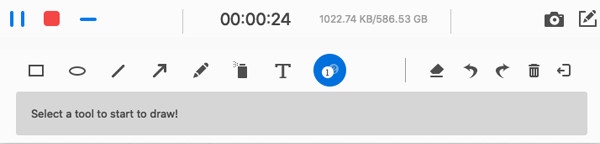
Add text, annotations, lines, etc., during screen recording.
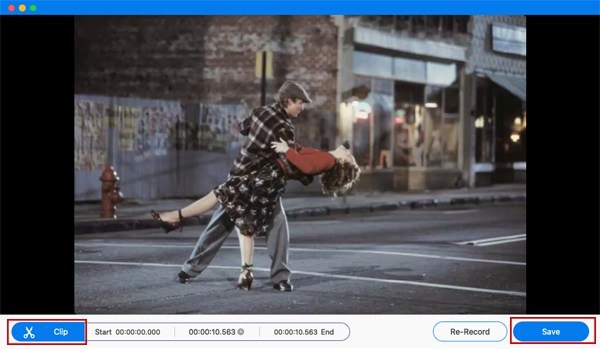
Trim and edit the recording in the preview as needed.
100% Secure
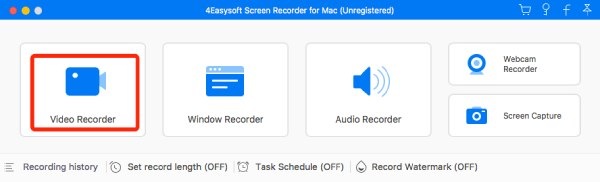
Step 1Launch 4Easysoft Mac Screen Recorder and click the "Video Recorder" button or select other modes when you are ready.
Step 2Set the parameters you want, and click the "Record" button to start the process of recording. Once finished, click the "Stop" button.
Step 3Then, a window will pop up on this free screen recorder for Mac. Finally, click the "Save" button.
Popular Choices for Free Screen Recorders on Mac [Pros & Cons]
The following free screen recorders for Mac can also accomplish the recording tasks you expect. However, they each focus on different aspects. Therefore, each of them has its own advantages and disadvantages. You can gain a deeper understanding of them through the following section and choose the one that suits you best.
1. Default Shortcut
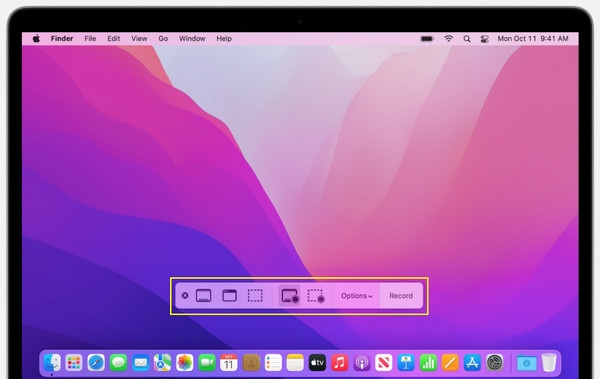
If you don't want to download any additional tools, simply press "Command + Shift + 5". In this way, you can directly invoke the built-in recording tool of macOS. This free screen recorder on the MacBook is pre-installed on the device. You can conduct the recording in this straightforward and simple way. It is a simple yet practical tool.
- Pros
- Just press the shortcut key, and it will be activated.
- Select any area for recording.
- It consumes almost no system resources.
- Cons
- No custom options are available.
- You cannot record system audio from Mac.
- There is no editing tool for post-production.
2. QuickTime Player
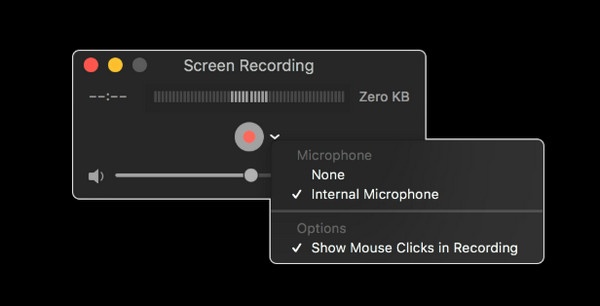
Similarly, QuickTime Player is also an option that can be used by default. This free recording software for MacBook offers a wider range of customization options. You can choose and use other audio devices according to your own needs when recording the screen. In the testing scenario, we found that it works very well for video playback.
- Pros
- No watermarks will be added after the recording.
- Selectable audio equipment input.
- A built-in software. No installation required.
- Cons
- Install a plugin to record the internal sound.
- MOV is the only supported output format.
- Only works well for light processes.
3. OBS Studio
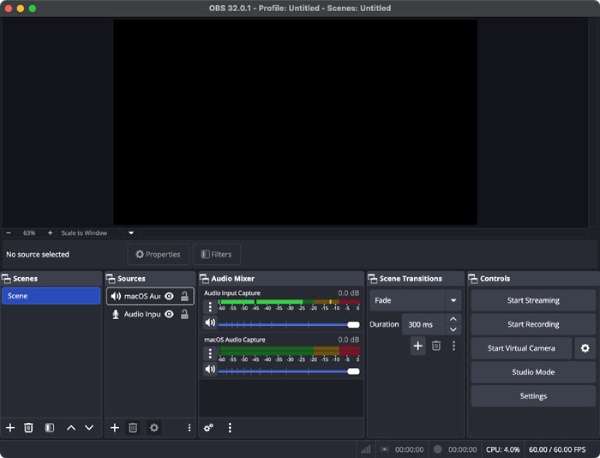
If you, like our testers, often play some games on a Mac, then OBS Studio will definitely satisfy you. OBS Studio enables you to record the content at the original resolution and frame rate of the gameplay, without losing its smoothness. You will find that the actions in the game are presented in a continuous manner within this free screen recorder for MacBook.
- Pros
- It is highly suitable for gameplay recording.
- Clear parameter display on OBS recording settings.
- Advanced settings for various requirements.
- Cons
- It consumes considerable system resources.
- Manual setup required for system audio.
- A steep learning curve for non-professionals.
4. ScreenPal
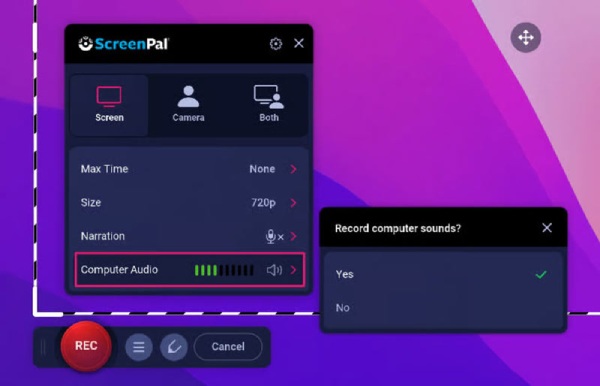
So, is there a best option for Mac screen recording for educators? ScreenPal is exactly what you were looking for. As a tool that educators and trainers highly trust, ScreenPal offers you numerous conveniences. With its rich annotation features, you can make various marks on key content at any time. In addition, you will find that your voice will be clearly recorded, ensuring that the audience can hear every detail clearly.
- Pros
- Rich annotation functions for educators.
- Very clear recording of the human voice.
- Zoom in to highlight the key points of the screen recording.
- Cons
- Sometimes there will be a lagging situation.
- The interface is too simplistic.
- The instructions are not particularly clear.
5. Loom
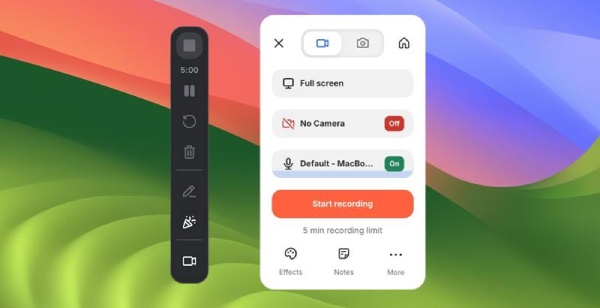
If you often need to hold online meetings, then you can use Loom to record the meeting content. This lightweight tool can clearly record the key points of the meeting and seamlessly share them with others through links. You will also find that the built-in AI tools can efficiently help you summarize the key points.
- Pros
- Create links to share your recordings.
- You can use this free screen recorder for Mac on browsers.
- Support emoji reactions and feedback.
- Cons
- It requires a strong Internet connection.
- Only support 5-minute recording for free plans.
- The extension does not offer the same features as the desktop version.
Conclusion
For different scenarios, there are often different answers for the best Mac screen recording tool. This post offers you 6 different options, taking into account your various needs. If you need an all-in-one solution for all kinds of high-quality recording requirements, you can trust 4Easysoft Mac Screen Recorder.
100% Secure
100% Secure
