
Recover deleted/lost data from PC/Mac, HDD, USB, SD card and more.

2 Ways to Remove a SIM Card from an iPhone [and More]

Posted by Paula Pailaga to iOS Backup&Restore Oct 31, 2025
Whether you're switching carriers or troubleshooting network issues, you may need to remove a SIM card from an iPhone. While it may seem like a simple thing to do, you may be unsure of what happens once the SIM card is taken out or if your data will be affected by doing so. Thankfully, this guide is here today to share two easy ways to eject a SIM card from an iPhone, alongside what happens after doing it, and some tips. Handle your SIM card confidently today!
Guide List
What Will Happen After Removing A SIM Card from iPhone Backup All Data First before Removing SIM Card Detailed Steps to Remove SIM Card from iPhone Using SIM Card Ejector How to Disable SIM Card from iPhone without Removing Tips on How to Remove SIM Card from An iPhone 17What Will Happen After Removing A SIM Card from iPhone
To start off, in this how-to switch a SIM card from an iPhone guide, it's helpful to understand first what changes occur once it's done.
The SIM card connects your device to your carrier's mobile network. You can make and receive phone calls, send text messages, and surf the Internet. Once it is taken out of your iPhone, you'll lose access to cellular functions. Your iPhone will have a "No SIM" at the top of the screen.
However, you can still use the iMessage feature, FaceTime, email, and other apps that depend on a Wi-Fi connection. Plus, all of your data, like photos, contacts, videos, etc., remains safe. And once you insert your new SIM later, your iPhone will reconnect to a carrier network automatically and regain all functionality again.
In short, removing a SIM card from an iPhone simply disconnects it from your mobile network and does not affect any data. If it happens, you can recover data from a broken iPhone with iTunes/iCloud backup or third-party data recovery software.
Backup All Data First before Removing SIM Card
Even if removing the SIM card from an iPhone won't affect data, it's very nice to back up all your iPhone data to prevent any potential loss of messages and other settings. So, to make everything simple and reliable, use 4Easysoft iOS Backup&Restore. This is an excellent tool that protects your iPhone data before making any changes, letting you back up everything with just a few clicks. It offers both selective and complete backup options, so you can pick exactly what to save. Another advantage is its high security, keeping your data encrypted and completely private throughout the process.
Let you do a one-click full or selective backup of your iPhone data.
Works with all iOS versions and devices, including the latest ones.
Fast and secure data transfer process with strong encryption.
Allows you to preview backup files before completely restoring them.
100% Secure
100% Secure
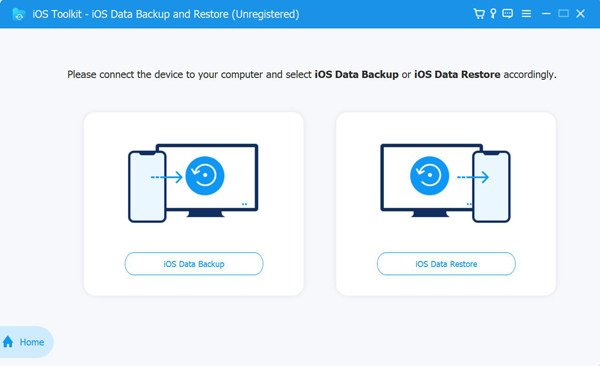
Step 1Start 4Easysoft iOS Backup & Restore on your computer and link your iPhone via a USB cable. Tap "Trust" on your iPhone if prompted to allow access. Then, select "iOS Data Backup & Restore" from the screen, then pick "iOS Data Backup".
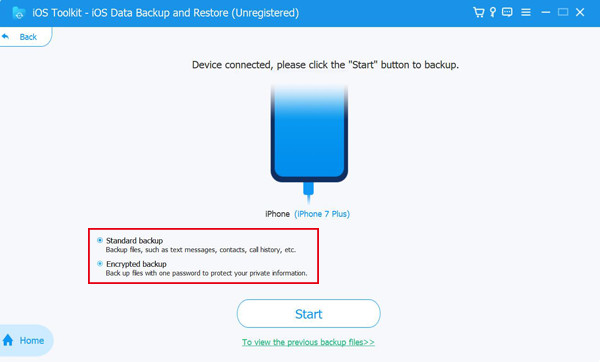
Step 2Next, pick between "Standard Backup" for common data or "Encrypted Backup" for protecting your files, then click "Start" to go on.
Step 3At this part, determine the file you wish to backup, like contacts, photos, messages, or app data, or easily click "Select All" for a complete backup. Click "Next" to start saving your iPhone data securely.
100% Secure
100% Secure
Detailed Steps to Remove SIM Card from iPhone Using SIM Card Ejector
Before you remove your SIM card, it's crucial to handle your iPhone very carefully to avoid any damage to its SIM tray or the card itself. Learning how to remove and replace a SIM card on an iPhone does not need any technical skill; you just need a SIM card ejector tool or a small paperclip.
Step 1Make sure to power off your iPhone first. Then, locate the SIM tray on the right side for newer iPhone models, or at the top edge for older ones.
Step 2Then, insert the ejector tool very gently into the small hole. Push it lightly until the tray pops up, and it will slide out smoothly.
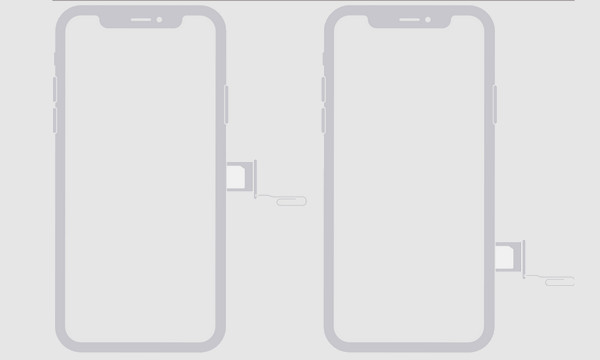
Step 3Remove the SIM card, then place it somewhere safe if you plan to reuse it. Then, if you're not placing another SIM card, push the tray back into the slot until it fits.
How to Disable SIM Card from iPhone without Removing
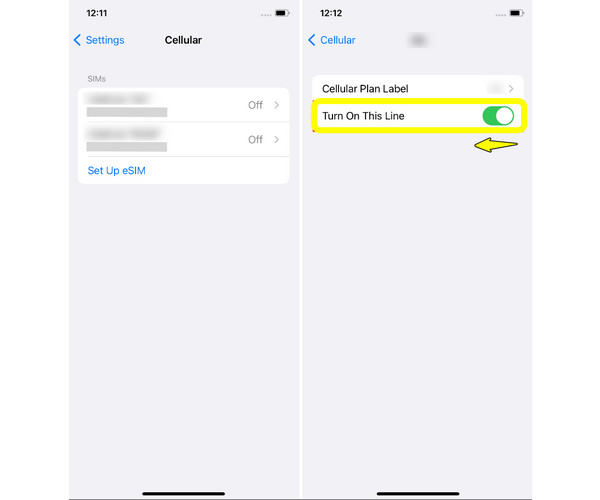
Sometimes, you might only need to disable the SIM card without physically removing it from the tray. Doing so will prevent calls, stop chargers, or switch to Wi-Fi only. Instead of changing a SIM card from an iPhone physically, iPhone settings let you turn it off with just a few taps. Here's how:
Step 1Open the "Settings" app. Scroll down and tap on "Cellular" and find your active SIM plan, then choose the one you wish to disable.
Step 2Toggle off the "Turn On This Line" (Cellular Data) switch. Otherwise, go to "Settings" and activate the "Airplane Mode" to disable all network functions quickly.
Tips on How to Remove SIM Card from An iPhone 17
Now, before wrapping up the guide to get the SIM card out of an iPhone, here are some practical tips to keep in mind when doing so, primarily for the newer iPhone 17. While the process is straightforward, these small tips can help you avoid any damage and ensure a smooth installation later.
• Power off your iPhone. Always turn off your device first before ejecting the SIM tray to avoid any errors.
• Use the SIM ejector tool. Your iPhone comes with an official ejector tool, and it is the safest option. If you have misplaced it, you can use a paperclip as an alternative.
• Apply gentle pressure only. Insert the SIM ejector into the hole and press it lightly until the SIM tray pops out.
• Handle the SIM card carefully. Hold the SIM carefully by its edges to avoid any scratches.
• Keep the SIM and tray safe. Put it in a clean area.
• Check for any dust. Ensure both the tray and slot are clean before reinserting the SIM card.
Conclusion
As you've seen here, removing a SIM card from an iPhone is easy. Knowing the proper steps will save you time and prevent damage to your tray or card. You can either remove or switch the SIM card physically or temporarily. But before doing anything else, back up your iPhone data to avoid any potential loss with 4Easysoft iOS Backup&Restore. So you can back up or restore files completely or selectively quickly. Keep your iPhone data secure at every step.
100% Secure
100% Secure
