
Fix over 50 types of iOS system issues like battery drain, frozen screen, and more without data loss.

6 Ways to Fix iPhone Battery Draining Fast Effectively

Posted by Alvin Cantero to Solutions/Tips Feb 06, 2026
Is your iPhone battery draining too fast, forcing you to carry a portable battery pack everywhere? You should check your iPhone settings and system status—you may need to fix system issues or replace the battery. Follow the five methods in this article to troubleshoot iPhone battery problems. You might solve the rapid battery drain issue just by adjusting a few settings.
Guide List
The Reason for iPhone Battery Draining Fast Quick Adjust 5 Settings to Reduce iPhone Battery Draining Fast Fix Battery Draining Fast Caused by System Issue with a Powerful Tool Tips for Extending Your iPhone Battery Life Long-TermThe Reason for iPhone Battery Draining Fast
You can troubleshoot the reasons for your iPhone's rapid battery drain by considering the following possible causes. Then read the corresponding solutions.
Frequent Background App Activity
Some apps, even when not actively opened, refresh data, track location, or sync information in the background (e.g., social media, navigation, cloud services). This continuous operation consumes CPU, network, and memory resources, accelerating battery drain.
Excessive Screen Power Consumption
The display is one of the iPhone's largest power drains. High brightness, prolonged screen-on time, enabling ProMotion (high refresh rate), or frequent screen wake-ups significantly increase battery load.
Location & System Service Consumption
GPS, Bluetooth, Wi-Fi scanning, and system-level location services running continuously in the background cause hidden power drain when enabled long-term.
System or App Anomalies
Compatibility issues after system updates, app version bugs, or abnormal processes may cause persistently high CPU usage, resulting in "background idling". This drains the battery even when the phone is idle.
Battery Aging or Degradation
As charge/discharge cycles increase, lithium batteries experience reduced capacity and diminished instantaneous output capability. When battery health declines, the same usage intensity consumes more power, resulting in noticeably shorter perceived battery life.
Quick Adjust 5 Settings to Reduce iPhone Battery Draining Fast
If your iPhone battery drains too quickly and requires frequent charging just to get through a day, you can try the following methods to extend your iPhone's battery life.
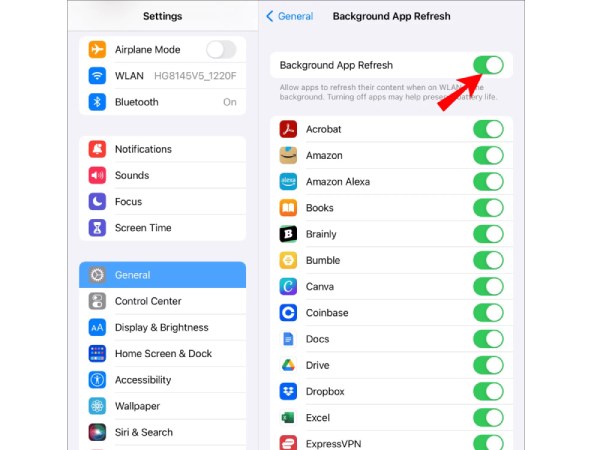
Turn Off Background App Refresh
Some apps consume a lot of power and can quickly drain your battery if used frequently. You can turn off background refresh for apps you don't use often. This can effectively reduce battery waste.
Steps: Go to Settings, tap "General", then tap "Background App Refresh". Turn off the switch for apps you don't use often.
Turn Off Visual Effects, Adjust Brightness
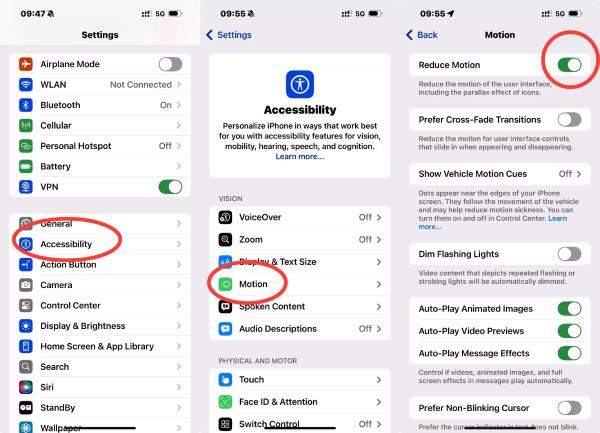
Excessive screen brightness accelerates iPhone battery drain, so a good practice is to dim the screen as much as possible while maintaining visibility. If constant brightness adjustments aren't needed, disabling Auto-Brightness can further reduce battery consumption.
Steps: Open "Settings", go to "Accessibility", find "Motion Effects", and turn on "Reduce Motion Effects".
Turn on Do Not Disturb mode
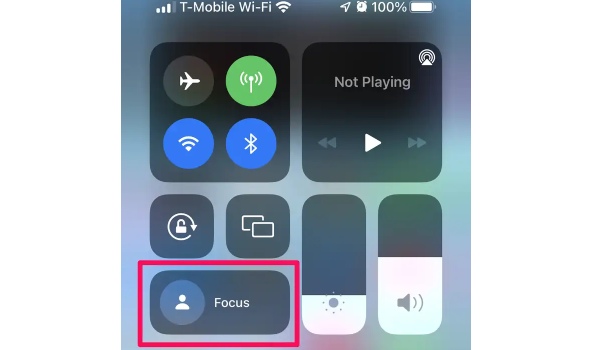
When you take out your iPhone, you might habitually place it face up. This causes every notification to wake the phone and light up the screen. When you receive many messages, this can also significantly drain your battery. When not in frequent use, placing your phone face down reduces unnecessary wake-ups. Alternatively, you can switch your phone to "Do Not Disturb" mode, which will block most notifications.
Steps: Swipe down from the top of the screen to open "Control Center", then tap "Focus" and select "Do Not Disturb".
Turn Off Location Services on Your iPhone
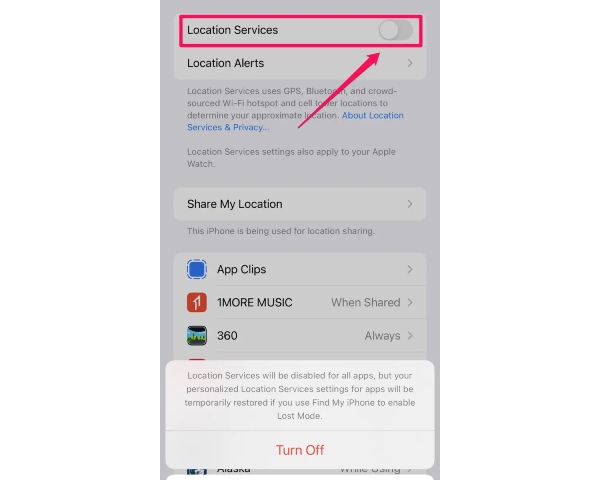
Location services allow apps to know your whereabouts, enabling them to provide location-based information and features. While convenient, they can quickly drain your battery. If you don't need location services, consider turning them off when not in use.
Steps: Open "Settings", then tap "Privacy". Locate "Location Services", then slide the button to the left to turn it off. If you wish to use Location Services later, remember to return to this screen and re-enable it.
Check Battery Health Status
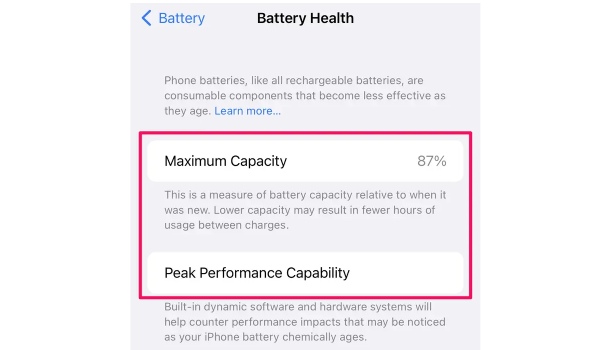
If your iPhone has been in use for more than a year or two, its battery may have aged. This is the most common cause of rapid battery drain. You can check whether your iPhone needs a battery replacement by reviewing its battery health.
Steps: Open the Settings app, then tap "Battery". Tap "Battery Health". If the "Maximum Capacity" reading is below 85%, you may need to replace the battery.
Fix Battery Draining Fast Caused by System Issue with a Powerful Tool
If excessive battery drain persists after trying the above methods, it may indicate a system-level issue. You'll need to use repair software to fix system problems. 4Easysoft iOS System Recovery can resolve system-related issues like rapid iPhone battery drain. It's simple to operate, features a quick repair mode that takes minimal time, and won't cause data loss.

Comprehensive repair capabilities address over 50 types of iOS system issues.
Provide free rapid repair tools; simple fixes like battery drain won't result in data loss.
Effortlessly reset your iPhone/iPad/iPod without needing passwords, iTunes, or iCloud.
Support all iOS models and versions, including iPhone 17 and iOS 18/26.
100% Secure
100% Secure
Step 1Launch this fixing software and click the "iOS System Recovery" button. Then connect your iOS device to the computer.
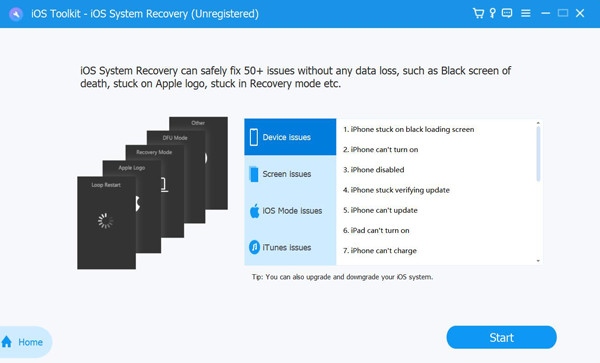
Step 2Once connected, click the "Start" button to proceed. The program will automatically detect your device. View all information about your iPhone.
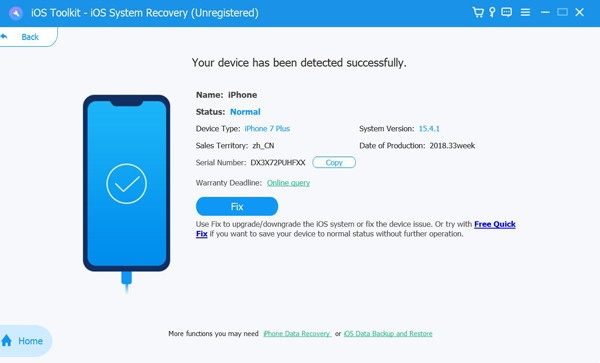
Step 3You can click the "Free Quick Fix" to fix simple issues like a crashed system. Otherwise, you can click the Fix button.
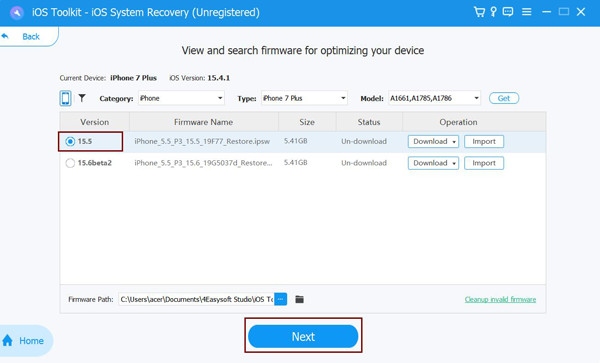
Step 4Select the correct category, type, and model of your device. Then, click "Download" to obtain the required firmware. Afterward, click the "Next" button to begin repairing your iOS system.
Tips for Extending Your iPhone Battery Life Long-Term
Keep your iPhone updated and manage settings wisely.
iOS updates often include battery and performance optimizations, while features like Background App Refresh and unnecessary location services can be limited to reduce ongoing power drain.
Adopt healthy charging habits.
Avoid frequent full discharges to 0% and try to keep the battery between 20% and 80% for daily use, as this range helps slow long-term battery aging.
Control temperature exposure.
iPhone batteries degrade faster under high heat or extreme cold. Therefore, avoid exposing your iPhone to get too hot or prolonged periods in extremely hot or cold environments whenever possible.
Adjust display and connectivity usage.
Lower screen brightness, enable Auto-Brightness, and turn off Bluetooth or Wi-Fi when not needed, since the display and wireless radios are among the biggest power consumers.
Review battery usage regularly.
The Battery section in Settings helps identify apps that consume excessive power, allowing you to adjust usage habits or permissions before they impact battery health.
Conclusion
This article will address your question, "Why is my iPhone battery draining so quickly?" and list common causes for this issue. Outdated apps, system errors, and too many background apps running can all lead to excessive battery consumption. Fortunately, 4Easysoft iOS System Recovery can help you completely fix these errors, restoring your iPhone to its original performance.
100% Secure
100% Secure
