
Transfer photos, videos, music, contacts, and more between iPhone, Android, and computer safely.

Transfer Photos from iPhone to iPhone (Even After Setup)

Posted by Alvin Cantero to iOS Transfer Sep 23, 2026
You look at your old iPhone, and sadness hits as you cannot leave your precious memories, once you upgrade to a brand new iPhone. To your relief, you can transfer photos from iPhone to iPhone without even being a tech wizard. Since your ideal solution depends on the process you want and the number of pictures you have, the following reveals the five best ways to transfer bulk photos from iPhone to iPhone. Come and execute a flawless migration.
Guide List
Transfer Photos from iPhone to iPhone with Quick Start (Best for New iPhone Setup) Import Photos from iPhone to iPhone with 4Easysoft iPhone Transfer (Best for Safe iPhone Transfer) Move Photos from iPhone to iPhone with AirDrop (Best for Selective Photo Transfer) Sync Photos from iPhone to iPhone with iCloud Photos (Best for Automatic, Ongoing Sync) Transfer Photos from iPhone to iPhone with Finder or iTunes via Computer FAQs| Method | Best For | Key Benefit |
| Quick Start | New iPhone Setup | Transfer all data, like photos, wirelessly during the initial setup of your new iPhone. |
| AnyRec PhoneMover | Safe and Controlled iPhone Transfer | Secured wired transfer via computer without data loss or affecting existing files. |
| AirDrop | Selective iPhone Photo Transfer | Sends specific photos quickly to a nearby iPhone. |
| iCloud Photos | Automatic, Ongoing iPhone Sync | Keeps the entire library continuously updated and syncs across both Apple devices. |
| Finder/iTunes | Complete iPhone Backups | Traditional, wired backup and restore method via PC or Mac. |
Transfer Photos from iPhone to iPhone with Quick Start (Best for New iPhone Setup)
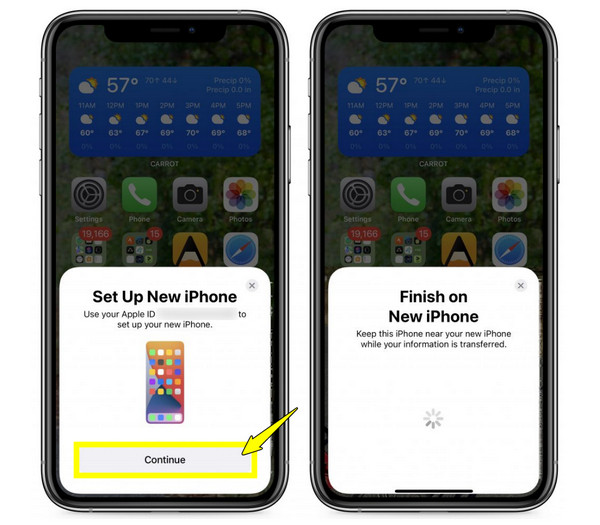
Upgrading to a brand-new iPhone is an exciting moment for all. And having Quick Start to help you move photos from iPhone to iPhone adds to that excitement. With this built-in feature, you can mirror your old phone securely and wirelessly without jumping through hoops.
Best For: Switching to a brand-new iPhone to transfer your entire library, alongside other data, all at once.
Step 1Keep both iPhones close together with Bluetooth and Wi-Fi turned on. On your old iPhone, tap "Continue" to start the connection.
Step 2When you see an animation on your new iPhone screen, hold your iPhone over it and center the animation in the camera viewfinder.
Step 3Enter your old password on the new device, set up Face ID, and choose "Transfer from iPhone".
Import Photos from iPhone to iPhone with 4Easysoft iPhone Transfer (Best for Safe iPhone Transfer)
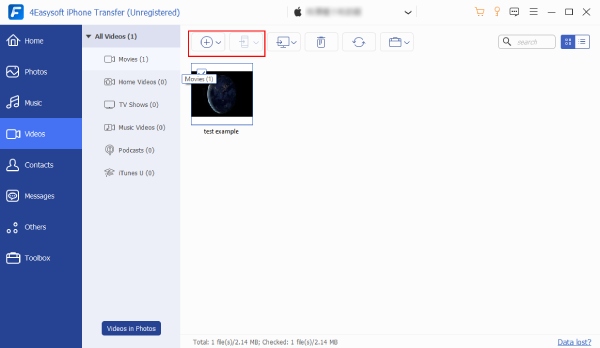
If your target device is already up and running, you might face a real headache when moving your iPhone library. To bypass the frustrating restrictions, turn to 4Easysoft iPhone Transfer. This intuitive desktop software gives you complete control over your device's storage. Not only can it help you transfer photos from one iPhone to another, but it can also be reliable for your contacts, messages, videos, and more. Plus, it allows you to import specific photo albums directly without wiping out your existing settings or forcing you to do a factory reset.
Transfer pictures and more files between iOS (up to 26), Android, and PC/Mac.
Scans your library to detect and merge duplicate images, freeing up more space.
Export specific images directly without time-consuming restoration.
Browse through photos to transfer only the ones you want to keep.
100% Secure
100% Secure
Best For: Users who want a fast, customized way to transfer photos directly, especially to those new iPhones that have completed the setup.
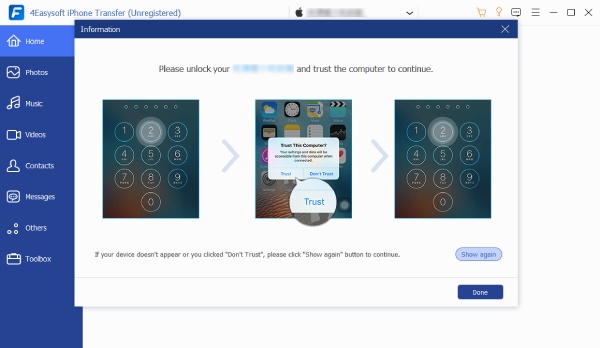
Step 1Launch 4Easysoft iPhone Transfer on your computer. Connect both iPhones using reliable cables. To ensure your pictures flow in the right direction, designate which one is the source and target device. Tap "Trust" on both devices to authorize the connection.
Step 2After detecting both devices, your files will be organized on the screen. Head over to the left sidebar, and click on the "Photos" category to view all image folders and pictures available on your old iPhone.
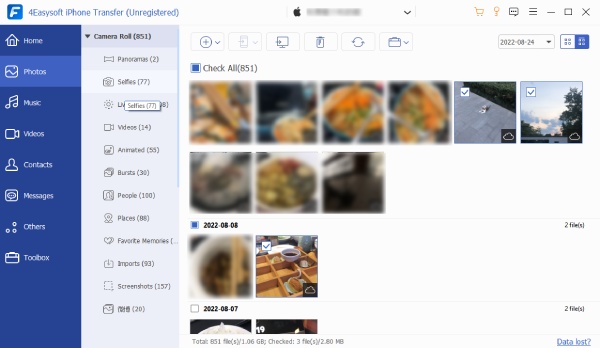
Step 3Look through your pictures and check the boxes next to the photos you want to move. Once ready, click the "Export to Device" button, and let the software safely transfer your memories.
Move Photos from iPhone to iPhone with AirDrop (Best for Selective Photo Transfer)
Moving to a much quicker process of transferring only photos from iPhone to iPhone, here comes AirDrop. There may be times that you don't want to clone your entire phone; here, you can AirDrop from iPhone to iPhone to send over a bunch of selected pictures. This method uses point-to-point wireless sharing that requires no cables or computers.
Best for: Sending a selection of photos, videos, or specific files quickly to a nearby iPhone.
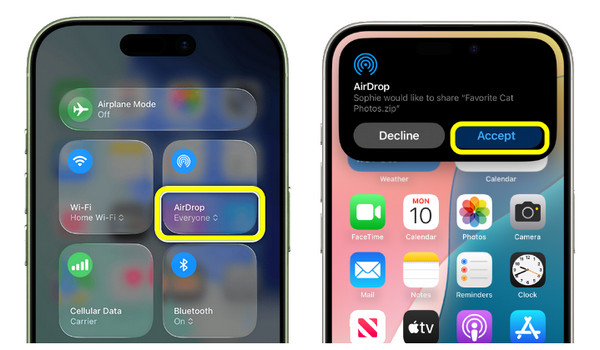
Step 1Fire up "Control Center" on both iPhones, press and hold the connection box, and ensure "AirDrop" is ON, and then set it to "Everyone for 10 Minutes".
Step 2Then, head over to the "Photos" app on your old iPhone, tap "Select" and tap all the pictures you wish to share. Tap the "Share" button and aim for the "AirDrop" icon from the sharing method.
Step 3There, choose the target iPhone name from the list. Then, tap "Accept" on the receiving iPhone to get the images straight to its library.
Sync Photos from iPhone to iPhone with iCloud Photos (Best for Automatic, Ongoing Sync)
If your goal is to completely get rid of manual effort, learn how to import photos from iPhone to iPhone via iCloud Photos. Instead of doing file transfers, you can let Apple's cloud feature manage your entire library across all your personal Apple devices.
Best for: Keeping your library synced automatically across devices signed in with the same Apple ID.
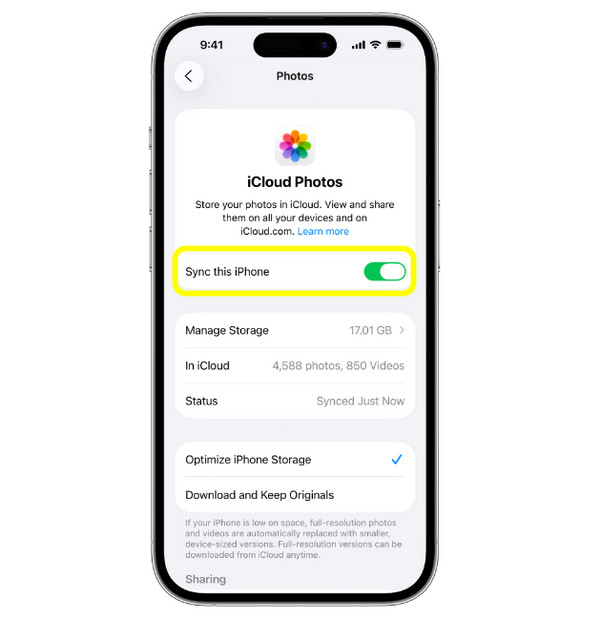
Step 1Check that both iPhones are using the same Apple ID. On the old iPhone, head to "Settings", tap your Apple ID name at the top, select "iCloud", and then tap on "Photos".
Step 2Next, toggle ON the switch of "Sync this iPhone" to let your photos begin uploading securely to the cloud.
Step 3Grab your new iPhone, then follow the same path and turn on the "Sync this iPhone" switch too.
Transfer Photos from iPhone to iPhone with Finder or iTunes via Computer
Yet, you may prefer the stability of a computer to help you transfer photos from old iPhone to new iPhone. By connecting your phones directly to a desktop, you can create a complete backup of all your iPhone data, perfect for managing huge libraries that would choke on a wireless transfer.
Best for: Those who want to make a complete local backup of their old iPhone before transferring everything to a new device.
Step 1Connect your old device using a USB cable, then launch Finder/iTunes. There, select your device icon at the top, and click on the "Back Up Now" button.
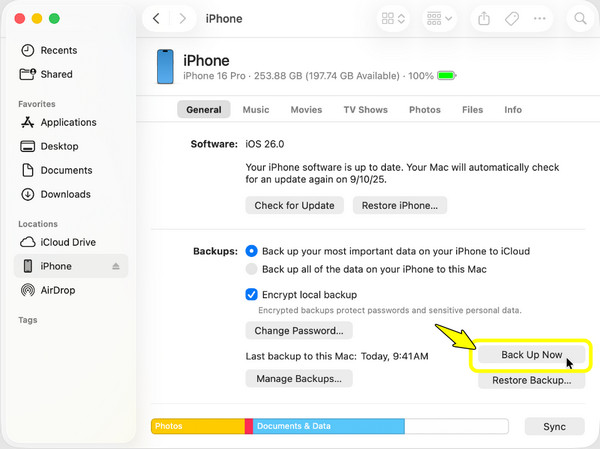
Step 2Once the backup progress bar is finished, safely unplug your old iPhone and plug your target iPhone. Then, locate the target iPhone in Finder/iTunes, navigate to the "General/Summary" screen, and click on the "Restore Backup" button.
Step 3Select the specific most recent backup folder from the pop-up list, click the "Restore" button, and keep the phone plugged in while the data carries over.
FAQs
-
Can I transfer photos to an iPhone that's already fully set up?
Yes. The transfer doesn't have to happen during setup. Send a small batch with AirDrop, use iCloud to sync photos wirelessly, or turn to a desktop tool if you have a lot of photos to move.
-
Why is my iPhone transfer taking so long?
This might be because of your massive library, weak connection, or low iPhone battery. You can try switching to a stable wired connection method to bypass these wireless issues.
-
Will my hidden photos transfer over, too?
Yes, if you use a full migration method like Quick Start or standard local backup.
Conclusion
Once your old iPhone pictures make it to your new iPhone, it gives you massive relief. You don't have to be a tech expert; thanks to the methods mentioned, you can easily find the one that fits your workflow to transfer large amount of photos from iPhone to iPhone. And if you find yourself stuck with a fully set up new iPhone and want to avoid cloud headaches, downloading 4Easysoft iPhone Transfer gets the job done right. Use it now to selectively drag, drop, and secure your memories with no data loss and at a fast speed.
100% Secure
100% Secure
