
Selectively back up and restore iPhone data. No data overwritten.

Never Lose Chat! 4 Ways to Backup Text Messages on iPhone

Posted by Alvin Cantero to iOS Backup&Restore Jun 26, 2026
All your old jokes, photos, or important details in your text threads do not have to vanish when you're going to upgrade your iPhone, or it suddenly gets unresponsive. You can backup text messages on iPhone! Doing so is not only a good idea, but it is a digital necessity, so here are four reliable, fast ways for you. Scroll down for the details of the ways to transfer text messages on iPhone, from cloud-based solutions to more manual exports in 2026.
Guide List
How to Back Up Text Messages from iPhone without iCloud/iTunes Back Up iPhone Text Messages to Computer via USB Use iCloud/iTunes to Back Up iPhone Text Messages Back Up iPhone Text Messages with DropboxHow to Back Up Text Messages from iPhone without iCloud/iTunes
Using specialized software is the most flexible way to manage and save text messages from iPhone without depending on Apple's default ecosystem. And one standout tool for this task is 4Easysoft iOS Data Backup & Restore. This tool is designed to be a lightweight and efficient alternative to large media suites. It provides you with a hundred percent secure backup that doesn't affect other versions, ensuring all of your chat is saved over time. Additionally, it allows you to selectively include which data types, making the process much faster than other methods. You can either be upgrading your device or clearing space, and this tool makes the entire transition seamless and worry-free.
Universal compatibility for a wide range of iPhone models and iOS versions.
Select and preview message threads to ensure you only save what you need.
Your existing iPhone data remains untouched and safe throughout the process.
Built-in tools for organizing and navigating your backup with ease.
100% Secure
100% Secure
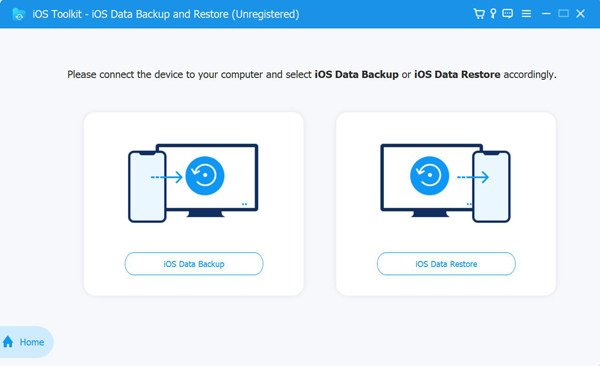
Step 1Start 4Easysoft iPhone Data Recovery on your computer and select "iOS Data Backup" in the main menu. At this point, please connect your iPhone to your PC via a USB cable. If your device asks for permission, simply tap "Trust" to allow the computer to access your data.
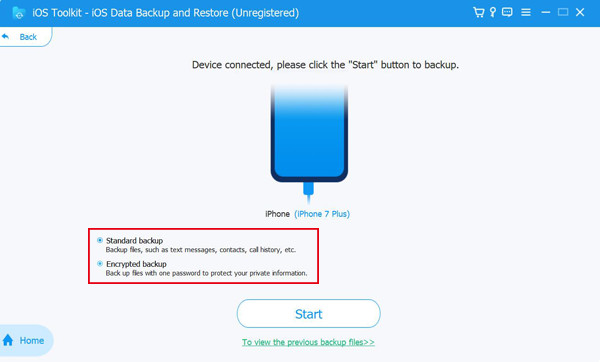
Step 2On the next screen, select between a "Standard backup" or an "Encrypted backup". If you have sensitive conversations and wish for a password, aim for the encrypted option. Once decided, click the "Start" button to proceed.
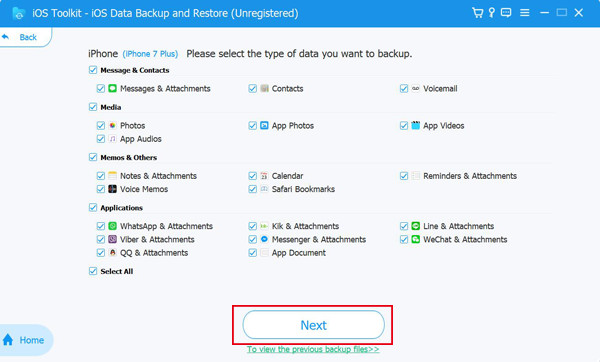
Step 3You will now see a categorized list of data types, including Media, Memos, and Contacts. To save your chats, go to the "Messages & Contacts" section and check the box for "Messages & Attachments", then click the "Next" button to start the transfer.
Back Up iPhone Text Messages to Computer via USB
If you prefer a direct hardware connection, transferring text messages via USB is a classic and stable choice to export and backup text messages on iPhone for many users. This method ensures your messages move quickly between devices without requiring a stable internet connection. It is an effective way to keep a local copy of your information that is under your control at any time. With the right desktop management tools, you can transform your text threads on your hard drive.
Step 1Connect your iPhone to your PC with an Apple-certified USB cable.
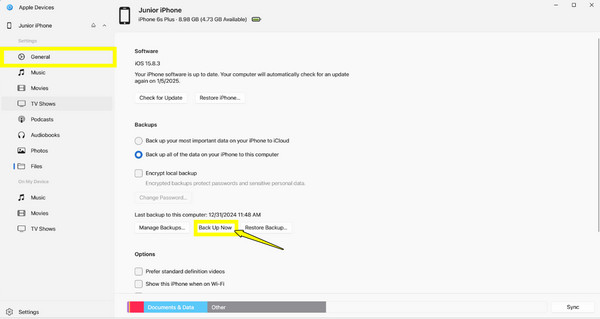
Step 2Then, open the "Apple Devices" app on Windows, locate your iPhone in the sidebar, and click on it.
Step 3From the "General" tab, locate the "Backups" section.
Step 4Choose the option to "Back up all of the data on your iPhone to this Computer", and click on "Back Up Now".
Use iCloud/iTunes to Back Up iPhone Text Messages
Apple's official solutions are still the most integrated way to save text messages from iPhone, keeping your text synced and safe across all devices. Using iCloud, you can enjoy wireless backups that can occur even while your phone is asleep. Meanwhile, iTunes offers a complete backup of your entire device. With these tools, you can make sure your messages are safe and ready to be restored perfectly.
How to Backup Text Messages on iPhone with iCloud?
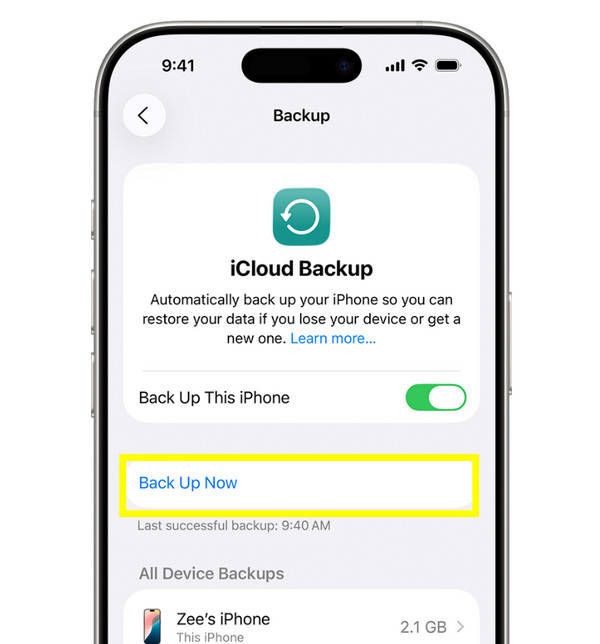
On your iPhone, open the "Settings" app, tap on your name, then head to "iCloud" and choose "iCloud Backup". Please turn it ON, and tap "Back Up Now" while connected to Wi-Fi to create a copy of your messages.
How to Backup Text Messages on iPhone with iTunes?
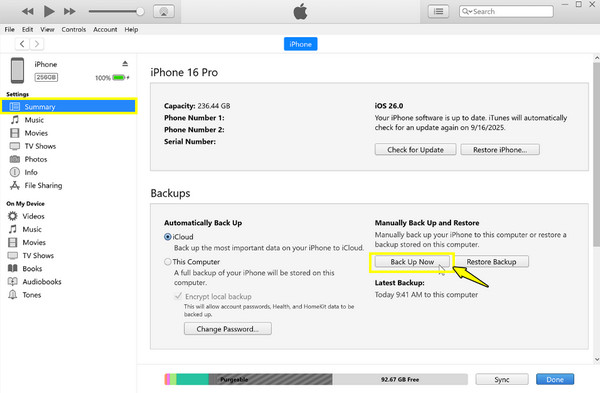
If you want to backup iPhone without iCloud, you can use iTunes as an alternative. Once you connect your phone to your computer, open "iTunes" on your computer. Click the "Device" icon and go to the "Summary" tab. Then, select "This Computer" and click "Back Up Now".
Back Up iPhone Text Messages with Dropbox
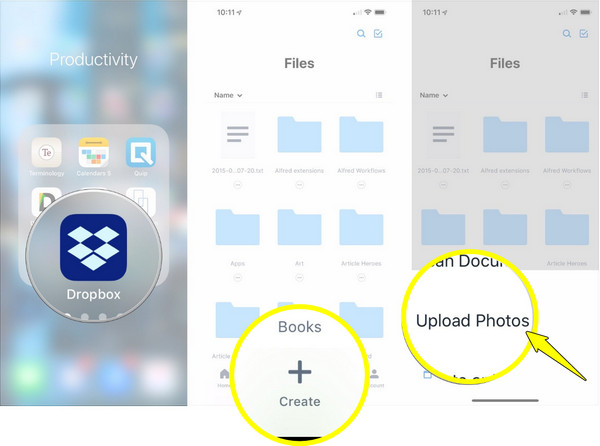
For users who wish to have their backup accessible from anywhere, Dropbox serves as a versatile solution to backup SMS messages on iPhone. While you cannot sync texts directly to it, you can export your message threads as documents instead. Doing so allows you to search, share, and view your messages on any device with a web browser or the Dropbox app. With this cloud storage app, you can manually move your messages for backup.
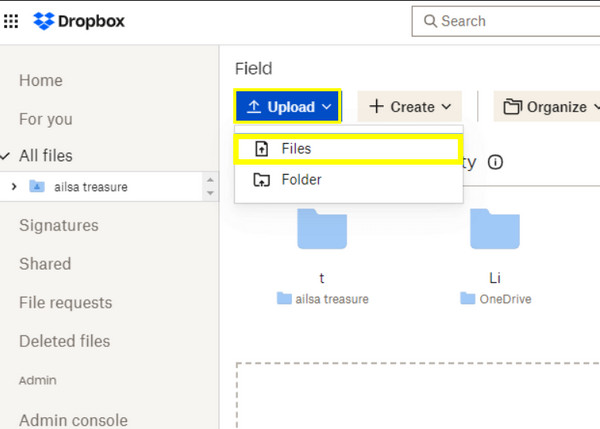
Step 1Ensure to have exported your text conversations as a PDF first to your computer. Then, open the Dropbox website or the app, and create a new folder to keep your files organized.
Step 2Now, click the "Upload" button or drag and drop your message PDF files from your computer into the Dropbox window.
Step 3Alternatively, launch the Dropbox app on your iPhone, tap the "Add" button, then upload all the text message screenshots.
Conclusion
From the smooth automation of iCloud to cross-platform access to Dropbox, each mentioned here can help you backup iPhone SMS text messages. With the right approach, you can guarantee that all chats remain safe from any deletions or failures. While all the Apple methods provide a solid solution, they won't let you choose exactly which conversations you wish to save. So, here's 4Easysoft iOS Data Backup and Restore. This robust tool lets you selectively back up and preview messages, giving you a fast, secure, and organized way to backup data on your computer without the limitations of cloud storage.
100% Secure
100% Secure
