
Unlock all your iPhone/iPod/iPad by wiping passcode and remove Apple ID completely.

Ultimate Guide to Sign Out is Not Available Due to Restrictions

Posted by Alvin Cantero to iOS Unlocker Dec 25, 2025
When attempting to sign out of your Apple ID account in your iPhone's Settings, you may occasionally encounter a grayed-out "Sign Out" button accompanied by the message "Sign Out is unavailable due to Restriction". This can be pretty confusing and frustrating. Don't worry, this article will thoroughly explain the reasons behind this issue and provide five proven solutions. Read on to find out which one works best for you.
Guide List
The Reason of Sign out Not Available Due to Restrictions Use a Professional Tool to Remove Screen Time without Passcodes 3 Ways to Resolve Sign Out Not Available via SettingsThe Reason of Sign out Not Available Due to Restrictions
Screen Time Restrictions Enabled
When Screen Time is activated on an iPhone or iPad and "Account Changes" is disabled under "Content & Privacy Restrictions", the system will directly prevent Apple ID sign-out operations.
Device Controlled by MDM Profile
If the device is enrolled in a mobile device management (MDM) program for a business, school, or organization, administrators may prohibit users from modifying or removing the Apple ID to prevent unauthorized device resets or transfers.
System Restrictions or Profile Conflicts
Installed configuration profiles may conflict with current system settings, locking the Apple ID sign-out option.
Parental Control Restrictions
If the Apple ID belongs to a child account within Family Sharing and parents have enabled account modification restrictions, the child account cannot log out of the Apple ID independently.
Security or Incomplete Verification
If the Apple ID triggers security verification, shows abnormal login risks, or has not completed the two-factor authentication process, the system may temporarily restrict account logout operations.
Use a Professional Tool to Remove Screen Time without Passcodes
If you forget your Screen Time passcode and the sign-out is not available, you can still opt for professional tools to remove Screen Time restrictions. 4Easysoft iPhone Unlocker is your best choice. It safely and directly clears the Screen Time passcode from your device or unlocks various iPhone models. This allows you to regain control over logging out of your Apple ID, and the entire process won't damage any other data on your device.

Unlock all types of locks on your iPhone, including Screen Time.
Unlock your iPhone in just three steps—no technical expertise required.
Achieve a success rate of up to 99%, with most cases being safe and data-preserving.
Compatible with most iOS devices, including iPhone 17.
100% Secure
100% Secure
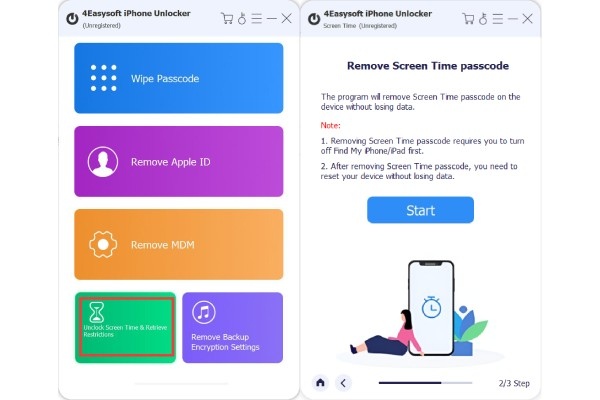
Step 1After launching it, connect your iOS device to your computer. On the main interface, click "Screen Time".
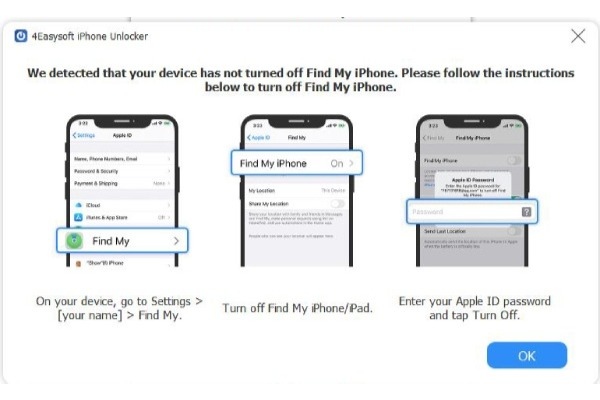
Step 2You'll need to disable the "Find My Device" feature beforehand. Then, in the next window, click "Start".
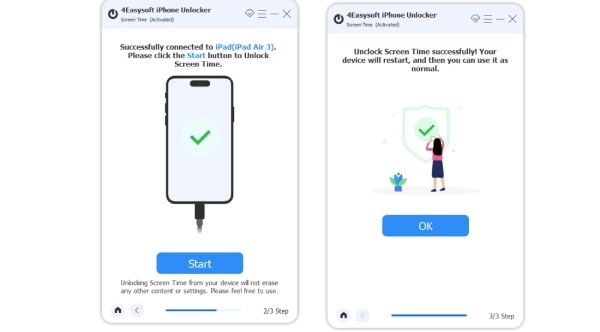
Step 3Wait for it to begin unlocking. Afterward, simply enter your screen passcode to access all features.
3 Ways to Resolve Sign Out Not Available via Settings
Certain iPhone settings can also resolve issues where you are unable to sign out of your Apple ID due to restrictions. If you don't have access to a computer but need urgent repairs, you can try some of the methods listed below.
1. Turn off Screen Time with a passcode
If you still remember the Screen Time passcode you set, turning off Screen Time with the correct passcode is the fastest solution.
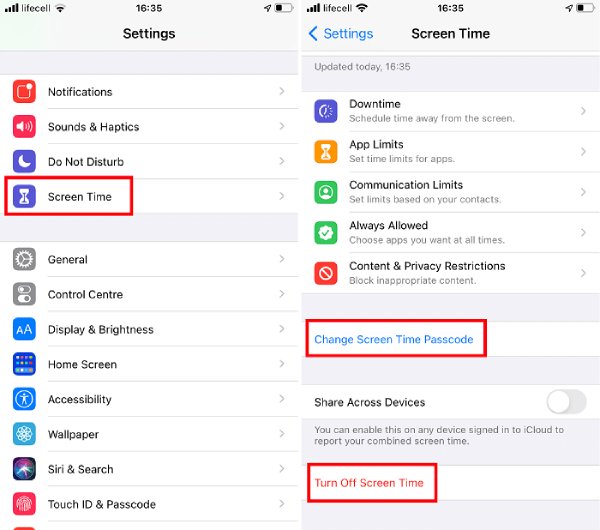
Step 1Open Settings, scroll down, and tap "Screen Time". Tap "Change Screen Time Passcode". Then select "Turn Off Screen Time Passcode".
Step 2Next, enter your Screen Time passcode to resolve the issue preventing you from signing out due to "Screen Time".
2. Modify Content and Privacy Restriction settings
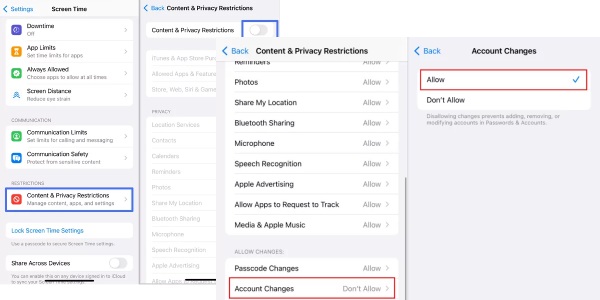
The "Content & Privacy Restrictions" option lets you control changes to your Apple account. If you set it to "Not Allowed", your Apple ID won't be able to sign out due to the restrictions. Fortunately, you can adjust the settings with the next steps anytime to resolve this issue.
Step 1Go to "Settings" and find "Screen Time". Tap "Content & Privacy Restrictions". Make sure the toggle switch at the top is turned on.
Step 2Scroll down, find the Account Changes option, and tap it. Change its setting from "Not Allowed" to "Allowed".
Step 3After that, you should be able to sign out of your Apple ID normally.
3. Remove MDM Profile
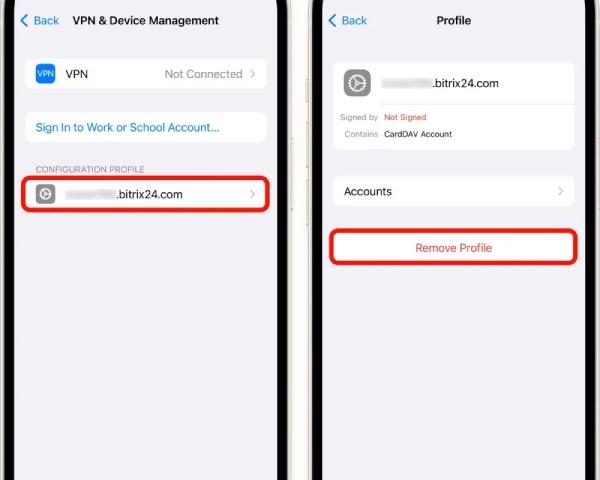
Typically, after changing the above settings, you should have successfully signed out of your Apple ID. If you haven't signed out successfully and your device is from a school or company, you may need to remove or bypass the MDM profile.
Step 1Open "Settings" and tap "General". Scroll down to find and tap "VPN & Device Management".
Step 2If you see a description related to device management or an MDM profile, tap it. Select "Remove Profile". The restriction will then be removed.
Conclusion
In summary, when encountering the "Sign Out is unavailable due to restrictions" issue, you can first troubleshoot through Screen Time settings. If these methods prove ineffective, you can use a professional tool like 4Easysoft iPhone Unlocker to provide the fastest solution, safely and efficiently resolving the inability to sign out.
100% Secure
100% Secure
