
Remove screen passcode, Apple ID, MDM and Screen Time from iPhone safely.

A Comprehensive Guide on How to Unlock iPhone with Siri

Posted by Alvin Cantero to iOS Unlocker Apr 27, 2026
Can I unlock an iPhone with Siri ? Many Apple users have such doubts when forgetting their iPhone passcodes or encountering issues with Face ID. Some users have heard that Siri can help unlock an iPhone, especially through certain voice commands or system loopholes found in older iOS versions. While these methods may not work on all devices, there are still several practical solutions that can help you regain access. In this guide, you will learn whether Siri can unlock an iPhone directly and explore several effective ways to unlock your device.
Guide List
Part 1: Can You Unlock Your Own iPhone with Siri Directly Part 2: The Most Effective Way to Unlock an iPhone Directly Part 3: How to Unlock iPhone with Siri in Older iOS Versions Part 4: Tips: Use Voice Command to Unlock iPhone with SiriPart 1: Can You Unlock Your Own iPhone with Siri Directly
In most cases, Siri cannot unlock your iPhone directly without authentication. When the iPhone is locked, Siri can still perform some limited tasks, such as setting reminders, making calls, or providing information. However, actions that involve accessing personal data or unlocking the device are usually limited.
In earlier versions of iOS, there were a few temporary loopholes that allowed users to bypass the lock screen through Siri commands. These issues were quickly fixed in later updates to protect user privacy and security. As a result, modern iPhones running recently installed iOS versions generally cannot be unlocked directly through Siri. If you forget your passcode, it is usually necessary to rely on official recovery methods or professional unlocking tools.
Part 2: The Most Effective Way to Unlock an iPhone Directly
If you cannot unlock your iPhone through Siri or other simple methods, using a professional unlocking tool can be a more reliable solution. 4Easysoft iPhone Unlocker is designed to help users remove different types of locks from their devices. With a simple and user-friendly interface, it allows you to unlock your iPhone in just a few steps. The software supports multiple iPhone models and iOS versions, making it a practical solution when you are locked out of your device.
Unlock iPhones of any model with simple clicks.
Recognize your iPhone and offer a suitable system version.
Protect the ownership of your iPhone with your Apple ID.
Remove all password restrictions and free up your storage.
100% Secure
100% Secure
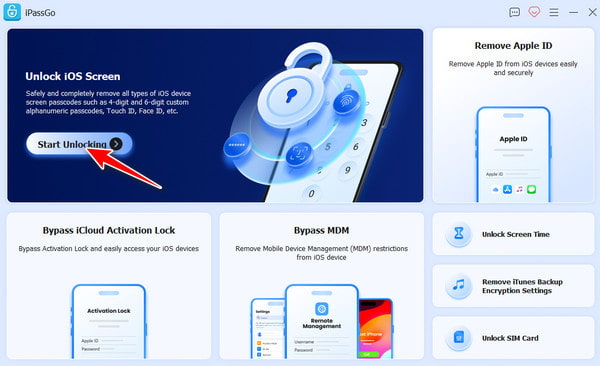
Step 1Launch 4Easysoft iPhone Unlocker on your device. Connect your iPhone to the computer using a USB cable. Click the "Unlock iOS Screen" button.
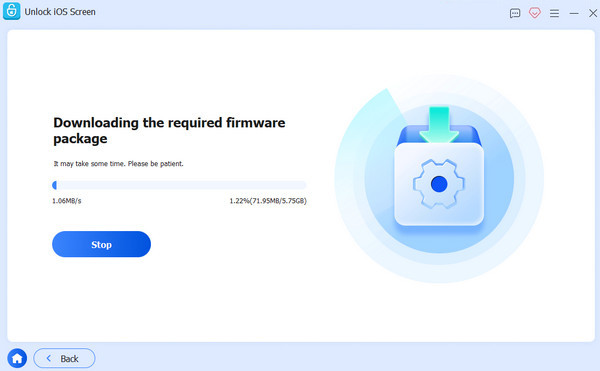
Step 2Your iPhone will be detected automatically. Click the "Start" button to download the firmware once you confirm the related information.
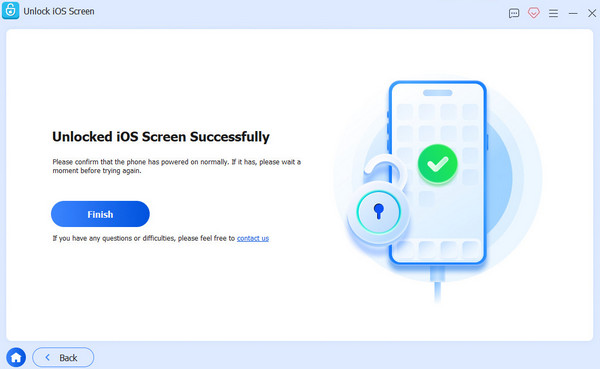
Step 3Wait until the process is done. Then, confirm and click the "Unlock" button to unlock your iPhone without Siri directly.
Part 3: How to Unlock iPhone with Siri in Older iOS Versions
In certain older iOS versions (iOS 8 to iOS 10.1), there were specific Siri-related loopholes that could allow users to bypass the lock screen under particular conditions. These methods usually involve interacting with Siri commands and accessing certain system features indirectly. Although Apple has fixed these vulnerabilities in newer iOS versions, understanding how they worked can help explain why some users still search for Siri-based unlocking methods.
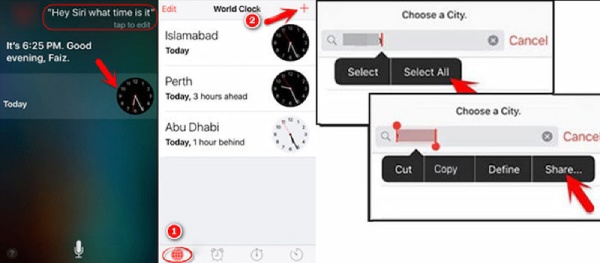
Step 1Summon Siri by speaking "Hi, Siri, what time is it" to display the current time. Tap the "Clock" button. Then, add a new world clock.
Step 2Repeat "Hi, Siri, what time is it" and enter anything in the search bar. Long-tap the text and tap the "Share..." button.
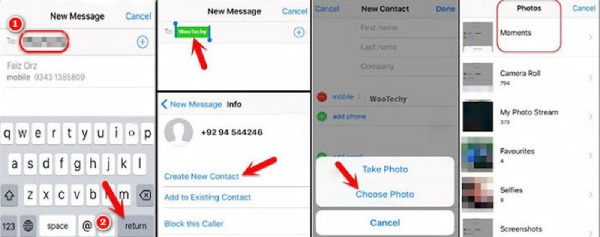
Step 3The message page will pop up. Type anything after the "To" tab and tap the "return" button.
Step 4Now, click the "Create New Contact" button and click the "Choose Photo" button.
Step 5The Photo app will be opened. And now your iPhone is unlocked with Siri even if you forget the passcode on your iPhone.
Part 4: Tips: Use Voice Command to Unlock iPhone with Siri
Besides possible Siri-related workarounds, voice commands can also be used to interact with an iPhone more conveniently. When configured correctly, voice control features allow users to operate certain functions without touching the screen. In the following section, you will learn how voice commands can be used with Siri to help access or control certain iPhone functions more efficiently.
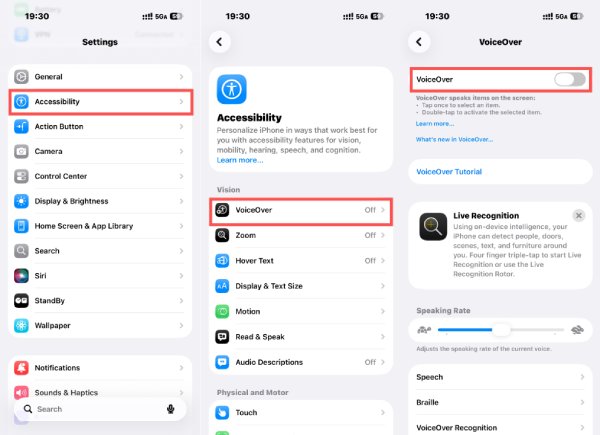
Step 1Open Settings and tap the "Accessibility" button to access a new page.
Step 2Under the "Vision" tab, tap the "VoiceOver" button to manage the detailed settings.
Step 3Tap the "VoiceOver" button to turn it on. Now, you can unlock your iPhone with Siri in a more convenient way.
Conclusion
In conclusion, unlocking an iPhone with Siri is generally not possible on modern iOS versions because Apple has strengthened system security to prevent lock screen bypass. While some Siri-related methods existed in older iOS versions, they are no longer reliable today. If you forget your passcode, using 4Easysoft iPhone Unlocker can help you regain access to your iPhone safely and efficiently.
100% Secure
100% Secure
