

Convert, edit, and compress videos/audios in 1000+ formats.

Solve iMovie Won’t Import MP4 Problem to Let Mac User Edit it

Posted by Aira Lesly Escoto to Convert Video, Solutions/Tips Mar 20, 2026
Can you edit MP4 videos in iMovie? Absolutely, as long as you can import the MP4 file into iMovie. However, some users find that iMovie is unable to import MP4 files. This may be due to an issue with the MP4 file’s encoder. This article will show you how to successfully import MP4 files into iMovie by transcoding them. Keep reading to solve your problem.
Guide List
Part 1: Why iMovie Won’t Import MP4 Part 2: How to Add MP4 to iMovie Successfully Part 3. How to Save iMovie to MP4 by iMovie Settings Part 4: FAQs about iMovie Won’t Import MP4Part 1: Why iMovie Won’t Import MP4
When iMovie cannot import an MP4 file, the issue is usually not with the MP4 file itself, but rather with incompatible encoding formats within the MP4 container. MP4 is merely a container format; if the internal video or audio encoding or parameters are not supported by iMovie, the file will fail to import.
1. Incompatible Video Codec
iMovie primarily supports H.264 or HEVC (H.265) codecs. If the MP4 file uses a different codec, the import may fail.
2. Incompatible Audio Codec
If the audio in the MP4 file is in formats such as AC3, DTS, or Opus, some versions of iMovie may be unable to parse it, resulting in a failed import.
3. Abnormal Video Parameters
Certain video parameters may exceed iMovie’s processing capabilities, such as:
Non-standard frame rates (e.g., Variable Frame Rate, VFR), extremely high resolutions, non-standard aspect ratios, or corrupted or incomplete MP4 files.
4. Corrupted MP4 File
Errors during download or export may damage the MP4 container structure, preventing iMovie from reading the file.
| Format | Supported |
| MP4 (H.264 / HEVC) | √ |
| MOV | √ |
| M4V | √ |
| AVCHD (.mts / .m2ts) | √ |
| MPEG-2 | √ |
| DV | √ |
| AAC | √ |
| MP3 | √ |
| WAV | √ |
| AIFF | √ |
| M4A | √ |
| MKV | × |
| WebM | × |
| FLV | × |
| DAT | × |
| VP9 | × |
| AV1 | × |
| DivX / Xvid | × |
| AC3 | △ |
| DTS | × |
Part 2: How to Add MP4 to iMovie Successfully
1. 4Easysoft Total Video Converter
As mentioned above, if your MP4 file is not broken and your iMovie won’t import your MP4 file, transcoding should be the best solution. And 4Easysoft Total Video Converter will be recommended to help you transcode MP4. As long as you adjust the video codec to be compatible with iMovie, you can easily add MP4.
In addition to video format conversion, it also supports customizing high-quality video and audio settings. A major highlight is that it works on both Windows and Mac. If you have two computers, you can still transcode videos on your Windows machine and then import them into iMovie on your MacBook.
Provide 720P, 1080P, HD, 4K, and HEVC video codecs.
Integrated with accelerated computations and Blu-Hyper technology.
Convert videos and audio files at ultrafast speed with the original quality.
Change audio and video codecs separately to fit your preference.
Provide many formats that fit on social media platforms.
100% Secure
100% Secure
And here are the detailed steps to teach you how to add MP4 into iMovie successfully:
Step 1Launch the 4Easysoft Total Video Converter, and click the "Add Files" button. Choose the files you want to convert and click the "Open" button, or simply drag media files to add them.

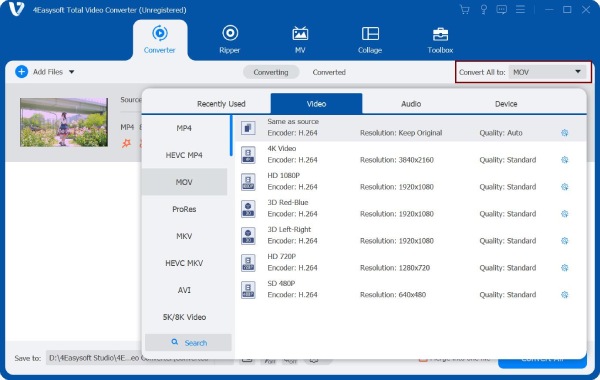
Step 2Click the "Format" button on the right of the file, and you’ll see the list of settings, where you can customize the output format according to your preferences and your device.
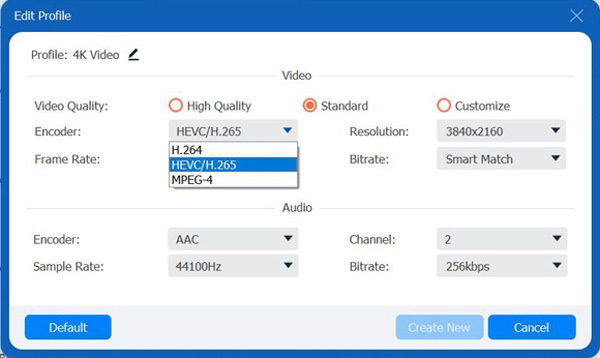
Step 3After choosing the output format, in the encoder dropdown list, there are three encoders: H.264, HEVC/H.265, and MPEG-4. You should choose MPEG-4 or H.264 for iMovie. Then, you can click the "Creative New" button to save the change.
Step 4Click the Convert All button at the bottom-right corner of the program to start converting the selected files. You can also click the Merge into one file button to merge multiple files into one file.

After you adjust your video codec, all you need to do is drag the MP4 file into the iMovie, then you will import your MP4 into iMovie successfully. You can also export iMovie to MP4 videos.
2. HandBrake
Another way to convert iMovie videos to MP4 is to use HandBrake. In addition to transcoding various video formats into more universal and stable formats, it also allows you to adjust video settings and features a live preview and timeline for easily adjusting video length and size.
Step 1Click "Media" and "Convert Save," then click "Add" and ‘Open’ to import the video file. Under "Profile," select the Video H264, MP3, MP4, or MOV format.

Step 2Click "Browse" to select the output path and filename, then click "Start" to begin the conversion. Once the process is complete, you will have a video file compatible with iMovie.

Part 3. How to Save iMovie to MP4 by iMovie Settings
If you want to play an iMovie file on a mobile device but it doesn’t support the iMovie file format, you can set iMovie to export in MP4 format. Sometimes it exports in MOV format by default, but you can change this setting by following the steps below.
Steps: From the iMovie menu bar, select "Share," then choose "Export Using QuickTime." In the new window, click the export options and select "Movie to MPEG-4." Then click the "Save" button to save the iMovie file in MP4 format.

Part 4: FAQs about iMovie Won’t Import MP4
-
Can iMovie edit 4K MP4 videos from a GoPro?
Yes. iMovie can edit most 4K MP4 videos recorded by GoPro cameras, especially when they use H.264 or HEVC (H.265) video encoding. These are the standard formats GoPro uses, and they are compatible with iMovie on modern macOS and iOS devices.
-
Can you import a digital camera MP4 video to iMovie?
It is a frequently used question on many forums. Since the different video codecs used for the digital camera videos, you are not able to import the MP4 from the digital camera to iMovie directly. When you recorded the videos with GoPro, Sony, Hybrid, or even DJI, you might have a similar problem, then you can convert this digital camera video into MP4 to import into iMovie.
-
What are some ways to export an iMovie file to MP4?
The way to export MP4 from iMovie is very easy, you can directly export the iMovie file to MP4 on Mac, and the trick is to avoid selecting the ProRes quality option which will save your iMovie file in MOV format.
-
How to check the encoding format of an MP4 video?
The most straightforward way is to use a tool like MediaInfo to view the video codec; if you just need a quick check, you can also use 4Easysoft Total Video Converter or VLC to quickly identify the codec type.
Conclusion
Once you understand why iMovie can’t import MP4 files, you can choose a method to resolve the issue. As long as the MP4 file isn’t corrupted, you can import it successfully by ensuring the video codec is compatible with iMovie. You can also use 4Easysoft Total Video Converter to easily convert the video codec, maintaining high quality while making it easier to import into iMovie.
100% Secure
100% Secure
