
Reliable video converter, editor, and compressor for daily tasks.

5 GIF Cutters for All Platforms [How to Cut GIFs Easily]

Posted by Aira Lesly Escoto to Review Dec 22, 2025
GIFs are fun and engaging to express reactions or share quick moments, but not all need their full duration. So, to shorten a long GIF animation or cut out extra parts, a GIF cutter makes the process quick and effortless. Fortunately, today's tools offer a bunch of ways to trim GIFs, whether on a desktop, web, or on your mobile device. Discover here the best GIF cutters that bring something unique to the table, cutting GIFs smoothly with excellent results.
Guide List
Selection Criteria for GIF Cutters The Best GIF Cropping Tools for Windows/Mac Ezgif - Free Online GIF Cutter with Timeline Controls VEED.IO GIF Cutter - GIF Trimming with Editing and Effects GIF Maker, GIF Editor - GIF Cutter with Frame-by-Frame Control ImgPlay - iOS GIF Cutter with Real-Time PreviewSelection Criteria for GIF Cutters
Before choosing the right GIF cutter, know that now all tools are on the same level of control, quality, or friendliness, so evaluating them based on certain criteria can help you pick the best one. Whether you want to edit GIFs occasionally, consider the following to ensure smoother editing and better results.
1. Ease of Use. A good GIF cutter must have an intuitive interface that makes everything simple for users of all skill levels.
2. Cropping and Trimming. Look for tools that have frame-accurate trimming and flexible cropping options to remove specific moments without affecting the quality.
3. Output Quality. High-quality GIFs are essential, so the tool must preserve the color, clarity, and smooth animation.
4. Editing Features. Beyond basic GIF cropping, a GIF cutter must have extra tools like filters, text, loop controls, etc., to enhance the final output.
5. Supported File Formats. A versatile GIF frame cutter should cover input from various formats like MP4, AVI, MOV, and more.
6. Speed and Performance. Tools with GPU acceleration allow you to process GIFs faster, especially high-resolution files.
7. Platform Compatibility. Choose a GIF cutter that fits your workflow and device perfectly. It could be desktop tools, online editors, or mobile apps.
The Best GIF Cropping Tools for Windows/Mac
First GIF cutter and editor here is a versatile and efficient program named 4Easysoft Total Video Converter. The program provides precise cropping tools, timeline trimming, and multiple enhancement features to ensure your GIF looks precisely the way you want. Thanks to its GPU acceleration support, the tools can process GIFs smoothly without losing the original quality. In short, you can create, crop, and refine GIFs on Windows and Mac in one stop.

Get accurate GIF cropping, trimming, and resizing with frame-by-frame control.
Add filters, effects, speed adjustment, and more to GIFs and videos.
Supports various video formats to convert into GIFs with high quality.
Export GIFs in high resolution and customizable settings, ensuring smoother playback.
100% Secure
100% Secure
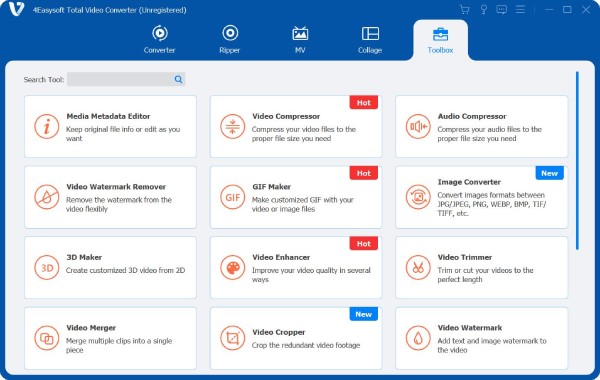
Step 1Run 4Easysoft Total Video Converter. From the main dashboard, go to the "Toolbox" section and choose "GIF Maker" from the options.
Step 2Import the video or GIF you wish to crop. Then, click the "Cut" button to open the trimming window; drag the start and end handles to split a GIF and adjust the GIF length.
Optionally, you can click the "Edit" button to apply extra edits like effects, filters, rotation, and more to refine your GIF.
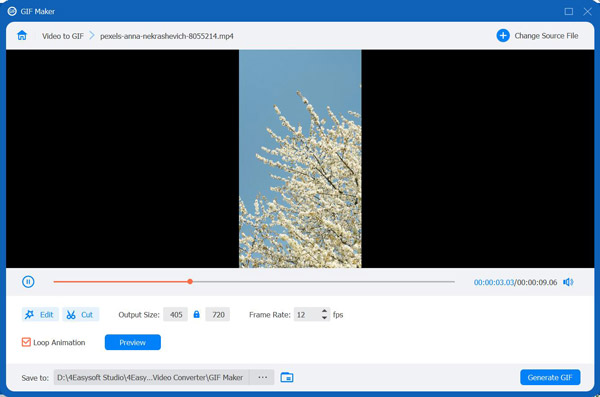
Step 3After that, you can set the "Output Size" and "Frame Rate" as you wish. Click the "Preview" button to check the GIF before exporting. Once satisfied, click the "Generate GIF" button to save shortened GIF to your computer.
100% Secure
100% Secure
Ezgif - Free Online GIF Cutter with Timeline Controls
Ezgif is one of the most well-known browser-based GIF cutters for trimming animations. It is designed with an intuitive timeline slider, allowing you to easily cut extra frames to reduce file size or highlight the important moments.
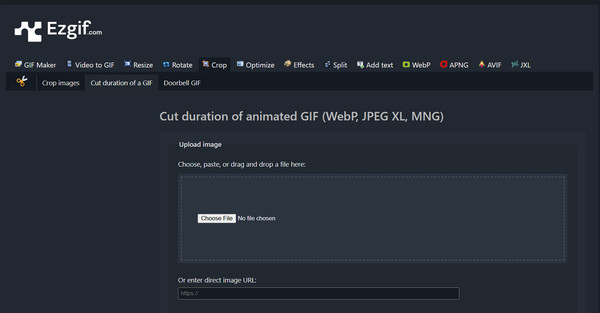
Step 1Upon visiting the Ezgif website, head to the "GIF Cutter" tool. There, upload your GIF file or paste a URL.
Step 2Use the start and end time fields or the slider to set the extract portion to keep.
Step 3Once done, click the "Cut GIF" button to trim GIF online. Download it when finished.
VEED.IO GIF Cutter - GIF Trimming with Editing and Effects
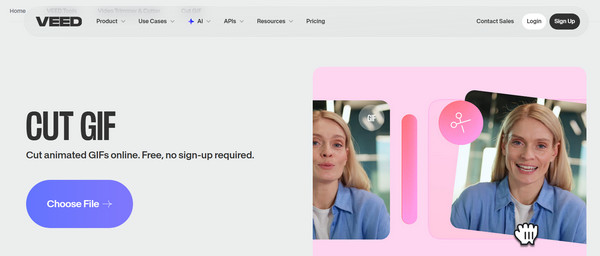
Another online GIF cutter, VEED.IO, offers more than basic cutting tools. Here, you can find text overlays (add text to GIFs), filters, compression, and resizing features. It is especially useful for content creators who opt for a smooth workflow without complicated settings.
Step 1Search for the VEED.IO GIF Cutter website. Upload your GIF from your computer or cloud storage.
Step 2Next, drag both handles on the timeline to determine the portion you wish to keep.
Step 3You can apply extra edits as you want to, then click the "Export" button to cut duration of animated GIFs successfully.
GIF Maker, GIF Editor - GIF Cutter with Frame-by-Frame Control
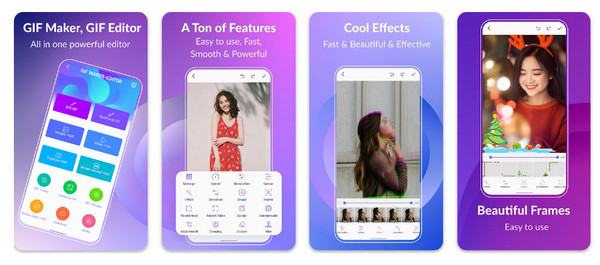
Next is a versatile Android GIF cutter that offers a complete suite of animation tools, the GIF Maker, GIF Editor app. It is great for anyone who's looking for precise trimming on mobile, thanks to its frame-by-frame viewer. Plus, it has offline editing so you can create and trim animations anywhere.
Step 1Open the GIF Maker, GIF Editor on your Android phone. On the main screen, tap on "Edit GIF" and import your video file.
Step 2Apply optional edits like filters or speed adjustments as needed.
Step 3Later, cut a fragment from a GIF and save it to your gallery.
ImgPlay - iOS GIF Cutter with Real-Time Preview
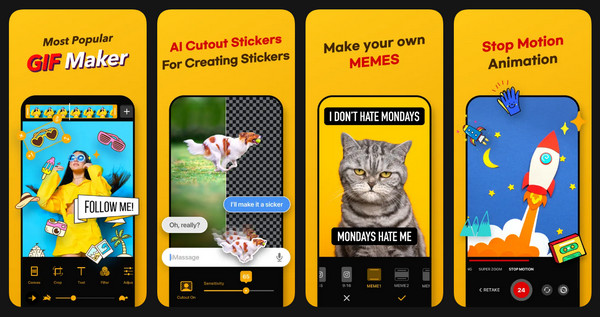
Finally, a highly-rated iOS GIF editor, ImgPlay, is known for its smooth interface and fast cutting features. This GIF cutter gives you real-time previews, making it easy for you to see exactly the changes before saving. Also, it features powerful extras like filters, text tools, and frame arrangement.
Step 1Launch ImgPlay on your iPhone. Upload our GIF from the library or iCloud.
Step 2Now, start dragging the trimming handles to cut animated GIFs online.
Step 3Edit your GIF if needed before tapping the "Save" button to export.
Conclusion
With so many GIF cutters available today, from desktop to online, refining GIF animations has never been more accessible. Each of the five tools discussed provides a way to cut, trim, and shorten GIFs depends on your preference and workflow. For users who wish for a powerful, all-in-one option, 4Easysoft Total Video Converter is an excellent choice. Its GIF Maker tool offers precise cropping, fast processing, and high-quality output, making it the best pick for anyone who edits GIF animations and needs reliable results every time.
100% Secure
100% Secure
