
Completely scan your iOS devices and delete all junk files on your iPhone, iPad, and iPod

[Quick & Easy] How to Delete Duplicate Photos on iPhone

Posted by Alvin Cantero to iOS Cleaner Mar 17, 2026
Many iPhone users are searching for a practical way to delete duplicate photos on their iPhones. It's simply because pictures and videos can accumulate quickly on an iPhone, especially with frequent shooting, editing, and sharing. Over time, duplicate photos may appear without being noticed, quietly taking up valuable storage space. This guide explains why there are duplicate photos on your iPhone and introduces several quick and practical ways to find and delete them safely on an iPhone.
Guide List
Why Are There Duplicate Photos on an iPhone How to Find Duplicate Photos on Your iPhone A Quick Way to Delete Duplicate Photos on iPhone How to Delete Duplicate Photos on iPhone Manually The Most Effective Tool to Remove Duplicate Photos on iPhoneWhy Are There Duplicate Photos on an iPhone
Before starting to learn the method of deleting duplicate photos on your iPhone, you should be aware of the reasons why they appear. This can help you effectively reduce the situation where they quietly occupy your phone's storage space in the future.
Take Multiple Photos at One Time: Sometimes, you might take multiple shots of the same subject just to get a good-looking picture. But in the end, I forgot to choose the most suitable one from among them. This resulted in several similar photos being displayed side by side in your library.
Multiple Imports from Different Sources: If you have the habit of transferring photos between your phone and computer, then duplicate photos may occur at this time. Generally speaking, the transmission service does not recognize the content within different devices. Once you have uploaded the same photos, it becomes tough for you to notice that they are simultaneously present on your iPhone.
iCloud Sync and Re-sync Issues: Temporary syncing interruptions or repeated sign-ins to iCloud may cause photos to be downloaded again, resulting in duplicates across albums. In such situation, you may delete photos from your iPhone but not iCloud.
Editing and Saving Copies: If you frequently use your iPhone to post photos or videos on social media platforms, then after editing them, you might easily save the edited version to your iPhone. However, since it is essentially a product based on the original image, the two pictures then become duplicate photos on your iPhone.
Messaging and Social Apps Downloads: Images received through apps like Messages, WhatsApp, or Instagram may be saved automatically, even if the same photo already exists in the library.
How to Find Duplicate Photos on Your iPhone
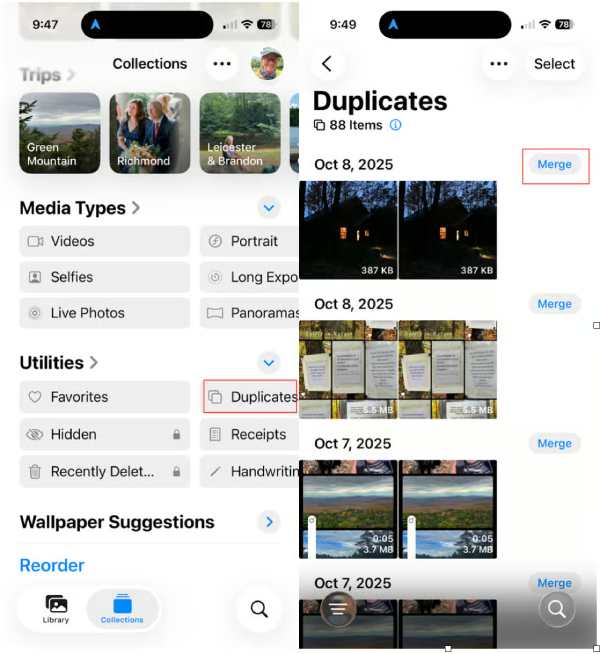
Although it may sound like a rather complicated process, in reality, Apple offers a built-in method to help you find duplicate photos on your iPhone. And you can simply access this feature by opening your Photo Library. You can follow the detailed steps below to start:
Step 1Open the "Photos" app on your iPhone, tap the "Album" button under the "Collection" tab.
Step 2Scroll down to find and tap the "Duplicates" button under the "Utilities" tab.
Step 3Here, you can find all the duplicate photos on your iPhone, which are listed and categorized.
A Quick Way to Delete Duplicate Photos on iPhone
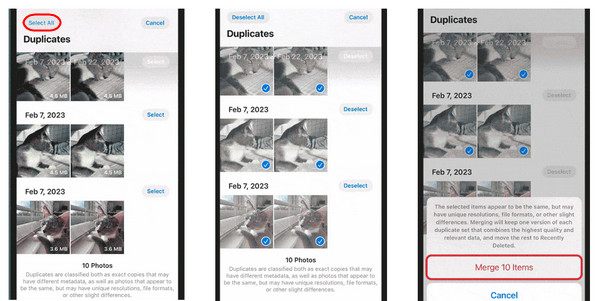
When duplicate photos are scattered across an extensive photo library, using a faster cleanup method becomes more practical. Quick removal options focus on identifying similar or repeated images automatically and deleting them in batches. This approach saves time and reduces the effort needed to review photos one by one.
Step 1On the page of the "Duplicates" tab, check and select the duplicate photos that you want to get rid of.
Step 2Tap the "Merge xx Items" button, and all the duplicate photos will be removed from your iPhone.
How to Delete Duplicate Photos on iPhone Manually
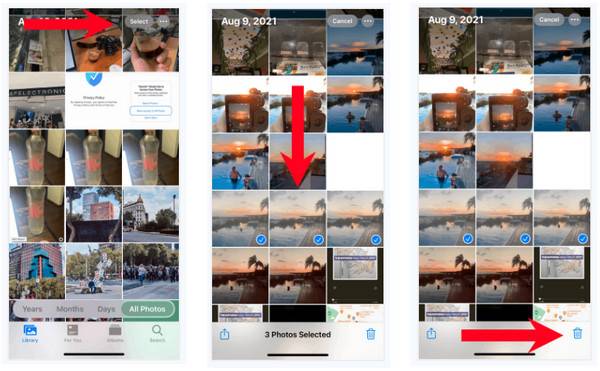
Sometimes, iOS may fail to recognize and find certain duplicate photos on your iPhone. So, you may need to check out through your Photo Library manually. However, it won't be so casual like it sounds. Because when duplicate photos are generated on your iPhone, especially those photos taken by yourself, they are likely to appear in a row. This method works well for small photo libraries or users who prefer to review every image carefully, though it can be time-consuming for larger collections.
Step 1Open the "Photos" app on your iPhone and tap the "Library" button to view all your photos.
Step 2Tap the "Select" button, and you can select multiple photos that look similar but are not detected by the system.
Step 3After selecting all the items, tap the "Delete" button to remove duplicate photos on your iPhone manually.
Tips
You can recover recently deleted photos on your iPhone if you make a mistake.
The Most Effective Tool to Remove Duplicate Photos on iPhone
For a thorough and efficient cleanup, a professional iPhone cleaning tool offers a more advanced solution. If you want to check and manage all the duplicate photos, including those that are not recognized by iOS, you can use 4Easysoft iPhone Cleaner. Designed to scan the device for duplicate and similar photos, it can help remove unnecessary copies while keeping important images intact. This method is ideal for reclaiming storage space with minimal effort.

Scan iPhone and classify all duplicate files, such as photos, videos, apps, etc.
Provide three erasing levels that come with cleaning intensities and security.
Preview all duplicate files to select the ones you want to delete and keep.
Support all models and versions of all iOS devices, like iPhone, iPad, and iPod.
100% Secure
100% Secure
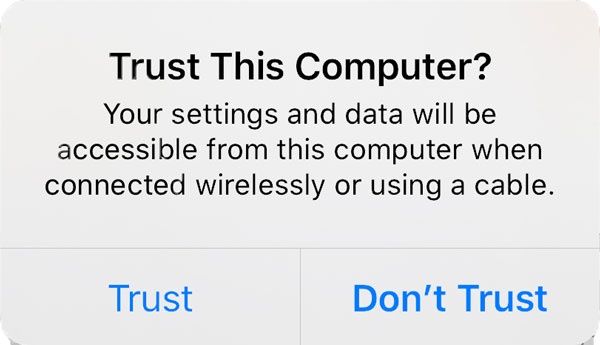
Step 1Launch 4Easysoft iPhone Cleaner on your computer and connect your iPhone to the device. Trust the device following the instructions.
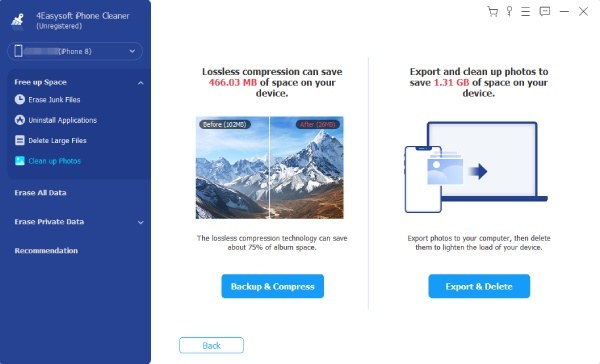
Step 2In the main interface, click the "Clean up Photos" button. To start removing duplicate photos on your iPhone, click the "Export & Delete" button in the new page.
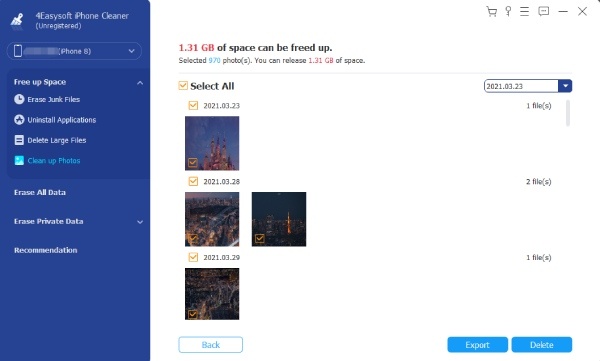
Step 3Here, you can select any photos, including duplicate images, to delete on your iPhone. And all iPhone photos will be backed up. Click the "Delete" button.
Conclusion
Removing duplicate photos on your iPhone can save storage and make photo management easier. While built-in solutions can work well for removing duplicate photos on your iPhone, they cannot find all the duplicates in detail. To get full management of your photo library, 4Easysoft iPhone Cleaner helps free up storage space by deleting duplicate photos quickly and safely.
100% Secure
100% Secure
