
Transfer photos, videos, music, and more between iPhone and computer flexibly.

4 Ways to Combine Photos on iPhone? (and How to Organize?)

Posted by Alvin Cantero to iOS Transfer Sep 23, 2026
When you think about how to combine photos on iPhone, it can mean a few completely different things depending on what you're trying to create. You may want to stitch screenshots side-by-side, create a photo grid, or even turn a collection into a video. Luckily, your iPhone can do all of the above. And because it can get messy sometimes, here are the 4 ways to combine photos together on iPhone, plus how to fix those annoying combining cases, and more. Start your camera roll upgrade here!
Guide List
Combine Photos on iPhone with the Shortcuts App Combine Photos into a Collage on iPhone with Instagram Blend, Double Exposure, and Overlay Two Photos on iPhone with Canva Combine Photos into an Album or Slideshow with iMovie Easy Way to Transfer and Organize iPhone Photos Troubleshoot Common Problems While Combining iPhone PhotosCombine Photos on iPhone with the Shortcuts App
If your goal is to merge two photos into one on iPhone seamlessly, such as putting two screenshots together or making a quick comparison, you don't need a third-party app. Apple's built-in Shortcuts app allows you to stitch photos horizontally or vertically in just a few taps.
Best for: Clean, simple side-by-side stitching, combining screenshots, and grid comparisons.
Step 1Launch Shortcuts on iPhone, tap the "Add" button in the top right. Tap "Add Action" and search for "Select Photos", and tap on it. Turn on the "Select Multiple" toggle.
Step 2Then, look for the "Combine Images" action and add it next. Tap "Horizontal" to change it to vertical or a grid.
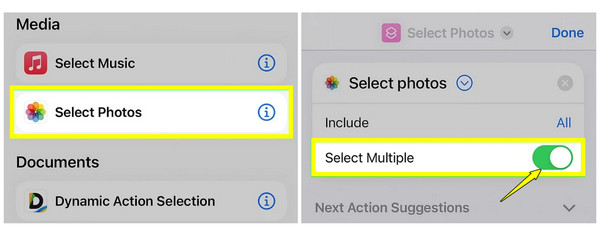
Step 3Next, search for "Save to Photo Album" and add it to the end so your final result will be stored in your library. Tap the "Play" button in the bottom right, select your images, and check the Photos app for the result.
Combine Photos into a Collage on iPhone with Instagram
When you want to combine a collection of favorite pictures into a single frame, creating a collage is the way. For this, Instagram has a built-in feature called Layout to combine multiple photos without any watermarks or hidden costs. Follow steps below to make a collage on Instagram.
Best for: Quick, grid layouts and instant sharing to social media.
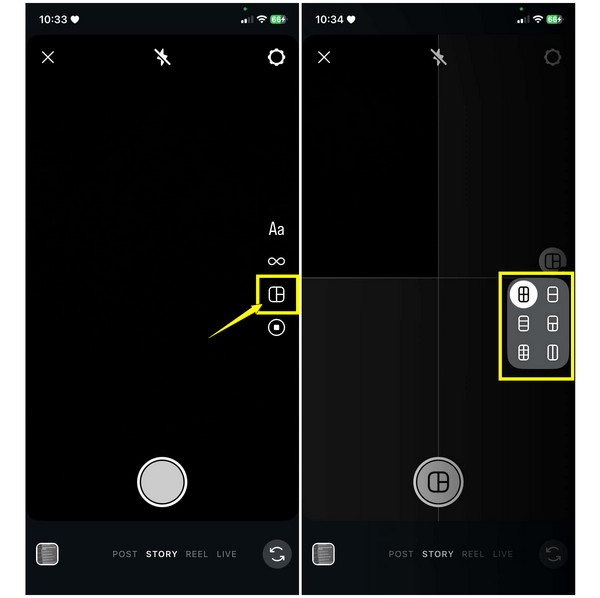
Step 1Open Instagram and swipe right from your feed to access the "Story" camera. On the left-hand menu, tap "Layout". Tap "Change Grid" to select the layout that fits your project.
Step 2Next, tap the "Gallery" icon in the corner to choose pictures from your camera roll, or snap new ones. Once your grid is full, tap the "Checkmark" button. You can then share it directly or tap the "three-dots" and tap the "Save" button.
Blend, Double Exposure, and Overlay Two Photos on iPhone with Canva
You might want to literally merge two pictures on iPhone into one frame, so stepping into the artistic side by overlaying with Canva! This tool offers a highly intuitive drag-and-drop workspace on iPhone that allows you to layer multiple images and blend them easily.
Best for: Blending images, making overlays and double exposures, and designing polished graphics.
Step 1Upon opening Canva, tap the "Add" button at the bottom and choose the blank canvas size. Tap "Uploads", select your background photo, and drag it to fit the canvas.
Step 2Tap the "Add" button again, upload your second photo, and place it on top of the first image. Then, scroll down to the toolbar and select "Transparency", lower the slide until it blends beautifully.
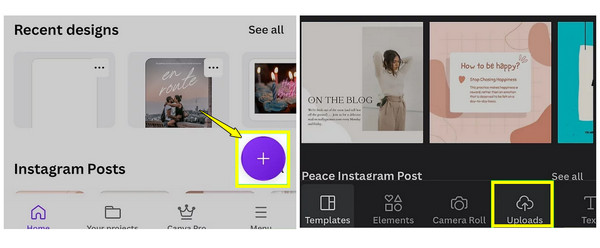
Step 3You can also use the "Effects" or "Filter" tools for further edits. Tap the "Download" button to save your project.
Combine Photos into an Album or Slideshow with iMovie
For those times when blending is not enough, try combining photos on iPhone with iMovie. You can turn your photos into cinematic slideshows with transitions and music, letting you experience your collection of pictures dynamically.
Best for: Recap videos, chronological story, and dozens of photos into a watchable presentation.
Step 1Open the iMovie app, tap "Start New Project", and choose "Movie". Browse your library, check the boxes on all pictures you want to combine, and tap the "Create Movie".
Step 2Your pictures will then be placed on a timeline with smooth transitions between them. You can pinch the photos to crop them, drag each to reorder, or tap the "Transition" icon between the clips to change it.
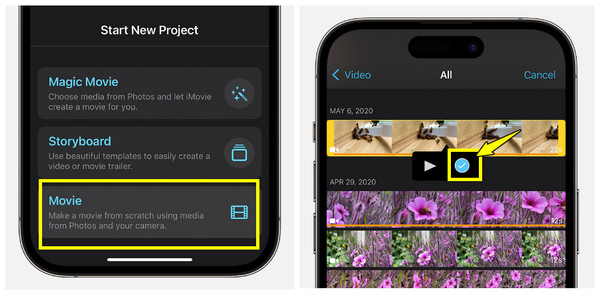
Step 3Tap the "Add" button to add an audio track from your files or the built-in library. Finally, tap the "Done" button on the left to share/save your video.
Easy Way to Transfer and Organize iPhone Photos
Successfully combined photos on iPhone into collages, comparisons, or slideshows? Your iPhone storage can quickly fill up. Fortunately, keeping your camera roll organized does not have to be a headache, as long as you're using 4Easysoft iPhone Transfer. Working as a direct iTunes alternative, this software allows you to securely manage your iPhone library over a fast, stable connection without worrying about connection drops. It provides a super-fast data speed that can handle 4K photos or even bulky videos without freezing or lagging.

Cross-platform transfer of photos, videos, music, and more without restrictions.
Easily preview, add, delete, and group iPhone photos into organized albums.
Duplicate cleaner, wiping out identical photos to free up storage space.
Can change Apple photo format into universal formats during transfer.
100% Secure
100% Secure
Step 1Connect your iPhone to your computer upon launching 4Easysoft iPhone Transfer. Tap "Trust" on your iPhone screen if prompted to accept permissions.
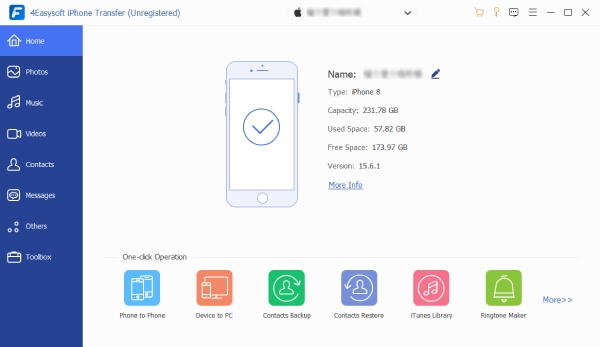
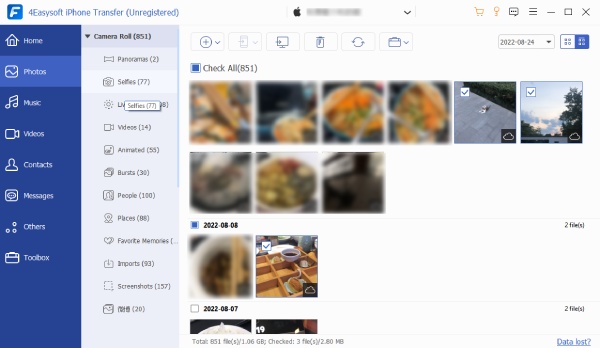
Step 2With your iPhone detected, go to "Photos" in the left menu. Open the relevant album, find the photos you need, and select them for transfer.
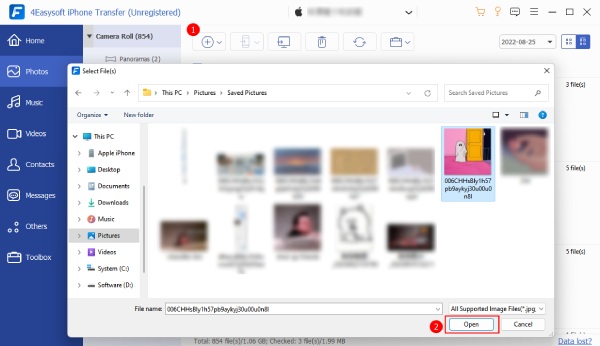
Step 3Click the "Export to PC" button at the top to start the transfer. Choose a folder on your computer, and the selected iPhone files will be saved there.
Troubleshoot Common Problems While Combining iPhone Photos
Once you've chosen the best tool, you may still face some issues when combining photos on iPhone. If you find your final masterpiece is not looking quite right, these problems have fixes that can take just a few seconds.
- 1.Combines Image Looks Blurry/Low Quality. Always ensure you're using the original images from Photos. Then check the export settings in your editing app.
- 2.White Borders in Between Photos. Within the app you use, look for a setting named Spacing or Border and drag the slider down to 0.
- 3.Photos Look Different Sizes in the Grid. Crop all your chosen photos to the same aspect ratio, like 1:1 or 4:3, in the built-in editor before combining them.
- 4.Watermark on Saved Image. You can use the built-in Crop tool in the Photos app to cut out the watermark right off.
- 5.Output is the Wrong Shape for Instagram. Before exporting, look for canvas in your app and lock it to 1:1 for grid posts, or 4:5 for vertical posts.
- 6.Live Photos Animation is Missing. To keep the movement alive when you merge pictures on iPhone, you'll need to use a video editing app to place the Live Photos side-by-side and export as a video.
Conclusion
Wrapping it all up, with the Shortcuts app, Instagram, and Canva, you can now merge or combine photos together on iPhone regardless of what you like. And if a layout looks a bit awkward, you know exactly how to tweak those settings! But since all those collages and slideshows can turn into crowded camera rolls, don't forget to keep them organized with 4Easysoft iPhone Transfer. Enjoy the easiest way to offload media, manage libraries, and keep your iPhone running smoothly.
100% Secure
100% Secure
