
Reliable video converter, editor, and compressor for daily tasks.

Add Images to a Video Easily on PC/Mobile for Better Effect

Posted by Aira Lesly Escoto to Edit Video/Audio Apr 07, 2026
Adding photos to your videos can help capture your audience’s attention, prompt reflection through on-screen imagery, and allow you to convey your message more effectively. Almost all video editing software supports adding images to videos, but if you’ve never tried it before, you might initially feel unsure about how to achieve the best results. This guide will help you learn how to add images to your videos and introduce various methods for doing so.
Guide List
Add Images to Videos on Windows/Mac with Stunning Effects Use iMovie to Add Images to Videos for Mac Users How to Add Images to Videos with 2 Online Tools Apps to Add Images to Videos on Android and iPhone Quick Comparison of All Tools to UseAdd Images to Videos on Windows/Mac with Stunning Effects
4Easysoft Total Video Converter is a comprehensive video editing software compatible with both Windows and Mac systems. In addition to conversion, it allows you to enhance and edit videos and images. The program includes over 15 tools, including a video watermarking feature that lets you add text or images to your videos. It also offers dozens of beautiful themes and filters to choose from. Most importantly, it supports AI technology to enhance video quality, producing high-definition videos with balanced colors.
Offer over 15 tools, such as merging videos, adding images, and compressing videos.
Provide a variety of filters, effects, and themes that you can apply to your videos to make them more engaging.
Optimize the brightness and contrast to make them appealing and better suited to your video style.
Support converting videos to multiple formats and easy to share on social media.
100% Secure
100% Secure
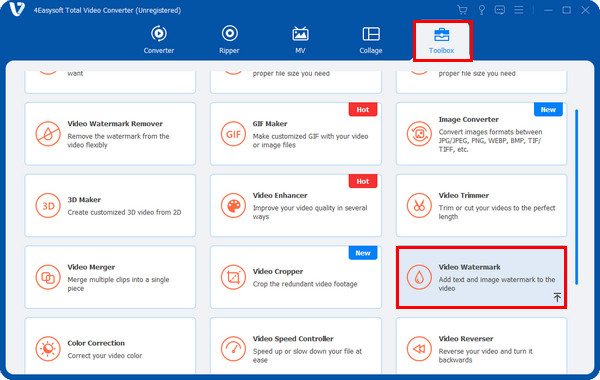
Step 1Open this software, click the Toolbox tab from the above menu on the main interface. Then find the Video Watermark, and add text or an image to a video.
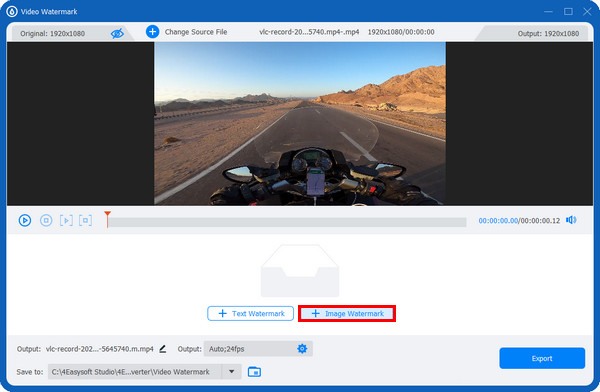
Step 2Click the "Plus" button in the middle to add a video, then click the "Open" button to import. Choose the "Image Watermark", then add the image to videos.
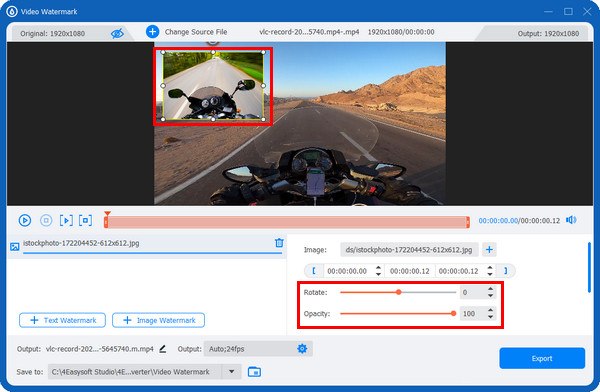
Step 3After that, drag the image to put it in the place you want in your video. You can also rotate it by pulling the "Rotate" sliders or the rotation above the image. And adjust the transparency by pulling the "Opacity" sliders.
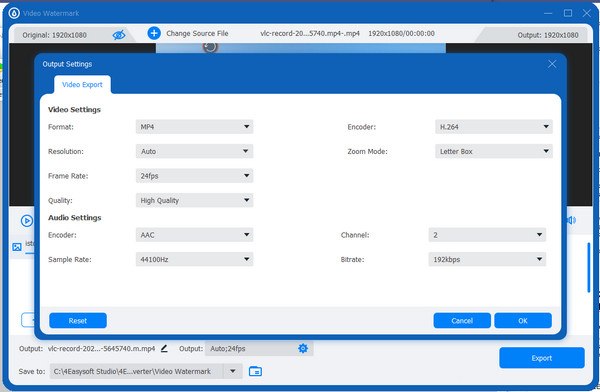
Step 4After adding images to videos, you can click on the "Output" with a "Gear" to adjust video settings, such as the Resolution, Frame Rate, and Quality. Finally, click on the "Export" button.
Use iMovie to Add Images to Videos for Mac Users
iMovie is a free video editing application. It comes pre-installed on most Mac products, so Mac users can use it without having to purchase or download it. With iMovie, you can easily add images to videos using Picture-in-Picture or Cutaway modes. You can also freely adjust the duration of the images to precisely match the rhythm of the video.
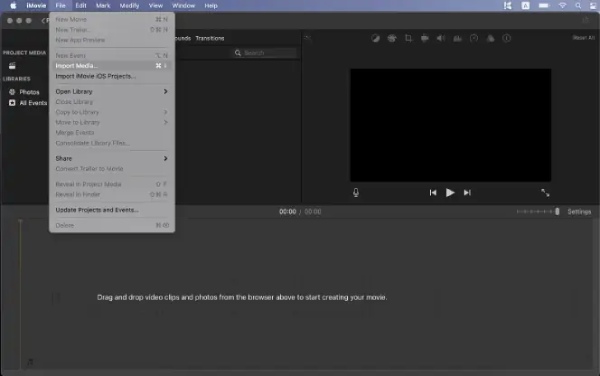
Step 1Launch iMovie and create a new project. Click "File" and "Import Media", locate the videos and images you plan to use, and import them into the project.
Step 2Select the video clip or portion of a clip you want to use as the Picture-in-Picture background. Drag it onto another clip on the timeline. When you see the green plus, release the mouse button to place it.
Step 3Click the dropdown menu on the left side of the preview window and select "Picture-in-Picture". Drag the image to the location on the screen where you want it to appear.
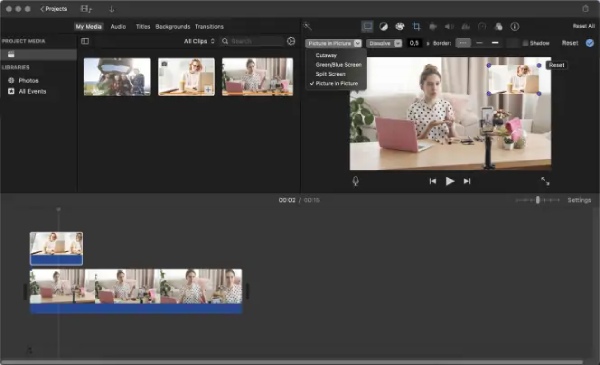
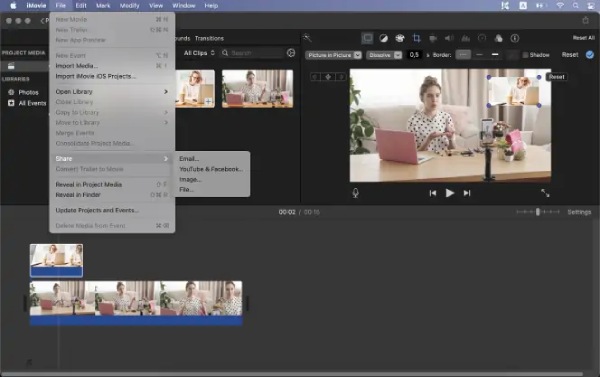
Step 4Use the provided controls to resize the image or apply transition effects, borders, and shadows. Finally, click "File" and "Share" to open the export menu. Select how you want to share the video.
How to Add Images to Videos with 2 Online Tools
1. Kapwing
Kapwing allows users to upload and add images to videos directly in their browser. It supports MP4 export and cloud storage, making it ideal for creators who switch between different devices. With its drag-and-drop editing and timeline controls, users can freely adjust the position, size, duration, and layering of images. Kapwing also offers basic image editing features, such as background removal, color correction, and opacity adjustment.
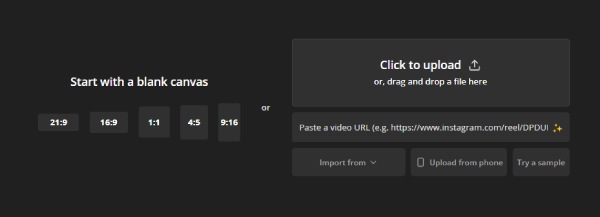
Step 1Click the "Upload" button or simply drag and drop files into the browser window to upload videos and images. Videos will automatically appear on the canvas.
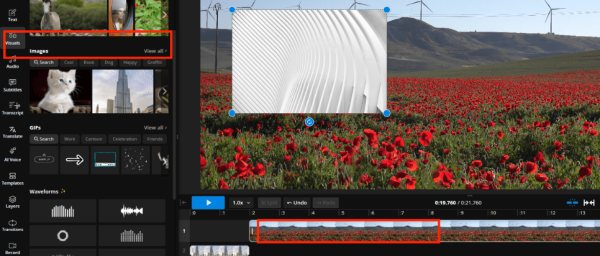
Step 2Move them to the desired location. Drag the corner handles to resize or rotate the image. In the toolbar on the right, use the Opacity, Fade, and Animation options to style the overlay.
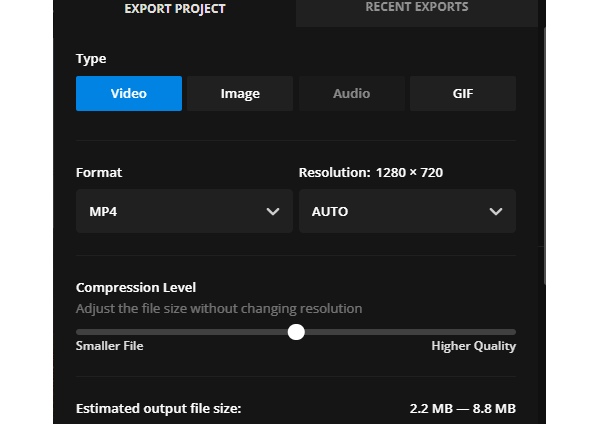
Step 3Click "Export Project" and "Export as MP4". Once processing is complete, download the finished video or copy the link to share it online directly.
2. VEED.IO
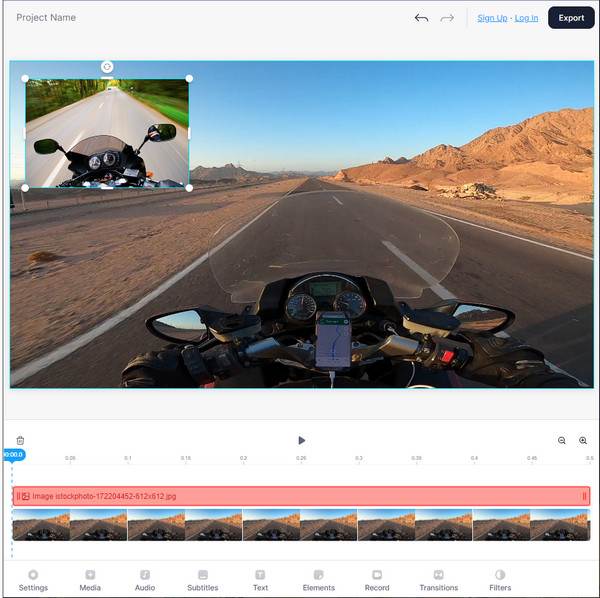
VEED.IO is an online video editing tool that offers a wide range of editing features, such as adding images. With this online tool, you can add subtitles, effects, rotate, crop, resize, and more to your videos. Here are the specific steps for adding images to a video using VEED.IO.
Step 1Open any web browser, then go to VEED.IO's main page. Click on the "Choose Video" button to select your video to upload to the page. Or simply drag and drop it.
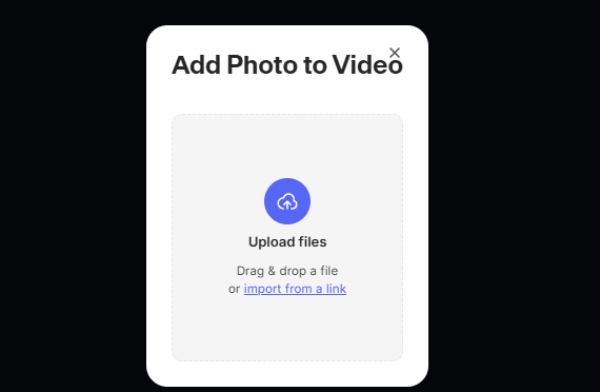
Step 2You will see a Media with a Plus icon on your screen; click on it to upload an image. After you add the image, start editing your video by adding text, transitions, filters, etc. When done, you can click on Export to get the job done.
Apps to Add Images to Videos on Android and iPhone
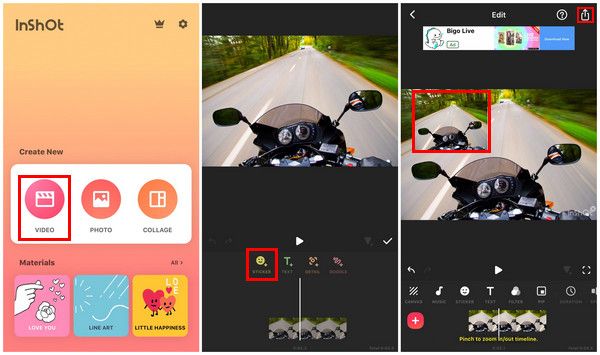
InShot is a mobile video editing app. For users who enjoy editing videos on their mobile devices, adding images, stickers, or text to videos takes just a few taps. Importing videos, overlaying photos or logos, and adjusting their position on the timeline is incredibly simple. In addition, the app includes tools for trimming, cropping videos, speed control, filters, and basic audio editing.
Step 1Open the InShot app on your phone. Tap the "Video" option to enter the video editing interface.
Step 2Select the "Stickers" option, then tap the "Add Sticker" button. Choose the image you want to add to the video from your "Camera Roll". Once selected, the image will automatically appear at the top of the video.
Quick Comparison of All Tools to Use
Below is a comparison table showing the features of the tools mentioned above. You can use these features to determine which tool you need.
| Tool | Platform | AI Features | Format Support | Resolution / Output Quality | Processing Type | Ease of Use |
| 4Easysoft Total Video Converter | Win / Mac | Basic enhancement | Very strong | Up to 4K / customizable bitrate & resolution | Local | High |
| iMovie | Mac / iOS | None | Moderate | Up to 4K | Local | High |
| Kapwing | Web | AI generation | Moderate | Up to 4K | Online | Medium |
| VEED | Web | AI subtitles | Moderate | Up to 4K (plan & browser dependent) | Online | High |
| InShot | iOS / Android | Basic smart features | Moderate | Up to 1080p / limited 4K support on some devices | Local | Very High |
Conclusion
With these methods, editing videos and adding images has become much easier. You can quickly learn how to add images to your videos to make them more engaging. Whether you’re using a computer or a smartphone, you can accomplish this task. For desktop users, we highly recommend software like 4Easysoft Total Video Converter. This program isn’t just a converter; it also offers a wide range of editing features, allowing you to customize the images you add, as well as other tools such as cropping, filters, and color correction.
100% Secure
100% Secure
