
Transfer anything from/to iPhone, iPad, and iPod.

Sync Messages from iPhone to Mac: 2 Easy Ways and More

Posted by Alvin Cantero to iOS Transfer Jul 31, 2026
There's nothing quite like the smooth flow of answering an iPhone text directly from your Mac while you're busy. But after you've updated your device, that productivity stops when messages aren't syncing on Mac. To get your workflow back on track, you're going to look at two of the most reliable ways to sync messages from iPhone to Mac today! As an added bonus, you'll see how to transfer to a PC. By the end, your chats stay updated in real-time like clockwork.
Guide List
How to Sync Messages in iCloud from iPhone to Mac How to Sync Text Message Forwarding for SMS/Green Bubbles Common Failure Scenarios and Fixes of Messages Not Syncing Bonus Tip for Transferring iPhone Messages to PC FAQsHow to Sync Messages in iCloud from iPhone to Mac
You can think of iCloud as the master for your Apple devices. Once it is turned on for Messages, you are completely syncing it to your Mac and not just sending a copy of your texts, as long as it is signed into the same Apple ID. If you delete a text on your iPhone, it vanishes too from your Mac. You will never have to look back and forth between two screens anymore.
Before your two Apple devices start sharing everything, see here the steps to share messages from iPhone to Mac:
Step 1Get your iPhone and launch "Settings". Tap on your Apple ID at the top, then tap "iCloud" and look for "Saved to iCloud" sections and tap "Messages". Make sure to switch the toggle to ON.
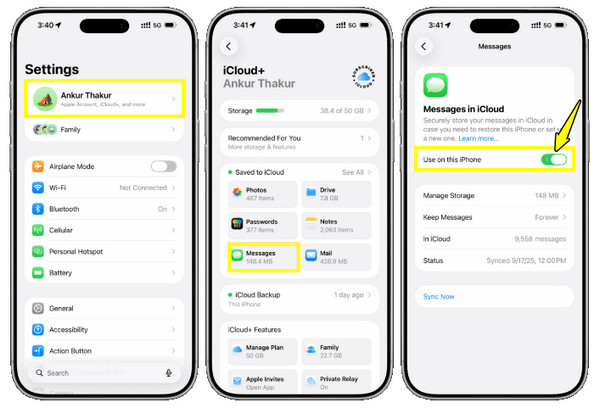
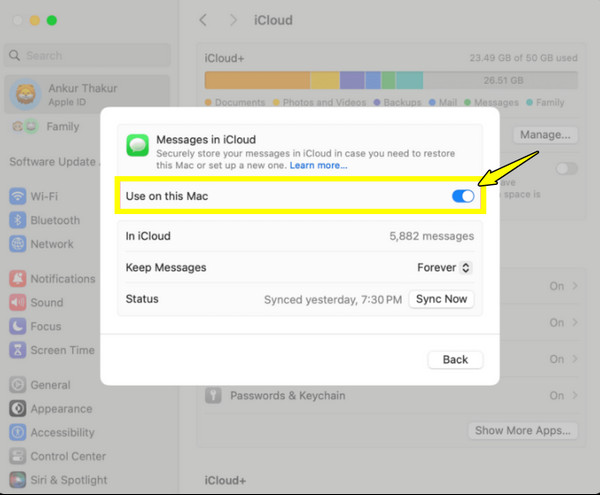
Step 2Then, start your Mac and launch "System Settings". Click on your Apple ID at the top, head to "iCloud" then "Messages".
Step 3There, turn on the "Use on this Mac" switch button, and click the "Done" button. Or, you can click the "Sync Now" button and keep your Mac connected to Wi-Fi until the sync is finished.
How to Sync Text Message Forwarding for SMS/Green Bubbles
While iCloud handles blue-bubble iMessage flawlessly, it often leaves standard SMS texts or those green bubbles from Android users or alerts. To fix iMessage not syncing on Mac, you need to grant your iPhone permission to link its cellular text messages through your Mac's screen.
The overall steps for green bubbles take less than a minute. Here's how to message from iPhone to Mac:
Step 1Open your iPhone "Settings", scroll down, and aim for "Messages". Scroll down to the "Text Message Forwarding" and tap on it. If you don't see it, ensure you're signed into the same Apple ID on both devices.
Step 2You'll then see the list of Apple devices. Find your Mac from there and flip the toggle switch to ON.
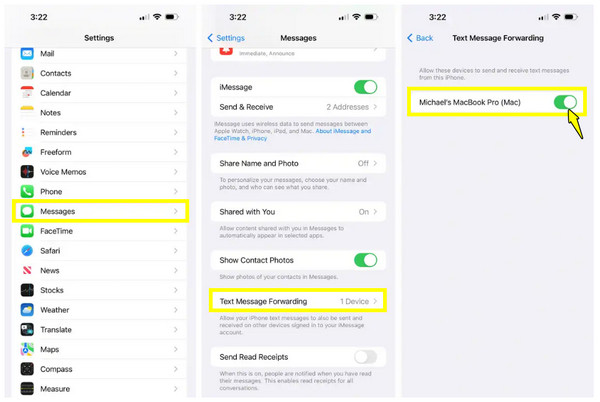
Step 3If prompted, a one-time verification code will pop up on your Mac; simply type it on your iPhone for a successful handshake.
Common Failure Scenarios and Fixes of Messages Not Syncing
Even if you got the steps right for syncing messages from iPhone to Mac, iCloud can still face some issues, like messages not syncing on Mac, and more.
Don't just restart your device; try the following fixes for the most common iPhone to Mac message syncing issues right now.
1. Blue bubbles synced, but green ones are missing.
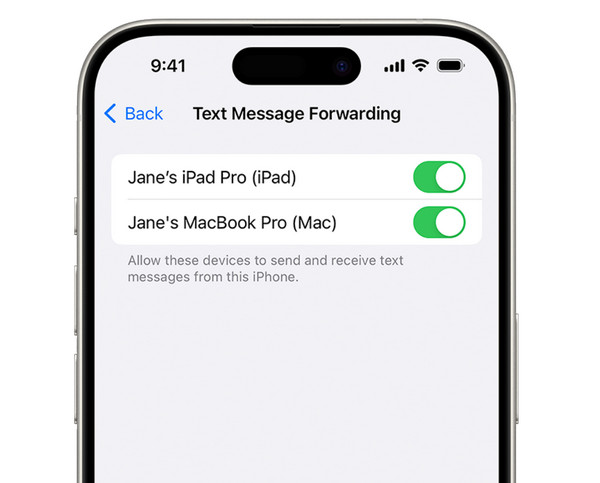
On your iPhone, open "Settings" then "Messages", and select "Text Message Forwarding". Ensure the toggle beside your Mac's name is switched ON.
2. Messages appear on Mac, but deletions don't.
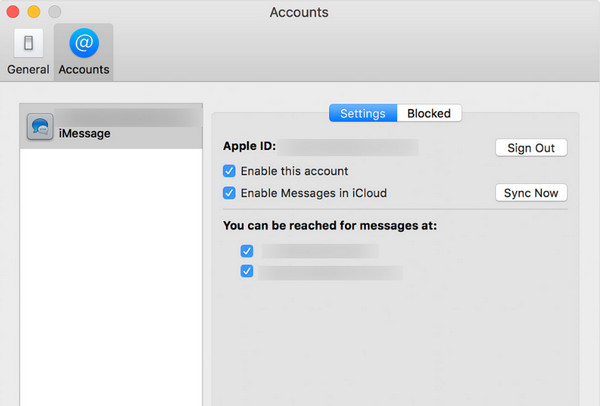
Ensure the "Enable Messages in iCloud" is checked on the Mac's Messages Settings. On your iPhone, toggle the "Turn On This iPhone" under "iCloud". If this is already on, toggle it off, wait for a while, and turn it back on.
3. Old messages suddenly reappear on Mac.
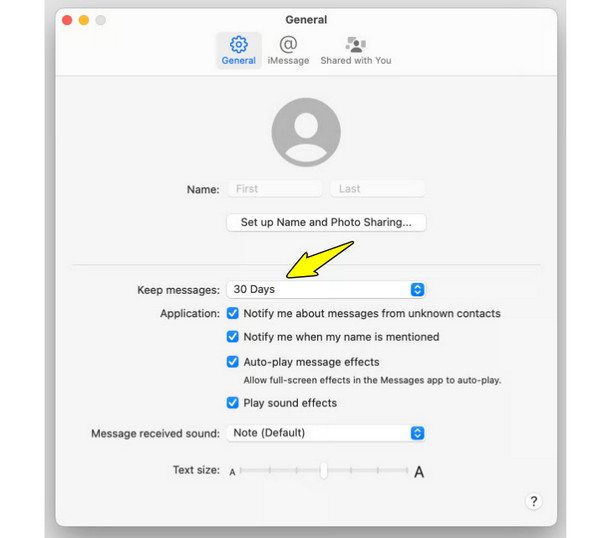
From Mac's "Messages" app, head to "Settings" then "General". Look for "Keep Messages" and change it to "One Year" or "30 Days".
4. Conversations are completely out of order on Mac.
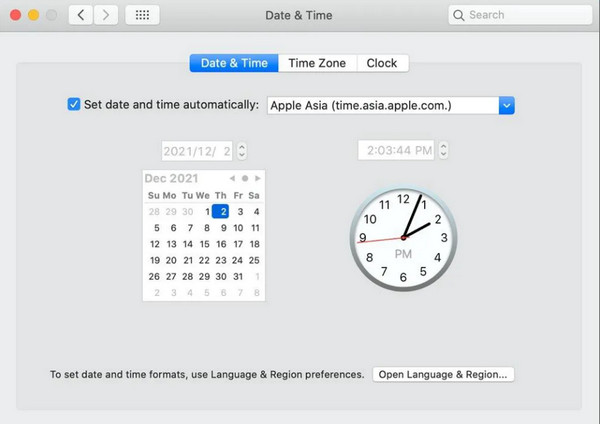
On both Apple devices, navigate to the "Date & Time" settings and turn "Set automatically" to OFF and turn it back ON. Then restart your Messages app on Mac.
5. Mac Messages shows the rainbow wheel and crashes.
Force quit the app on Mac by "Cmd + Option + Esc" keys. Then, hold down the "Shift" key while relaunching Messages to prevent it from reloading the previous windows and clear out the layout cache.
6. Receiving texts on Mac but can't send them to Android.
Try turning off any active VPNs. Then, open iPhone "Settings" then "Messages" to "Send & Receive". There, uncheck the phone number, wait for a while, and re-check it to re-register your cellular line with the iMessage server.
Bonus Tip for Transferring iPhone Messages to PC
How about moving beyond syncing messages from iPhone to Mac? If you're using a Windows PC for work and everyday tasks, you might wonder how to sync text messages from iPhone to PC. Doing so does not have to be a headache, though. With 4Easysoft iPhone Transfer, you can bypass all Apple's restrictions and connect your iPhone directly to PC over a USB cable. This tool works very lightweight, moving your conversations and attachments from your iPhone, even from messaging apps like WhatsApp, Messenger, LINE, etc. Instead of dealing with complex cloud settings, you can enjoy a clean visual dashboard here to manage, browse, and transfer your iPhone's internal files.

Transfer data between iOS devices, Android phones, and Windows PCs.
Backup entire text messages, histories, attachments, and more to your computer.
Easily preview, select, and add messages before moving them.
Built-in search feature to find and transfer one exact message.
100% Secure
100% Secure
FAQs
-
Can I sync my iPhone messages to Mac with a different Apple ID?
Unfortunately, no. The syncing features for both blue and green bubbles rely heavily on Apple's security, needing both devices to be signed into the same Apple ID.
-
Why are my group chats splitting into different threads on Mac?
Your Mac's Messages app is trying to sort contacts by email address, while the iPhone is sorting them by phone number. To fix, ensure both the number and the Apple ID are checked in both devices.
-
If I delete a message on my Mac, will it be deleted from my iPhone too?
Yes, but only if you have enabled Messages in iCloud on both devices. When iCloud syncing is active, your two devices act like a mirror.
Conclusion
You can finally put down your iPhone and keep your workflow on Mac! With the steps, those blue and green bubbles can be easily synced from iPhone to Mac. And remember, if syncing iPhone text messages to Mac freezes up, just simply do some quick toggles in your settings. Also, Windows users won't be left out, as there's 4Easysoft iPhone Transfer ready to skip those Apple restrictions. Manage and transfer your iPhone messages to a PC over a simple USB cable. Get it below and enjoy your messages on whatever screen.
100% Secure
100% Secure
