
Remove screen passcode, Apple ID, MDM and Screen Time from iPhone safely.

A Comprehensive Guide on How to Remove the Passcode from iPhone

Posted by Alvin Cantero to iOS Unlocker Jun 09, 2026
Learning how to remove a passcode from an iPhone can be extremely useful in many situations. Although it is used to protect your device and privacy, the passcode often prevents you from quickly accessing your iPhone. Even if you forget the passcode, this issue could prevent you from accessing your iPhone. This guide covers several practical methods to remove a passcode from an iPhone, ranging from built-in settings to advanced recovery options.
Guide List
A Default Way to Remove the Passcode from an iPhone After Unlocking How to Remove a Passcode from an iPhone Safely When Locked Recovery Mode: A Quick Method to Remove a Passcode from an iPhone Data Removal - A Strong Way to Remove a Passcode from an iPhone [Bonus] How to Remove Passwords for App Use from iPhoneA Default Way to Remove the Passcode from an iPhone After Unlocking
If you know your passcode, you can easily remove it from an iPhone after unlocking the device. This default method allows you to remove the passcode without any risk and quickly access your iPhone afterward. Although doing so removes a layer of security from your iPhone, it also greatly improves the convenience of accessing it.
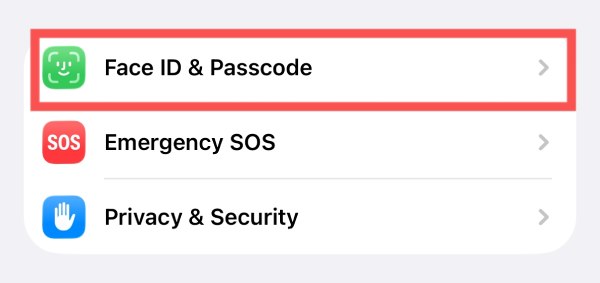
Step 1Open Settings on your iPhone and scroll down to tap the "Face ID & Passcode" button.
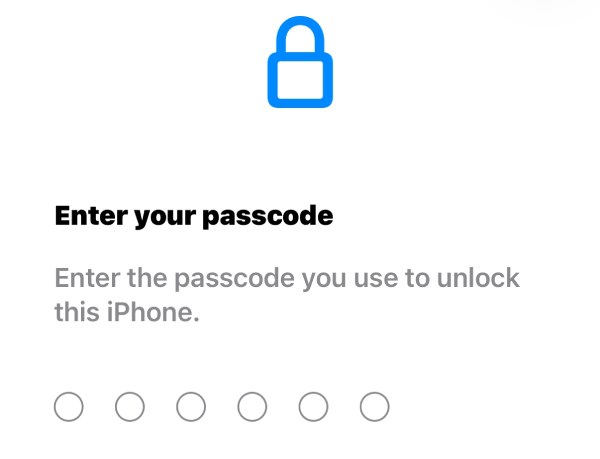
Step 2Enter your passcode to ensure security before removing the passcode from your iPhone.
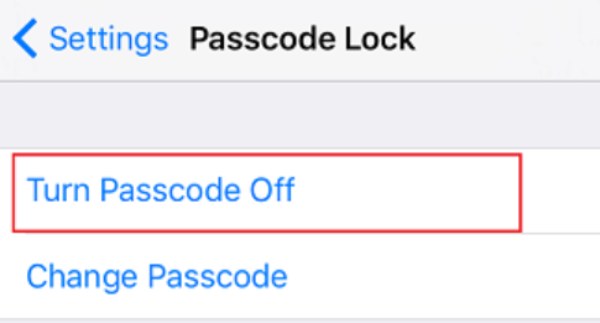
Step 3Scroll down and tap the "Turn Passcode Off" button.
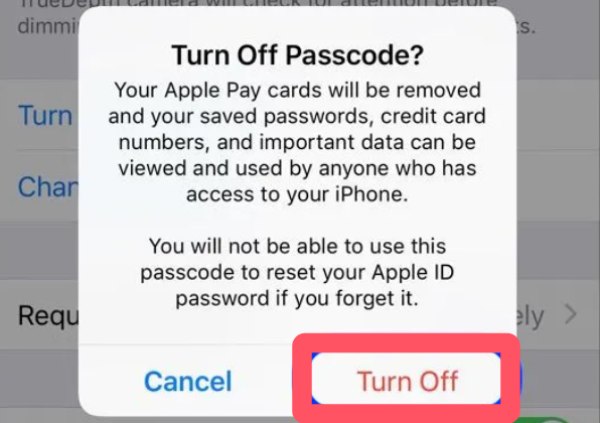
Step 4A window will pop up to inform you of the risk of turning off the passcode. Tap the "Turn Off" button to confirm.
How to Remove a Passcode from an iPhone Safely When Locked
If the iPhone is locked and the passcode is no longer accessible, a dedicated unlocking tool can provide a safe and efficient solution. 4Easysoft iPhone Unlocker is designed to remove various types of screen locks, allowing users to bypass passcodes on an iPhone and regain access without the original passcode. With a guided interface and broad device compatibility, it simplifies the unlocking process while maintaining reliability.
Remove passcode from the iPhone and allow access.
Get into your locked/disabled/frozen iPhone safely.
Unlock a disabled iPhone even after too many tries.
Decrypt iTunes Backup if you forgot the password.
100% Secure
100% Secure
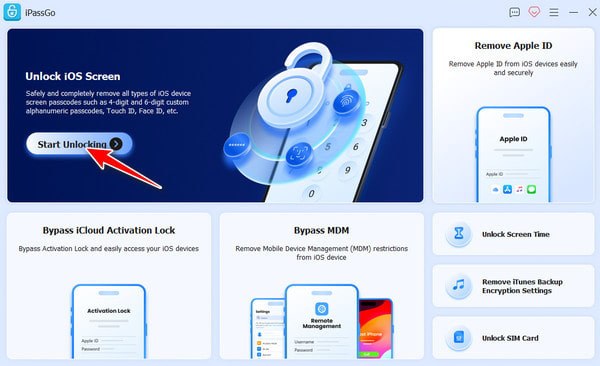
Step 1Launch 4Easysoft iPhone Unlocker and click the "Start Unlocking" button. After connecting your iPhone via USB, click the "Start Now" button.
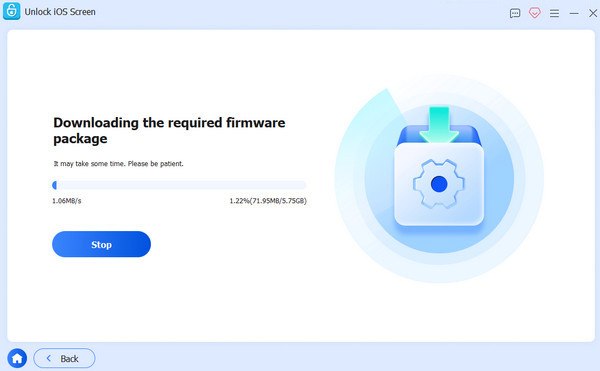
Step 2Click the "View Details" button to check that the information listed is correct. Then, click the "Start" button to download the necessary firmware.
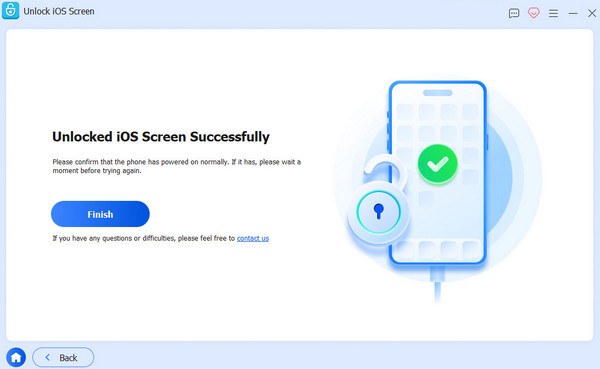
Step 3Follow the instructions, then click the "Finish" button to complete the process. The passcode will be removed from your iPhone.
Recovery Mode: A Quick Method to Remove a Passcode from an iPhone
To help users resolve issues like forgotten passwords, Apple provides a Recovery Mode on the iPhone. In this mode, you can reset your iPhone to resolve some unsolvable problems. However, it can be challenging for beginners. By following the steps below, you can use this method if you forget your iPhone password. Please note that all your data will be completely erased, so be sure to back it up beforehand.
Step 1Launch Finder on your Mac or iTunes on your Windows. Connect your iPhone to the device using a USB cable. Make sure of a stable connection.
Step 2Force restart your iPhone when it's connected to the device. Perform the action based on your iPhone model.
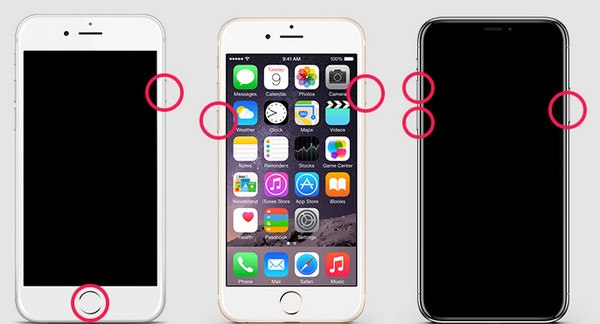
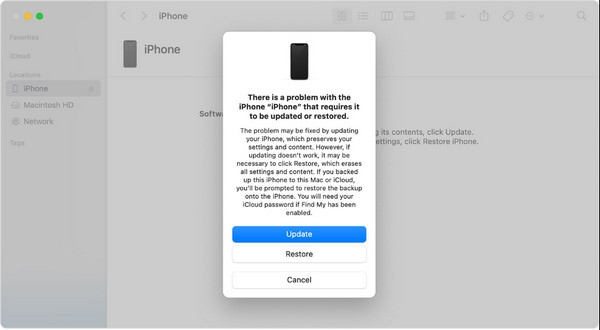
Step 3In Finder or iTunes, click the "Restore" button to reset your iPhone and remove the passcode from your iPhone.
Data Removal - A Strong Way to Remove a Passcode from an iPhone
If you're unsure how to remove a passcode from an iPhone, a very reliable method is to erase all data from the device. This method can even help you unlock your iPhone without a passcode or Face ID, since the passcode is stored as data on the device. Once you erase everything, the passcode will be removed from the device. However, keep in mind that this method will erase all related data.
Step 1When you are asked to enter the passcode for your iPhone, type the wrong passcode six times.
Step 2When it notifies that your iPhone is locked due to security reasons, tap the "Erase iPhone" button at the bottom.
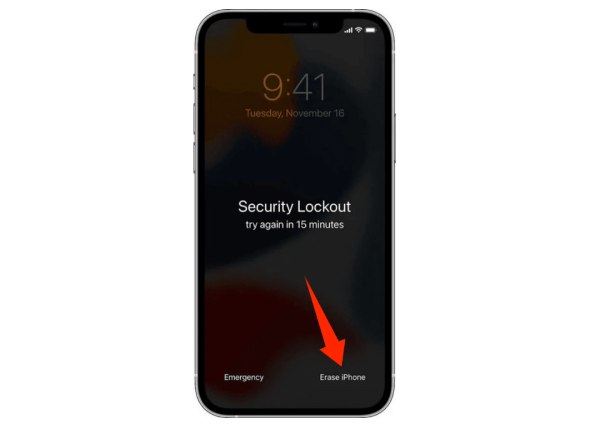
Step 3Enter your Apple ID and passcode to confirm the action. The passcode will be removed from the iPhone, while all the data will be wiped.
[Bonus] How to Remove Passwords for App Use from iPhone
In addition to the lock screen passcode, iPhones also store passwords for apps and services within the Passwords feature. In most cases, it will assist you in quickly entering your account and password on specific websites with your permission. This makes it very convenient to access some websites quickly. But inevitably, some potential risks followed. For some crucial information, consider removing these passcodes from your iPhone to prevent any accidental loss. This section introduces how to locate and delete stored passwords directly from the device.
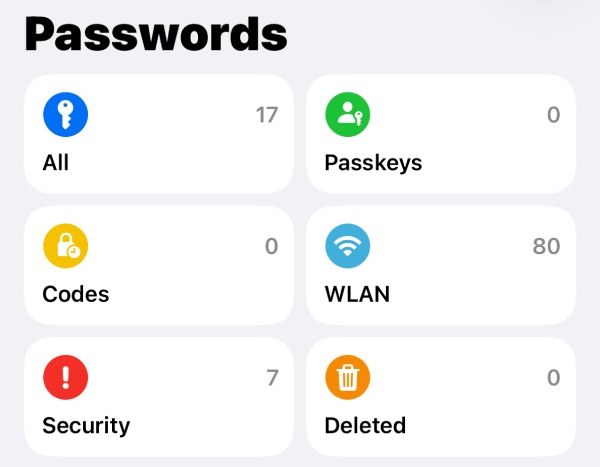
Step 1Open the Passwords app on your iPhone and unlock the app with your Face ID or iPhone password.
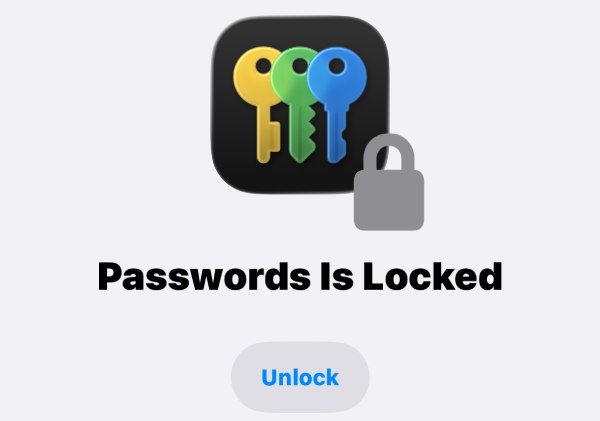
Step 2Several folders containing different kinds of passwords will be displayed on the screen. Tap to select the type of passcodes to remove from your iPhone.
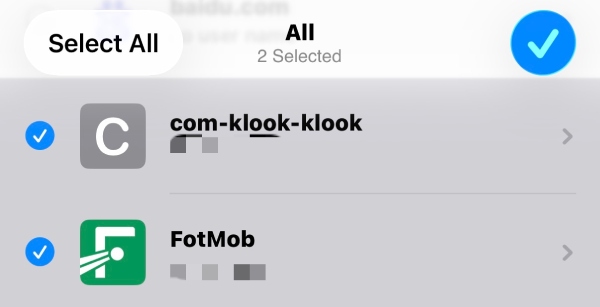
Step 3Tap the "Select" button and toggle the saved passwords to delete them. Once finished, tap the "Delete" button to confirm the action.
Conclusion
Removing a passcode from an iPhone can be simple or complex, depending on the situation. In most cases, some simple default operations, although there is a risk of data loss, can help you regain access to your iPhone. If you want to remove the passcode from your iPhone in a safer and more efficient way, 4Easysoft iPhone Unlocker ensures the process can be done in no time while minimizing risks.
100% Secure
100% Secure
