
Recover all data from your iOS devices, iTunes and iCloud backup.

4 Methods to Recover Deleted Text Messages without Data Loss

Posted by Alvin Cantero to iOS Recovery Feb 27, 2026
Accidentally deleting important text messages from your iPhone can be truly heart-wrenching. Whether it's due to a misstep while clearing storage space or data loss after a system update. The good news is that, in most cases, these messages can be recovered. This article compiles five proven methods to recover your deleted text messages. It ranges from built-in iOS features to backup restoration and even professional data recovery tools. You can choose the most suitable solution based on whether you have a backup and how long ago the messages were deleted.
Guide List
Recover from the "Recently Deleted" Folder (iOS 16 and Later) A Professional Tool to Recover Permanently Deleted Photos without Backup Restore Permanently Deleted Photos from iCloud Backup Recover Permanently Deleted Photos Using iTunes/Finder BackupRecover from the "Recently Deleted" Folder (iOS 16 and Later)
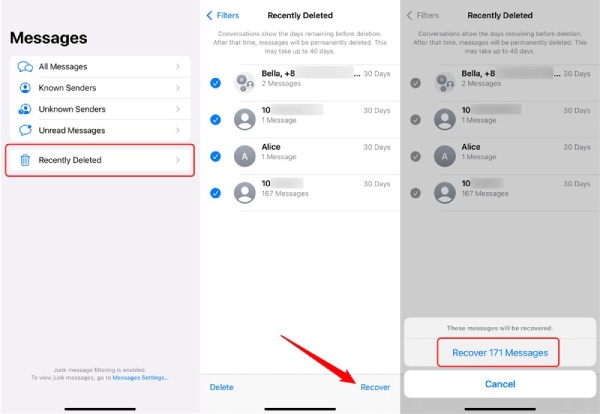
If your iPhone is running iOS 16 or later, using the Recently Deleted folder is the simplest, zero-cost way to recover deleted messages. Apple added the Recently Deleted folder to the Messages app in iOS 16, where deleted messages are retained for 30 days.
Step 1Open the Messages app on your iPhone. Tap "Edit" in the top-left corner or tap the ‘Filter’ button in the bottom-left corner. Then select "Show Recently Deleted".
Step 2Check the conversations you want to recover and tap "Restore".
A Professional Tool to Recover Permanently Deleted Photos without Backup
If you don't have a backup, or if your deleted messages are older than 30 days, 4Easysoft iPhone Data Recovery is currently the most ideal solution. This professional tool directly scans your iPhone's internal storage to retrieve messages marked as "overwritable" but not yet overwritten by new data from the iOS system's database layer. It requires no backup and won't erase any current data on your device, as a full restore would. Additionally, it can recover files from iTunes and iCloud, supporting over 20 file types, making data recovery manageable even without prior experience.
Recover over 20 types of iPhone data without backup, plus restore from iTunes and iCloud.
After scanning, preview all recoverable text messages for free to easily filter your choices.
The entire process won't overwrite or erase photos, apps, or settings.
Compatible with all devices and systems, including the latest iPhone 17 and iOS 26.
100% Secure
100% Secure
Step 1Launch this software. Start the software and connect your iPhone to the computer. On the main interface, select "Recover from iOS Device" and click "Start Scan".
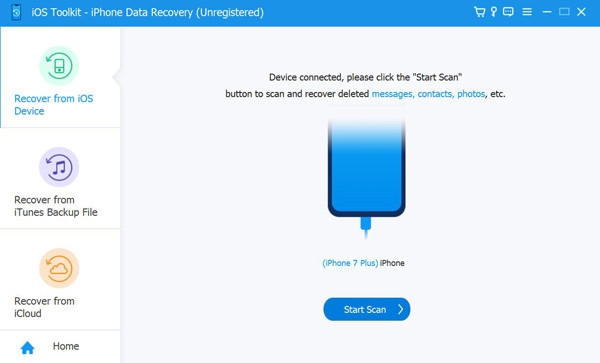
Step 2The software will automatically scan the database. Then click "Messages" or "iMessage" in the left menu bar. All recoverable messages will be displayed in conversation format.
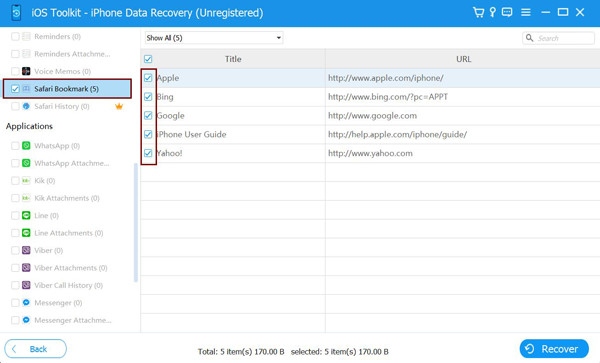
Step 3Check the message conversations you wish to recover. Click "Recover to Device" to restore them directly to your iPhone, or select "Recover to Computer" to save them as TXT/CSV/HTML files for archiving.
Restore Permanently Deleted Photos from iCloud Backup
If you're certain that the specific text messages you need are included in a previous iCloud backup, you can attempt to recover them using iCloud. Please note: a full device restore will erase all existing data on your phone.
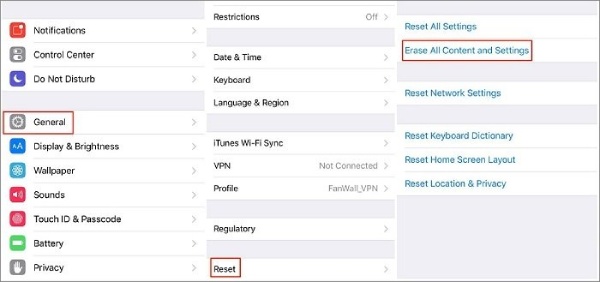
Step 1Open Settings, find "General", select "Reset", then tap "Reset All Content and Settings". Enter your passcode to continue erasing data.
Step 2Wait a moment until your iPhone completes the erase process. Once erased, you can begin setting up your iPhone.
Step 3Enter your passcode to connect to Wi-Fi and activate your iPhone. Set up a passcode, Touch ID, or Face ID. Enter your Apple ID and password.
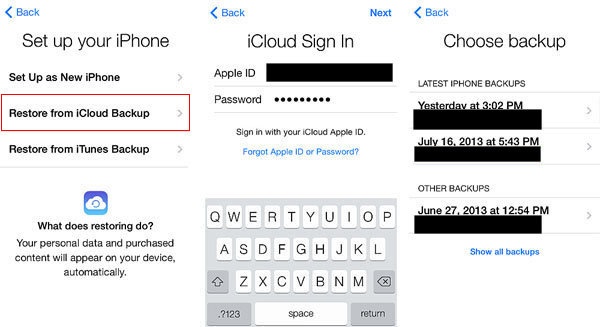
Step 4On the "Apps & Data" screen, tap "Restore from iCloud Backup", then sign in to your iCloud account. Select "Backup" to begin restoring your messages and all content to your iPhone.
Recover Permanently Deleted Photos Using iTunes/Finder Backup
If you are certain that your iTunes backup contains the information you lost or deleted, it can also be used to recover deleted photos and messages. However, similar to iCloud, the recovery process will erase everything on your iPhone. It will then restore all data from the backup to your device. Remember to turn off Find My iPhone before proceeding with the recovery.
Windows PC and macOS Mojave and earlier
Step 1Run iTunes and connect the iPhone to the computer. Click "Summary" and "Restore Backup".
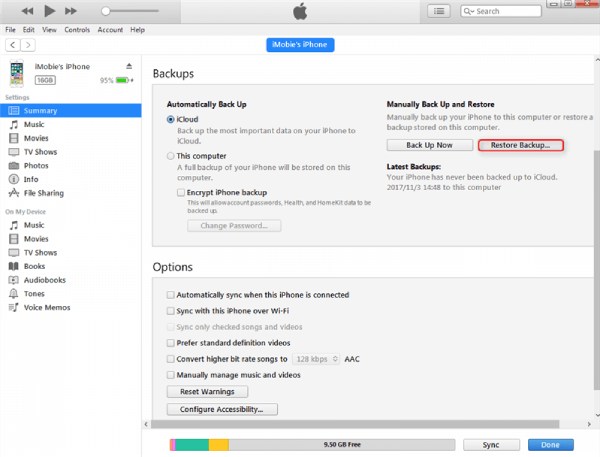
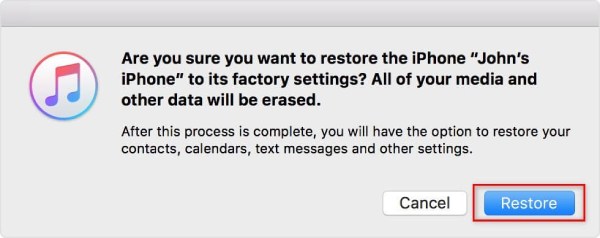
Step 2Then choose a backup and click "Restore" to start. Click "Restore" again to recover iPhone messages.
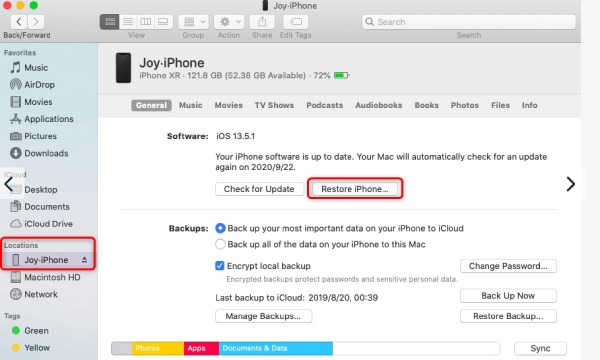
macOS Catalina and later
Step 1Connect your iPhone to your Mac. Open Finder and locate your iPhone under "Locations".
Step 2Click your iPhone, then select "Manage Backups". Choose a backup you believe contains the deleted iPhone information, then click "OK". Next, click "Restore iPhone..". to begin restoring your iPhone backup.
Conclusion
These are the four methods for recovering deleted text messages on your iPhone. From simply checking the "Recently Deleted" folder to using professional software like 4Easysoft iPhone Data Recovery, you can retrieve lost messages whether or not you have a backup. Professional tools make data recovery easy even for inexperienced users. Download it now and start recovering your previous text messages from your iPhone.
100% Secure
100% Secure
