
Transfer and manage iOS data between iPhone, iPad, iPod, and computer without iTunes.

Step-by-Step Guide to Sync Contacts from iPhone to Mac

Posted by Paula Pailaga to iOS Transfer Mar 18, 2026
Learning how to sync contacts from iPhone to Mac can be helpful, especially when you need to create a solid backup of your contacts on other devices than your iPhone. Since contacts contain various information, like phone numbers, emails, and personal notes, it does not seem an easy task to transfer them completely. Don't worry, this post will help you understand the available syncing methods, ensuring contacts from your iPhone stay accessible and up to date. Whether you intend to prepare for a device upgrade or simply create a backup, read the post to start now.
Guide List
Part 1: The Most Effective Method for Syncing Contacts from iPhone to Mac Part 2: How to Sync Contacts from iPhone to Mac via iCloud Part 3: AirDrop: A Quick Way to Sync a Single Contact from iPhone to Mac Part 4: How to Check Contacts Synced from iPhone to Mac Part 5: Why Are Your Contacts Not Syncing from iPhone to MacPart 1: The Most Effective Method for Syncing Contacts from iPhone to Mac
For users who need more control or want to sync contacts without relying on iCloud, 4Easysoft iPhone Transfer provides a more flexible solution to syncing contacts from iPhone to Mac. During the process, it allows contacts to be moved directly between an iPhone and a Mac, offering higher success rates and selective syncing options. This method is ideal for large contact lists or complex transfer needs.
Support transferring and syncing contacts across various devices.
Create a solid backup of contacts from your iPhone before syncing.
Manage and edit all contacts you want to sync from iPhone to Mac.
Capable of transferring files between iOS versions and models.
100% Secure
100% Secure
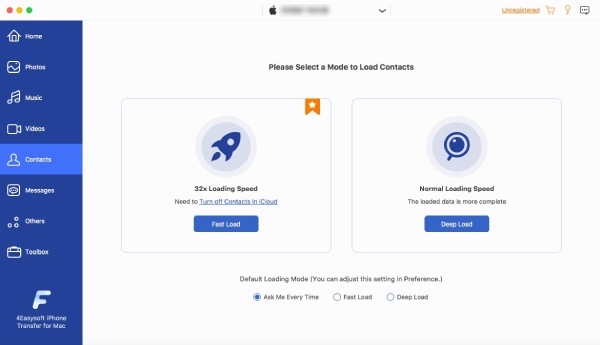
Step 1Launch 4Easy iPhone Transfer and connect your iPhone to the Mac. Click the "Contacts" button and then the "Deep Load" button.
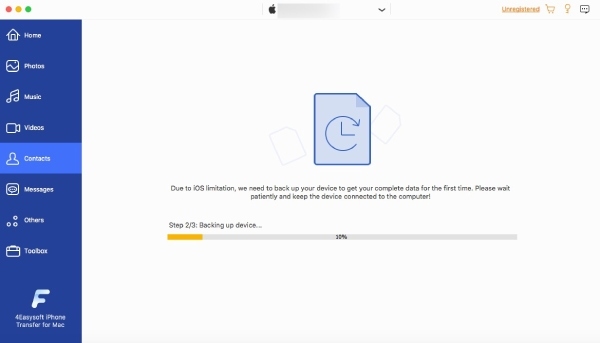
Step 2After a short time of scanning and loading, all your contacts from your iPhone will be listed. Select those contacts you want to sync from iPhone to Mac.
Step 3Once you finish the selection, click the "Export to Mac" button to start the process.
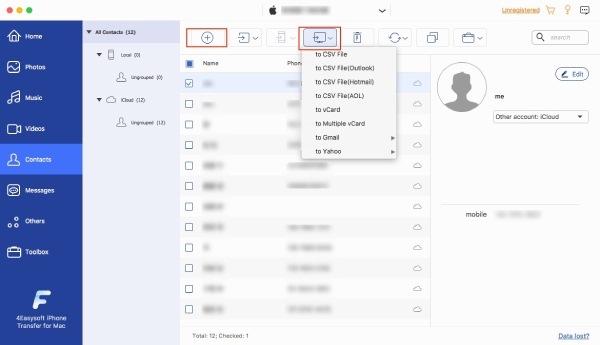
Tips: You can also export iPhone contacts to CSV files for the management.
Part 2: How to Sync Contacts from iPhone to Mac via iCloud
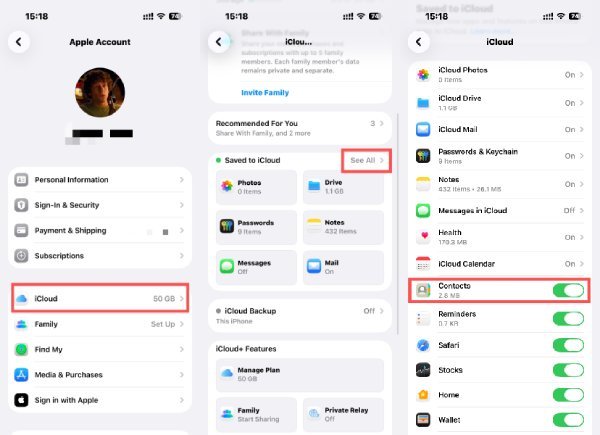
iCloud is the most common way to sync contacts between an iPhone and a Mac. Once contacts are linked to the same Apple ID, changes made on one device can appear on the other automatically. This ongoing backup can be handy, especially if you need to adjust your contacts from time to time. This method works in the background and requires minimal manual effort, but it relies on stable internet access and proper iCloud settings on both devices.
Step 1Open "Settings" and tap the "Apple ID" button. Find and tap the "iCloud" button to open a new page.
Step 2Tap the "See All" button, and all the data that iCloud has backed up will be displayed.
Step 3To make sure that all contacts are synced from iPhone to Mac, tap the "Contacts" button.
Part 3: AirDrop: A Quick Way to Sync a Single Contact from iPhone to Mac
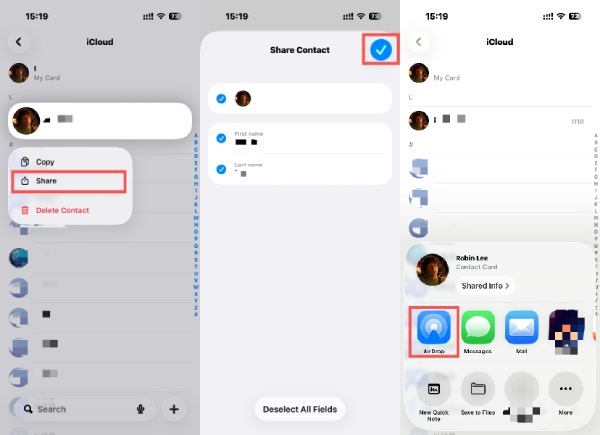
AirDrop offers a fast and direct way to transfer individual contacts from an iPhone to a Mac without using cables or cloud services. This method helps share specific contact information rather than sync an entire contact list from an iPhone to your Mac. It works best when both devices are nearby, and AirDrop is enabled.
Step 1Open "Contacts" on your iPhone and long-press the contact that you want to sync with your Mac. Tap the "Share" button.
Step 2You can check and edit the detailed information about this contact. Once finished, tap the "OK" button.
Step 3In the pop-up window, tap the "AirDrop" button and select your Mac to sync contacts from your iPhone.
Part 4: How to Check Contacts Synced from iPhone to Mac
After syncing contacts, it is essential to confirm that the data has been transferred successfully. Since macOS provides built-in tools to view and manage synced contacts in one place, you can conveniently check the contact list. By following the steps below, you can identify missing entries or outdated information, ensuring your iPhone contacts are backed up as expected.
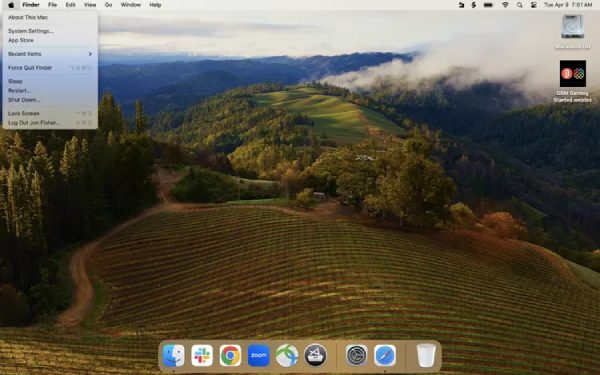
Step 1On your Mac, click the "Apple menu" button at the top left corner. Then, click the "System Settings" button.
Step 2Click to confirm your Apple ID. Navigate to the "iCloud" tab and click the "Show More Apps" button. Click the "Contacts" button.
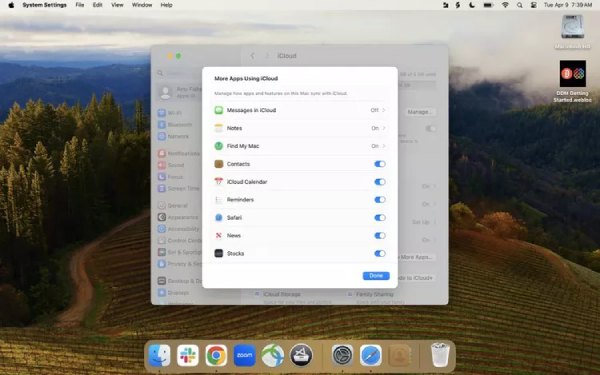
Step 3After clicking the "Done" button, all your contacts from your iPhone will be synced to your MacBook.
Part 5: Why Are Your Contacts Not Syncing from iPhone to Mac
On certain occasions, you may find that the syncing contacts process fails between an iPhone and a Mac. The issue is often related to account configuration rather than hardware problems. One common cause is that the devices are signed in with different Apple IDs. Since iCloud sync relies entirely on the same Apple account, even a slight mismatch will prevent contacts from appearing across devices.
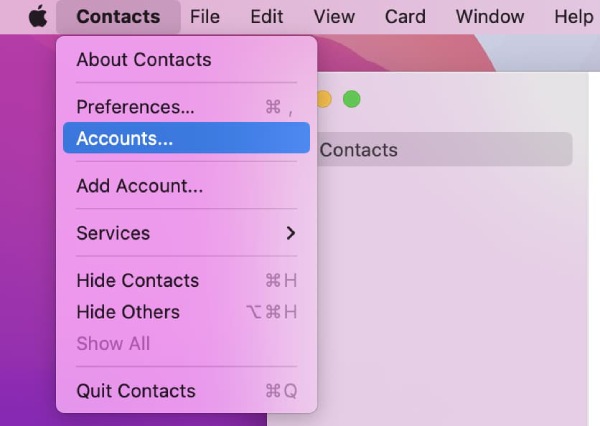
Another frequent reason involves disabled iCloud Contacts settings. If Contacts syncing is turned off on either the iPhone or the Mac, changes made on one device will not update on the other.
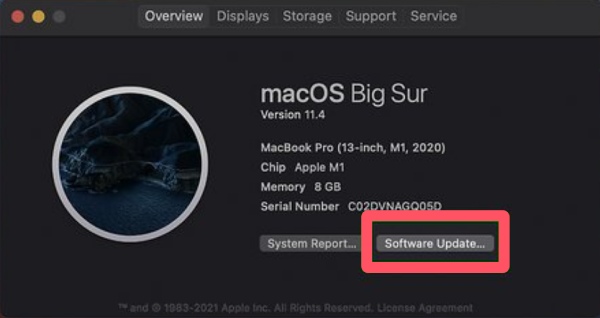
Outdated system versions may also contribute to syncing errors. Compatibility issues between older macOS and iOS versions can delay or block proper data updates, leading to iCloud not syncing unless the systems are updated on both devices.
Conclusion
Syncing contacts from iPhone to Mac helps protect critical information and simplifies contact management across devices. While built-in options like iCloud and AirDrop cover basic needs, they are not suitable for a quick process of syncing a large number of contacts with no limitations. In such cases, 4Easysoft iPhone Transfer ensures contacts are transferred safely and efficiently.
100% Secure
100% Secure
