
Transfer anything from/to iPhone, iPad, and iPod.

4 Methods to Transfer Files from iPad to PC (2026 Guide)

Posted by Alvin Cantero to iOS Transfer Jun 26, 2026
Finding a way to make your iPad and Windows PC connect is a full-time job. Luckily, you have more bridges than ever before! Whether it is footage you wish to move or backup, there's a faster way to transfer files from iPad to PC! Today's guide rounded up the four most effective, reliable ways move iPad files to PC. From wired connection to cloud syncing, look at the following approaches to start crossing from iPadOS to Windows.
Guide List
Transfer Files from iPad to PC Safely with Professional Method Use iCloud to Transfer Files from iPad to PC Share Files from iPad and PC via Cloud Storage Transfer Files from iPad to PC with File ExplorerTransfer Files from iPad to PC Safely with Professional Method
When you have to send large files from iPad to PC without facing any restrictions of traditional software, a dedicated tool like 4Easysoft iPhone Transfer is the most reliable choice. This software ensures your iPad data remains secure and private throughout the entire process. It is built to handle high-speed data transferring while offering a clean, friendly interface that anyone can navigate. Whether it is music, videos, or private documents, this tool provides a one-click, high-success rate solution to keep your files safely moved to your Windows PC.

Multi-mode transfer for iOS to PC, PC to iOS, and even iOS to iOS.
Handles photos, music, contacts, messages, and more data.
Allows you to preview images, create albums, and batch delete duplicates.
Manage files directly from your PC, such as edit, delete, convert, etc.
100% Secure
100% Secure
Step 1Launch 4Easysoft iPhone Transfer on your computer and link your iPad via a high-quality cable. Once the software detects your device, you'll see a detailed summary of your device immediately.
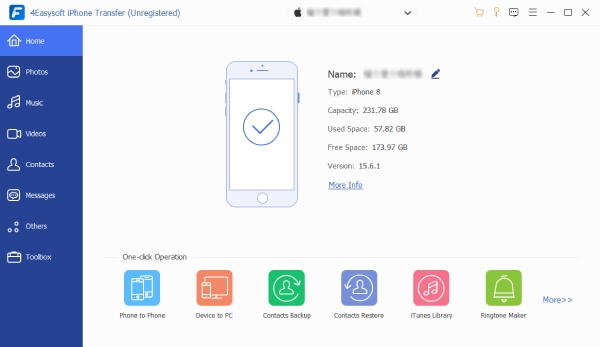
Step 2Use the menu on the left to choose a category such as Photos, Music, Videos, or Contacts. The selected files will appear instantly. Later, you can browse and manage your iPad data.
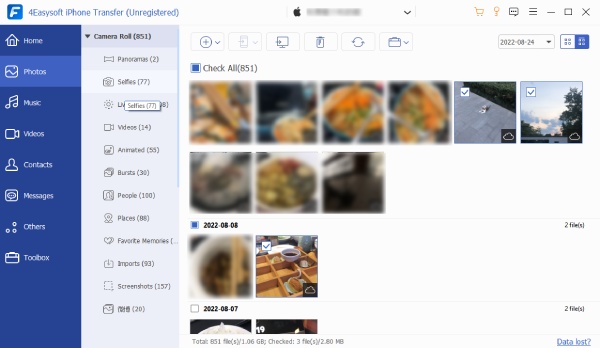
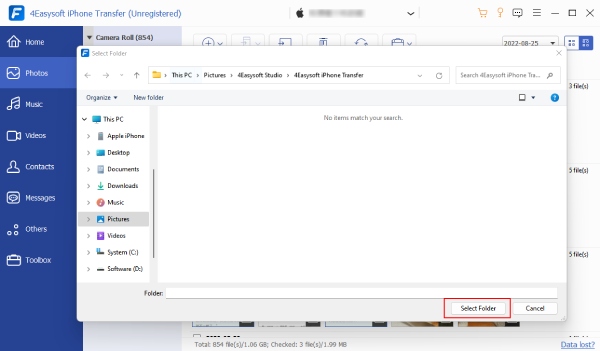
Step 3Tick the files you want to transfer and click the "Export to PC" button. Select a folder on your computer, then click the "Select Folder" button. The iPad to PC data transfer will start right away.
100% Secure
100% Secure
Use iCloud to Transfer Files from iPad to PC
While a transfer tool has the most control, you may still want a more automated approach offered by Apple's iCloud. This method can help you export files from iPad to PC, keeping your files updated across all devices. Once enabled, any edits you'll made will be reflected on your PC. Here, you won't need any cables, just a stable internet connection and enough storage space. (If you encounter the restore from iCloud paused issue, you can move on to the next solution.)
Here's the quick process to access files from iPad to PC via iCloud:
Step 1Go to "Settings" on your iPad, then tap on your name, then select "iCloud" and toggle ON the categories you wish to sync, like Photos or iCloud Drive.
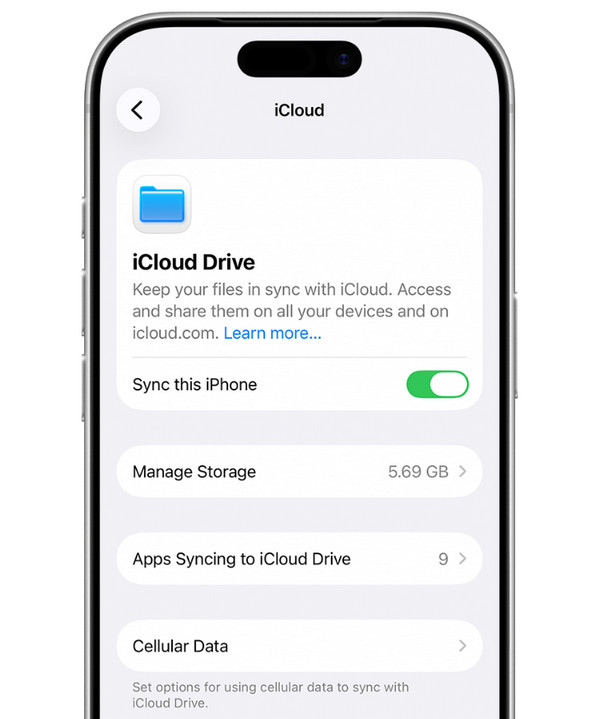
Step 2Afterward, on your PC, get the iCloud app for Windows, then log in with the same Apple ID account you used on your iPad.
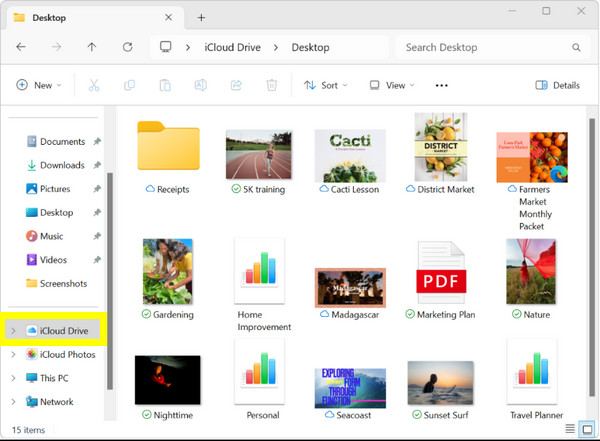
Step 3Next, open File Explorer on your PC, select "iCloud Drive" and transfer the files you need to your hard drive.
Share Files from iPad and PC via Cloud Storage
If you find yourself needing more compatibility beyond the Apple ecosystem, using a dedicated cloud service like Google Drive is a versatile alternative. This way allows you to transfer files from iPad to PC by uploading specific media or documents from your device and accessing them quickly on your computer. By using the cloud storage method, you can eliminate the need for cables while still keeping a secure backup of your files. The cloud transferring method also works to transfer files from iPhone to PC, as well as other directions.
Step 1From your iPad, launch Google Drive. There, tap the "Add New" button in the corner, select "Upload", then choose "Photos and Videos" or "Browse" to pick files.
Step 2Now, on your computer, open any browser and search for the Google Drive main site. Sign in with the same Google account, and locate the uploaded files.
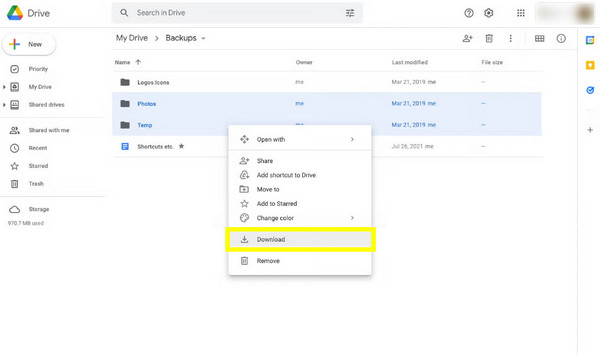
Step 3Next, right-click on each and choose "Download" to save them to your PC.
Transfer Files from iPad to PC with File Explorer
For any moments when you do not have internet access but have cables in hand, Windows File Explorer offers a solution to copy files from iPad to PC. It is the most straightforward way to move photos and videos without any extra software. This approach is strictly a one-way street, which is excellent for offloading your complete camera roll to save space on your iPad. While it does not cover documents or app data, its simplicity makes it a reliable way for media management.
Step 1Link your iPad to PC using a USB cable. Unlock your iPad and tap "Trust" to allow permission for your PC to access everything if prompted.
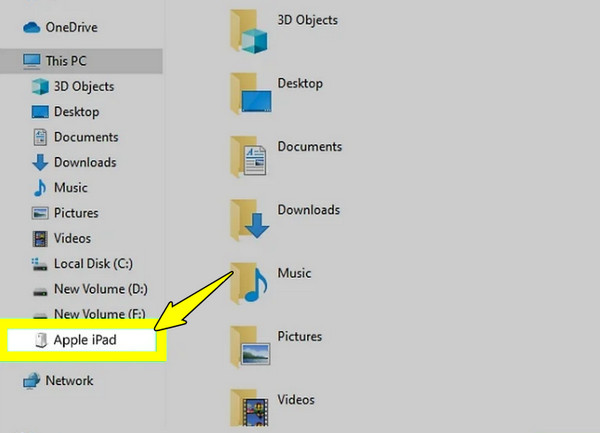
Step 2Open "File Explorer" on your Windows PC and double-click on your iPad from the "Devices and drives" section.
Step 3Then, navigate through "Internal Storage" to "DCIM" to find your folders, then drag and drop the files onto your desktop.
Conclusion
With the File Explorer, iCloud, and Google Drive, you now have the tools to move files from iPad to PC seamlessly. It's nice to try these options to see which one best fits your everyday routine. But if you want something more stable, efficient, and comprehensive solution, 4Easysoft iPhone Transfer is a highly recommended alternative for file transferring! This tool cuts through any sync delays and connection headaches, just giving you a powerful place to keep your iPad and PC perfectly in sync.
100% Secure
100% Secure
