
Record, edit, and share video from all sources.

How to Screen Record on Samsung: A Comprehensive Guide

Posted by Ethan Brooke to Record Video Aug 27, 2026
Are you curious about how to screen record on a Samsung device? If you have similar questions, then you've come to the right place. For various usage scenarios, you often require different tools with distinct features. After testing, this post has selected 5 screen recorders for you, each with unique features and focuses. You can choose the appropriate method based on your needs, following the detailed procedures and learning to screen record on Samsung phones.
Guide List
The Default Way: How to Screen Record on Samsung Phones A Built-in Tool - How to Screen Record on a Samsung Tablet How to Screen Record on Samsung During Gameplay Loom: How to Screen Record on Samsung for Meetings An All-in-One Solution to Recording Screens on SamsungThe Default Way: How to Screen Record on Samsung Phones
If you want to know how to screen record on a Samsung Galaxy A10S or other Samsung devices, the easiest and most direct way is to use the built-in tool provided by Samsung. You don't need to install any additional apps to find and run it on your Samsung device. For those users who are still unsure about how to operate, you can follow the steps below:
Step 1On your Samsung device, swipe down from the top, then swipe again to open the "Quick Settings" tab. The screen recorder is located here.
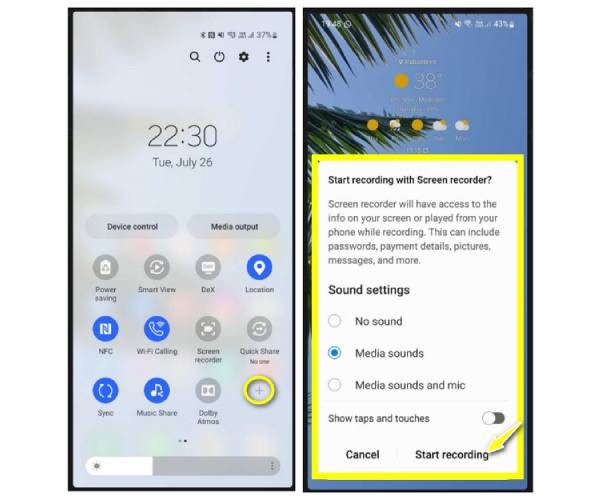
Step 2Tap the "Screen Recorder" button to adjust the audio settings. Then, tap the "Start" button to start screen recording on Samsung 14/15/16.
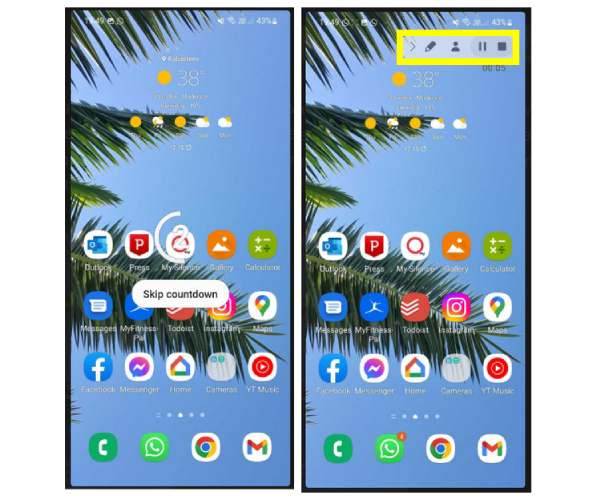
Step 3You may highlight the screen during the recording. Tap the "Stop" button once finished. It will be saved in the Gallery app.
A Built-in Tool - How to Screen Record on a Samsung Tablet
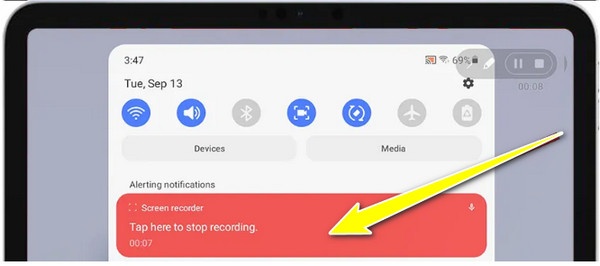
If you want to learn how to record the screen on a Samsung tablet, it won't be a difficult task either. Just like with Samsung mobile phones, Samsung tablets also offer an in-built solution for you. You can easily find and access it through the toolbar. If you don't know how to operate it, you can quickly start the process by following the steps below.
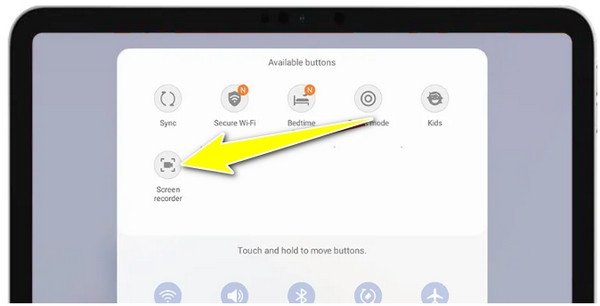
Step 1On your Samsung tablet, swipe down from the top to summon the "Available buttons" tab. Then, tap the "Screen Recorder" button.
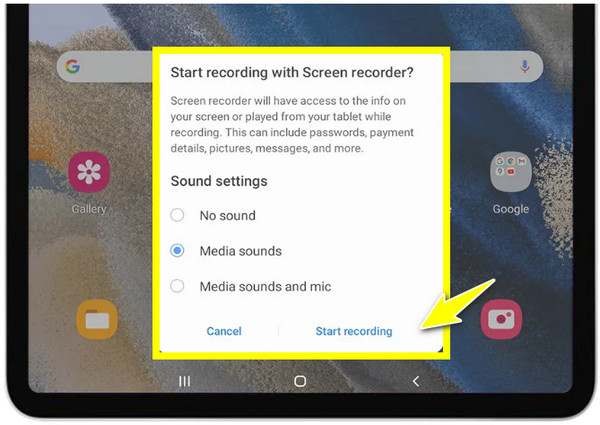
Step 2A window will pop up and ask you to select the sound settings. After selecting the desired option, tap the "Start recording" button.
Step 3To finish recording the screen on the Samsung tablet, tap the "Stop recording" button.
How to Screen Record on Samsung During Gameplay
For those users who frequently play games on Samsung devices, using the default method mentioned above to record a certain segment of content can be cumbersome. On the one hand, this operation will take some time and might cause you to miss certain opportunities in the game. On the other hand, some remarkable moments may be fleeting, and it will be too late to screen record on a Samsung once you realize it. For gameplay, a better way to screen record on Samsung devices is to use the built-in tool in the Game Launcher.
Step 1Launch the Game Launcher app on your Samsung phone and tap the "Add" button to select the game you want to record.
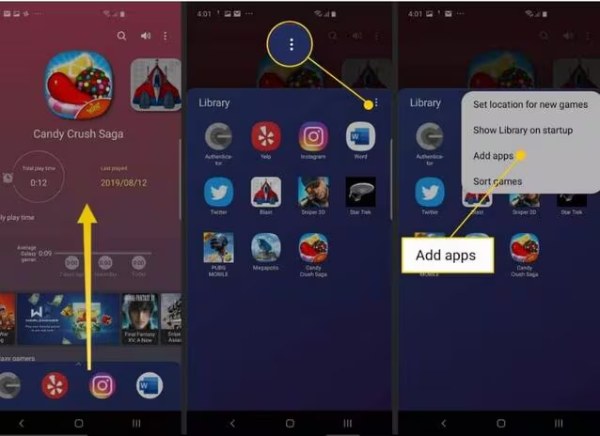
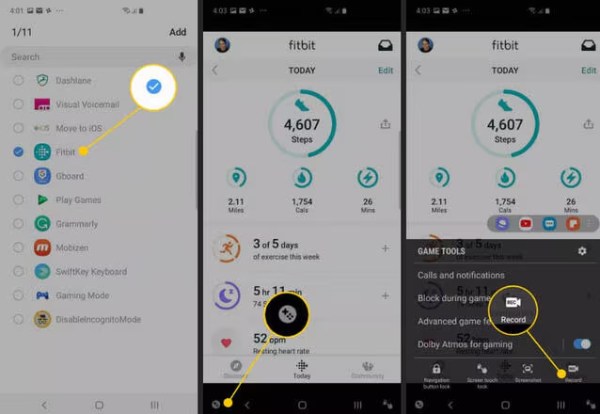
Step 2Under the "Game Launcher Library" tab, tap to select and start the gameplay. Tap the "Game Tools" button immediately. Then, tap the "Record" button.
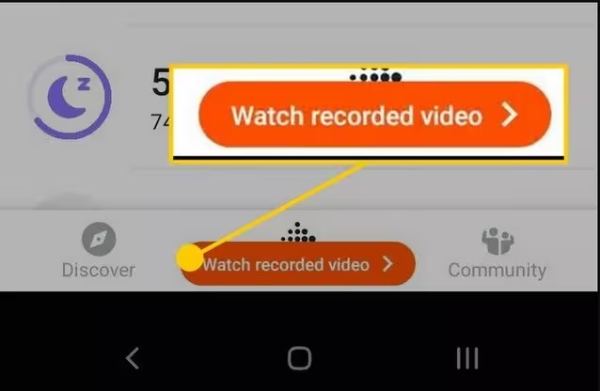
Step 3Once you finish the screen recording on your Samsung phone, tap the "Stop" button. You can tap the "Watch recorded video" button to check the recording. If you want to record gameplay with more advanced features, you can try recording gameplay on PC.
Loom: How to Screen Record on Samsung for Meetings
Online meetings often require concentration, even when using mobile phones or tablets. Many people may have experienced a situation in which the built-in screen-recording tool briefly caused the meeting to freeze due to system issues. This is inevitable, as it is an inherent operational issue of the Samsung system. Therefore, you need a more professional tool to record the meeting content. Loom Screen Recorder is a tool that lets you record the screen on Samsung phones during meetings.
Step 1After downloading the Loom Screen Recorder from the Google Play Store, launch the app and sign in.
Step 2Tap the "Record screen" button, and the control panel will pop up. You can control the progress of screen recording on Samsung Galaxy devices the way you want.
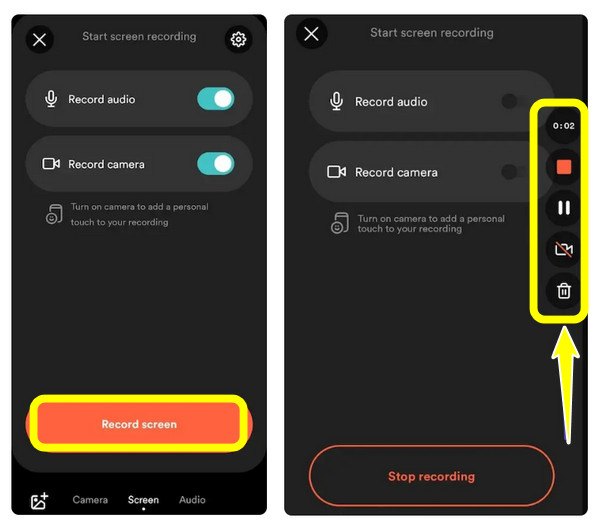
Step 3Tap the "Stop" button on the control panel to stop the recording. The recording will be saved in Loom's library.
An All-in-One Solution to Recording Screens on Samsung
Preparing different screen recorders for different scenarios is not only troublesome but also consumes a lot of your memory space. Therefore, an all-in-one solution is essential, as it enables you to record screen activity across all scenarios on Samsung devices without switching back and forth. 4Easysoft Screen Recorder is a professional screen recording tool for Samsung devices. During the recording process, it can capture screen activity smoothly and without any loss of quality. You can also use various editing tools to highlight the key points. In short, it's the best tool for recording all activities on Samsung devices.
Can mirror and record your Samsung devices in HD up to 4K resolution.
Adjust the parameters of videos and audio from Samsung to your needs.
Utilize the editing tools to crop, trim, and annotate your Samsung recordings.
Multiple export formats, such as MP4, AVI, MKV, etc.
100% Secure
100% Secure
Step 1Launch 4Easysoft Screen Recorder on your computer and connect your Samsung device using a USB cable. Then, click the "Phone Recorder" button.
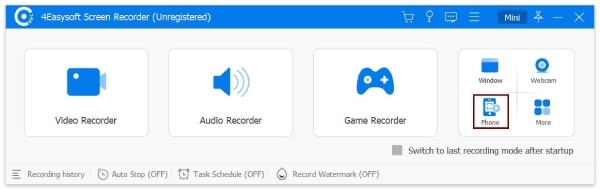
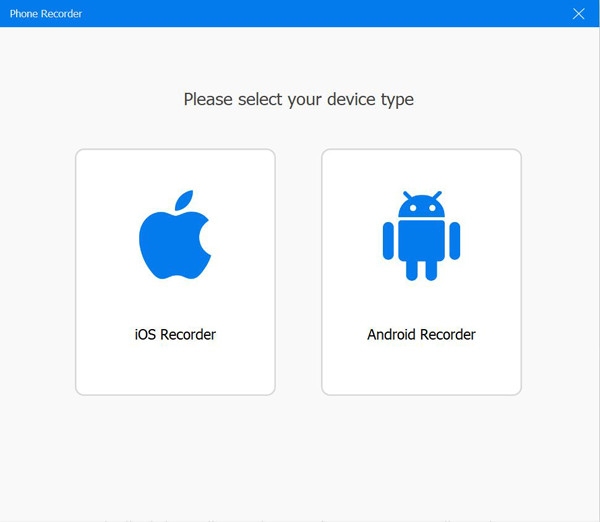
Step 2In the pop-up window, click the "Android Recorder" button to start screen recording on a Samsung Android device. Follow the instructions to proceed.
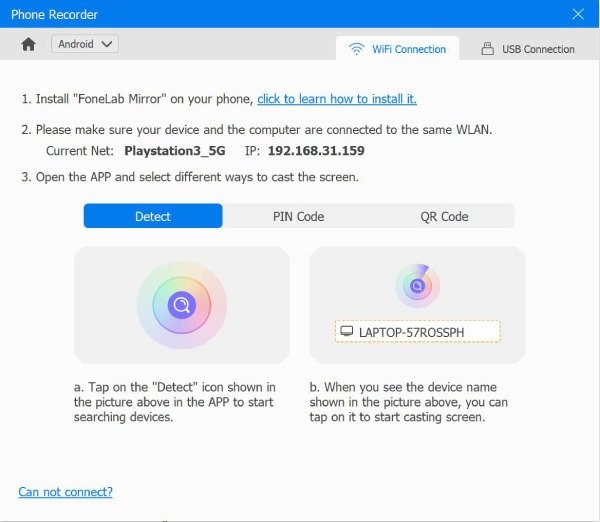
Step 34Easysoft Screen Record offers several methods, including QR code or PIN code, to mirror your Samsung device to your computer.
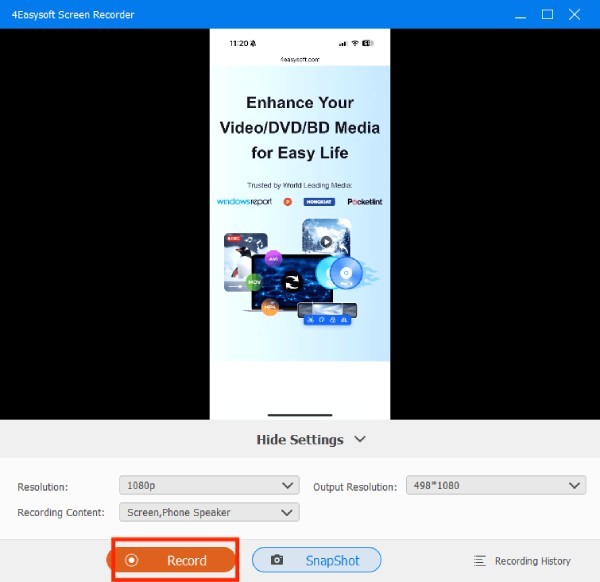
Step 4After your Samsung device's screen appears on your computer screen, start the activity. To record the screen on Samsung, click the "Record" button.
Conclusion
You already know how to screen record on the Samsung A51 and other models. This post offers 5 methods you can apply in various situations. You can choose the appropriate tool for your needs. If you are looking for an all-in-one convenient option, then 4Easysoft Screen Recorder is the best choice.
100% Secure
100% Secure
