
Record, edit, and share video from all sources.

How to Screen Record on Lenovo Laptops for Various Scenarios

Posted by Ethan Brooke to Record Video Aug 20, 2026
How to screen record on Lenovo laptops? If you also have similar questions, then you've come to the right place. No matter what content you want to record on Lenovo laptops - videos, games, or other content - this post has prepared corresponding solutions for you. You just need to select one of the four methods based on the content you want to record, and you can quickly record the screen on Lenovo laptops. Start reading now to learn how to screen on Lenovo laptops.
Guide List
How to Screen Record on Lenovo with Superb Quality Default Solution - How to Screen Record on Lenovo via Shortcuts [Gameplay] How to Screen Record on Lenovo While Playing Games A Web-Based Tool to Screen Record on Lenovo LaptopsHow to Screen Record on Lenovo with Superb Quality
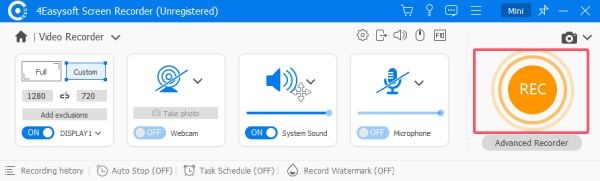
If you want to screen record on your Lenovo at its original or higher quality, you will need a professional tool with sufficient processing power. 4Easysoft Screen Recorder is the one that fits any scenario. This professional tool enables you to record any activity on the screen in its original quality.
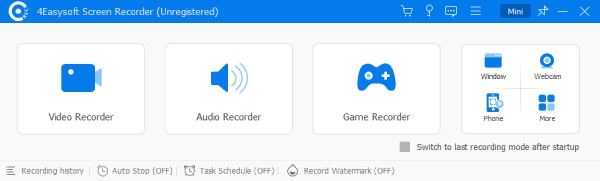
Before exporting the video, you can also select the appropriate format and quality for your needs. The greatest advantage of 4Easysoft Screen Recorder is its ability to integrate multiple modes. Specific tools for each recording requirement enables users to select the most suitable recording method for different objects.
Captured the system audio on your Lenovo laptops while recording the screen.
Integrate multiple recorders and provide various recording modes for different scenarios.
Built-in editing tools to polish the recordings before saving.
Works with any Lenovo laptop model.
100% Secure
100% Secure
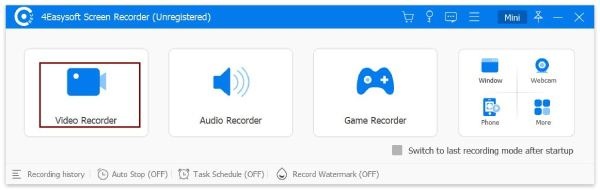
Step 1Launch 4Easysoft Screen Recorder and click the "Video Recorder" button on the main interface.
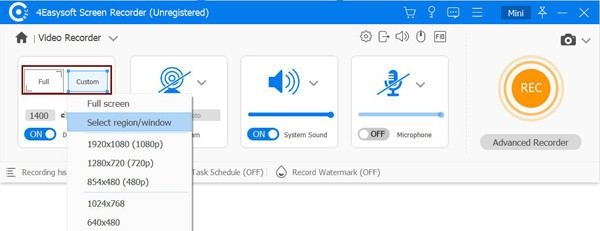
Step 2Click the "Select Region" button to select the area that you want to screen record on the Lenovo laptop.
Step 3Finally, click the "Record" button to start the process. Once finished, click the "Stop" button to save the file.
Default Solution - How to Screen Record on Lenovo via Shortcuts
For those who wish to learn how to screen record on Lenovo laptops in the easiest way possible, using the built-in recording tool is the most convenient option. Since Lenovo laptops are mostly equipped with Windows, you can use the built-in recording tools to quickly start recording. This method can be regarded as the best screen recorder for low-end PCs, as it doesn't consume much memory. However, you may find that this tool doesn't offer many customization options for editing and other tasks.
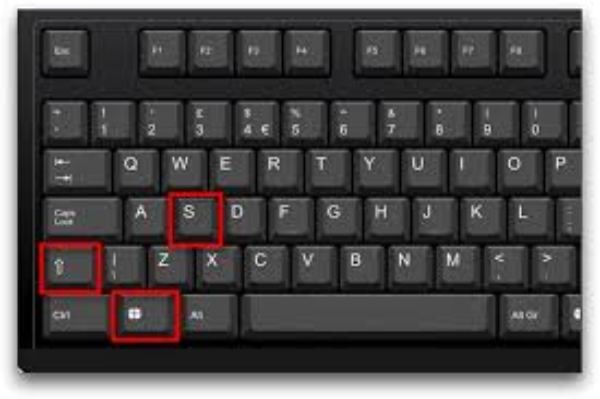
Step 1Navigate to the content you want to record on your Lenovo. Press the "Windows + Shift +S" buttons together.
Step 2In the pop-up toolbar, click the "Snip" button to summon the default screen recorder.

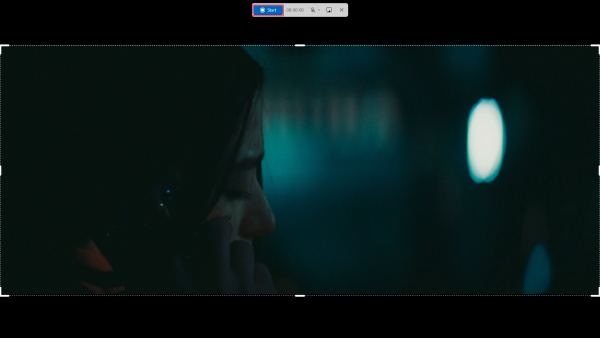
Step 3After selecting the area, click the "Start" button to screen record on your Lenovo laptop. Once done, click the "Stop" button.
[Gameplay] How to Screen Record on Lenovo While Playing Games
When you are playing a game, is there any way to record the screen on Lenovo laptops? In fact, the Windows system also provides you with a built-in tool to assist you. Many people may not be aware that the Xbox Game Bar is built into their Lenovo computer, and they can use it to capture and share their gameplay on a PC. The Xbox Game Bar lets you record your gameplay smoothly without disrupting the game. The file will be automatically saved in the default folder. However, similarly, this tool does not offer you any additional editing options to support post-production.
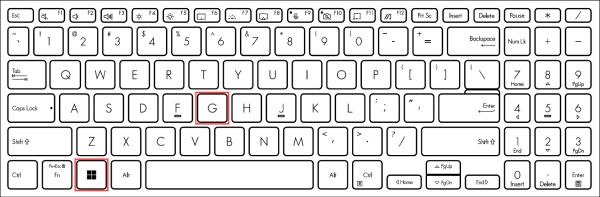
Step 1When you are playing the game, press the "Windows + G" buttons and summon the Xbox Game Bar.
Step 2In the new pop-up floating window, click the "Record" button to start screen recording on your Lenovo laptop.
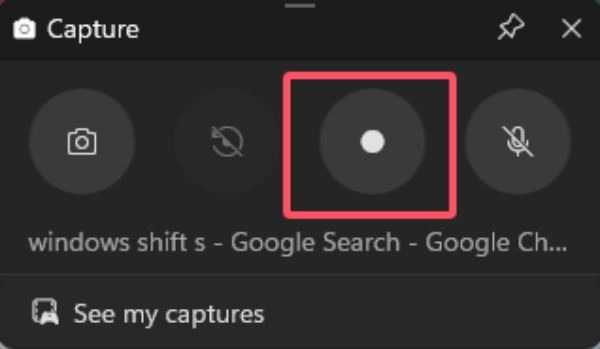
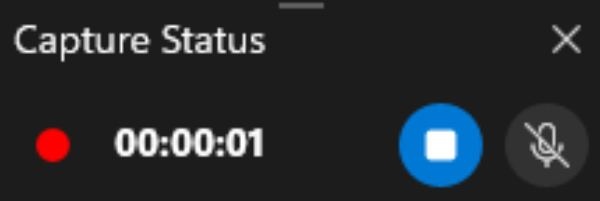
Step 3Once finished recording your gameplay, click the "Stop" button to save the recording.
A Web-Based Tool to Screen Record on Lenovo Laptops
So, are there any web-based tools that allow you to screen record on Lenovo laptops? 4Easysoft Free Screen Recorder is exactly what you've been looking for. As long as your network connection is stable enough, this convenient web-based tool lets you record screen activity directly in your browser. For Lenovo laptop users, this software is an ideal choice. It enables you to record the screen quickly and easily without the need to download or install any software. However, compared with desktop applications, this tool has fewer features. You may find that this tool lacks some advanced features, such as high-resolution recording and webcam support.
Step 1Navigate to the official website of 4Easysoft Free Screen Recorder and click the "Record Screen Videos" button.

Step 2Select and adjust the parameters before recording the screen on the Lenovo. Then, select the recording region before clicking the "Record" button.

Step 3Once finished, click the "Stop" button to get the recording within the screen recorder.

Conclusion
This post has already taught you 4 methods on how to record on Lenovo laptops. For different usage scenarios, you can always find the appropriate methods. If you want to record the screen without any quality loss and complete some post-production, 4Easysoft Screen Recorder is the best choice.
100% Secure
100% Secure
