
Record video, audio, gameplay, and webcam to record precious moments easily.
How to Record Google Meet If You Don't Have Permission

Posted by Ethan Brooke to Record Video Apr 03, 2026
Google Meet is one of the most widely used video conferencing platforms. However, many users find that they cannot record the meetings in Google Meet. This is because the recording feature comes with several restrictions. In this guide, we'll show you how to record Google Meet using the built-in recording feature, as well as an alternative method if you don't have permission to record.
Guide List
Part 1: Can You Record Google Meet as a Participant? Part 2: How to Record Google Meet with Built in Feature? Part 3: How to Record Google Meet Without Permission? Part 4: FAQs About Google Meet RecordingPart 1: Can You Record Google Meet as a Participant?
Sometimes you want to record Google Meet meetings to review important discussions, keep training demos, or preserve client communications. But for the quickest method, can you record a Google Meet meeting as a participant using the built-in feature? The short answer is: only in certain situations. Before starting a Google Meet recording, there are several requirements you should know.
Requirements you need to know before recording:
1. Your team must subscribe to a paid Google Workspace plan. Free Gmail accounts, or Google Workspace Business Starter won't see the recording button.
Available Google Workspace plan:
- Essentials
- Business Standard and Plus,
- Enterprise Essentials, Standard and Plus
- Education Plus
- Teaching and Learning Upgrade
- Workspace Individual Subscriber
2. The external participant is not allowed to record meetings. Only the host, co-host, or participants with host permissions can start recording, and the administrator must enable recording in advance.
3. Once recording starts, all participants will receive a notification. This means Google Meet does not allow silent or hidden recordings.
Part 2: How to Record Google Meet with Built in Feature?
When recording Google Meet on a desktop, users often have many questions. Here are some common issues people are concerned about.
How to Record Google Meet on Windows/Mac
Follow these steps to record Google Meet meetings on your PC or Mac.
Step 1Join your Google Meet.
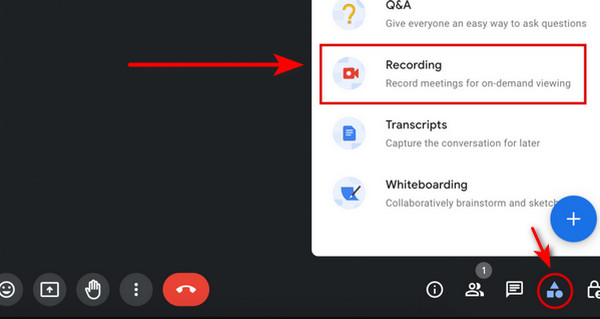
Step 2Click Activities in the bottom-right corner.
Step 3Enable the transcripts if you need, then select Recording from the prompt window.
Step 4When you want to stop recording, go back to Activities to stop it from the same menu.
Where Do Google Meet Recordings Go?
After the recording is processed, the organizer and all the participants will receive an email containing a link to the recording file. The meeting recordings are automatically stored in the meeting organizer's Google Drive folder.
How to find Google Meet recordings? You can go to Google Drive, find My Drive, and open the Meet Recordings folder to save the recordings. Click the Share button to send this meeting link to others.
Limitations of Recording with Google Meet
- 1.It is only supported on Windows, Mac, and laptops. The built-in recording feature is not available on mobile devices.
- 2.A single recording can last up to 8 hours. If the meeting exceeds this limit, the recording will automatically stop.
- 3.This built-in screen recorder doesn't support customizing your recording settings
- 4.The recording captures the main speaker's video, shared screens, and audio, but private chat messages are not recorded.
- 5.The recording requires a large amount of Google Drive storage space, and only one person can record the meeting at a time.
Part 3: How to Record Google Meet Without Permission?
If you don't have permission to record Google Meet, or are using a free Google Workspace plan, you can use third-party software to record Google Meet meetings without permission. 4Easysoft Screen Recorder is a versatile tool that lets you record videos in HD/4K quality across various scenarios. It also allows you to capture a custom area of your screen and add real-time annotations or drawings while recording.
Record WhatsApp calls, games, webcam, windows, and all on-screen activities.
Capture videos in 1080P HD or 4K UHD for high-quality recordings.
Enhance audio with noise cancellation and microphone amplification.
Save recordings in various popular formats, including MP4, MOV, AVI, and more.
Optimize the balance between file size and video quality for easy sharing or uploading.
100% Secure
100% Secure
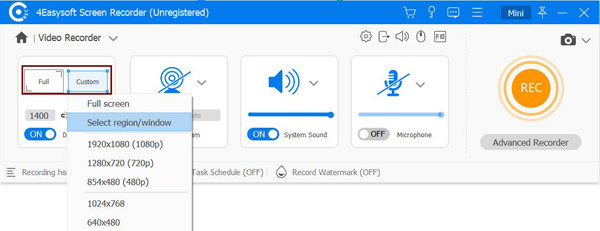
Step 1Launch the Screen Recorder, click Full to capture the whole screen or Custom to select the Google Meet window.
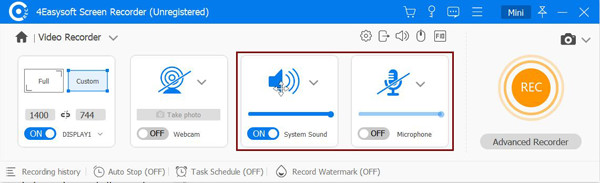
Step 2Turn on the System Sound option to record the meeting audio. You can also turn on the Microphone to record your sound simultaneously. Pull the slider to adjust the volume.
Step 3Join your Google Meet meeting and click the REC button to start recording. You can draw, add shapes, lines, callouts, and take screenshots while recording.
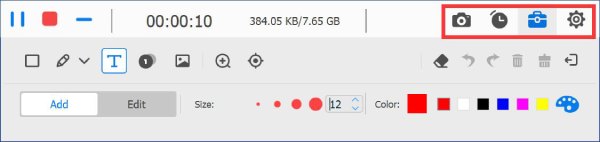
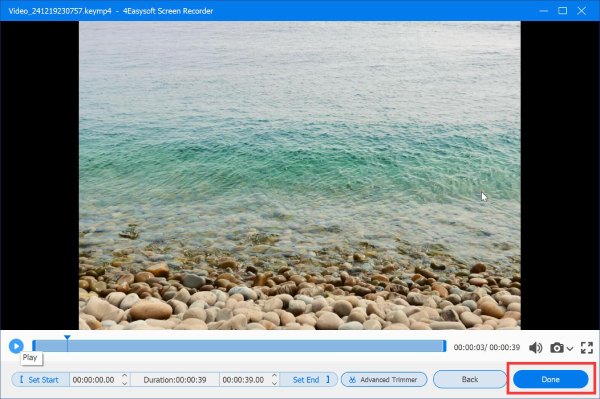
Step 4When the meeting ends, click the Stop button to finish the recording. Preview the video, trim unnecessary parts, and click the Save button to export the Google Meet recording.
Part 4: FAQs About Google Meet Recording
-
Why can't I record a Google Meet meeting as a participant?
If you cannot start a Google Meet recording, check the following: (1) You must use a Google Workspace plan that supports recording. (2) Only the host, co-host, or users with host permissions can start recording. (3) The administrator must enable recording in the Workspace admin console. (4) You must record on Windows or Mac.
-
How long for Google Meet recording to show up ?
In most cases, the recording will appear in Google Drive within a few minutes to several hours. For longer meetings, it may take up to 24 hours before the recording becomes available.
-
How to record Google Meet on iPhone ?
You can record Google Meet on your iPhone using the built-in iOS screen recorder. Go to Settings > Control Center, and tap the Screen Recording button. Join your Google Meet meeting as usual. After the meeting ends, tap the Stop Recording button. Alternatively, you can also use an iPhone screen recorder if you need more advanced features.
-
How to record Google Meet on a laptop?
The recording process is the same on laptops and desktops. Join the Google Meet meeting. Click Activities in the bottom-right corner. Select Recording to start or stop recording from the same menu.
-
Can I record a Google Meet without permission?
In this case, you're not able to record Google Meet meetings with its built-in feature. However, you can still record the meeting using third-party software like 4Easysoft Screen Recorder.
Conclusion
Recording your Google Meet meetings can make work and study much easier. You can replay important moments without worrying about missing key information. Although Google Meet recording is available through the built-in feature, it comes with several limitations. In this case, using tools like 4Easysoft Screen Recorder can be a great alternative, offering you a more flexible and convenient recording experience.
100% Secure
100% Secure
