
This hassle-free alternative removes the complicated barrier between you and your Blu-ray collection.

How to Play Blu-ray on VLC for Windows/Mac Setup (and More)

Posted by Ethan Brooke to Burn DVD/Blu-ray Sep 11, 2026
VLC is a universally loved media player, yet it instantly hits a wall the moment you try to play one of your favorite Blu-ray movies. Can you play Blu-ray on VLC flawlessly? While VLC can play unencrypted ones, it may lack the power to read some discs. Fortunately, switching from these roadblocks to quick solutions, the following shows you exactly how to play Blu-ray discs in VLC on Windows and Mac, fix common VLC errors, or skip the headache entirely with a seamless alternative.
Guide List
What's Actually Stopping VLC From Playing Blu-ray How to Play Blu-ray in VLC on Windows How to Play Blu-ray in VLC on Mac Can't Open Blu-ray with VLC? Use 4Easysoft Blu-ray Player Common VLC Blu-ray Error Messages and What They MeanWhat's Actually Stopping VLC From Playing Blu-ray
Playing a Blu-ray disc is as simple as sliding it into your drive and clicking the Play button. While VLC is famous for handling any video format, commercial Blu-ray discs have an entirely different level of security.
So, to better understand what's happening behind the scenes when trying to view Blu-ray on VLC, here's a breakdown of the barriers stopping the player from playing Blu-rays:
- AACS Encryption. A media player needs licensed AACS decryption keys, and VLC does not come with these keys built in since providing them for free violates licensing agreements and copyright laws.
- BD+ Protection. Besides AACS, many commercial discs have BD+, an extra layer of security that runs a small virtual machine on the player to check for tampering.
- Region Coding. Standard Blu-rays are divided into geographical regions, and VLC lacks the official regional handshake mechanism needed to smoothly bypass restricted Blu-ray regional keys.
- Cinavia Watermarking. This advanced watermarking technology is embedded into the tracks of commercial films. Even if you bypass the encryption, Cinavia will detect if the audio track is being played on an unauthorized system.
- KEYDB.cfg Limitations. While many users try these database files along with libaacs to bypass VLC's limitations, it is highly limited. If your specific disc's key is not in that database, the player won't play it.
How to Play Blu-ray in VLC on Windows
Despite having those barriers stopping Blu-ray from playing in VLC, the open-source community offers a workaround for standard Blu-ray discs. By adding a missing key database and a decryption library, you can help the player bypass AACS protection and finally play Blu-ray movies on PC with VLC.
Step 1Download the Necessary Files
Open vlc-bluray.whoknowsmy.name and other trusted community key database sites. Download the KEYDB.cfg (contains the needed decryption keys) and libaacs.dll (lets VLC use those keys) files.
Step 2Place KEYDB.cfg in Your AppData Directory
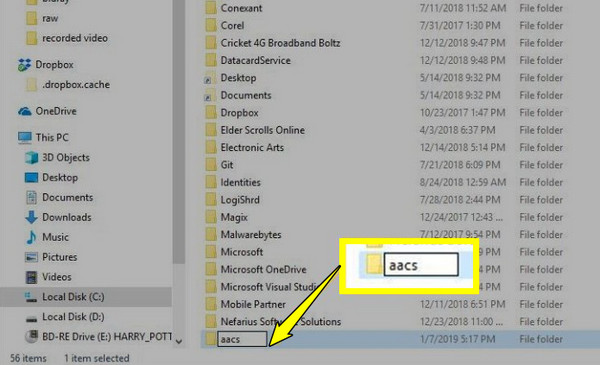
Once you have downloaded the needed files, press "Windows + R" keys, type "%APPDATA%" and press "Enter". Create a new folder inside and name it "aacs", then move your downloaded file into the new folder.
Step 3Place libaacs.dll in the VLC Installation Directory
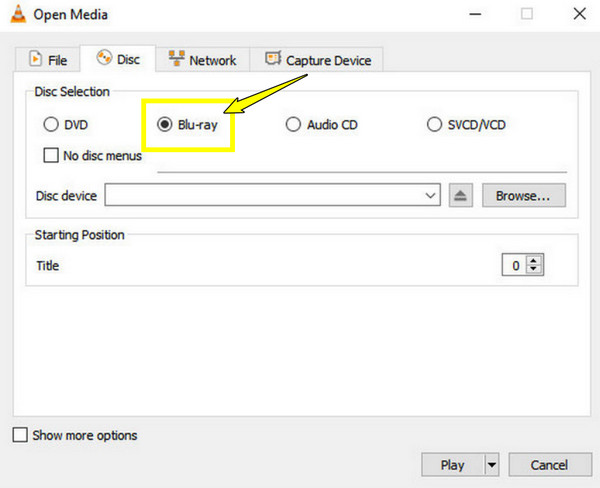
After securing the configuration file, add the library file to VLC's program folder. By default, this is C:Program FilesVideoLANVLC. Paste the downloaded libaacs.dll file. Now, launch VLC, go to "Media", then "Open Disc", and select "Blu-ray".
How to Play Blu-ray in VLC on Mac
Going to macOS ways to play Blu-ray films with VLC, the underlying logic remains the same, but the file paths and architecture are slightly different. Mac users need the community-source database and dynamic library to bypass AACS encryption. Still, these files must be placed within macOS's hidden system folders and the player's internal package structure.
Step 1Go to a trusted community key database site and download the needed files for macOS: KEYDB.cfg and libaacs.dylib.
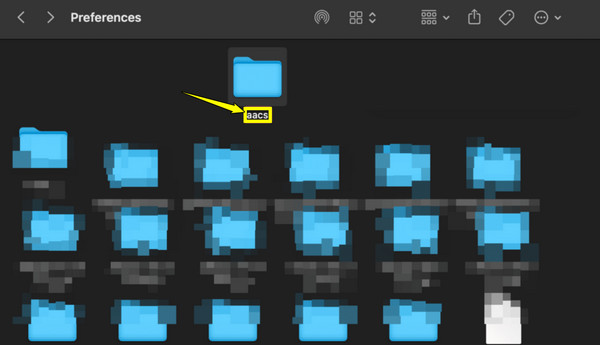
Step 2Then, open "Finder" and press "Command + Shift + G" keys to open the Go to Folder box. Type or paste the ~/Library/Preferences/ and press "Enter". Create a new folder inside and name it "aacs", then move your KEYDB.cfg file into the folder.
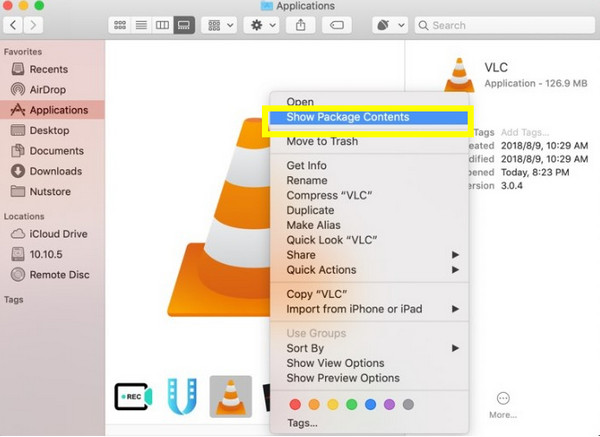
Step 3Now, launch the "Applications" folder and locate the VLC app. Right-click on it and select "Show Package Contents". Head to the internal folders by going to "Contents," then "MacOS" to "lib"; paste the downloaded libaacs.dylib into the lib folder.
Can't Open Blu-ray with VLC? Use 4Easysoft Blu-ray Player
There's a much simpler way to play Blu-ray and enjoy your movie night! Get out of those configuration files and hidden folders with a dedicated player named 4Easysoft Blu-ray Player! This hassle-free alternative removes the complicated barrier between you and your Blu-ray collection. Within seconds, you can transform your computer into a home theater system without digging through system directories. You can ensure you spend your time watching your favorite Blu-ray films rather than dealing with VLC Blu-ray playback errors.
Handles common Blu-ray protections, including AACS and BD+.
Supports Dolby TrueHD and DTS-HD Master Audio playback.
Watch Blu-ray movies in up to 4K Ultra HD with video effects.
Full disc menu navigation, customizable tracks, playlist creation, and more.
100% Secure
100% Secure
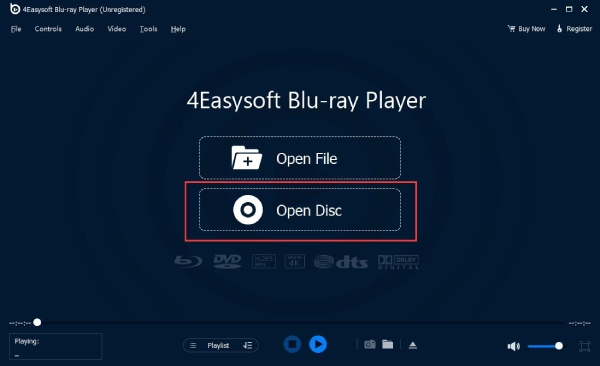
Step 1Start by opening 4Easysoft Blu-ray Player on your desktop. With your Blu-ray movie disc already inserted into the computer's drive, click the "Open Disc" button directly on the software's interface.
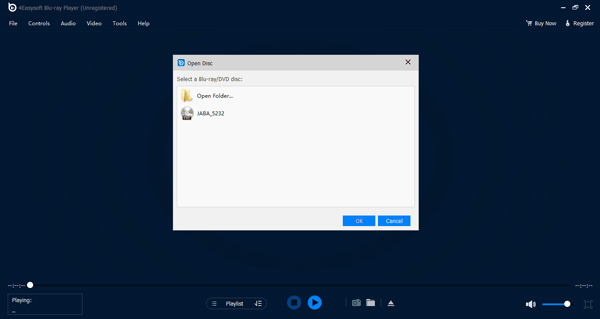
Step 2Moving on to the selection process, a pop-up window will show on your screen. Simply locate and choose your Blu-ray disc from the list, then click the "Open" button to import files and start watching instantly.
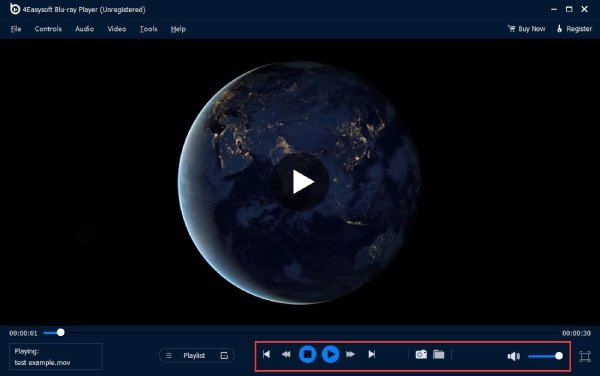
Step 3You can control the movie from the playback panel. Change the volume, switch to full screen, take a screenshot, or adjust the playback settings.
Common VLC Blu-ray Error Messages and What They Mean
Even so, a small misstep or an outdated key database can cause VLC to throw an error message when you try to play Blu-ray and UHD discs. Before concluding the entire post, here's a quick guide to the most common VLC Blu-ray playback errors, what they mean, and how to fix them instantly:
1. This Blu-ray disc needs a library for VLC AACS decoding. The player cannot find the libaacs dynamic library needed to start the decryption process.
Fix: Re-download the correct libaacs.dll (libaacs.dylib for Mac). Make sure it matches your VLC version and place it in the primary VLC installation folder.
2. Missing AACS configuration file. VLC found the decryption library, but it cannot find the central database file where the keys are stored.
3. No valid processing key found in AACS config file. While your files are in the right place, your specific Blu-ray is too new, and its decryption key is missing from your database file.
Fix: Visit the key database site again to see the newer version of KEYDB.cfg. If it does not work, use a dedicated tool to bypass the encryption.
4. This Blu-ray disc needs a library for BD+ decoding. The movie you're trying to play has BD+ security, and the player lacks the needed library files.
Fix: You can try to search online for community-made BD+ tables. Or upgrade to a premium, dedicated Blu-ray player for the most reliable solution.
5. Your input can't be opened. It happens when VLC fails to read the disc completely due to the entire DRM decryption chain failing, or the disc drive itself has a hardware issue.
Fix: Double-check that your disc is clean. Or completely restart VLC and run it as an Administrator to ensure it has proper permissions to access your Blu-ray drive.
Conclusion
Indeed highly rewarding if you get to play Blu-ray discs on VLC without a headache. While installing keys can get your movie night back on track, keeping these databases updated against DRM encryption is a continuous battle. So for a permanent fix, bypass these hassles entirely with the 4Easysoft Blu-ray Player. It is a native, region-free playback with no configuration required. Go to its official website today to download for Windows or Mac computers, unlocking those crystal clear playback experiences.
100% Secure
100% Secure
