

A Comprehensive Guide: How to Play Blu-ray on PC Smoothly

Posted by Paula Pailaga to DVD/Blu-ray Player Jul 02, 2026
How can you play Blu-ray discs on a PC? Many video enthusiasts may have similar questions. For high-quality Blu-ray videos, only video players with sufficient processing power can display rich details. Although many online tools claim to support Blu-ray playback, they often fail to play videos and sounds at the original quality. This post has recommended three reliable options for you to help you play 4K Blu-ray on your PC. Now start reading to choose the option that suits you best.
Guide List
A Professional Software to Play Blu-ray on PC without Quality Loss How to Play Blu-ray on PC Using VLC Media Player Quickly PotPlayer: A Trustworthy Tool to Play Blu-ray on PC with Extra FeaturesA Professional Software to Play Blu-ray on PC without Quality Loss
When it comes to the best application for playing Blu-ray on a PC, the answer is undoubtedly 4Easysoft Blu-ray Player. This tool supports all disc playback options, including Blu-ray. With the assistance of AI technology, 4Easysoft Blu-ray Player optimizes the video through algorithms, making every detail more vivid. Besides the improvement in picture quality, the lossless audio and high-definition surround sound effects provide you with a cinematic-level audio-visual feast.
Fully represents the original content within Blu-ray discs.
Playback Blu-ray discs, ISO files, and Ultra HD video Files.
Enhance the quality of any media file with AI technologies.
Use hotkeys to control the Blu-ray playback process quickly.
100% Secure
100% Secure
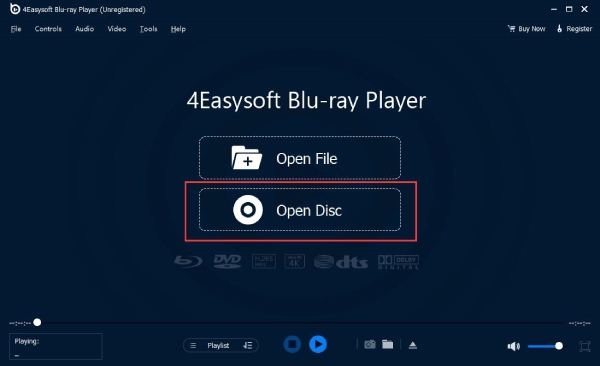
Step 1After inserting the Blu-ray disc into your PC, launch 4Easysoft Blu-ray Player and click the "Open Disc" button.
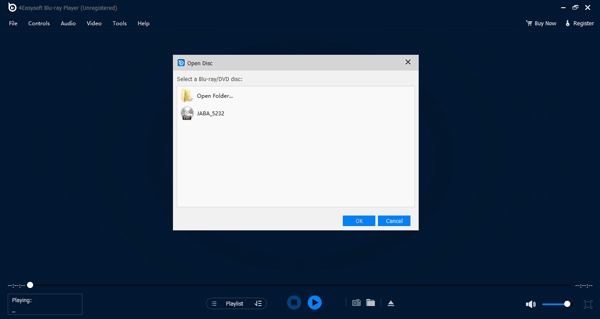
Step 2In the pop-up window, click to select the Blu-ray disc you inserted. Click the "OK" button to proceed.
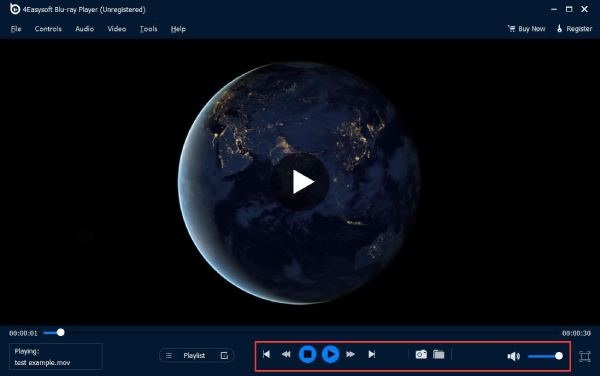
Step 3Now, you can play Blu-ray on PC smoothly. To gain full control over your video, you can use the control panel at the bottom.
How to Play Blu-ray on PC Using VLC Media Player Quickly
For those users who want to play Blu-ray discs on their PCs for free, VLC media player is an excellent choice. Video enthusiasts have widely used this open-source video player for many years. It has extremely powerful video processing capabilities, allowing you to watch 4K movies on your computer with advanced features. However, its biggest drawback lies in the fact that the Blu-ray region code restricts it. This means that you can only play Blu-ray discs from the region where the device is located.
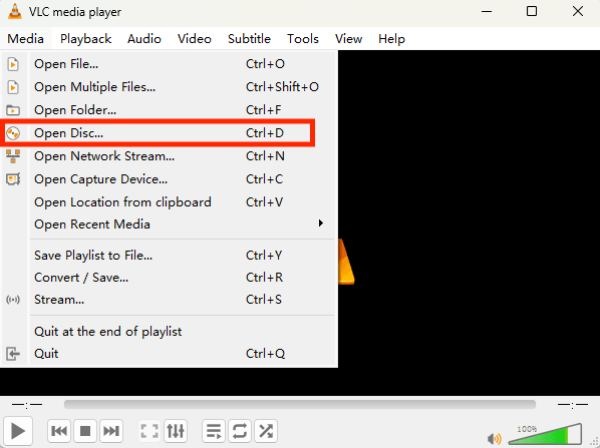
Step 1Insert the Blu-ray disc into your computer and launch VLC media player. Under the "Media" tab, click the "Open Disc..." button.
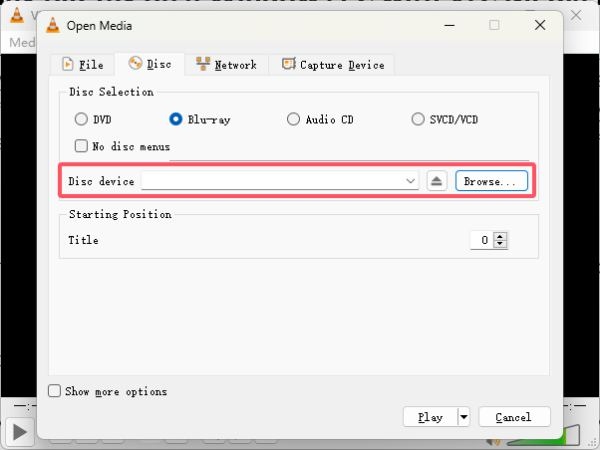
Step 2In the pop-up window, click the "Browse..." button under the "Disc" tab to select the Blu-ray disc for playback.
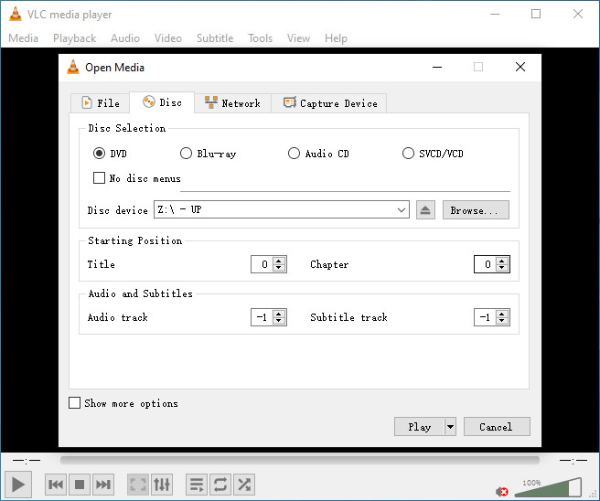
Step 3Now, you can enjoy and play 4K Blu-ray on your PC by clicking the "Play" button.
Tips
Generally speaking, your PC will allow you to change the area a limited number of times. But once the number of attempts is exhausted, you will no longer be able to change the area. Therefore, please be cautious when performing such an operation.
PotPlayer: A Trustworthy Tool to Play Blu-ray on PC with Extra Features
Often, when you play a Blu-ray disc on your PC, you will find that the disc does not contain subtitles that you can understand. This situation often occurs on Blu-ray discs that are not in your current region. At this point, adding additional subtitles is the simplest and most effective method. PotPlayer is such a comprehensive tool that enables you to customize subtitles and use them when playing Blu-ray discs. If you don't find the appropriate subtitles, it's okay. PotPlayer has an in-built AI model that enables you to transcribe the audio into subtitles. However, the advanced operations of this tool might be a bit complicated for beginners.
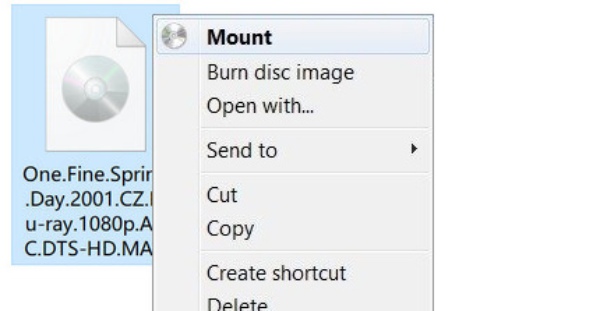
Step 1Insert your Blu-ray disc into your PC and find where it is located in your folder. Right-click the Blu-ray disc and click the "Mount" button.
Step 2Launch PotPlayer on your PC. Right-click the interface and click the "Open Blu-ray" button under the "Open" tab.
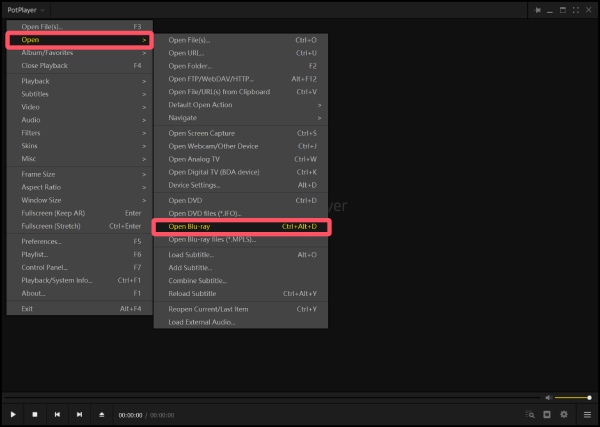
Step 3Now, you can play Blu-ray on your PC using PotPlayer. And you can add subtitles to this DVD based on your needs.

Conclusion
This post has recommended 3 applications for playing Blu-ray discs on a PC successfully. As a free tool, VLC media player enables you to play Blu-ray discs smoothly, but it is subject to the restrictions imposed by the region code. PotPlayer is suitable for advanced users to make custom settings, but it has a relatively complex operation logic. To play the original quality Blu-ray videos freely, you can use 4Easysoft Blu-ray Player to enjoy a cinema-level experience.
100% Secure
100% Secure
