

3 Workable Solutions to Help You Hook Up DVD Player to TV

Posted by Paula Pailaga to DVD/Blu-ray Player Feb 11, 2026
When you buy a new DVD player, you must want to know how to hook the DVD player up to a TV. But as there are more and more new models of DVD players showing up, many people do not know how to do it exactly. Although the technology of DVD player is progressing, there are always three methods which could solve all problems. This post will illustrate these methods and you can learn from them how to hook up DVD players to your TV.
Guide List
3 Ways to Hook Up a DVD Player to a TV with Cable Bonus Tips: The Ultimate DVD Player Software on PC Troubleshooting for Failed DVD-to-TV Connection FAQs about How to Hook Up DVD Player to TV3 Ways to Hook Up a DVD Player to a TV with Cable
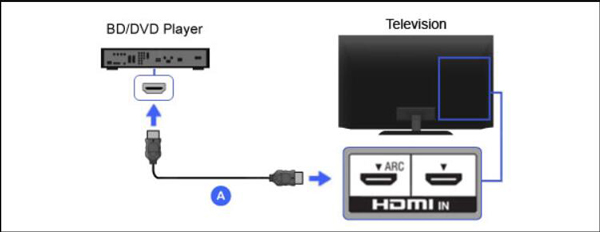
Method 1: Connect with HDMI Cable
The is the most commonly-used way for modern DVD players, which will also provide the highest quality connection for audio and video. The following steps are about how to hook up DVD players to a TV with HDMI cable.
Step 1Plug the cable end into the HDMI socket of your DVD player. Then, look for the HDMI/HDMI Out label to fit the cable securely into the socket.
Step 2Firstly, you should make sure that the HDMI connections are secure. There only one cable to carry the audio and video signal during the HDMI connection, and each end is capable. And you need to connect the devices tightly, or you may not get a good signal.
Step 3Power on your DVD player and TV, then insert the desired DVD disc to test the image and the audio.
Step 4Switch input settings on the TV through the Source button on your TV. You should note that the input option you choose from the TV should match the input you used.
Method 2: Connect the DVD player with Component Cables
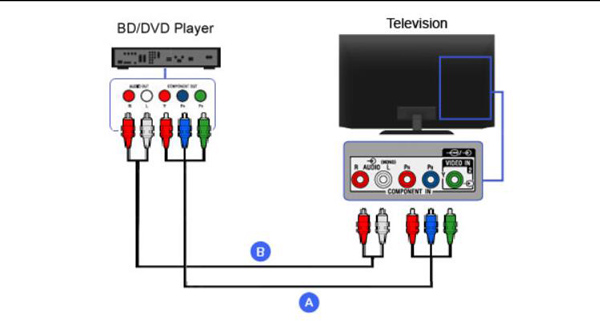
This method is much more complicated than others because it has too much cable color that you have to match. But do not worry about it, here are the steps about how to hook up a DVD player to a TV with component cables:
Step 1Component Cables have five cords with different colors. And in the Output or Out area on the back of the DVD player, there are five interfaces according to the colors. You need to plug all the cords into the interfaces with the same color.
Step 2Then insert the other ends of these cables into your TV and make sure to match their colors.
Step 3After connection, you can turn on both the DVD player and TV. And then you can start watching.
Method 3: Connect DVD Player with A/V Cables
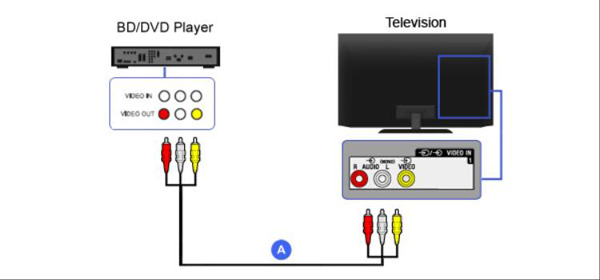
The second easy way is using an A/V cable. Although it has three colors, you can easily match them. And here are the steps to tell you how to hook up DVD players to your TV with A/V cables
Step 1Plug in one end of the A/V Cable to the Output sockets on the DVD player and the other end to the corresponding input sockets on the TV.
Step 2Make sure your connections are stable and matched to the right color.
Step 3The last step is to power on both the TV and DVD player. And then you can insert a disc to test the connection.
Bonus Tips: The Ultimate DVD Player Software on PC
If you do not want to buy a DVD player, you can use the software on your PC to play DVDs. And 4Easysoft Blu-ray Player is recommended to you. This software is like the ultimate DVD and Blu-ray player on your computer. It will bring you the cinema alike experience in your home. The AI technologies enable you to play discs smoothly, and the Dolby Digital Surround also promises you a lossless audio effect.
So, if you do not have a DVD player, or you just cannot figure out how to hook up a DVD player to a TV for now. You can download this software to play your DVD on a computer. If your PC cannot insert DVD, you can also buy an external DVD driver.
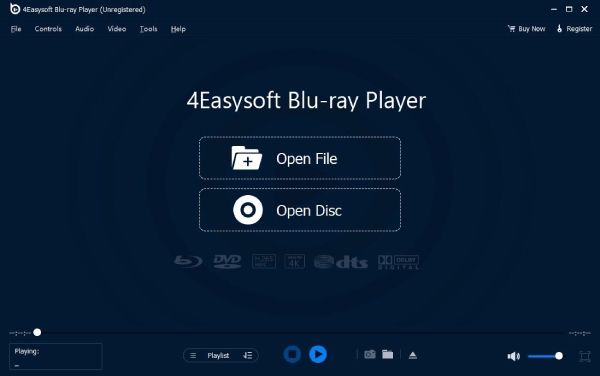
Playback DVDs, ISO files, and ultra-HD video files.
Provide immersive visual effects with crystal-clear details of DVD.
Enhance video quality with AI technologies and NVIDIA hardware acceleration.
Support up to 5.1 channels with Dolby Digital Surround, DTS, and Hi-Res Audio.
100% Secure
100% Secure
Troubleshooting for Failed DVD-to-TV Connection
Check Cables and Connectors
Ensure HDMI and AV cables are securely plugged in and connected to the correct ports (e.g., TV's HDMI 1 / HDMI 2). Replace cables if necessary for testing.
Select the Correct TV Input Source
Use the TV remote to switch the input source to the HDMI or AV channel connected to the DVD player. The DVD player will appear on one of the primary or auxiliary input channels. It will not appear on channels 3 or 4 as some VCRs do.
Check the DVD player's output settings
Some DVD players default to resolutions incompatible with your TV. Try resetting the player or adjusting the output resolution from 480p to 720p or 720p to 1080p.
Verify Disc and Cable Quality
Ensure the DVD is undamaged and its region code is compatible with the player, no picture or playback may occur. Alternatively, try using a different cable. Old cables can wear out, and connectors may become loose. This can cause poor connections or complete failure.
FAQs about How to Hook Up DVD Player to TV
-
Can I connect my phone to the external DVD player via USB?
Some smart DVD players can send a message on your phone, which lets you use the USB cable to connect and play the DVD on your phone.
-
What if my smart TV doesn’t have yellow/white/red connectors?
Use an RCA-to-HDMI converter or a TV-specific AV adapter cable to connect your DVD player, or consider upgrading to an HDMI-enabled player. Alternatively, you can convert DVDs to digital video files and play them directly on the smart TV.
-
How to hook up a DVD player to a smart TV?
The way to hook up a DVD player to a smart TV is the same as the above. But if you cannot do it, the only thing you can do is to play a DVD with the 4Easysoft Blu-ray player on the computer, and then save the DVD on a USB drive and play it on TV.
Conclusion
This article outlines three methods for hooking up a DVD player to a TV. You can troubleshoot based on your specific TV and DVD player setup, then select the appropriate connection method. If none of the above methods work, you can use 4Easysoft Blu-ray Player to play all DVD formats on your computer. Not only will you enjoy a high-quality video experience, but you can also customize playback settings to your preference.
100% Secure
100% Secure
