
Reliable video converter, editor, and compressor for daily tasks.

Convert FLAC to ALAC: 5 Best Ways to Transform Music Quickly

Posted by Aira Lesly Escoto to Convert Audio Feb 27, 2026
Chances are higher that your most files in your music library are stored in FLAC. While it is the gold standard for lossless audio, it is ideal when you drop those files into Apple Music, as it has its own flavor of lossless. Here comes the need to convert FLAC to ALAC. How? Today's guide shares the five most effective FLAC to ALAC converters, from powerful desktop software to quick online tools. Convert your library today without a single note of your favorite tracks.
Guide List
What are FLAC and ALAC? Best Way to Convert FLAC to ALAC on PC/Mac with Quality Convert FLAC to ALAC for Free with Shortcut on Mac Effectively Convert FLAC to ALAC in 3 Online Methods| Method | Best For | Batch Processing | Conversion Speed | File Size Limit |
| 4Easysoft Total Video Converter | Large music libraries and power users | Yes | Ultra-fast | No limit |
| Mac Shortcut | Quick conversion for Apple users | Yes | Fast | No limit |
| FreeConvert | Casual users | Yes, up to 5 files | Moderate | 1 GB |
| OnlineConverter.com | One-off tracks | No | Slow | 200 MB |
| CloudConvert | High-quality cloud options | Yes, up to 5 files | Fast | 1 GB |
What are FLAC and ALAC?
FLAC and ALAC are designed to compress audio files without sacrificing any data, there are differences in terms of compatibility with your devices. FLAC is the standard for open-source high-resolution audio. The FLAC format supported by a wide range of Android devices. In contrast, ALAC is Apple's specialized format for Apple Music, iTunes, and iOS devices. Therefore, FLAC files will not play natively on most Apple devices, which made FLAC-to-ALAC conversion necessary.
Best Way to Convert FLAC to ALAC on PC/Mac with Quality
When you are dealing with high-fidelity audio, the last thing you want is to compromise your listening experience. So, to keep every detail of your sound while converting FLAC to Apple Lossless, a professional-grade desktop program like 4Easysoft Total Video Converter is your best choice. It turns your music libraries without crashes and any glitches in batch, including FLAC, ALAC, MP3, AAC, and more than 600 formats. Beyond just converting, it utilizes your computer's hardware to blast through the process at top speed.
60× faster speed to convert FLAC to ALAC, as well as WAV, AAC, and more.
Provides hardware acceleration, so you are not waiting all day.
Manually adjust sample rates, bitrates, and other settings for perfect results.
Batch convert entire library in one go without losing quality.
100% Secure
100% Secure
Step 1Fire up 4Easysoft Total Video Converter. Click the "Add Files" button to import your FLAC collection.

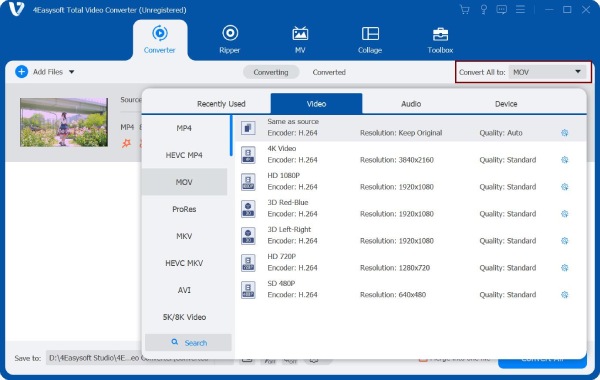
Step 2Head over to the "Convert All" dropdown menu in the top right. Click the "Audio" tab, and locate the "ALAC" format in the list. Ensure to pick the profile that matches your quality for a seamless transition.
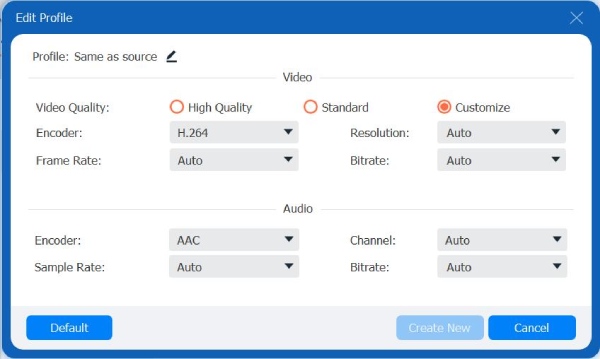
Step 3Click the "Custom Profile" button to adjust the sample rate and channels to exactly what you need.
Step 4Once everything looks right, select your folder at the bottom, then click the "Convert All" button. The program will take it from there and convert FLAC to ALAC in a flash.

Convert FLAC to ALAC for Free with Shortcut on Mac
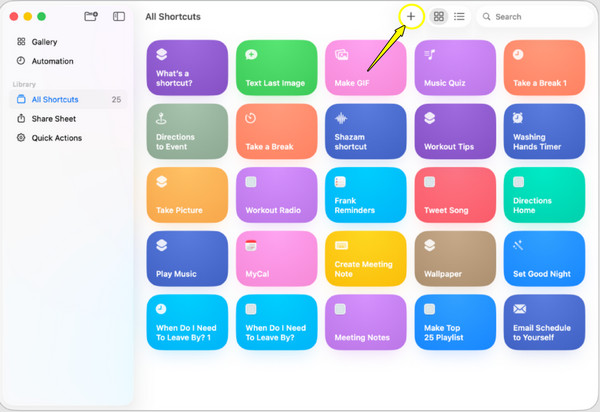
While desktop software offers the best performance for large FLAC collections, you can also rely on built-in system tools, especially if you're a Mac user. You can use the power of the built-in Shortcuts app to create a conversion tool, which is completely free and needs no third-party help. By setting up a Quick Action, you can transform FLAC to ALAC audio from your Finder.
Step 1Start the "Shortcut" app on your Mac, and click the "Add" button to create a new one. Type "Encode Media" and drag it into the editor.
Step 2After that, click the "MPEG-4" blue text, and set the format to "ALAC". Make sure the shortcut is set to receive "Shortcut Input" from Finder.
Step 3Next, right-click on your FLAC audio file in Finder, head to "Quick Actions", and choose your new shortcut to create the ALAC version instantly.
Effectively Convert FLAC to ALAC in 3 Online Methods
For those who prefer to configure any settings, web-based tools are convenient alternatives to turn FLAC to ALAC. Here are the three most reliable online FLAC converters.
FreeConvert
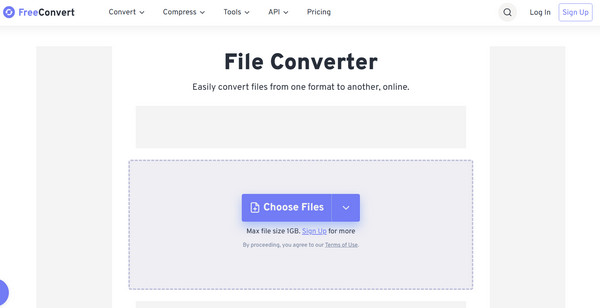
FreeConvert is a versatile FLAC to Apple Lossless converter that is known for its Advanced Settings that let you control audio parameters. It can handle files up to 1GB for free and offer a very secure environment for your private data.
- 1.Inside the FreeConvert website, click "Choose Files" to import your FLAC tracks from your device or cloud storage.
- 2.Choose "ALAC" as your output format.
- 3.Then click "Convert" and download the converted files once the bar finishes.
OnlineConverter.com
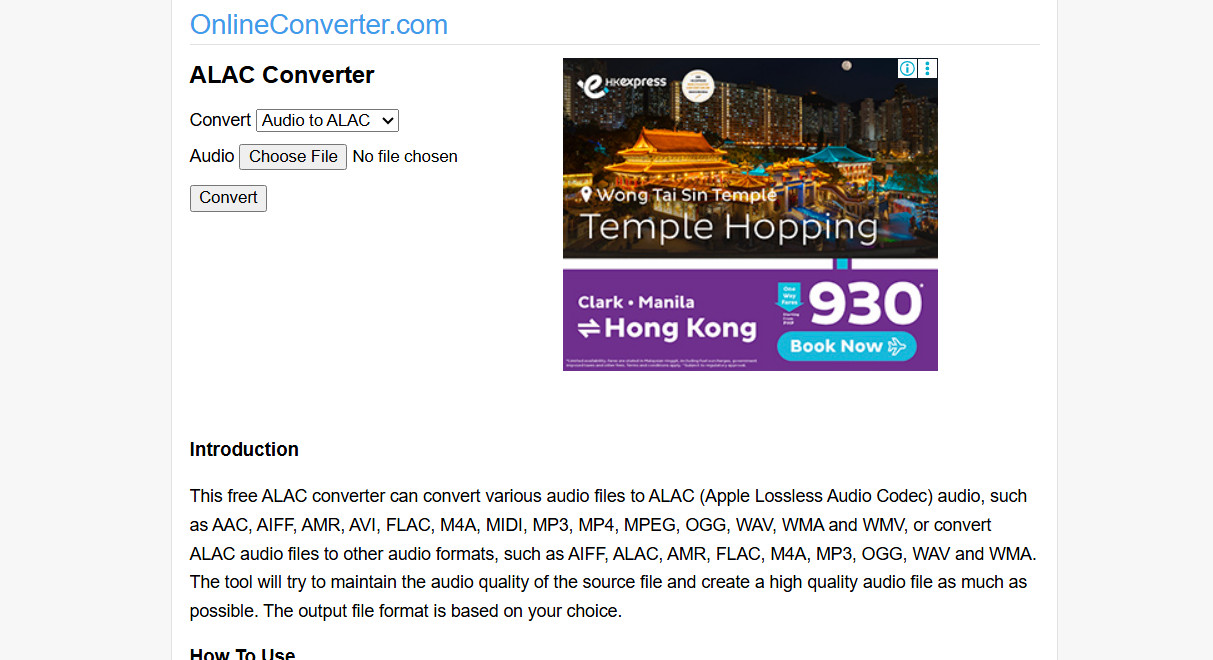
This is a simple, no-frills approach to change FLAC files to ALAC that focuses on simplicity and speed above anything else. The OnlineConverter is perfect for older computers and mobile browsers, making it great for converting songs on the go.
- 1.From the OnlineConvert.com, select "Audio Converter" and pick "ALAC" as the target format.
- 2.Then, upload your FLAC, up to 200MB.
- 3.Click "Convert" and kindly wait for the download link to appear once done.
CloudConvert
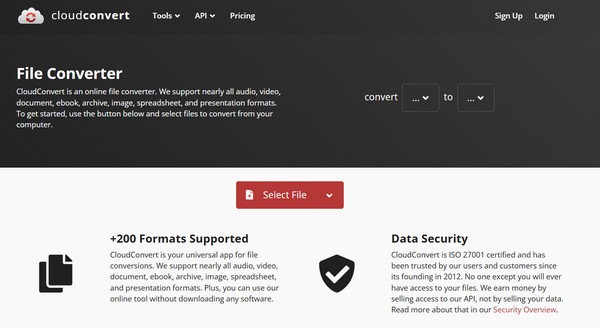
Meanwhile, CloudConvert is the gold standard for file transformation online. Besides offering high-end security, this online FLAC to ALAC audio converter supports 200 formats and ensures that the conversion process runs on powerful servers to save your local CPU.
- 1.Head to the CloudConvert site; there, click "Select File" to upload your FLAC audio.
- 2.Make sure to set the "To" format menu to "ALAC" from Audio.
- 3.Then, click "Convert", and later the "Download" green button to save your file.
Conclusion
You can have the convenience of an online converter, or the speed of a Mac shortcut and a desktop app; each option here can help you switch FLAC to ALAC. Choosing the right one comes down to how many of your music files are and how much control you want over the result. So, if you are serious about your audio collection for Mac, 4Easysoft Total Video Converter is the clear winner here. Besides handling a bunch of FLAC files, it works at a fast speed, without stability issues or size limits of online tools. It ensures your sound is just as rich and detailed in its new Apple container.
100% Secure
100% Secure
