
Fix 150+ iOS system problems without data loss.

AirPods Won't Connect to iPhone? Try These 8 Fixes

Posted by Paula Pailaga to iOS Recovery Nov 07, 2025
AirPods are made to pair instantly with your iPhone, but sometimes, things like AirPods won't connect to iPhone happen. Whether it is due to a stubborn Bluetooth issue or low battery levels, this problem can be both inconvenient. However, you can fix it at home in just a few steps. This guide covers eight practical ways to fix the AirPods not connecting to iPhone issue, from basic troubleshooting to deeper iOS repairs. Get back to wireless listening in minutes!
Guide List
What Caused AirPods won't Connect Fix 1. Check AirPods Battery Fix 2. Re-enable Bluetooth Fix 3. Forget AirPods, then Reconnect Fix 4. Restart iPhone Fix 5. Update iOS Fix 6. Reset AirPods Fix 7. Check for Interference Best Way to Fix AirPods Won't Connect to iPhoneWhat Caused AirPods won't Connect
The AirPods won't connect to iPhone issue is not always with the earbuds themselves. It stems from various causes, such as software problems or simple oversights. Before knowing how to fix it, understanding the root causes will help you apply the right solution. See them below:
• Bluetooth is turned off or unstable.
• The AirPods battery is too low.
• Some devices are connected to your AirPods.
• Temporary iOS errors.
• Dirty charging contacts.
• Incompatibility issues with outdated iOS versions.
Fix 1. Check AirPods Battery
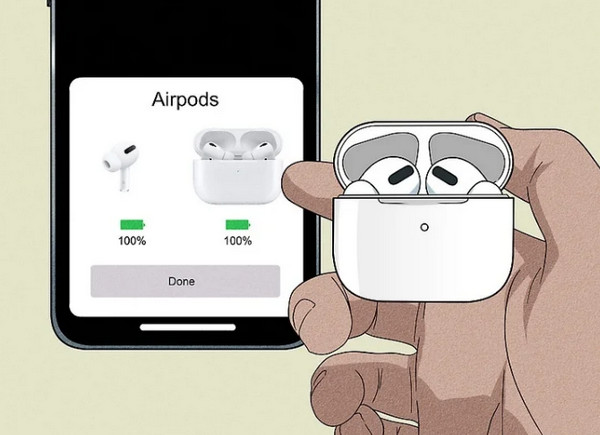
You may be having an AirPods won't connect after holding the button issue due to the low battery in the charging case. If so, ensure AirPods have enough battery to pair with your iPhone.
1. Put both AirPods in the charging case. Bring it close to your iPhone and open the lid. Please wait for the battery pop-up to appear.
2. Charge them for about 15 to 20 minutes, then try re-pairing.
Fix 2. Re-enable Bluetooth
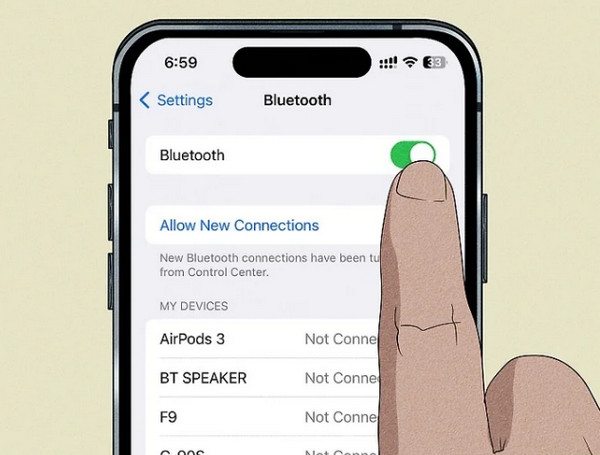
If the Bluetooth connection gets stuck, it may have trouble detecting your iPhone properly. For this, restart Bluetooth to refresh the connection.
1. Inside the "Settings" app on your iPhone, tap on "Bluetooth", then toggle it off.
2. Wait for a while, turn it back on.
3. Afterward, put your AirPods in your ears or near your iPhone to reconnect.
Fix 3. Forget AirPods, then Reconnect
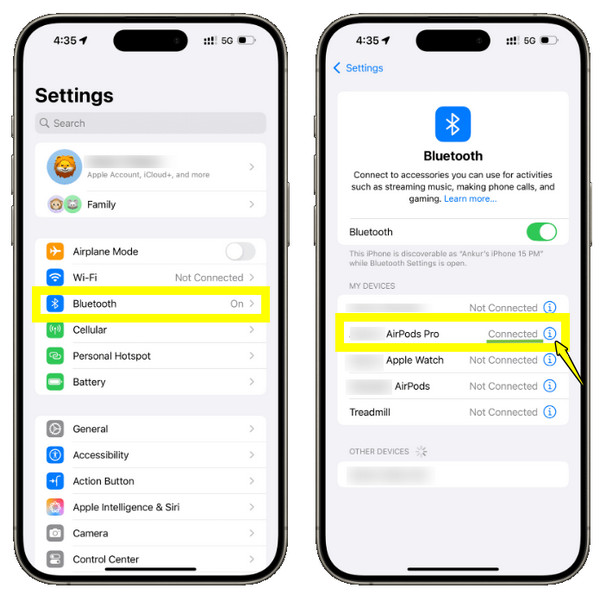
Sometimes, a pairing glitch can occur, and when this happens, try to remove and re-pair your AirPods. Doing so can reset the Bluetooth connection, fixing the issue where AirPods, AirPods Pro, and AirPods Max won't connect to iPhone.
1. Open "Settings", then select "Bluetooth". Tap the "i" next to your AirPods' name. There, tap "Forget This Device".
2. After that, put it back in the case, open the lid, and press the "Setup" button on the back and wait for the white flashes. Reconnect your iPhone.
Fix 4. Restart iPhone
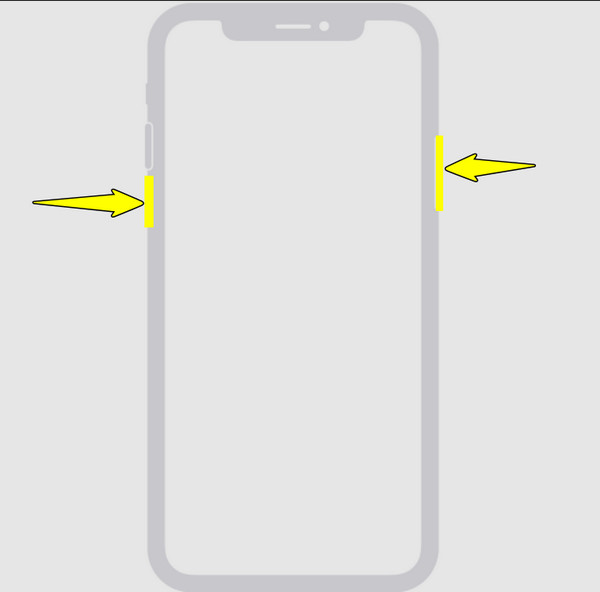
A temporary software glitch can prevent AirPods from connecting to your device. Thus, restarting your iPhone can refresh all background connections.
1. Hold down the "Power" button or the "Volume" button. Once you see the slider, drag it to turn off your iPhone.
2. Please wait for about 15 seconds, then press and hold the "Power" button to power on.
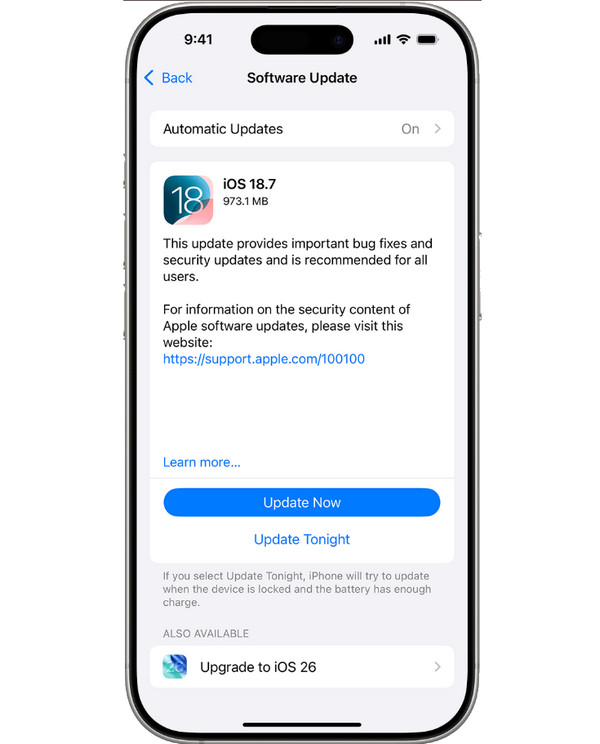
Fix 5. Update iOS
Since outdated iOS versions can cause compatibility issues, giving you the problem of AirPods not connecting, try updating it to match the latest AirPods firmware.
1. Make sure your iPhone is connected to Wi-Fi.
2. Then, head to "Settings", then tap on "General" and select "Software Update".
3. If an update is available, tap "Update Now". Later, try connecting your AirPods again.
Fix 6. Reset AirPods
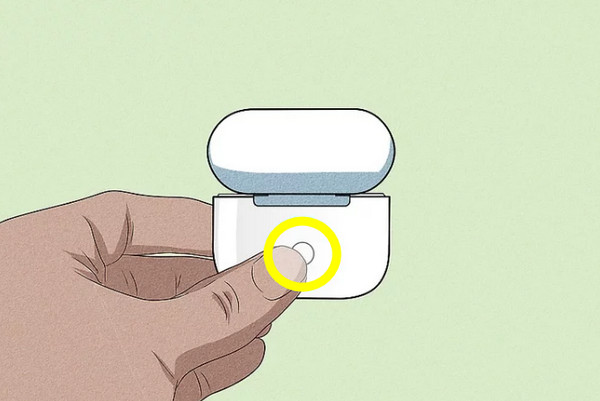
Doing a reset can restore your AirPods to factory settings, and this removes bugs and other failed pairings that prevent you from connecting.
1. Get back the AirPods in the charging case.
2. Open the lid, then press the "Setup" button on the back for 15 seconds. 3. Now, reconnect your AirPods by holding them closer to your iPhone.
Fix 7. Check for Interference
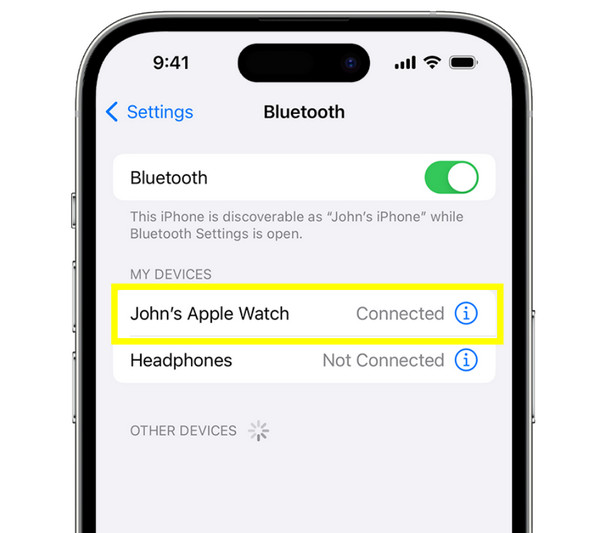
There may be nearby Bluetooth devices that are paired with your AirPods. Perhaps Wi-Fi signals interfere with your AirPods' connection, leaving you with AirPods won't connect to iPhone.
1. Disable Bluetooth on close devices that may be connected to your AirPods. Otherwise, move away from them.
2. Then, try connecting your iPhone again in an interference-free space.
Best Way to Fix AirPods Won't Connect to iPhone
As said, the problem is not always with the AirPods themselves, which is why AirPods won't connect to iPhone. Sometimes, the issue is with the deeper iOS system glitches that prevent Bluetooth and the device from pairing. For this, it is worth using a reliable repair tool like 4Easysoft iOS System Recovery. This amazing software is designed to fix over 50 kinds of iOS-related problems, from Bluetooth errors to frozen screens, crashes, and more, all without risking your data and privacy. A smooth, safe, and hassle-free repair performance awaits you here, regardless of what iPhone and iOS version you're using.
Can repair iOS system issues that are causing AirPods to fail to connect.
Provides two repair modes: Standard Mode and Advanced Mode.
Delivers a high success rate and quick restoration without affecting other data.
Fully works with all iPhone, iPad, and iPod models, and the newest iOS versions.
100% Secure
100% Secure
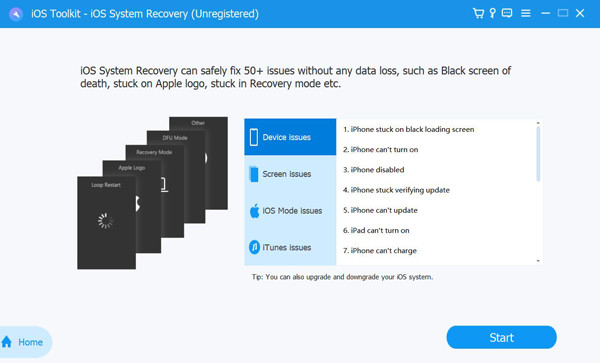
Step 1Start 4Easysoft iOS System Recovery on your computer and pair your iPhone via a USB cable. On the main screen, select "iOS System Recovery" and click the "Start" button.
Step 2Once your iPhone is linked, use the "Free Quick Fix" option to automatically resolve minor iOS issues that block your AirPods from connecting.
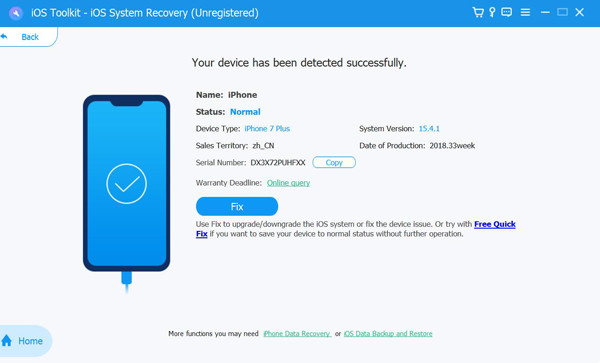
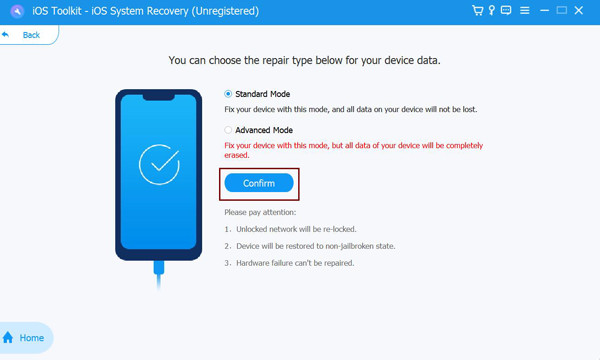
For severe problems, click the "Fix" option. Then, select "Standard Mode" to keep your data safe or "Advanced Mode" for more severe system faults. Confirm it by clicking the "Confirm" button.
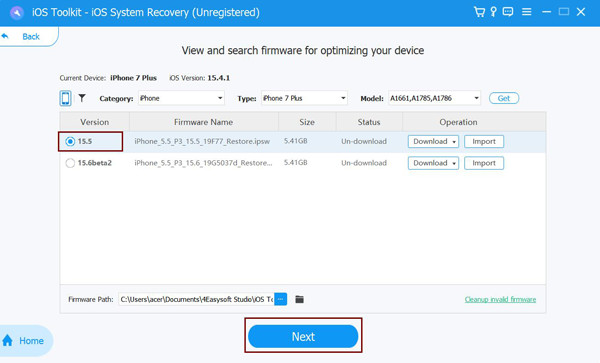
Step 3Check your device model and your current iOS version on-screen. Then, download the proper firmware package for your device. Once it finishes, click the "Next" button to begin the system repair. Later, try reconnecting your AirPods again.
Conclusion
The eight methods above can help you pinpoint and solve AirPods not connecting to iPhone, whether it is a Bluetooth glitch, a drained battery, or a hidden iOS error. Begin with a simple check, e.g., turn on Bluetooth, charge AirPods, or reset the connection. But if the issue runs deeper, a professional tool like 4Easysoft iOS System Recovery fixes underlying system errors that block pairing without putting your data at risk. With this tool, you should reconnect seamlessly, letting you listen to your music and calls in no time.
100% Secure
100% Secure
