
Recover all data from your iOS devices, iTunes and iCloud backup.

Comprehensive Guide to Tell You How to Set Up iPhone Voicemail

Posted by Alvin Cantero to iOS Recovery Dec 25, 2025
Are you frustrated by missed calls due to meetings? The voicemail feature is designed to solve this problem. Set up voicemail on your iPhone to not only record missed calls but also quickly understand message content through text transcription. Continue reading this article for detailed steps on setting up voicemail on your iPhone.
Guide List
How Does iPhone Voicemail Work? How to Properly Activate and Use Voicemail on iPhone? How to Check and Listen to Voicemails on iPhone Bonus Tip: How to Permanently Save iPhone VoicemailsHow Does iPhone Voicemail Work?
When a call comes in, the system first checks your phone's status. If you set up the iPhone's voicemail, and you don't answer or actively reject the call within a specified time, it transfers to voicemail.
At this point, your carrier's voicemail server plays your pre-recorded greeting before starting to record the caller's message. The entire process occurs entirely in the cloud, without taking up any storage space on your phone.
Newer iPhone models (especially those running iOS 26 or later) feature real-time voicemail transcription. This means you can view a text transcript of the caller's message as it's being recorded, allowing you to decide whether to return the call immediately.
This feature boosts efficiency and enables you to understand the call's content even when you can't answer. Transcription accuracy continues to improve with each iOS update and now supports multiple languages.
How to Properly Activate and Use Voicemail on iPhone?
Setting up your iPhone voicemail is straightforward, but a few prerequisites must be met: ensure you have a strong cellular signal, an active SIM card is inserted, and your carrier supports voicemail services. While voicemail systems may vary slightly between carriers, the basic voicemail setup process remains consistent.
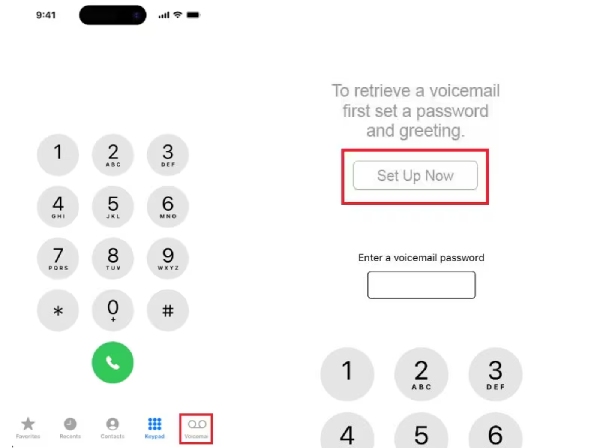
Step 1Open the Phone app on your iPhone, locate the menu bar at the bottom, and tap "Voicemail".
Step 2Before activating Voicemail, you must set or reset the voicemail passcode and choose a greeting. To do this, tap "Set Up Now".
Step 3Enter a custom Voicemail passcode. The passcode must be at least four digits and no more than ten digits.
Step 4Re-enter the passcode to confirm. Then tap "Done" in the upper-right corner of the screen to continue.
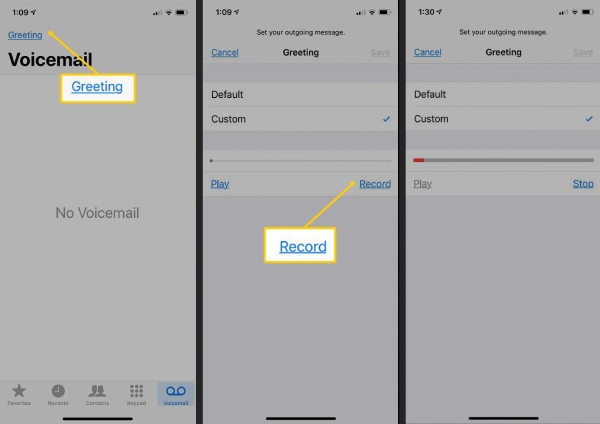
Step 5Now, set your iPhone voicemail greeting. If you don't want to record a custom greeting, select "Default" to use the greeting provided by Apple.
Step 6To use a personalized greeting, tap "Custom." Tap "Record," then start speaking. Afterward, tap "Play" to preview the audio.
Step 7When finished, tap the "Save" button in the upper-right corner of the screen. Your voicemail will now appear in your missed calls.
How to Check and Listen to Voicemails on iPhone
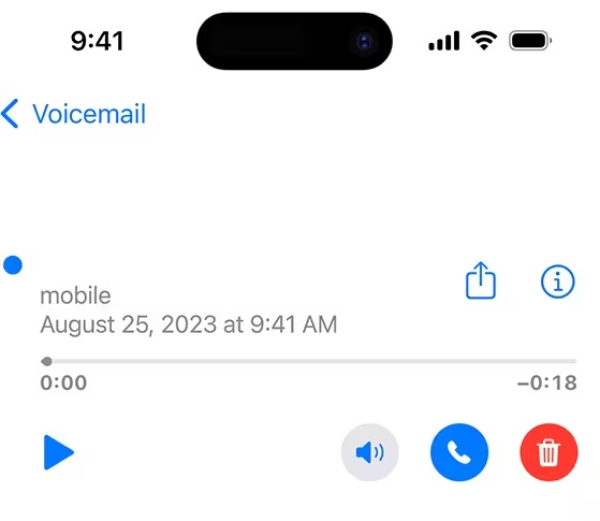
Checking and listening to voicemail sent by others is very simple. Typically, you just need to open your voicemail, and it will automatically display all voice messages. Tap to play a message.
Step 1Tap the Phone app, locate the menu bar at the bottom of the screen, then click "Voicemail" next to the keyboard button.
Step 2The screen will display voicemails saved to your iPhone. Tap the voicemail you wish to listen to.
Step 3If this is your first time listening to the message, it will play automatically after tapping.
Step 4If you've previously listened to the message, a play button and additional options will appear below the voicemail list.
Bonus Tip: How to Permanently Save iPhone Voicemails
After setting up iPhone voicemail, accumulated messages will take up storage space. However, if you still need to keep a record, you can back them up to your computer. This allows you to review them anytime while freeing up space on your iPhone. 4Easysoft iOS Data Backup and Restore is the ideal solution. This software offers selective backup options, letting you choose which voicemails to back up. The process is fast and straightforward, requiring just three steps.
Support previewing files and selecting specific voicemail backups.
Offer encrypted backup options to protect privacy and security.
The backup process does not overwrite existing data, preventing accidental data loss.
Support most iPhone models, such as iPhone 17, and various data types.
100% Secure
100% Secure
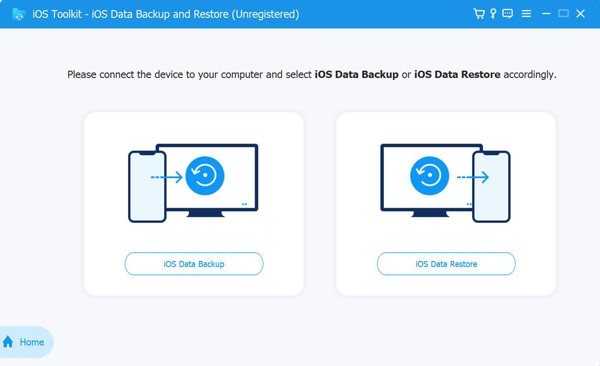
Step 1Launch the software and connect your iPhone to your computer via a USB cable. Then, click "iOS Data Backup" again.
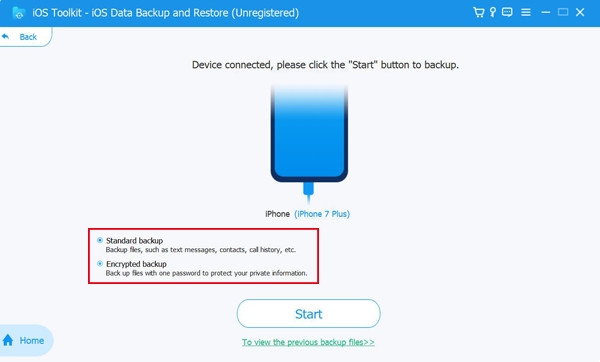
Step 2Next, you can choose between a standard backup and an encrypted backup. After selecting, click the "Start" button to proceed.
Step 3Select the voicemail data you wish to back up as needed. Finally, click the "Next" button to back up this data quickly.
Conclusion
Here are the specific steps to set up voicemail on iPhone and methods for backing up your voicemail data. You can activate iPhone voicemail immediately to prevent missing important calls. For backup needs, consider using 4Easysoft iOS Data Backup and Restore, which securely backs up various data types—including voicemail—from most iOS device models. Download it now to free up space on your iPhone.
100% Secure
100% Secure
