
Convert, edit, and compress videos/audios in 1000+ formats with high quality.

Need Faster GIFs? 3 Ways to Speed Up GIF Here and More

Posted by Aira Lesly Escoto to Edit Video/Audio Dec 10, 2025
A snappy, high-energy GIF is more engaging than a slow one. Whether it is a quick reaction meme or to shorten a file's duration, knowing how to speed up a GIF is necessary. The animated GIF speed is determined by its Frame Delay, so you need to decrease it to make a GIF faster. How? This guide covers 3 different ways to change GIF speed, from desktop to mobile tools, helping you find the perfect method to change your GIF's speed quickly.
Guide List
Understanding the Meaning of Frame Rates in GIFs How to Speed Up GIFs with the Best Tool on Windows/Mac Speed Up GIF on iPhone with Flexible ImgPlay How to Edit GIF Speed on Android with GIF MakerUnderstanding the Meaning of Frame Rates in GIFs
While video consistently uses the term frame rate, understanding how it applies to the GIF is crucial for smooth playback and effective editing. GIFs are essentially a sequence of still images played in quick succession. The rate at which these images flash on the screen dictates the smoothness and speed of the animation, which is specifically called the frame delay.
With Short Frame Delay, the GIF results in a faster animation. At the same time, Long Frame Delay results in a lower animation. Changing the frame delay can affect the feeling of the GIFs. Speeding up adds humor and creates a time-lapse look, and also reduces the file size. On the other hand, slowing down helps focus on a moment, can add suspense, and will give the audience time to read a caption. Moreover, you can
So, when you speed up or slow down a GIF, you're directly multiplying the number of delays set for each frame.
How to Speed Up GIFs with the Best Tool on Windows/Mac
The first tool here to help you make GIFs go faster is the 4Easysoft Total Video Converter, an optimal desktop solution for quickly and easily adjusting the speed of your animated GIFs or the source videos used to create them. It is made with a beginner-friendly interface that removes the need for complex timelines, making high-quality speed adjustments so simple and fast on both Windows and Mac computers. Furthermore, the tool is lightweight, supports a broad range of formats, and utilizes GPU acceleration to ensure quick processing and export, all without compromising the final quality.

Speed up GIF or slow down to any rate while keeping high-quality.
Fine-tune output settings, like resolution, frame rate, and format.
Includes a built-in editor for cropping, trimming, adding filters, effects, and more.
Uses GPU acceleration for lightning-fast export times.
100% Secure
100% Secure
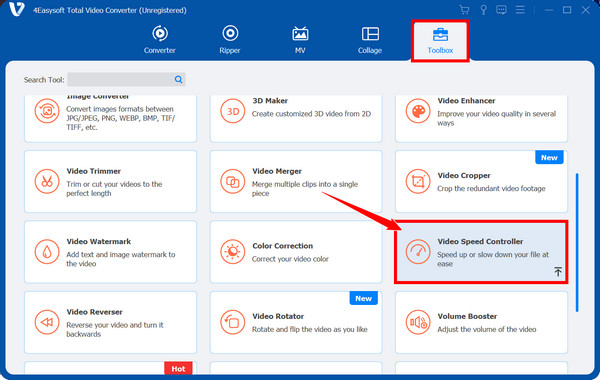
Step 1Open 4Easysoft Total Video Converter on your computer. Navigate to the "Toolbox" widget tab and choose the "Video Speed Controller" among other toolkits.
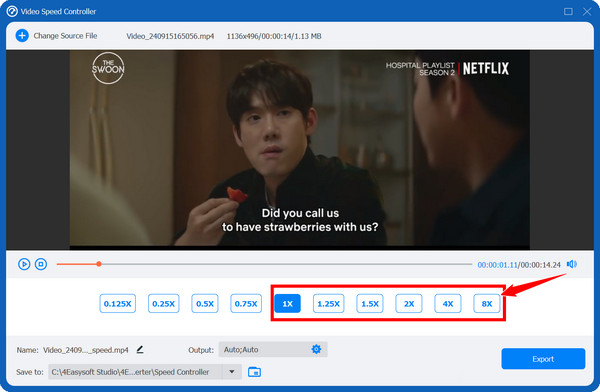
Step 2Click the "Add" button to upload your GIF file. Choose your desired speed from the presets up to 8x. You can use the "Settings" button to customize the frame rate, resolution, and format, if needed.
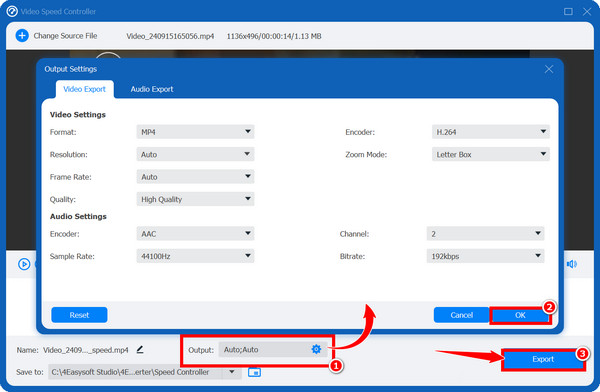
Step 3After setting your preferred speed and custom settings, click the "Export" button. The tool's hardware acceleration will process and export your sped-up GIF quickly.
100% Secure
100% Secure
Speed Up GIF on iPhone with Flexible ImgPlay
For iPhone users, you can use ImgPlay to speed up GIF animations, a popular and flexible application specifically made for creating and editing videos and GIFs. You can convert MP4 to GIF animations from all sources. It features an intuitive interface for adjusting speed, making it an excellent selection for quickly speeding up your GIFs, whether you wish to lessen their viewing time or create a fast-paced loop on your device.
Step 1Open the ImgPlay app on your iPhone. Tap the "Start" button and choose the GIF from your Camera Roll or Files that you wish to speed up.

Step 2After the GIF is loaded into the editor, look for the "Speed" tool in the menu bar, tap on it to open the speed adjustment panel. Drag the slider to the "right" to make GIF images faster. It usually shows the frame rate as you adjust.
Step 3Use the preview window to watch the sped-up GIF play. Make sure it is fast enough for your needs. Later, tap the "Next" button, select your quality, and tap the "Save" button.
How to Edit GIF Speed on Android with GIF Maker
Meanwhile, for Android users, GIF Maker has the necessary tools for manipulating existing GIFs. This method is the perfect solution to speed up GIFs on your Android phone, giving control over the frame rate and processing capabilities ideal for sharing via messaging and social media platforms.
Step 1Launch the GIF Maker app on your Android device. Choose the option to "Edit GIF" or "Open existing GIF" and upload the file you want to speed up from your gallery.
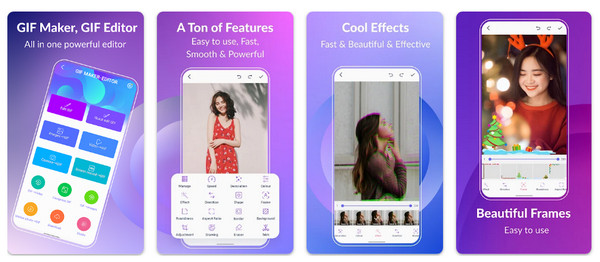
Step 2Once the GIF is loaded, locate the "Speed" or "Frame Rate" control from the toolbar. There, control the delay between frames; decrease this delay, like from 200ms to 50ms.
Step 3You can check the playback to confirm the desired GIF speed is achieved. Once okay, tap the "Save" button to get the sped-up GIF.
Conclusion
You've seen here today that to speed up GIF animations, you have to decrease the frame delay, and it is a vital skill for creating engaging content for fast-scrolling social media platforms. From desktop software to mobile apps, the best choice depends on the consistency, quality, and control you're looking for. 4Easysoft Total Video Converter provides a seamless and intuitive way to adjust the speed of your GIF animation with exciting conversion and editing features. So, it can be your best GIF speed changer and video editor on both Windows and Mac.
100% Secure
100% Secure
